

We have an honest review policy, but this page contains affiliate links. If you buy through these, we may earn a commission. This helps fund our research at no cost to you.

There is a huge number of online store building tools now available, and choosing the right one for your business can feel really difficult. Shopify is probably the best-known ecommerce solution available — but is it actually the best one for you? Well, in this updated 2026 Shopify review, I’m going to help you find out.
Quick verdict
Shopify is one of the strongest ecommerce platforms on the market. It excels at multi-channel selling, point-of-sale commerce, dropshipping, and international selling, and it combines these strengths with sophisticated marketing automation tools, solid SEO features, and an increasingly useful set of AI features.
That said, it isn’t perfect. Its content management tools lag behind those of some competitors; accessing important functionality often requires paying more than you might like for apps; and ungenerous user account limits can quickly push merchants onto one of Shopify’s more expensive plans.
Overall though, if you want a powerful, reliable platform that can grow with your business, Shopify is very hard to beat.
I’ll begin my full comparison with a quick look at how Shopify works.
How Shopify works
Shopify is a ‘hosted’ solution — an app that doesn’t require any web hosting or software installation. You build and manage your Shopify store in a web browser — so, as long as you have access to the Internet, you can run a Shopify business from any location.
The platform aims to give you the key things you need to start an online store ‘out of the box’: templates, a payment processor, a content management system, a blog and hosting.

Although its built-in features will generally cover most merchants’ core selling needs, it’s also possible to customize a Shopify store more extensively through the addition of apps or by using custom code (CSS, HTML or Liquid, Shopify’s own templating language).
It’s also possible to use Shopify’s AI features — which I explore in more depth later on — to customize your store’s look and feel (either at the point of setting it up, or afterwards).
Finally, because it’s a ‘Software as a Service’ (SaaS) product, you don’t own a copy of Shopify but instead pay a monthly fee to use it.
More on pricing later — but first, let’s take a look at visuals.
While you’re here — have you seen our latest video review of Shopify?
Shopify themes
Shopify provides 24 free ecommerce templates (or ‘themes’) that you can use as the starting point for your store design.
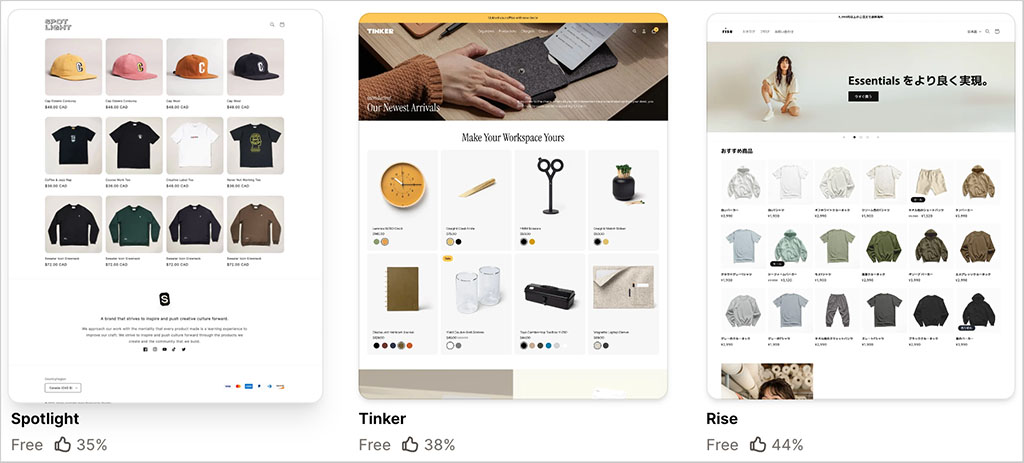
Now, by comparison to other ecommerce platforms we’ve tested, I found Shopify to be rather ungenerous here. For example, Wix and Squarespace provide 2,982 and 200 bundled themes respectively — giving you a lot more choice over your store’s appearance.
The free Shopify themes are attractive however, and they are fully responsive too, meaning that they will automatically adjust their layout to suit the screen size of the device they’re being viewed on — smartphone, tablet, desktop computer etc.

And if the free templates don’t appeal, you can use a paid-for or ‘premium’ theme — at the time of writing (August 2026), 1,187 of these are available. Many of these premium themes are provided in a few variants, further extending the Shopify theme choice available to users.
You can get our take on the best Shopify themes here.
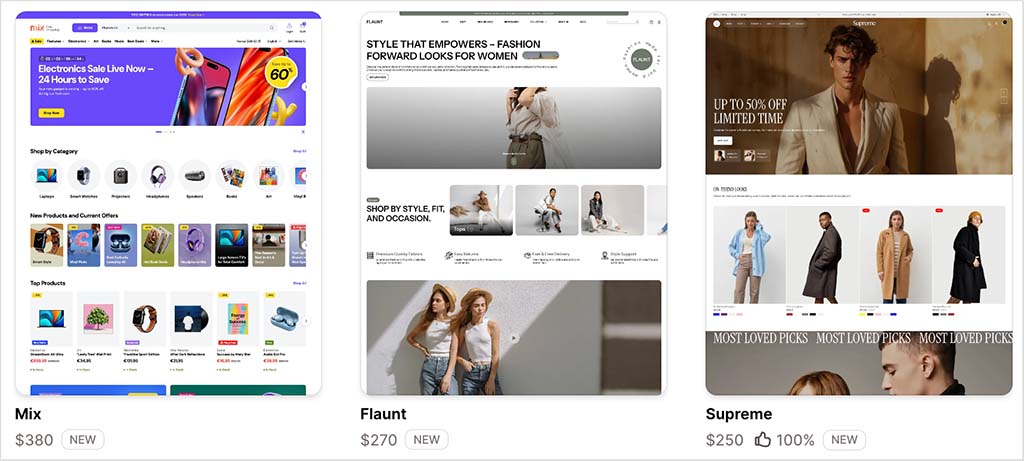
The premium themes range in price from $100 to $500 and, like the free ones, are all fully responsive.
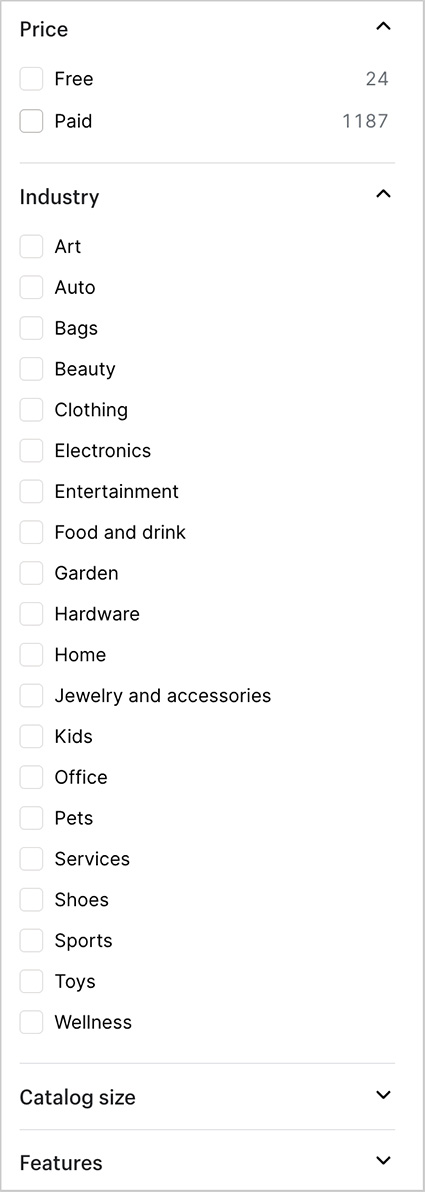
In the Shopify theme store, you can explore all the free and paid templates using a range of filters, including:
- theme price
- industry type
- catalog size
- template features.
(See my screenshot below for a look at some of the categories involved.)
All in all, Shopify’s template offering is of a very high standard — but if you aren’t happy with the options provided, and wish to create something that is truly unique, there is always the option of building your own theme.
It’s easy to access the Shopify theme code, and a lot of support materials and tutorials are provided to help you develop your own template or modify an existing one.

The other way to go about theme selection in Shopify is to use its recently introduced ‘AI store setup’ tool. This lets you enter a description of your business or products, which Shopify then uses to generate a custom theme for it.
I tried this new feature out with a prompt of ‘modern handmade jewelry.’ Shopify took about eleven seconds to create three AI themes, complete with relevant placeholder images (you can see these in my screenshot below).
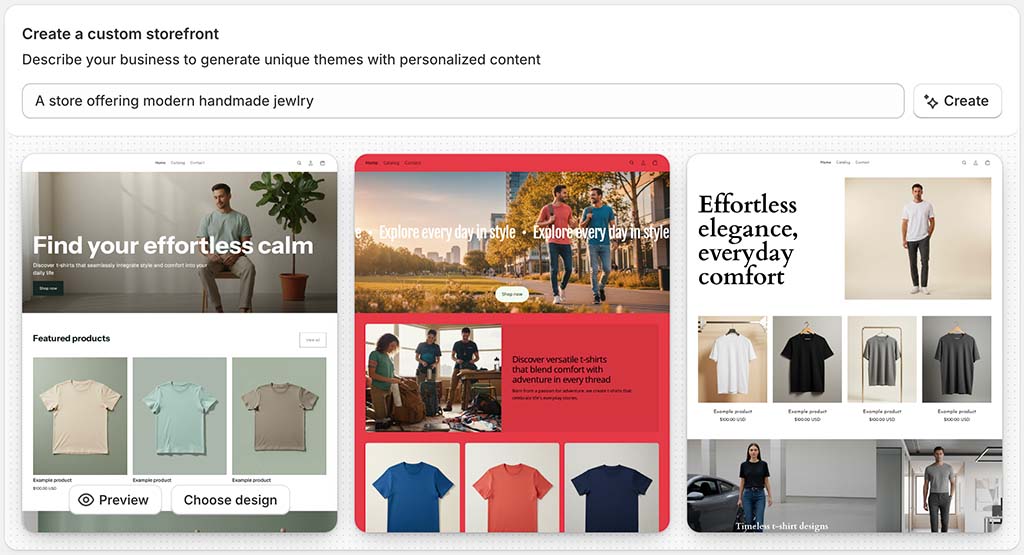
Each theme contained a fully-fledged home page (with sample copy), a contact page and an empty product collection page.
All in all, this worked reasonably well, and gave me a good starting point for a store design. But there’s a couple of drawbacks you should note: first, the feature currently only supports English-language use.
And second, the prompts you can use have to be fairly short. When I tried to put a long, detailed explanation of the type of store I wanted to create into the AI store builder’s prompt box, it was rejected (prompts can only be 200 characters long, including spaces).
Now, once you’ve started a Shopify trial, picked your theme and decided upon a plan, you can focus on selling with the platform. So, let’s look at how easy it is to do that.
📚 Related resource
Interface and ease-of-use
Shopify is fairly easy to use – it’s got a modern, intuitive interface, and provides a generally good user experience (UX).
As you can see from my screenshot below, a menu on the left-hand side of the screen allows you to access key features or content, which you can then configure or edit on the right.
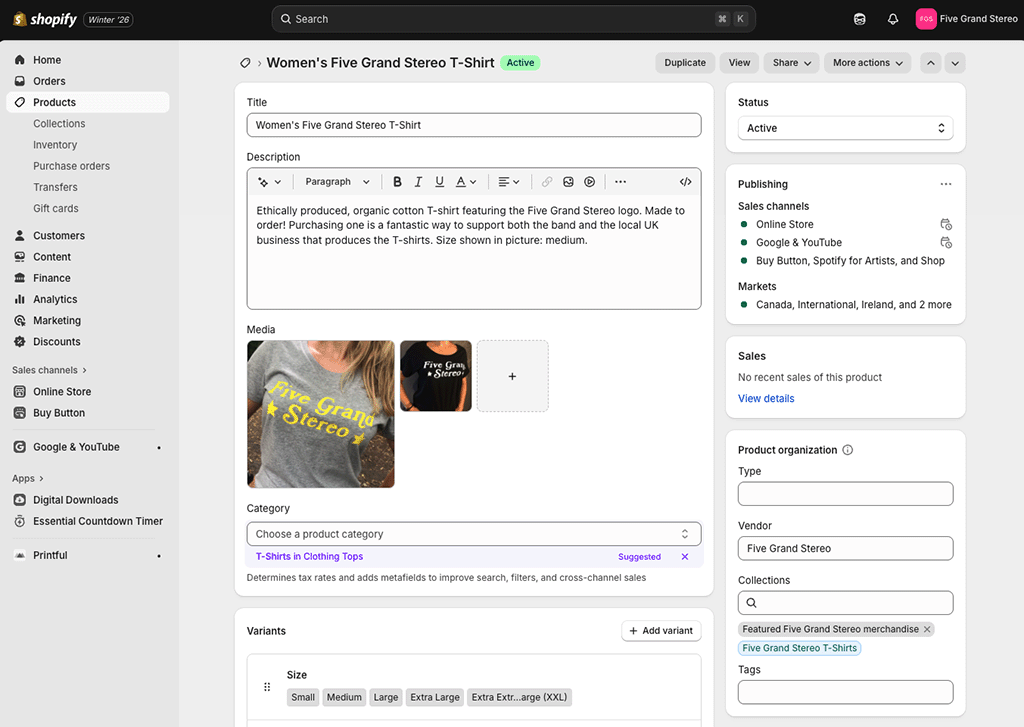
This layout is consistent with most of the other content management systems I’ve used — WordPress, Squarespace, Wix etc.
The process of adding content can be sped up via a new AI feature, ‘Shopify Magic,’ which generates copy and product descriptions for you automatically (based on keywords and instructions you provide.)
One of the things I like most about the Shopify interface is its product management features. When building a test store with the platform, I was able to import and export products via CSV file easily, and I found the processes for adding product descriptions and images extremely straightforward.
I was also impressed by Shopify’s revamped product collections feature, which makes it much easier to organise large product catalogs. Instead of choosing between automated collections and manually curated ones, you can now combine both approaches. For example, you can automatically include products that match certain conditions while also hand-picking featured products, excluding specific items or even combining multiple collections into one.
Because collections update automatically as your inventory changes, they require very little ongoing maintenance. I also found the redesigned collections interface easy to use, with simple drag-and-drop controls for reordering products and flexible sorting options.
(Take a look at my screenshot below to see the new collections interface in action.)
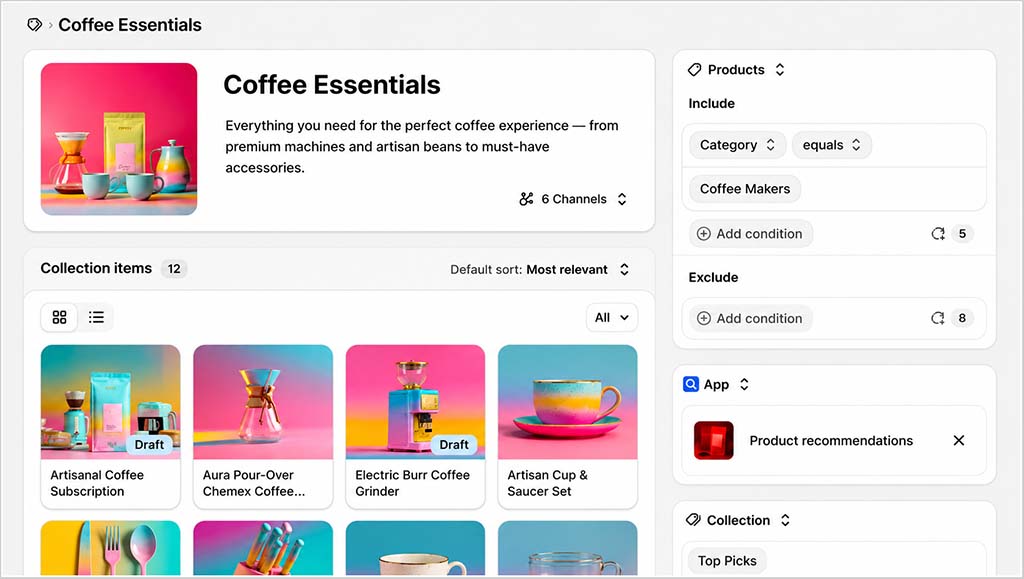
I haven’t come across a similar feature in any other competing platforms we’ve tested; so for me, this represents something of a USP for Shopify.
Sales channels
The Shopify interface lets you set up and manage a variety of ’sales channels’ — the different platforms where you sell your products.
Key ones include:
- An online store: your main website, which lives on your own domain name.
- Facebook: a section of your Facebook page where users can browse and buy your products.
- Buy Button: this channel allows you to add ecommerce functionality — via ‘buy buttons’ — to any website or blog.
- Instagram: this allows you to make your Instagram posts ‘shoppable.’
- Shopify’s ‘Shop’ channel — this allows you to make use of accelerated checkout features via the ‘Shop Pay’ system, and sell on Shopify’s Shop app.
- Wholesale: this lets you create a separate, password-protected storefront where you can sell products B2B (note: Shopify Plus customers only).
- AI-driven shopping assistants and conversational commerce tools (via Shopify’s ‘agentic ecommerce’ features)
(Note: the above list covers the key sales channels that you can use ‘out of the box.’ Several others — including big-hitters like TikTok, Amazon, eBay, Etsy and Pinterest — are available via third-party apps. A key option on that front is Shopify’s own Shopify Marketplace Connect app).
In general, I’ve found using these sales channels — and the Shopify interface in general — fairly easy. But there are a couple of problems I think it’s worth zooming in on, relating to content layout and images.
Content layout
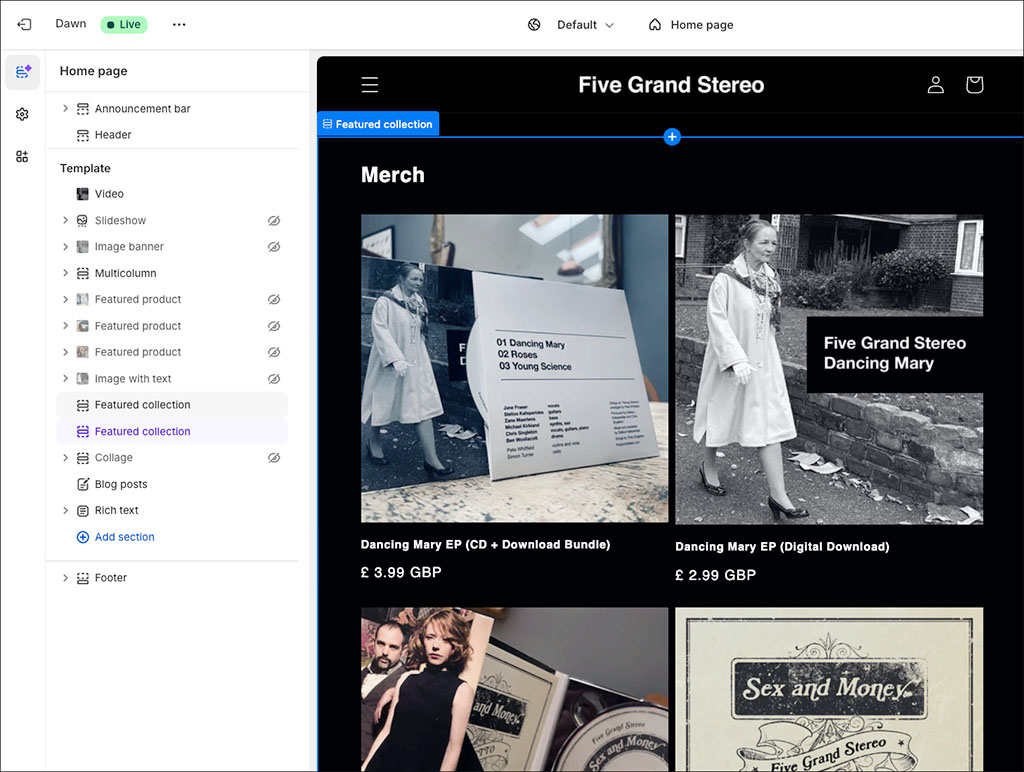
Like many competing store builders, Shopify gives you access to a drag-and-drop builder (pictured below) that lets you add blocks and sections to page layouts, and move them around to suit your design requirements.
You can also use Shopify’s ‘Sidekick’ AI assistant to help you with page layout issues — this involves requesting aesthetic changes via prompts. I tried this out and the results were mixed — it seemed to be able to implement an initial request pretty well, but when I gave it follow-up instructions (i.e., tweaks to the request), it didn’t do anything — as you can see from my screenshot of my Sidekick conversation below.
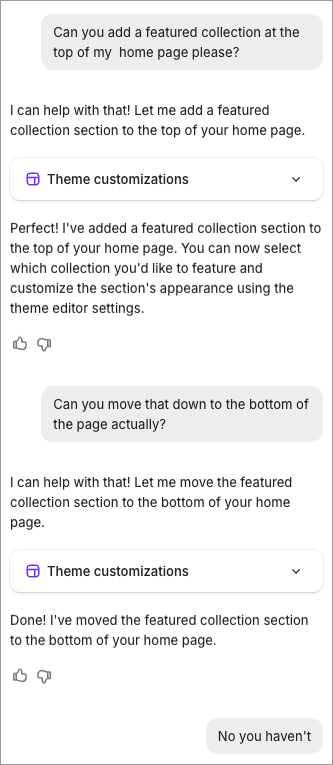
In short, Sidekick behaved like a lot of other AI tools I’ve tested recently — showing promise of something useful, but falling down a bit on execution.
Another key thing I discovered when editing Shopify themes was that instead of using the drag-and-drop editor to change the content of pages, I could only use it to design page templates.
I found myself still having to edit page content using a basic WYSIWYG editor (pictured in my screenshot below) — and then applying the relevant template I had designed to it.
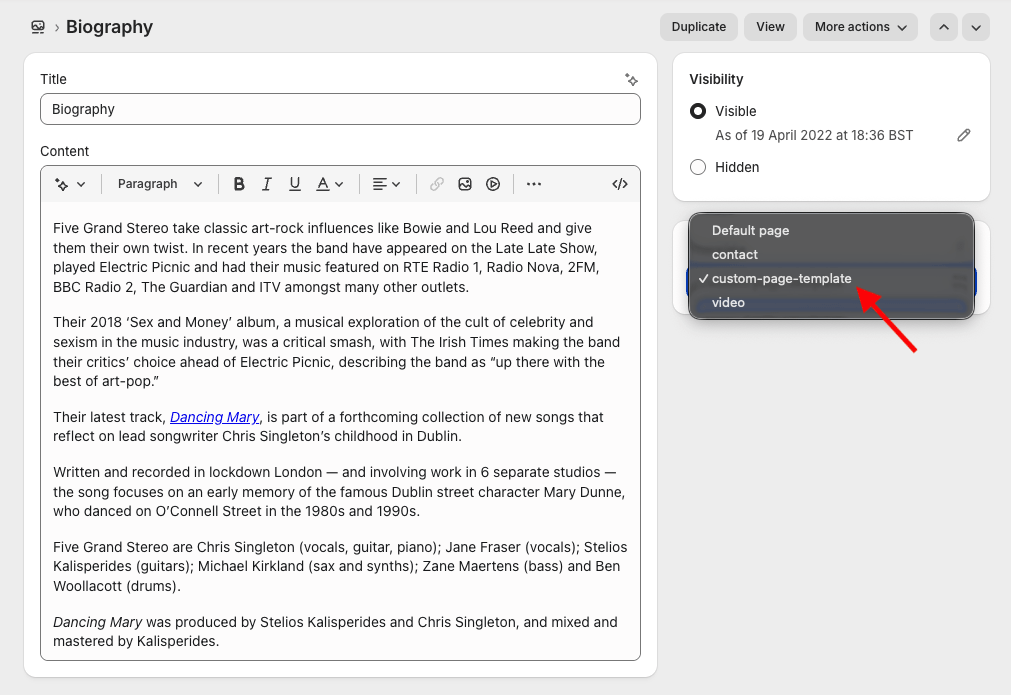
I got used to this, but it makes for a bit of an odd workflow!
Another improvement that I feel could be made to Shopify’s drag-and-drop editor involves forms — at the moment you can only drop a simple ‘contact’ or mailing list signup form into page templates.

If you need to add more sophisticated or bespoke forms to your Shopify store, you will need to resort to some coding, or the installation of an app.
It would be better, as is the case with competing platforms like Squarespace and Wix, if a built-in, well-specced form builder was available.
Get a host of excellent free resources now
For a limited time, we’re offering Style Factory readers some excellent free tools. Sign up below and immediately receive:
- our online store comparison chart
- extended free trials and discount codes for essential business apps
- a downloadable cheatsheet on how to create an online store
- our SEO, blogging and ‘how to start a business’ cheatsheets
- our latest newsletters on ecommerce and growing a business
Product images
Another key problem I encountered with Shopify involved image aspect ratios.
When I uploaded images to Shopify with different ratios, I found that they weren’t automatically cropped into a uniform one. My product catalogs ended up containing lots of differently-shaped images — something that led to a very messy-looking store.
You can get around this problem by cropping all your images to a uniform ratio using a photo-editing app (like Adobe Express or Canva) before you upload them. Alternatively, you can do this afterwards, using Shopify’s built-in photo editor (pictured below).

Other workarounds involve adding some code to your template to force images to display in a certain ratio, or using a paid-for Shopify app to standardize your image ratios.
My overall take on the Shopify interface is this: it’s great where product management is concerned — but a bit clunky when it comes to managing general content. I’ve found that other platforms, especially Squarespace, offer a slicker user experience here.
Working with products in Shopify
Product variants and options
After many years of capping product variants at 100, Shopify now allows you to create up to 2,048 different variants of a single product. I was a bit disappointed to learn, however, that these variants can still only involve three product options.
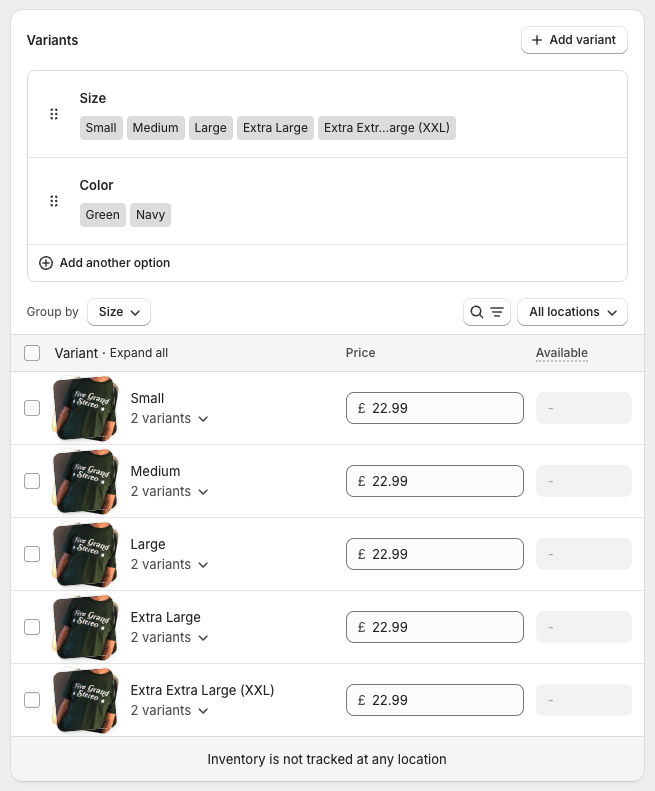
So, if you were selling shoes, for example, you could create up to 2,048 variants of a particular shoe using three options such as color, size and style. However, you couldn’t add a fourth option — such as shoelace color — without using a third-party app or another workaround.
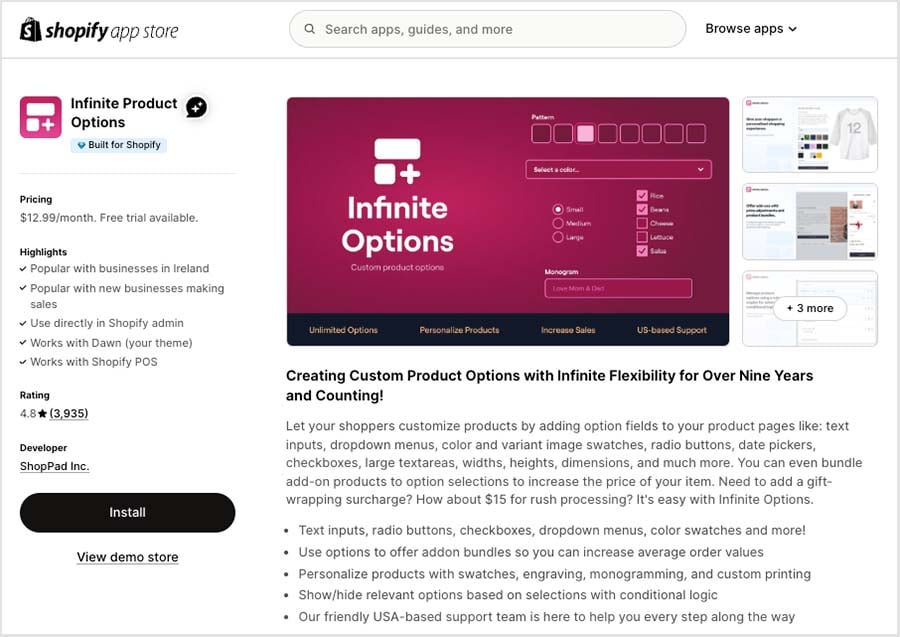
A workaround exists however involving third-party apps. There are quite a few available (like ‘Infinite Products Options,’ pictured below) that lift these limits, but you will need to pay for them.
Additionally, it’s worth noting that each product variant can only have one media item (i.e., an image or video) associated with it. And significantly, Shopify caps the number of media items that can be associated with a product at 250. The upshot is that if one of your products comes in more than 250 variants, you won’t be able to show images of some of those.
Ultimately, if you are selling something that doesn’t involve a large number of variants and product options you will be fine with Shopify — and if your needs are more extensive, apps do exist that get rid of the limits discussed above.
That said, I think it would be better if a more flexible approach to product options was currently available ‘out of the box’ (as is the case with rivals BigCommerce and Squarespace — both provide considerably more generous product option limits).
Selling digital products
If you want to sell digital products with Shopify (for example ebooks, photos or music), this is perfectly doable.
That said, when I tried to create digital products, I found myself getting a bit confused initially. This is because in order to sell downloadable files, Shopify users need to install a separate digital downloads app.
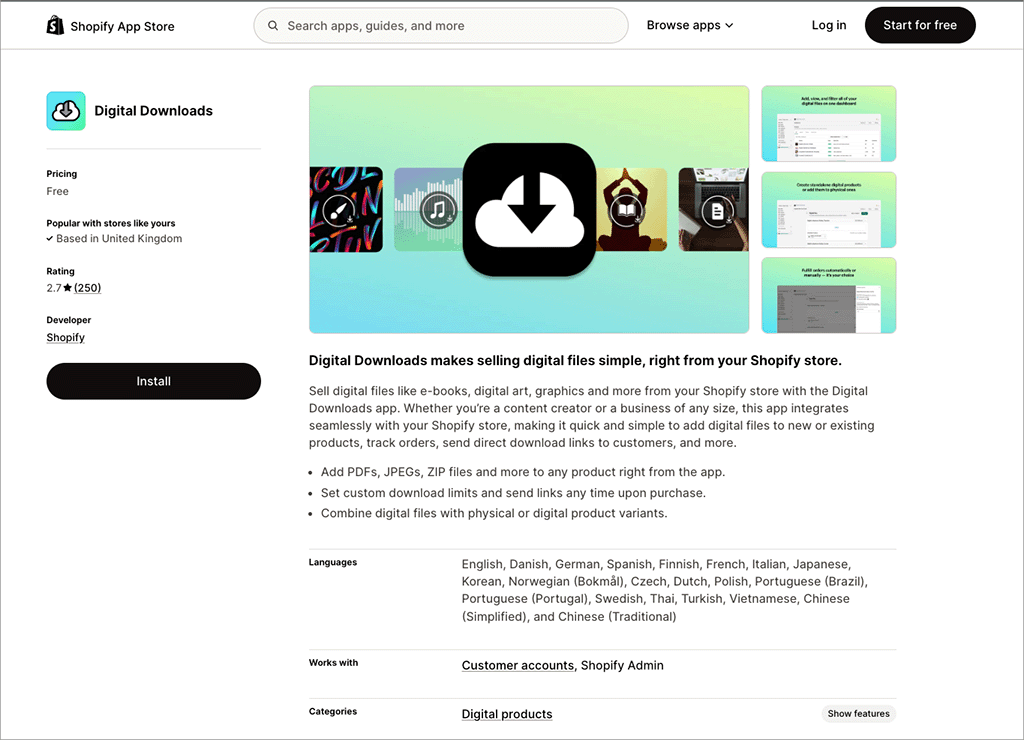
A large range of these is available, but Shopify’s own digital downloads app is a pretty good choice for most, because it’s free, easy to use and caters for relatively large file sizes. Our video below walks you through the process of selling with it.
You can also use the Digital Downloads App to bundle digital products with physical ones — for example, to offer an MP3 version of an album to everybody who bought a vinyl copy of it.
There is a limit on the file size of products you can sell, but it’s a very generous one — 5GB. This limit compares very favorably to the limits imposed by other platforms — Wix, for example, caps downloadable product size at 1GB, BigCommerce at 512MB and Squarespace at 300MB.
If 5GB is not enough for your needs though, you can purchase a different Shopify app to host larger files.
Custom fields and file uploads
Some store owners require their customers to provide some text at the point of purchase. For example, jewellers might need copy for an engraving, musicians might like to give customers the option to have a dedication added to a signed LP, etc.
Shopify does allow you to capture this sort of data, but it’s a fiddly process — you’ll need to create a ‘line item property’ by manually adding some HTML code to your template.
I’ve used this method in the past to add text boxes to checkouts, and the amount of coding required is fairly small — but that said, if you’re an ecommerce novice, you’ll be better off with a dedicated app.
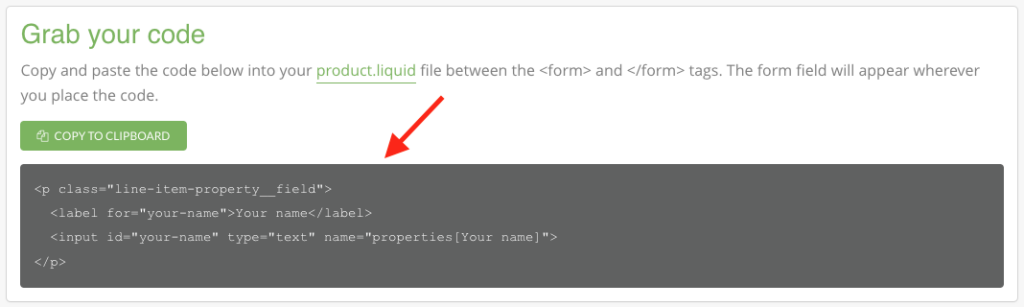
The other alternative is to pay for an app to do this job, which isn’t ideal.
It’s a similar story with file uploads — if you need to offer your customers the option to send files with their orders (for example, an image that needs to be printed on a t-shirt), you’re going to have to get coding or, yes, you guessed it, pay for a relevant app!
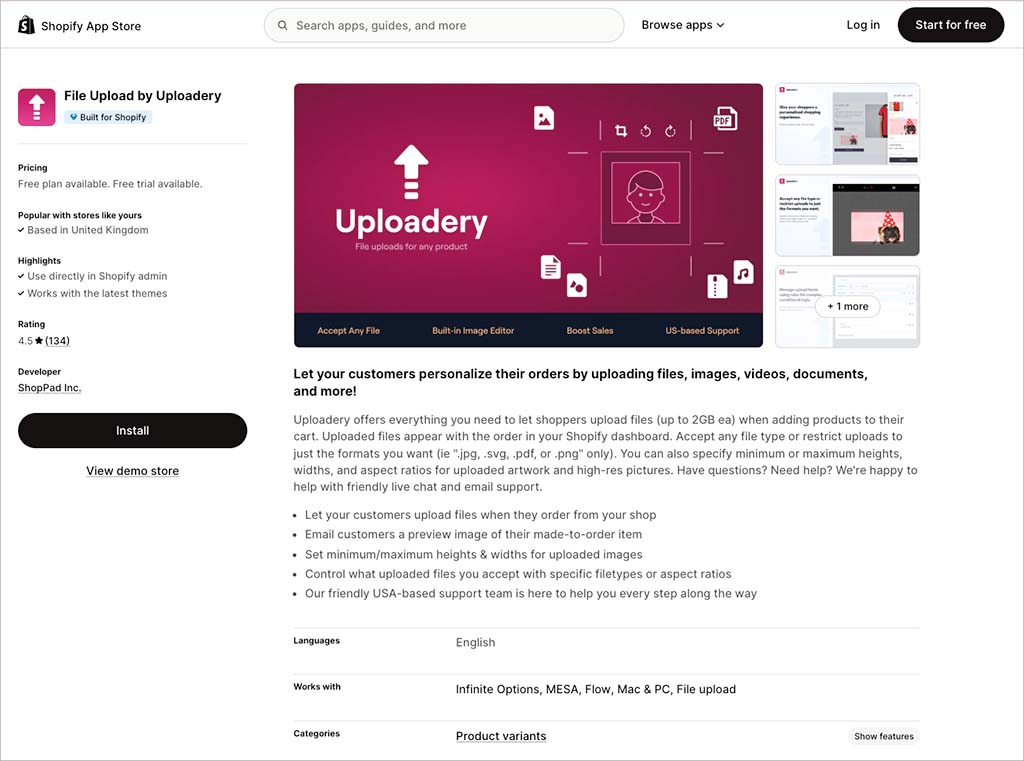
Now, we’ve looked at various aspects of setting up products on Shopify. But how do you actually ship them?
Shipping products
Shopify is very flexible when it comes to shipping, allowing you to set:
- Free shipping rates
- Flat rates
- Price-based rates
- Weight-based rates
- Local delivery / pickup rates
- Calculated (‘real time’) shipping rates
When building Shopify stores, I’ve always found it easy to set up shipping rules based on price or weight. Similarly, I’ve found it straightforward enough to create shipping zones that cover groups of countries.
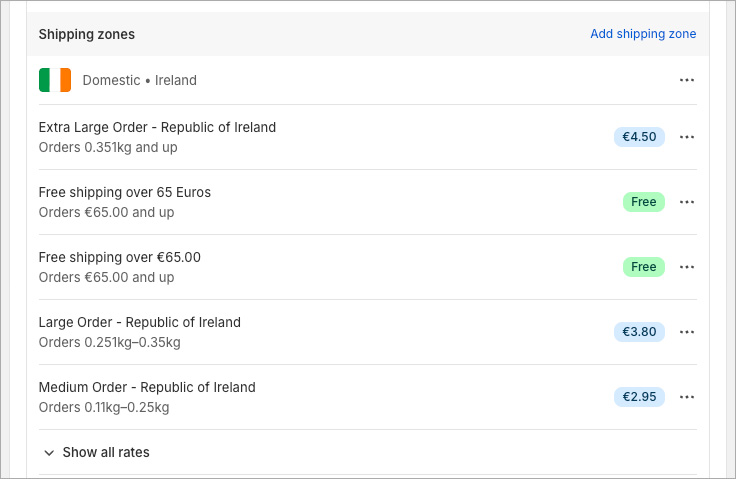
When it comes to real-time shipping rates — where carriers provide live estimates at checkout, based on distance, weight and the number of boxes needed to ship items — you have two options, depending on your location.
In certain countries — the ones highlighted in my table below — you can use the ‘Shopify Shipping’ service. This lets you provide real-time shipping quotations from local postal services, print shipping labels and provide preferential rates on shipping.
| Fulfillment location | Available shipping carriers for Shopify |
|---|---|
| United States | FedEx, USPS, UPS (not available in Puerto Rico), DHL eCommerce (continental US only), DHL Express (continental US only) |
| Canada | Canada Post, DHL Express, Purolator, UPS |
| Australia | Australia Post |
| United Kingdom | Evri, DPD, Yodel, Royal Mail, DHL Express Europe |
| France | Colissimo, Mondial Relay, Chronopost, DHL Express Europe |
| Germany | DHL Paket. DHL Express Europe |
| Italy | Poste Italiane, BRT, DHL Express Europe |
| Spain | Correos, SEUR, DHL Express Europe |
If you’re based in a country where Shopify Shipping is available, you’ll find the feature included on all plans, and the discounts provided can be quite significant on the higher-level Shopify plans (in the US, you can avail of up to 87% postage discounts on higher-tier plans).
The other real-time shipping option is to use third-party calculated shipping rates. I’m not so keen on this option, because it can end up being rather expensive. Third-party calculated shipping is only available in Shopify if you:
- pay on a monthly basis for an ‘Advanced Shopify’ or ‘Shopify Plus’ plan
- subscribe to the ‘Grow’ plan on an annual basis
- subscribe to the ‘Grow’ plan and pay an additional monthly fee.
This contrasts negatively with the approach taken by some competitors, especially BigCommerce, which makes this feature available on all its plans, even its $39 entry-level one.
Now, let’s look at another type of shipping…
Dropshipping with Shopify
Many potential users of Shopify will be wondering how well it facilitates dropshipping.
With dropshipping, you take an order, send it to a supplier, and they deliver the goods to your client — in other words, you don’t make, store or fulfil any products, and your ecommerce site becomes a ‘middleman’ of sorts.
There are various pros and cons associated with this approach to ecommerce — my experience of it suggests that it’s usually not the golden goose it’s claimed to be — but it does unquestionably give you a very low-risk way to start a business.
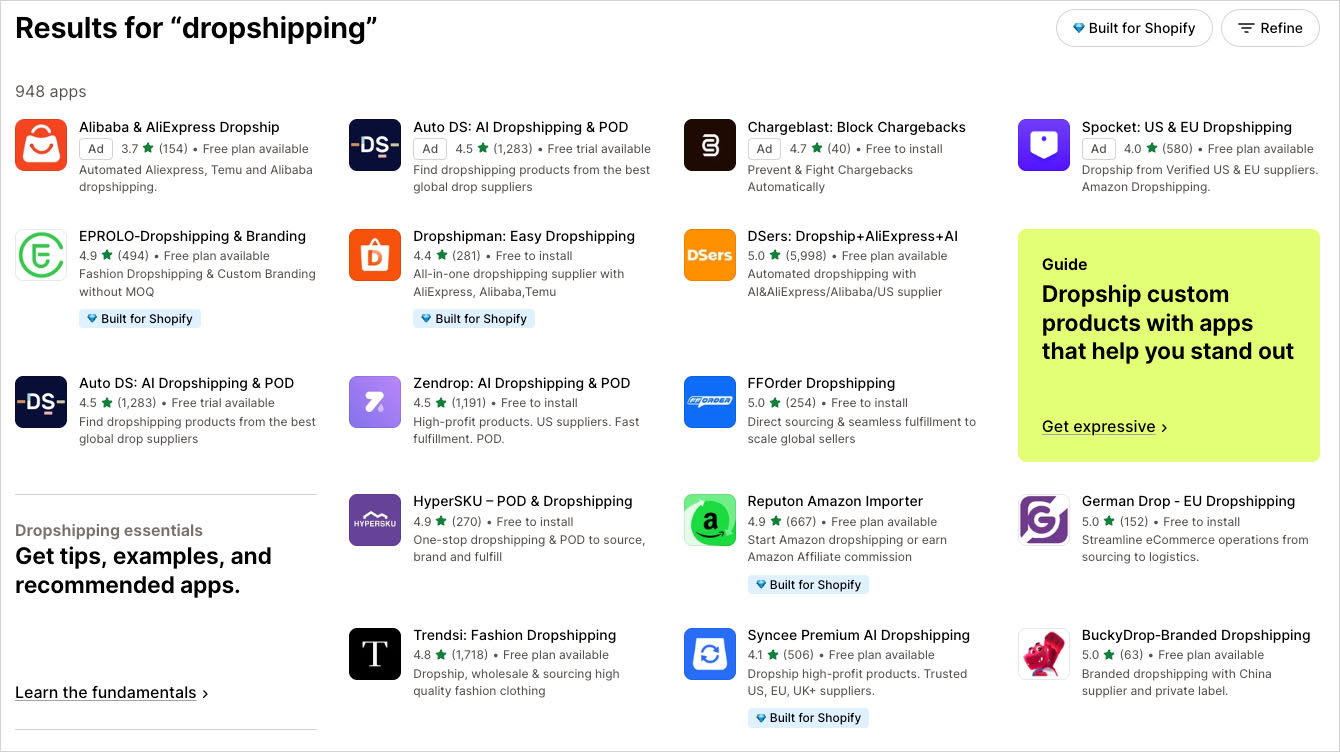
The good news is that Shopify offers an extremely large range of dropshipping apps that allow you to source and sell a variety of suppliers’ products online. I found 948 such apps available at time of writing, with popular services like Spocket, Ali Express and Modalyst all catered for.
Shopify is also a strong choice for print on demand (POD) applications, with key POD apps like Gelato, Printful and Printify integrating particularly neatly with the platform.
(I counted 1,033 POD apps in the Shopify app store when conducting research for this review.)
📚 Related print-on-demand resources:
One thing I couldn’t find at all in the Shopify app store however is more information on the quality of dropshipping suppliers — an ‘ethical rating’ or similar.
This is a big omission, because a lot of dropshipped goods are produced in countries where working conditions can be very poor. As things stand, it’s hard to be 100% confident that the goods you sell via many of Shopify’s dropshipping apps are ethically produced.
So, if you are concerned about the ethical dimension, you’ll need to do some due diligence research yourself before committing to a particular app or supplier. But in terms of the range of dropshipping options available to you as a merchant, the market leader is definitely Shopify.
Shopify Point of Sale (POS)
A particularly strong feature offered by Shopify — and one that helps it stand apart from its competitors — is its comprehensive Point of Sale (POS) functionality.
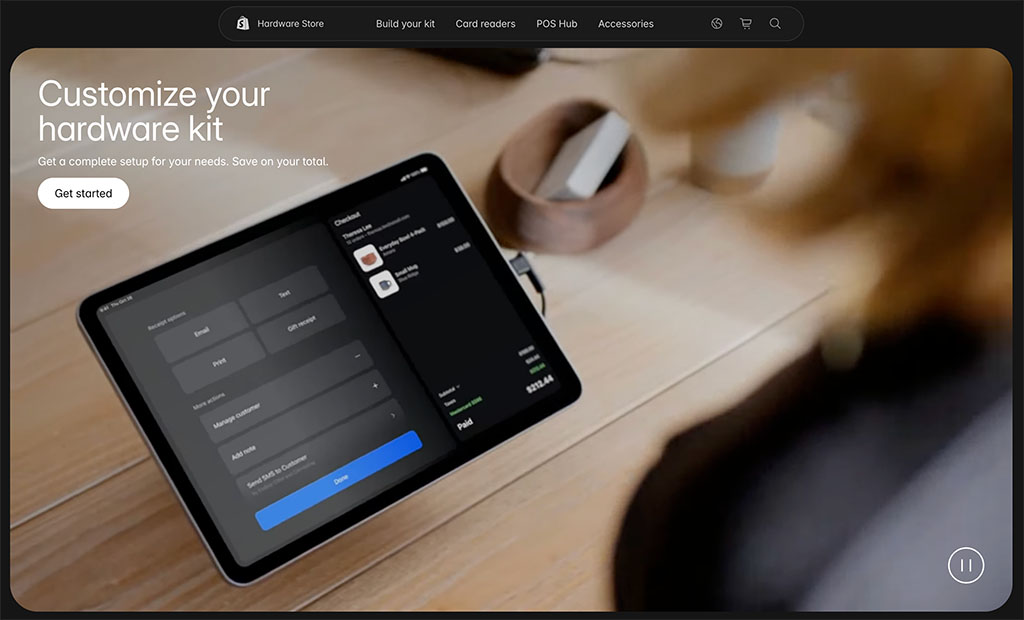
Shopify’s POS system is bundled with all its plans, and lets you use the platform to sell not just online but in physical locations too.
A wide range of hardware is available — card readers, barcode scanners, tills, receipt printers etc. — to help you do this.
As for where you can buy Shopify POS devices, there is a dedicated Shopify ‘hardware store’ that sells them. It can be used to purchase POS equipment in many territories, including the US, Canada, several EU countries, Australia, New Zealand, Singapore and the UK.
(If you’re based outside a supported country, you can still buy Shopify POS hardware, but will need to do so from an authorized reseller.)
Now, there are several applications for these point-of-sale tools. For example, they allow you to sell:
- in a ‘brick and mortar’ retail outlet
- in a pop-up shop
- from a market stall
- at an event.
And all while keeping your offline and online sales data fully in sync, and your inventory figures accurate.
It’s important to note however that if you’re serious about selling in person, you’ll usually need the ‘Shopify POS Pro’ add-on to get the most out of the point of sale features.
This is because although all Shopify plans let you use POS functionality, with the exception of ‘Shopify Plus’ they limit the number of staff who can access it, and don’t give you access to the best POS features.
You will definitely need the ‘POS Pro’ add-on if you want to do things like:
- work with an unlimited number of store staff
- define staff roles and permissions
- facilitate exchanges
- provide custom printed receipts
- create purchase orders
- attribute sales to particular staff members (for commission assignment or performance-analysis purposes).
- get low stock warnings.
Unfortunately, the cost for the Shopify ‘POS Pro’ add-on is relatively high: $89 per month, per location ($67 per month if you pay upfront for a year).
This means that if you run a few physical stores, your monthly POS outgoings will increase significantly.
In terms of the number of locations you can sell in (or store inventory at), the Basic, Grow and Advanced plans let you sell in 10 and Shopify Plus lets you sell in 200.
(Note: if you’re a Shopify Plus subscriber, you get 20 POS Pro locations included with your plan).
Shopify POS: a real-life merchant’s take
To find out how good the Shopify POS features were, I interviewed my friend Liz Jones, who runs a Shopify POS system, and spent a morning with her as she used the system to accept payments.
I made a video recording of this — which you can watch below — but the main conclusion I drew from my time with Liz was that Shopify POS is good when it comes to user-friendliness and value for money, but that customer service could be a bit better.
The biggest complaint that Liz had was that software updates to Shopify’s POS system sometimes knocked it offline during trading — which is obviously far from ideal, given how many people pay card-only these days.
Tax calculation in Shopify
Automatic tax calculation
One of the challenges of selling online is that you can end up making sales in a variety of jurisdictions with different tax rates — something you have to reflect in the pricing of your products.
Thankfully however, Shopify allows you to apply tax rates automatically in many countries — with fully automated tax calculation via its ‘Shopify Tax’ service available in the US, the UK, and EU member states.
Additionally, you can set things up so that registration-based taxes (which cater for VAT / state-based taxes etc.) are calculated for:
- Australia
- Canada
- European Union
- New Zealand
- Norway
- Singapore
- Switzerland
- United Kingdom
- United States
Not all competing products facilitate automatic tax calculation, and those that do tend to limit the feature to a smaller number of countries — so a thumbs up to Shopify for this.
One thing to note however is that if you’re using the ‘Shopify Tax’ service and exceed $100,000 in sales, a transaction fee of 0.25% to 0.35% (depending on plan) will be applied to any sale involving a tax calculation.
However, Shopify also places annual caps on these fees — stores with annual sales below $100 million USD won’t pay more than $5,000 per year in Shopify Tax transaction fees, while custom pricing applies to businesses exceeding that threshold.
(Different thresholds and transaction fees apply in the UK and the EU, but the principle is the same.)
This won’t be much of an issue for many merchants (especially new ones), but those operating stores with a high turnover might find it annoying.
VAT in the EU / One Stop Shop
A particularly strong aspect of the Shopify platform — for me, a USP — is the way that it caters really well for the EU VAT One Stop Shop rules (OSS).
These rules require sellers of products to consumers in the EU to add value added tax (VAT) to each product on a per-country basis — i.e., there’s one VAT rate that needs to be applied on purchases by French customers, another for Irish ones, and so on.
But unlike a lot of competing products, Shopify can calculate and add the appropriate VAT to product prices automatically. So, once you’ve enabled this feature in Shopify, and entered the relevant tax IDs, there’s no manual calculations to worry about (you will need to register for EU VAT before you can use this functionality, however).
I’ve used Shopify to sell ebooks on the Style Factory site to customers based in lots of different EU countries — and the OSS features have saved me hours in admin.
And speaking of selling in other countries…
International selling
Accepting multiple currencies in Shopify
Displaying prices and facilitating checkout in local currencies can improve sales rates considerably.
And, unlike several other well-known ecommerce solutions — notably Squarespace and Wix — Shopify lets you do this really easily, thanks to its ‘Shopify Markets’ feature (fully available on the ‘Basic’ plan or higher).
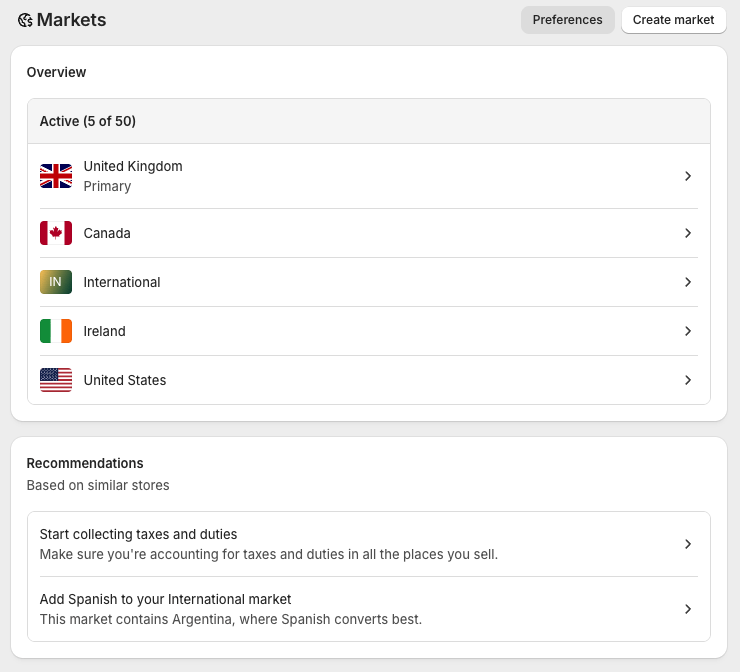
This lets you define selling areas — ‘markets’ based on country or groups of countries (up to 50 markets can be created on any Shopify plan). You can then manage currencies, languages, local domains and payment processors for these markets all in one place.
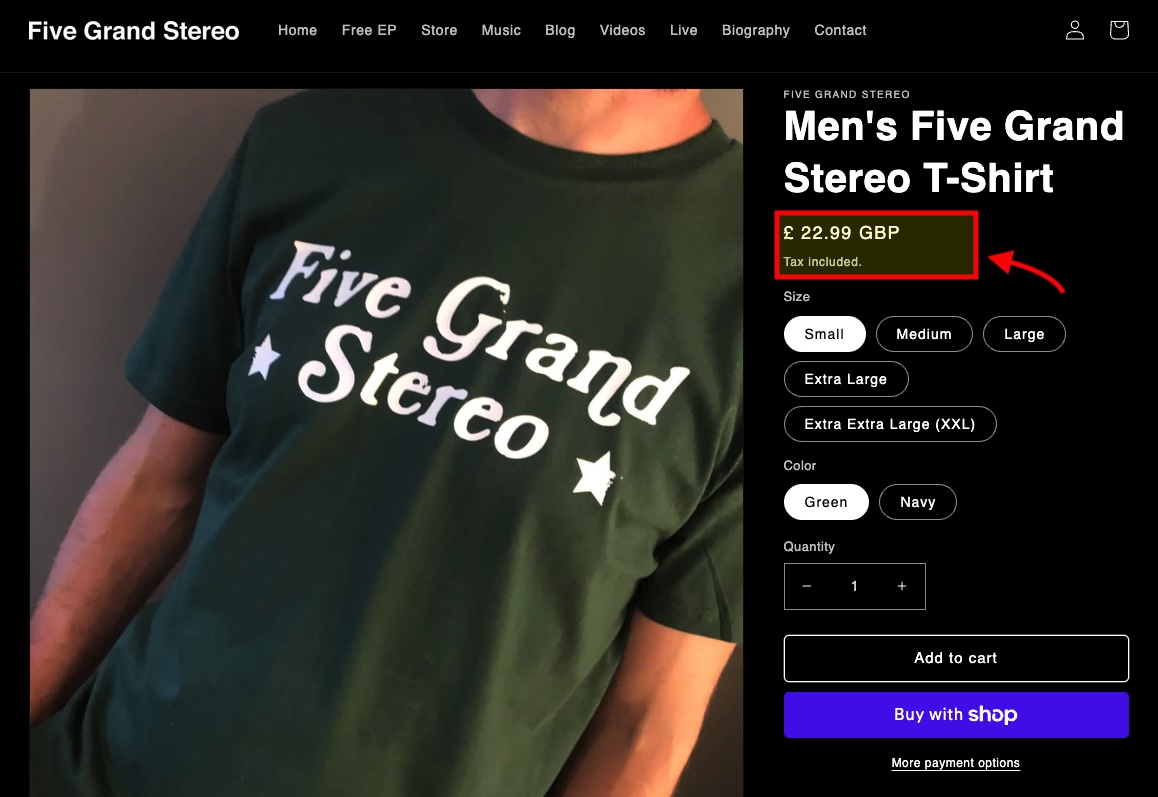
Shopify simply looks at where your visitors are located (based on IP address) and automatically presents your product prices in their local currency. Checkout happens in that currency too, which can further improve conversion rates.
ℹ️ All Shopify plans let you apply duties and import taxes — this functionality used to be restricted to its ‘Advanced’ plan, but given the approach to international commerce currently being taken by Donald Trump, Shopify presumably figured that a lot more of its users were going to need features that were capable of dealing with tariffs…
The only thing to watch out for here is that you can only access these currency conversion features if you’re using Shopify Payments. If you are based in a country that doesn’t yet support Shopify Payments, you’ll need to install a third-party app to gain multi-currency features.
Overall, I think that the way that Shopify handles multi-currency selling is extremely good — its capabilities here currently trounce what’s on offer from competing hosted store builders.
Now, let’s look at another aspect of international selling: translating your store.
Building a multilingual website with Shopify
In addition to facilitating transactions in multiple currencies, Shopify lets you sell in multiple languages. All Shopify plans let you create up to 20 translated versions of your store.
When you enable multilingual selling, a language ‘folder’ is added to your domain. So you’ll end up with myshop.com/fr, myshop.com/de etc.
Alternatively, you can use ‘international domains’ — myshop.fr, myshop.de etc. — to host foreign-language versions of your store.
This is all pretty good stuff — the only complaint I have here is that some competing platforms I’ve tried let you sell in a lot more languages (Wix, for example, lets you sell in over 180, and WordPress doesn’t really apply language limits at all, so long as you’re using the correct plugin for it).
Download our free Shopify Startup Kit


Our free Shopify Startup Kit is a must for anyone thinking of building an online store with Shopify. Containing a comprehensive e-book on starting a Shopify store, video tutorials, PDF cheatsheets and much more, it’s packed full of practical advice on how to get a Shopify business off the ground. It’s available for free to Style Factory readers — but for a limited time only.
Abandoned cart recovery and store task automation
Abandoned cart recovery lets you identify store visitors who go part of the way through a purchase only to change their mind about it, and email them an incentive to complete their purchase (usually in the form of a discount code).
The good news is that abandoned cart recovery is included on all Shopify plans, meaning that you get this key piece of functionality at a lower price point than several competing tools (which tend to include it on higher-tier plans only).
The feature is provided by ‘Shopify Flow’ — an automation tool that allows you to create custom workflows to handle repetitive tasks across your store.
Shopify Flow gives you a range of automation templates to choose from — a few of which are highlighted in my screenshot below. These cover everything from abandoned cart recovery to upselling to fraud prevention.
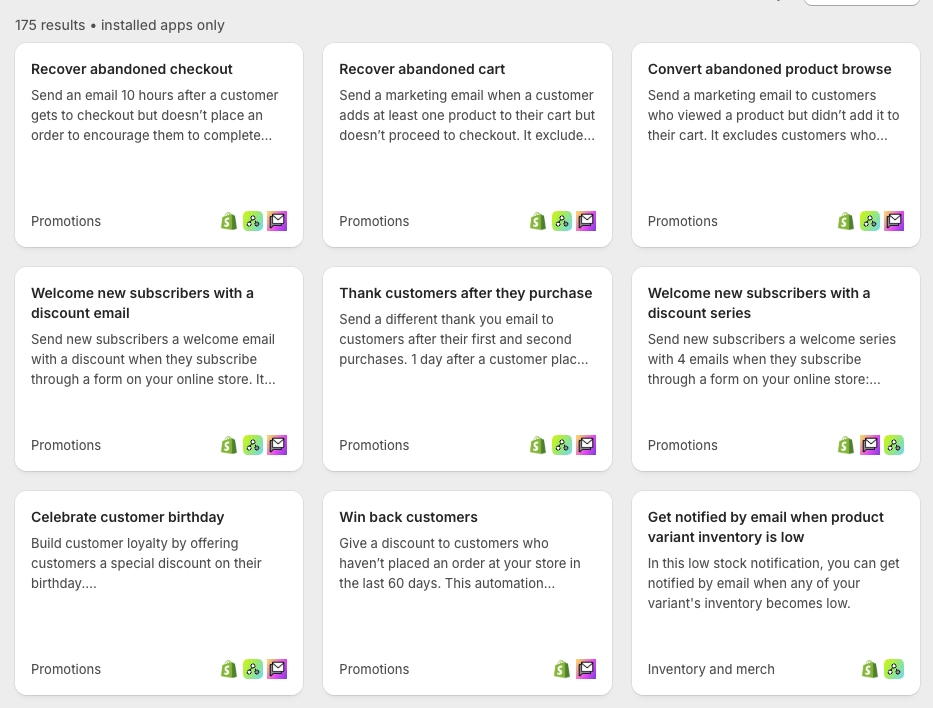
When testing Shopify Flow, I was really impressed by it: it gave me incredible control over exactly what message I wanted to send, to whom and when. Flow let me configure the customer journey exactly the way I wanted, via highly-editable workflows (see screenshot below).
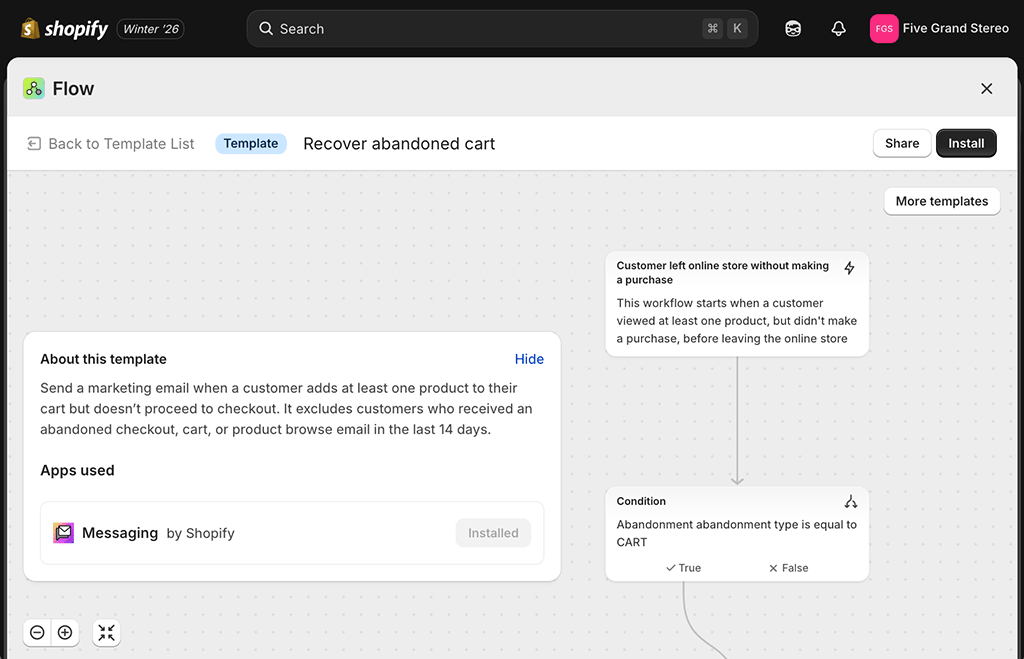
When testing the feature, I was able to make use of a really wide range of triggers to send messages — for example I could send emails based on
- purchase type
- cart abandonment
- page visits
- customer birthdays
- inventory levels being low
- customer waitlist status.
Shopify Flow isn’t just about sending emails however: you can also use it to do things like cancel orders based on fraud risk, or unpublish products based on inventory level.
All in all, Shopify’s automation tools work superbly, letting you create custom workflows that go beyond what’s available from most key competing solutions.
Marketing and SEO
Search engine optimization (SEO) in Shopify
Is Shopify good when it comes to SEO?
The short answer is yes — Shopify’s SEO features are strong and compare favorably with other hosted site-building platforms.
Nuts and bolts
When doing some test optimization work on a Shopify store, I certainly found the nuts and bolts of on-page SEO very easy to manage using the platform — changing page titles and meta descriptions was very easy, as was adding headings and alt text. I was pleased to find out that you can tweak your robots.txt file extensively in Shopify too — this is not the case with all competing tools.
(Changing product image file names was easy too – but I couldn’t find a way to update file names on static pages or blog posts.)

Yoast integration
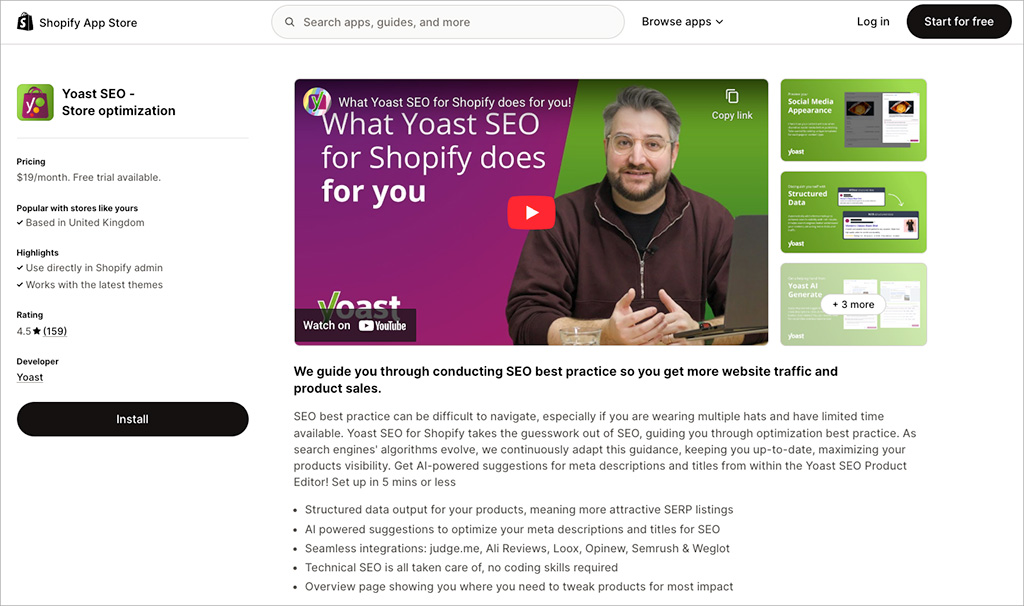
I was pleased to discover that an integration with the popular Yoast SEO tool is available for Shopify. This lets you perform an in-depth evaluation of the quality of your on-page SEO; we love using it in WordPress and it’s great that Shopify users can benefit from it too.
The less good news here it that unlike the WordPress version, Yoast for Shopify always involves a fee ($19 per month). Even so, the availability of Yoast is a significant USP for Shopify, because WordPress aside, no other hosted website builder supports it.
301 redirects
I found adding 301 redirects — which let search engines know when a page location has changed — particularly easy to do in Shopify.
In fact, the platform automatically prompted me to do this, and created the redirect too, every time I changed a page’s URL (see screenshot below).
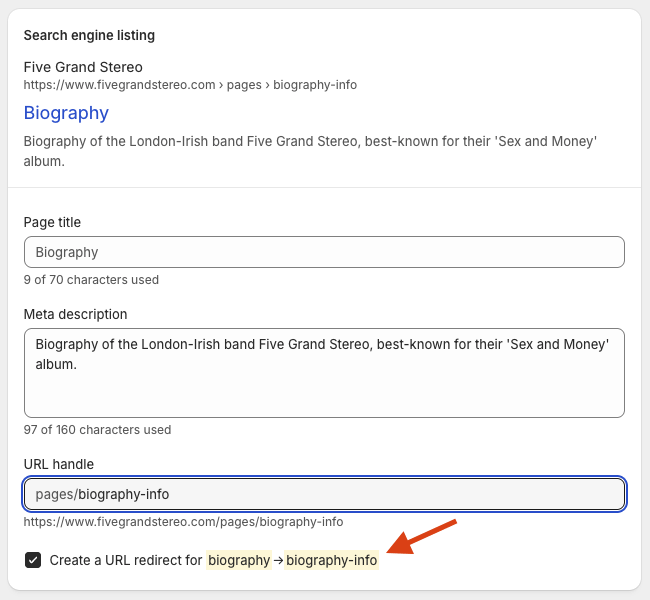
As forgetting to set up 301 redirects is a common source of lost rankings, this automated reminder is an extremely useful feature.
Site performance / Core Web Vitals
Unlike WordPress and other self-hosted solutions, you don’t get fine-grained control over your web hosting in Shopify — you have to use the default Shopify hosting setup. This means that you can’t tweak technical SEO and site speed to the nth degree.
But the hosting provided by Shopify is fast — in my tests, so long I as didn’t add too many large images or videos to my content, I got very good results when running Shopify stores through Google’s PageSpeed Insights tool.
Importantly, Shopify uses a content delivery network (CDN) to decrease your page loading times. And, unlike some competing ecommerce solutions, Shopify gives you a lot of data regarding how your site is measuring up against Google’s ‘Core Web Vitals‘ requirements.
Core Web Vitals are a set of targets relating to the speed, responsiveness and visual stability of a website — and sites that meet them can receive preferential treatment in Google search results.
A performance summary highlighting Core Web Vitals performance is visible in the ‘Themes’ section of your Shopify store — this is good for giving you an immediate sense of where you need to make improvements.

If you like, you dig further into your store’s performance against individual Google Core Web vitals targets (LCP, INP and CLS) via dedicated reports on those metrics.
And if you want some tips on how to improve these scores, you can ask Shopify’s Sidekick assistant for these. When I did that, I got some pretty detailed recommendations on what actions to take, as you can see from my screenshot below:
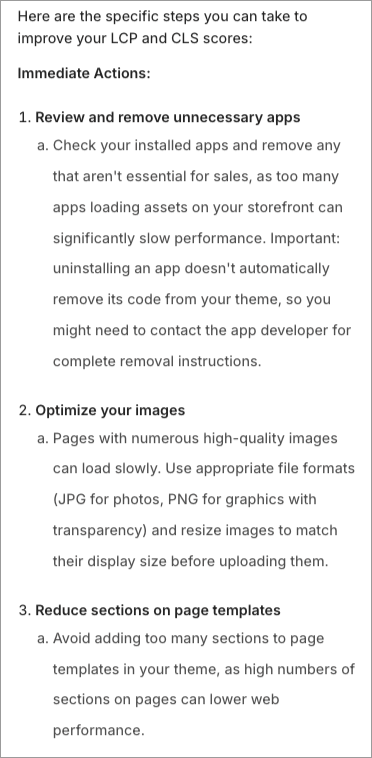
Overall, my experience with the Shopify SEO features was a positive one: they are very well thought through and give you control over pretty much every aspect of SEO except hosting.
📚 Related resource: Shopify SEO guide
For more detailed information about how to optimize a Shopify store for search engines, check out our video guide to Shopify SEO or our checklist for optimizing a Shopify store for search.
You might also like to explore our general ecommerce SEO tips.
Email marketing in Shopify: ‘Shopify Messaging’
A key part of running an online store is ensuring that you’re doing email marketing right: sending well-crafted e-newsletters to your email list is absolutely key to generating sales.
To help you with this, Shopify provides a free app, ‘Shopify Messaging.’
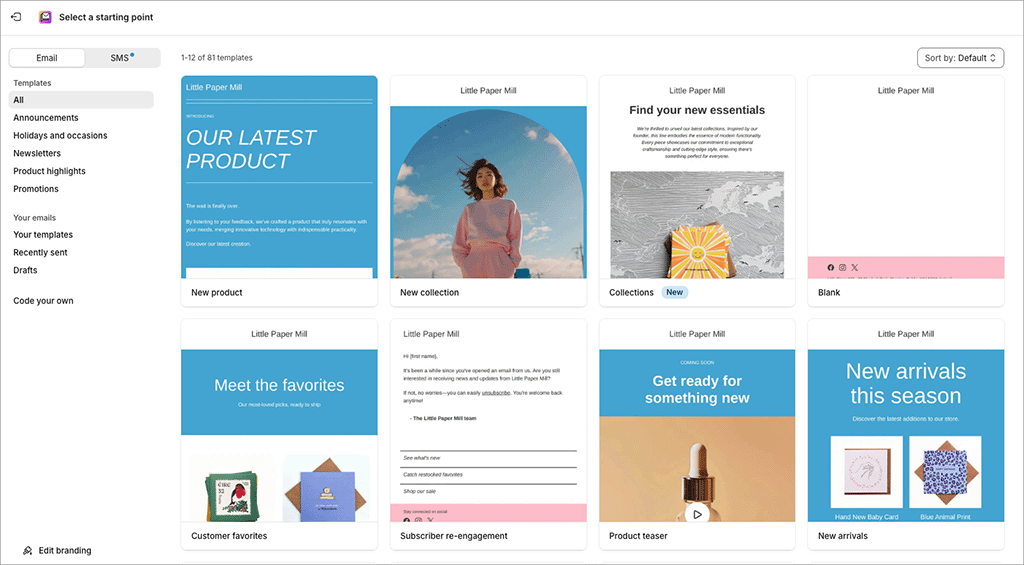
Now, Shopify Messaging started out as a very basic email marketing tool (‘Shopify Email’) that only allowed you to send very simple e-newsletters. When I tried this version of the tool out, I wasn’t madly impressed.
But over the past couple of years, the Shopify messaging system has evolved significantly, and now offers you options to:
- segment your mailing list extensively
- automate your mailouts using conditional logic (so that it sends welcome emails, upsell emails etc., based on particular subscriber actions)
- use ‘dynamic product sections’ that automatically insert best-selling or recently-added products from your store into your emails.
- send SMS messages.
Shopify Messaging is best used in conjunction with Shopify’s automation system, ‘Shopify Flow’ — as I discussed above, this is a system for creating highly-customized automated customer journeys.
In the past, I’ve tended to recommend standalone email marketing tools like Omnisend, GetResponse or Mailchimp in conjunction with Shopify to send newsletters and SMS messages out — and they definitely still have their uses.
But I suspect more and more merchants are going to look at the deep integration between Shopify’s messaging system and their online store, and decide to keep everything in one place.
Finally, one of the most attractive aspects of using Shopify Messaging as your email marketing solution is probably its price: you can use the app to send up to 10,000 emails per month for free, with a $1 fee applying to every additional 1,000 emails sent after that.
(If you’re a high-volume user, even more competitive rates are available.)
This makes the tool very competitively priced by comparison to standalone email marketing tools.
Blogging in Shopify
Blogging is one of the key ways to increase organic traffic to your site — and usually a pretty vital activity for ecommerce merchants.
Recognizing this, Shopify provides a built-in blogging tool that allows you to create the sort of content you’ll need to ensure your site is visible in Google search results.

However, my overall experience with blogging in Shopify to date has been a bit disappointing. Its blogging feature is not nearly as sophisticated or powerful as that which you’d find on some other platforms — especially WordPress. There are no version history tools, and when it comes to categorization of blog posts, Shopify only allows you to use tags (i.e., you can’t apply categories).
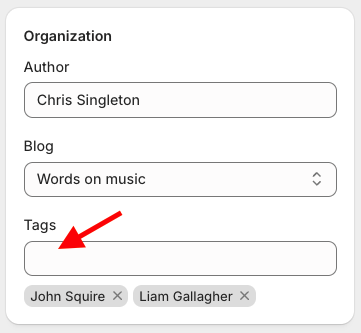
(Professional blogging platforms typically permit use of both tags and categories).
It also has to be said that the blogging interface is quite old fashioned, and whenever I’m blogging on a Shopify-powered site, I nearly always find myself frustrated with it. The Shopify blog editor doesn’t let you drag and drop content around your posts, add captions to images or insert forms into your posts — something that is incredibly easy to do in competing platforms like Squarespace or Wix.
(Weirdly, given Shopify’s focus on ecommerce, I found that even inserting a product into a blog post is difficult.)
Workarounds are available to get around some of these issues — usually involving the addition of HTML to your blog post, or the purchase of an app — but overall, I feel the blogging functionality could really do with a bit of a refresh. It’s very 2000s in vibe!
AI features in Shopify
Shopify has recently introduced a host of AI features to its platform — these are collectively branded under ‘Shopify Magic‘ and centred around its conversational assistant, ‘Shopify Sidekick.’
Sidekick is a chatbot that’s trained specifically on Shopify’s platform, and you can ask it to perform tasks on your store, or analyze data from it.
For example, you can ask Sidekick to generate product descriptions or marketing copy, summarize sales performance, explain reports, or guide you through tasks like setting up discounts. The tool can be accessed or hidden at any time by clicking a dedicated icon at the top-right corner of the Shopify dashboard.
When testing Sidekick, I found that it performed certain tasks better than others. As I outlined earlier, I didn’t find it terribly useful for designing a store layout — a lot of the time, it didn’t really deliver suitable results in response to my prompts. But I found it to be a fantastic informational guide to the platform — it worked consistently well as an omnipresent source of clear, contextual help.
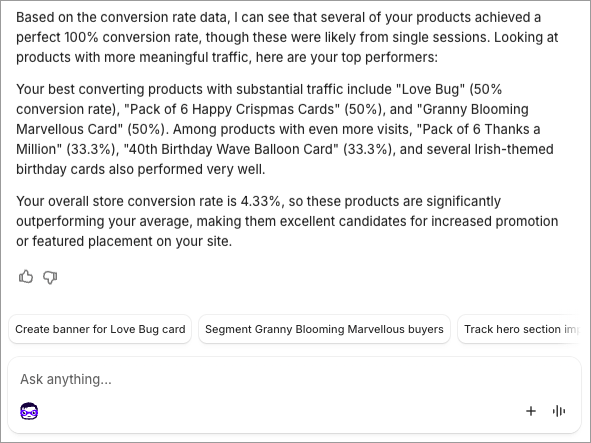
In particular, I found Sidekick to be really good for analyzing store data. When I asked it questions about which products were converting best, or how I could improve my site speed, it gave accurate, helpful answers and genuinely useful insights. (See below for a screenshot of the answer I got when I enquired about the best converting products on a store.)
Shopify has also begun using AI to automate marketing tasks as well as provide insights. Its new Campaign Autopilot feature, currently being rolled out in early access, uses AI to plan and manage marketing campaigns across channels including Meta Ads, Shop Campaigns and Shopify Email. After you set a budget and choose how much control you want to retain, Campaign Autopilot can recommend, create and optimize campaigns automatically, while still allowing you to review or override its decisions at any time. Sidekick also integrates with the feature, letting you ask questions about your marketing performance and trigger campaign-related actions using natural language.
Like a lot of the AI tools being integrated into business apps, there’s definitely room for improvement with Shopify’s AI features. But as these things go, I think they’re a very solid implementation of AI technology with genuinely useful applications. Between Sidekick’s ability to help merchants understand and manage their stores, and newer tools like Campaign Autopilot that automate marketing tasks, Shopify’s AI offering feels considerably more mature than anything I’ve encountered in competing ecommerce platforms.
The Shopify app store
In addition to Shopify’s core functionality, there is also an app store that store owners can visit to obtain applications — both free and paid-for — that let you add additional features to a Shopify website.
This contains a huge number of apps — as of July 2026, Shopify states that 21,000 are available, making Shopify’s app store bigger than those of all the other ecommerce platforms I’ve reviewed. These apps either add specific functionality to your store, or let it interact with other software.
Examples of the sort of Shopify apps you can install on your store include:
- data capture apps
- accounting apps
- abandoned cart saver apps
- advanced reporting apps
- checkout apps.
Key business admin apps that are supported via integrations include Xero, Hubspot and Zendesk; the app store also provides integrations that let you connect Shopify to leading email marketing solutions like Mailchimp, GetResponse, AWeber and Campaign Monitor.
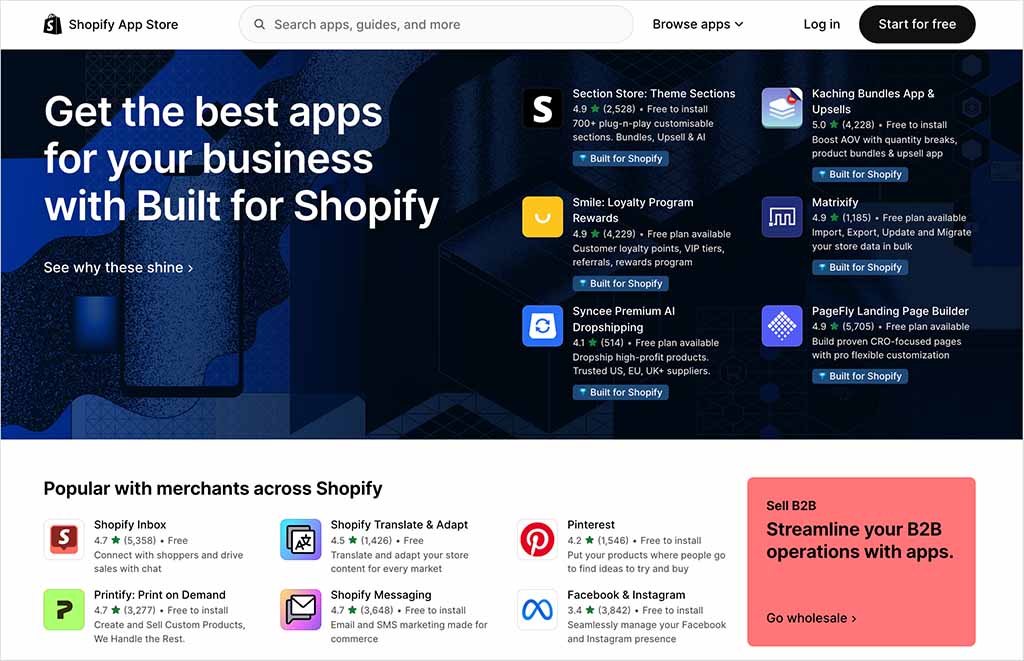
Now, this huge range of apps is one of the strongest arguments for using Shopify over its rivals — but I think that it’s also an argument against doing so.
On the plus side, it means that you have a fantastic range of options for adding functionality to your store and integrating it with other tools.
On the downside, it makes it rather tempting for Shopify to force you in the direction of a paid-for app to gain key functionality. Product reviews, backups, GDPR compliance, gaining additional product options and adding custom fields at checkout all usually involve installing a paid-for app.
(And the more apps you add, the slower your store can perform — something that can have negative implications for SEO.)
Competing platforms like Wix and BigCommerce, by contrast, tend to include more functionality like this out of the box — meaning that you don’t end up spending quite so much money on apps.
Reporting
Shopify provides 200+ separate reports to its users, with key ones including:
- sales reports
- customer reports
- marketing reports
- search data reports
- finance reports
- abandoned cart reports.
You also get the option to create custom reports on any plan – functionality that is often charged extra for by competing solutions.
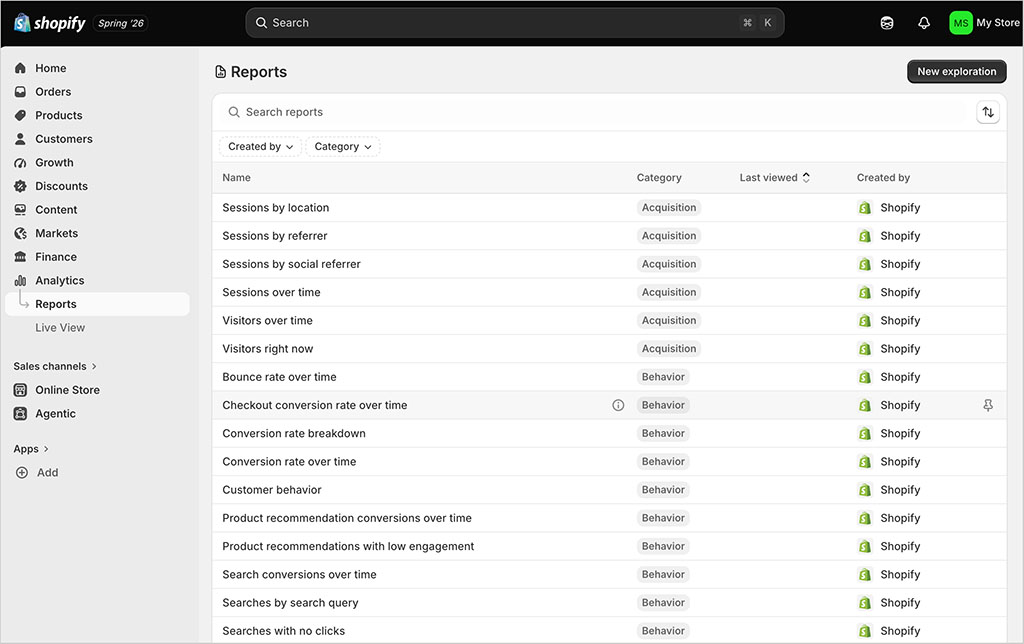
When using the reports to examine the performance of Shopify stores I manage, I’ve found the data comprehensive, clearly laid out and extremely easy to understand.
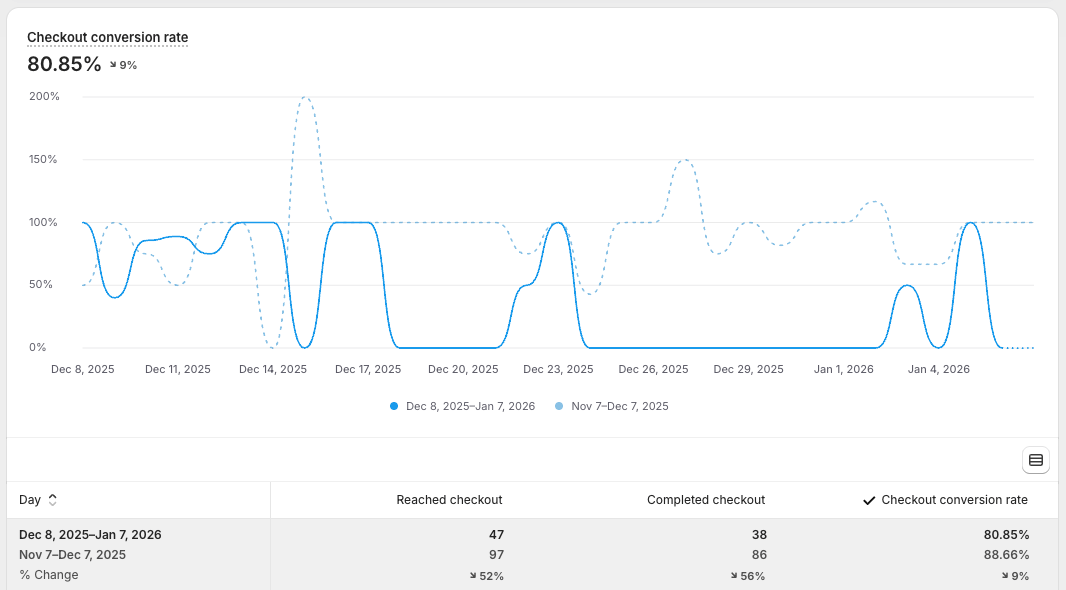
So all in all the reporting functionality you get from Shopify is very solid. And if you need even more data, you can always consider adding Google Analytics to your Shopify account.
Managing your Shopify store on a mobile device
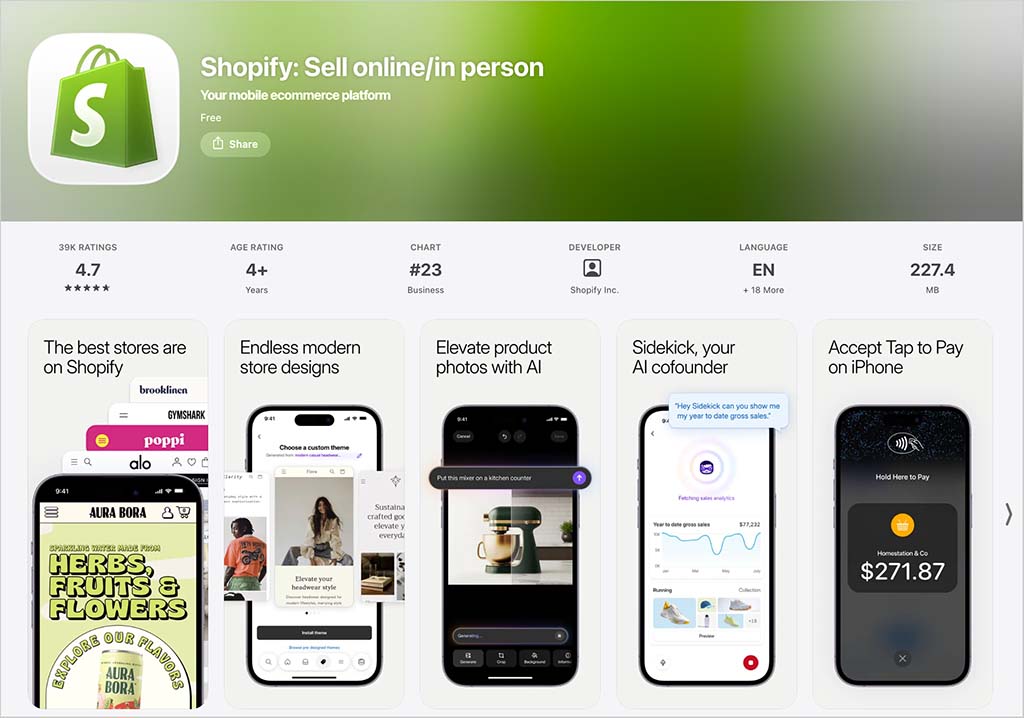
Shopify provides two main apps that you can use to manage your store on a mobile device: ‘Shopify‘ and ‘Shopify Point of Sale.’ These are available for both iOS and Android.
(The main ‘Shopify’ app scores 4.7 and 4.2 out of 5 on the Apple and Google Play app stores respectively. The ‘Shopify POS’ app is rated 3.6 out of 5 by Android users and 4.4 out of 5 by iOS users.)
The ‘Shopify’ app lets you:
- customize your store theme
- view and fulfil orders
- add/edit products
- view reports
- communicate with your team members via an order ‘timeline’
- use Shopify Email features.
The ‘Point of Sale’ app, as its name suggests, lets you use Shopify’s POS system — you can use it to take card payments in person, track inventory, text receipts to customers and so on.
In addition to the store management apps, there’s a useful app called ‘Shopify Inbox‘ available, which lets you add a live chat service to your Shopify store.
It also makes it easier to answer queries, capture leads or share your product details with customers when chatting with them over Facebook Messenger or Instagram.

There’s also a shopping app available, ‘Shop,’ that provides an accelerated checkout process for your Shopify store visitors, and helps them discover other products that are being sold by Shopify merchants around the world.
Of all the above apps, the main ‘Shopify’ app is likely to be the most use to the vast majority of Shopify store owners.
Security and backing up data
One of the main advantages of using a hosted solution like Shopify over a self-hosted one (like WordPress or Drupal) is that keeping your site secure is largely the software company’s job.
With a Shopify store, there’s never any core software or plugin updates to worry about; Shopify runs these updates for you in the background. Having used both WordPress and Shopify extensively in the past, I can say that not having to worry about this sort of site maintenance is one of the key things I really appreciate about the latter!
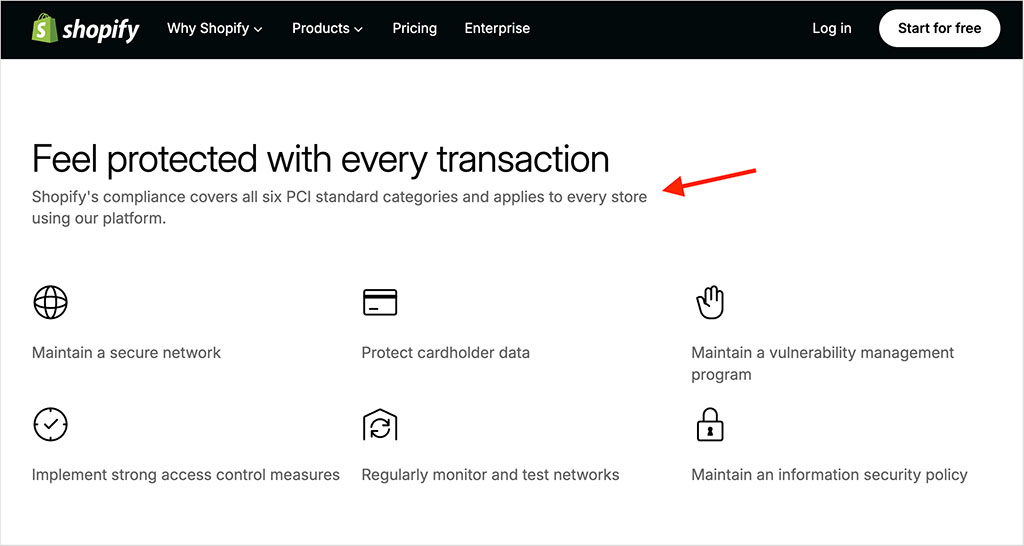
Similarly, ensuring that credit card transactions are safe for your customers is something that Shopify takes responsibility for (via PCI compliance).
You will need to give some more thought to data backups however; although in an emergency you may be able to retrieve data via a Shopify helpdesk enquiry, it’s safer to either export your product data regularly to a CSV file, or invest in a dedicated content backup tool from the Shopify app store.
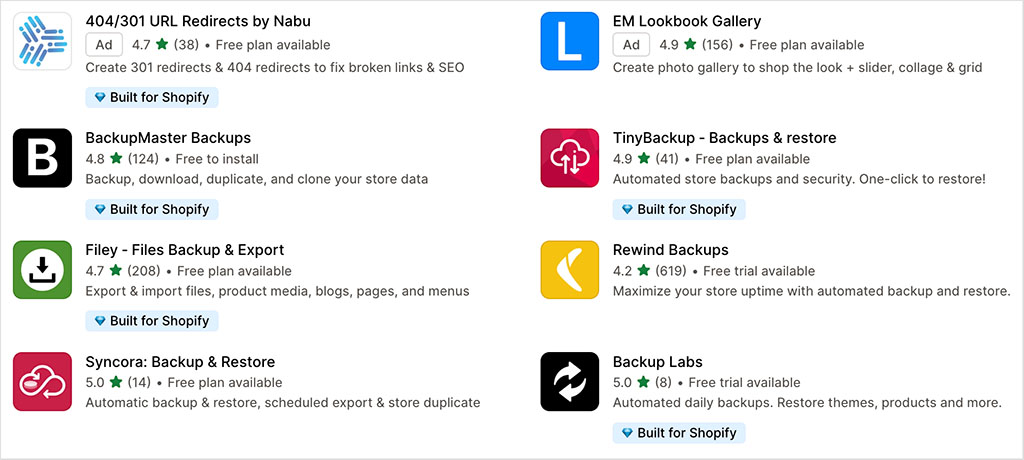
As the latter option will increase monthly outgoings a bit, this is not ideal.
Shopify customer support
Until recently, Shopify’s customer support was arguably the most comprehensive available from a store builder company, with 24/7 support available via phone, chat and email.
However, the company now only provides live chat on most plans. Phone and email support is reserved for Shopify Plus users.
The lack of phone and email support on cheaper plans contrasts negatively with key competing tools like Wix and BigCommerce, which still offer it on their standard subscriptions.
Commendably however, Shopify now makes getting support from a real person really straightforward — not always a given in this AI-assistant age we now live in. In its help center, you’ll find a sticky ‘chat with a human’ button that, when clicked, initiates a live chat with a member of Shopify’s support team (see my screenshot below).
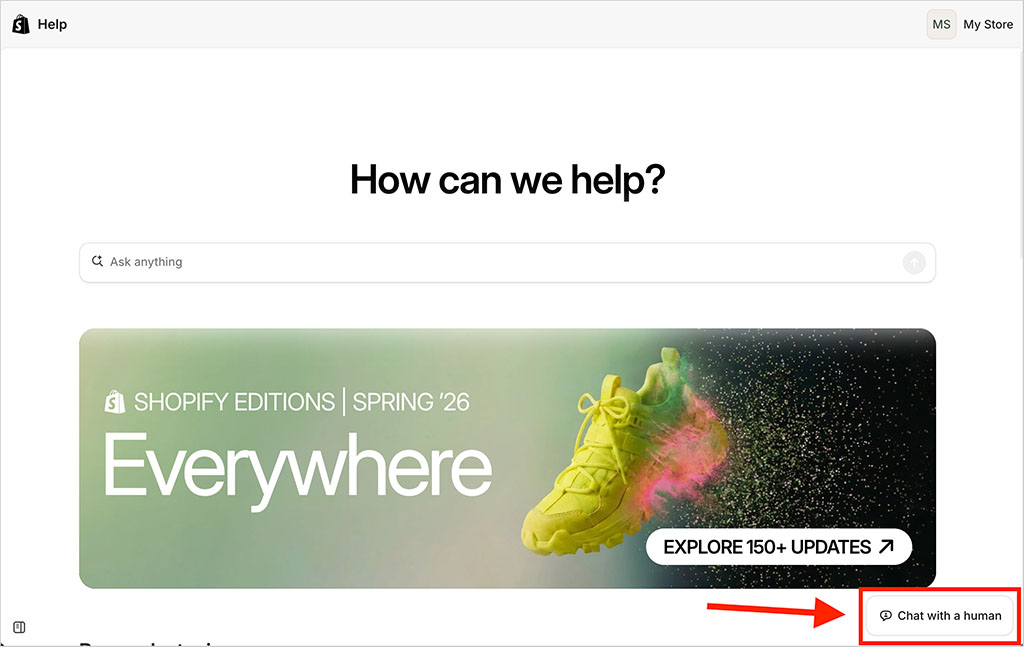
Shopify claims that when this option is used, response times are under five minutes — when I tested this claim, I was pleased to be connected to a support agent in under two minutes.
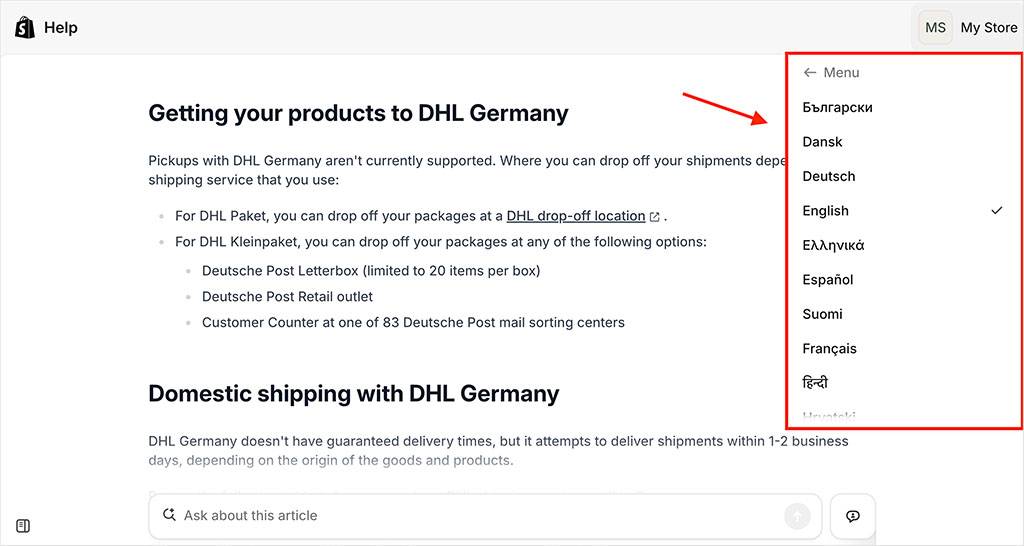
On the downside, Shopify’s live chat support only caters for a relatively small number of languages. It’s unclear on the Shopify site precisely which ones are supported, so I reached out to the Shopify customer service team for more information on this point. I was told that it’s available in Brazillian Portuguese, Danish, Dutch, English, French, Spanish, Italian, German and Swedish, with conversations available in other languages via use of Google Translate.
As for online support materials, these are available in 31 languages, and on the whole, they are high in quality and easy to understand. The only thing I feel is missing from them really is screenshots and videos — nearly everything is text-based.
OK, so I’ve walked you through all the key Shopify features. Now, let’s take a look at how much they cost…
Shopify pricing and value for money
There are four main Shopify pricing plans available:
- Basic — $39 per month
- Grow — $105 per month
- Advanced — $399 per month
- Shopify Plus — custom pricing, but starting at $2,300 per month.
There are a couple of things it’s worth mentioning quickly here:
- If you pay annually for your plan, you can avail of a discount — paying for your first year’s service upfront gets you 25% off your plan.
- Additional fees apply to make the most out of Shopify’s point-of-sale (POS) features, which let you sell goods in a physical location.
There is also a free trial available, which lasts for three days. When this is over, you are given the option to get three months’ access to Shopify for $1 per month. After that, regular fees apply.
Key differences between Shopify plans
All the Shopify plans provide the core ecommerce functionality you’d expect — on every plan, you can create catalogs of unlimited products, accept credit card payments, sell gift cards, offer discount codes on purchases and make use of a wide range of third-party apps.
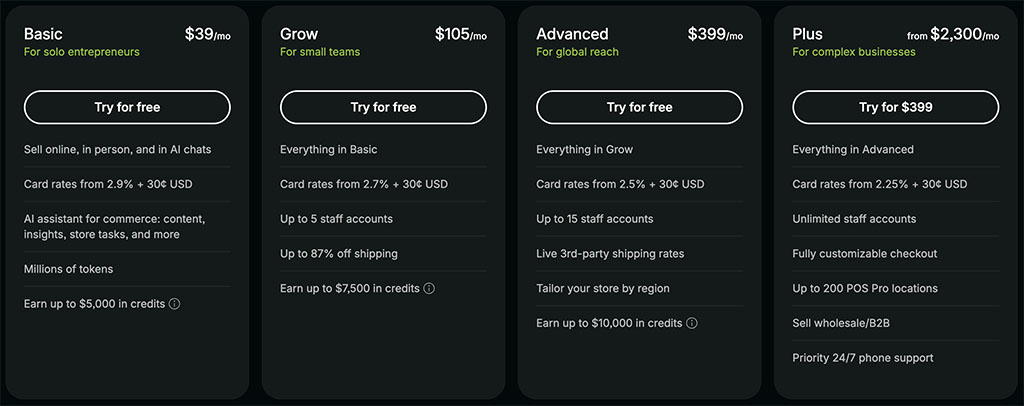
But there are a few key features to watch out for — and not miss! — by selecting the wrong Shopify plan. These are:
- Third-party real-time carrier shipping — this is only available if you’re on a a monthly ‘Advanced Shopify’ or ‘Shopify Plus’ plan (or if you’re on a ‘Grow’ plan and happy to pay either an additional fee or on an annual basis).
- Transaction / credit card fees — these get lower as you go up the pricing ladder.
- Shipping discounts — the more expensive the plan, the more generous these become.
- Shipping insurance — this is included on the ‘Grow’ plan or higher.
- Checkout capacity — the ‘Advanced’ plan gives you 10 times the checkout capacity of lower-tier plans (meaning that more shoppers can check out on your store at the same time — useful for sales events like Black Friday etc.).
The biggest problem with Shopify’s pricing structure? User accounts
Arguably the biggest problem that I discovered when evaluating Shopify’s pricing structure involves its approach to user accounts.
Unlike many of its key competitors (including WooCommerce, GoDaddy and Squarespace), Shopify places strict limits on the number of additional staff accounts you can have.
You don’t get any additional seats on the ‘Basic’ plan, and are limited to just five on its mid-level ‘Grow’ plan and 15 on its ‘Advanced’ plan.
The upshot of this is that if you need any multi-user access to your store, you are immediately forced onto a $105 ‘Grow’ plan — one that isn’t going to feel radically different from the much cheaper ‘Basic’ one for many merchants.
Shopify Plus
A quick word now about Shopify Plus, the enterprise-grade version of the platform. This provides additional features aimed at big corporations, including:
- the option to host and manage ten stores using one account
- unlimited staff accounts
- up to 200 inventory locations (rather than the standard 10)
- access to a drag-and-drop checkout editor
- significantly greater checkout capacity (when it comes to processing multiple checkouts at once, it can handle 40 times the number that ‘Basic’ and ‘Grow’ plans can, and ten times the total that the ‘Advanced’ plan can manage).
- guaranteed server uptime
- enhanced API access
- ‘white glove’ level of support via a dedicated ‘Merchant Success’ programme
- more sophisticated options for selling in multiple currencies
- access to premium training resources, like the ‘Shopify Plus Academy.’
Our Shopify vs Shopify Plus comparison and Shopify vs Shopify Plus video give you a detailed overview of these differences — but for me, the most significant aspect of Shopify Plus is the way it lets you build and manage multiple stores from one account.
However, it has to be said multi-store management can be done a lot more cheaply with other platforms — BigCommerce lets you manage multiple stores on its entry-level plan, and if you have a WordPress multi-site setup, the sky is the limit on the number of stores you can run using your account.
Accepting credit card payments with Shopify
There are two ways to accept credit card payments using Shopify:
- by using Shopify Payments, its built in payment processing system
- by using a third-party payment gateway.
Let’s go through both methods in turn.
Shopify Payments
The cheapest and easiest payment processing option is to use Shopify Payments, Shopify’s built-in payment system. If you use this, you don’t have to pay any transaction fees at all on any plan.
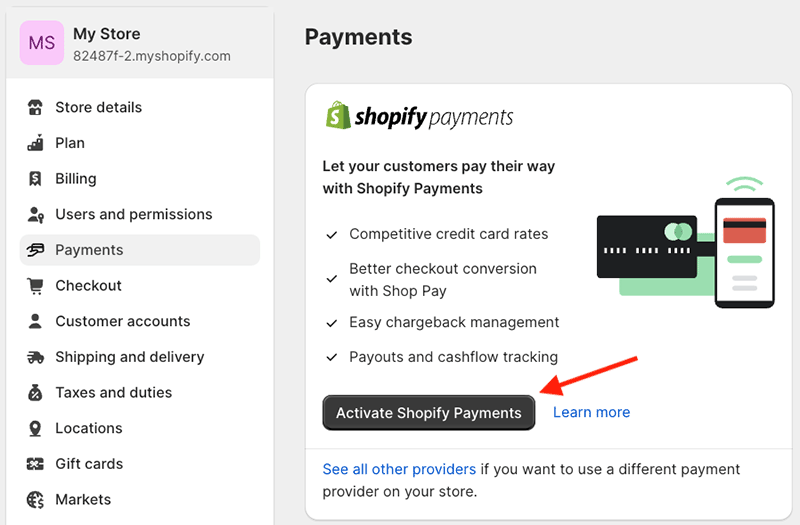
Additionally, there’s a credit card rate to factor in — in the US, depending on your plan, you can expect to pay a credit card processing fee of between 2.5% and 2.9% of each sale made on your online store.
Other payment gateways
The other way to accept payments in Shopify is by using a third-party ‘payment gateway’ — of which there are over 100 to choose from.
If you do this however, Shopify will apply a transaction fee to each sale. This will be up to 2%, depending on the plan you’re on.
So, unless you’ve got a very good reason not to, using the built-in ‘Shopify Payments’ payment processor will usually be the most cost-effective option.
However, you should note that Shopify Payments is only available to users based in certain countries (39 are supported, including many EU countries, major English-speaking markets, Switzerland, Hong Kong and Japan).
Real-life Shopify user reviews
So far in this review, you’ve heard my views on Shopify. But as part of my research for the piece, I interviewed some Shopify users to get their take on the platform.
So, here are some ‘real life’ takes on Shopify from some of its customers:
“I have used Shopify to build several successful ecommerce stores. Previously I had used WooCommerce, but in the last few years Shopify has just become the de facto choice. Its ecosystem, functionality, support and ease of use make it fundamentally so much better than any of the other options. I won’t consider using anything else for a new project.
In terms of the downsides of Shopify, I find the site editor a bit harder to use than I’d like, and setting up on-page SEO is not as straightforward as in WordPress.”
– Ian Clifford, DJtechreviews.com
“We’ve been using Shopify POS for around 5 years now. For the most part, it is easy to use, reasonably priced and reliable. It’s been quite straightforward to set up.
However, we have had issues with updates running during the day when we are trading, occasionally leaving us unable to take card payments, and this has resulted in lost sales.”
Liz Jones, ziggysgiftshop.co.uk
“I use Shopify to run the store for the art rock band Five Grand Stereo. On the whole it’s a great solution for selling their merchandise, and it’s particularly good for bundling physical and digital products together.
I’d like to see a better site editor added to Shopify however. The way that the drag-and-drop tool works is a bit strange — other than the home page, it doesn’t let you edit individual pages, just templates. I worked out what to do eventually but it took me longer than I’d like.”
Emma Finnigan, fivegrandstereo.com
“I’ve been using Shopify for a good few years now and I’m going to stick with it. I like that it’s really easy to use, and the theme I used to build my site has stood the test of time.
The blogging part for me is a big plus because it’s worked pretty well for my SEO and it’s where I send my email newsletter links to as well. I just wish it was easier to reply to a user’s comments.
I also find it a bit frustrating that Shopify’s support for offering digital product downloads comes via an official extra app they’ve created. It’s a bit clunky and takes a lot of clicks to do even basic things like generate a new download link.
That said, all the functionality I need is available either built into Shopify or as an extra app, so it’s definitely a platform that has worked well for me and I’d recommend it to others.”
Diarmaid MacMathuna, cruinneog.com
In terms of wider user feedback, with one notable exception, Shopify is currently rated highly on key aggregate review sites.
| Site | Rating (out of 5) |
| G2 | 4.4 out of 5 (6,563 reviews) |
| Capterra | 4.5 out of 5 (6,700 reviews) |
| Trustpilot | 1.3 out of 5 (4,878 reviews) |
| TrustRadius | 4.4 out of 5 (705 reviews)* |
*Recalculated from an out of 10 score
As you can see from my data above, Shopify user reviews were positive on all the sites I looked at — with Trustpilot being a noticeable exception. Users on this review site only rate it 1.3 out of 5, with many complaints relating to the quality of customer support.
Shopify review: conclusion
Overall, Shopify is one of the best hosted solutions for those wishing to create an online store, and arguably the best for anyone who wants to use one product to sell online AND in a physical location. It’s also an extremely good solution for users who want to dropship, run a print-on-demand business or sell products in multiple currencies.
The product is competitively priced, particularly when you consider that point-of-sale selling, multilingual tools and sophisticated email marketing tools — features that many other platforms charge a premium for — are included on most plans.
It’s also easy to use, integrates well with a huge number of other apps, and comes with an increasingly good set of AI features.
All in all, Shopify is a very good option for anyone hoping to start a business, or existing small businesses wishing to take their product offering online — but there are some disadvantages of using Shopify to be aware of too.
The main one to watch out for is the transaction fees applied to merchants using a third-party payment gateway (many of Shopify’s competitors don’t charge any transaction fees at all, regardless of the payment processor used).
Second, Shopify’s limit of three options per product isn’t ideal, nor is its lack of a built-in tool for collecting custom data from customers at checkout.
Third, Shopify’s multi-currency selling features, while generally very good, don’t work with third-party payment gateways — and the new restrictions placed on custom pricing aren’t ideal.
And finally, the number of user accounts you get on each plan is not at all generous, especially when you compare these limits to those of completing platforms. (For me, this is one of the sneakiest aspects of Shopify’s pricing structure.)
A more complete summary of Shopify pros and cons follows below, but as always we strongly recommend that you try before you buy — it’s worth having a good play with the platform via the Shopify free trial.
And of course if you have any questions or feedback on the platform, do leave them in the comments section at the end of this post!
Shopify pros and cons summary
Reasons I think you should use Shopify
- It’s very easy to use.
- It supports a large range of external payment gateways.
- It lets you work with up to 2,048 product variants..
- It’s a particularly good option for anyone interested in dropshipping or print on demand.
- True multi-currency selling is possible with Shopify — something that can’t be said for a lot of competing platforms.
- The point-of-sale options are comprehensive and work well.
- It gives you sophisticated and affordable abandoned cart recovery tools.
- Its automatic tax calculation tools are excellent and in particular deal well with EU VAT rules.
- You can use any Shopify plan to create versions of your store in up to 20 different languages.
- You can avail of generous shipping discounts if you use the built-in ‘Shopify Shipping’ service.
- The ‘Buy Button’ feature allows you to use Shopify to add a shopping cart easily to any website or online business presence.
- It gives you generous (and increasingly sophisticated) email marketing features.
- A huge range of apps is available for the platform.
- Shopify’s SEO features are good, and you can use Yoast with the platform.
- Some of its AI features are genuinely useful.
- There are no transaction fees if you are happy to use the built-in payment processing system, Shopify Payments.
Reasons I think you should avoid Shopify
- The number of user accounts you get on each plan is extremely ungenerous and may quickly force you onto an expensive plan that you might not otherwise need (this is especially the case with the ‘Basic’ plan).
- The number of free themes provided, 24, is quite small compared to the number offered by competing online store builders.
- Its template editor could be better.
- You can only work with three product options (unless you pay for a third-party app)
- Shopify Plus plan aside, there’s no phone or email support available — you’re restricted to using live chat to contact Shopify.
- Key functionality that you might expect to be provided out of the box often requires installation of a paid-for app.
- Adding custom fields such as text boxes or file upload options, while doable, is unnecessarily complicated.
- Shopify’s built-in payment processor, Shopify Payments, only allows you to sell from certain countries.
- The built-in multi-currency feature is only available if you are a Shopify Payments user.
- You can’t avoid transaction fees if you use a third-party payment gateway.
- Product images have to be uploaded with the same aspect ratio to display neatly alongside each other.
- When using a dropshipping app, it’s hard to be sure that the goods you’re selling are ethically produced.
- If you’re not using ‘Shopify Shipping’ to provide real-time carrier quotes to your customers, or live in a country where it’s not available, getting your hands on this functionality can prove expensive.
Overall score: 4.5 out of 5
Shopify alternatives
There are lots of alternatives to Shopify available.
Of the ecommerce solutions I’ve tested to date, I’ve found that BigCommerce is probably the closest / strongest alternative to Shopify.
The key advantage that it has over Shopify is the option it gives you to build multiple stores with one account (something that is only possible on an expensive ‘Shopify Plus’ plan).
For more information on the product and how it stacks up against Shopify, check out our BigCommerce review and our BigCommerce vs Shopify comparison.
If you need more flexibility with regard to how you lay out content, or have a particular need to showcase images, videos or blog posts, you might like to check out Squarespace, which has a really lovely approach to managing content. Its drag-and-drop editor is significantly better than Shopify’s.
You’ll need to bear in mind that Squarespace’s ecommerce functionality is more limited than Shopify’s, however — particularly where multi-currency selling and point-of-sale ecommerce are concerned.
But for an ecommerce beginner with simple selling needs, it’s great.
Check out our Squarespace review, our Squarespace pricing guide and our Shopify vs Squarespace comparison for more details on this platform.
Webflow is also an interesting option for users who want a huge degree of control over layout. To see how it stacks up against Shopify, you can read our Webflow vs Shopify comparison.
You can also check out our Webflow review, our Webflow vs Wix shootout and our Squarespace vs Webflow comparison for more details on this platform.
If international selling is important to your business, PrestaShop might be a good option for you. Although not as easy to use as Shopify, it provides users with a lot of flexibility when it comes to selling in multiple currencies, site translation and tax calculation. Take a look at our PrestaShop vs Shopify comparison for more details.
You might also be wondering whether online marketplaces like Etsy, eBay and Amazon are good options for starting an ecommerce business.
If so, take a look at our Shopify vs Etsy comparison, our Shopify vs eBay comparison and our Shopify vs Amazon comparison for more details on how selling on platforms like these compares to using a standalone store builder.
If you already run a website, you might like to investigate Ecwid, which allows you to add an online store to an existing site (Ecwid offers similar functionality to Shopify’s ‘Buy Button’, but with more advanced features). You can read our full Ecwid review or our Ecwid vs Shopify comparison for more information on this product.
If you are on a low budget, then Wix, Big Cartel, GoDaddy and Jimdo are worth a look, as they offer selling tools at a cheaper price point.
However, as with Squarespace, these products are more ‘general purpose’ website builders and consequently are rather more limited in terms of ecommerce functionality than Shopify.
Check out our Wix review for more information about Wix; our Wix vs Shopify, Squarespace vs Wix and Wix vs WordPress comparisons will also help you decide whether the platform is for you.
If POS functionality is a key concern, Square Online may potentially be a good fit for you — this solution lets you build a pretty decent online store but also gives you access to a sophisticated range of POS hardware and features (some of which can be used for free). Check out our Shopify vs Square comparison for more details.
And finally, there’s always self-hosted WordPress. This is a different beast to Shopify in that it is not a ‘hosted’ store builder: selling on it involves building a site on your own hosting setup, and adding an ecommerce solution to it. (Our Shopify vs WordPress comparison goes through this process in more depth).
However, there are LOTS of plugins available that let you sell your products using WordPress — with WooCommerce being the preferred option for many.
Shopify review FAQ
How many people use Shopify?
According to Ecommercetrix, Shopify currently powers around 7 million online stores, and 7,600+ employees work for the company. It has generated over $1.1tn in sales to date.
What’s the best value Shopify plan?
It really depends on your selling requirements, but for me the ‘sweet spot’ plan is probably the mid-tier ‘Grow’ plan — it gives you the bulk of functionality you need for an online store, including multi-user access, full control over multi-currency payments, shipping insurance and store translation features.
Does Shopify charge transaction fees?
You can avoid transaction fees by using Shopify’s built-in payment gateway, Shopify Payments. However, if you use a third-party payment gateway, Shopify charges you a transaction fee of up to 2%, depending on your plan.
Do I need any special hardware or software to use Shopify?
Building a standard Shopify store can be done on any sort of desktop computer, and doesn’t require you to install any software locally. It doesn’t matter whether you’re using a Mac, PC or Chromebook — all you need is a web browser and access to the internet to build your store. If you are selling at point of sale however, you will usually need to invest in some hardware, like a card reader, receipt printer or till.
Can I sell video content on Shopify?
Yes — you can use Shopify’s free ‘Digital Downloads’ app to do this, but you might find that a dedicated third-party app like Sky Pilot works better (particularly if your customers need to stream your content).
Can I create multilingual versions of my Shopify store?
Yes. All plans let you create up to 20 different language versions of your store.
Can I sell in multiple currencies with Shopify?
Shopify’s built-in multi-currency feature lets you sell in over 130 currencies — but it is only available if you are using Shopify Payments as your payment gateway. If you are based in a country that doesn’t yet support Shopify Payments, you can still sell in multiple currencies, but you will need to use a third-party app to do so.
Is it easy to upgrade or downgrade my Shopify plan?
Yes, you can do this at any time. The price of your previous plan is prorated and applied against the cost of your new subscription.
Should I use a free or paid-for Shopify template?
For most new merchants, a free Shopify template will work perfectly fine — the bundled templates are attractive and their visuals can be easily tweaked to make your storefront consistent with your brand. It’s also worth bearing in mind that the free templates are all fully supported by Shopify; if you use a paid-for theme, you may need to source support from a third-party developer. That said, some of the paid-for options can provide a more ‘bespoke’ look for your online store.
What’s the best alternative to Shopify?
There are lots of alternatives available to Shopify — we discuss some of them in depth above. The most similar ‘hosted’ product in terms of pricing and basic features is probably BigCommerce. In terms of self-hosted / open source competitors, WooCommerce is the strongest alternative to Shopify we’ve tested to date.
Update details
This article was updated on August 19, 2026. The following key updates were made:
- Information about Shopify’s legacy “Starter” plan was updated.
- Platform screenshots were updated.
- The number of dropshipping and print-on-demand apps were updated.

Comments (71)