

We have an honest review policy, but this page contains affiliate links. If you buy through these, we may earn a commission. This helps fund our research at no cost to you.
In this Squarespace review, I look at one of the best-known website building solutions on the market, and help you work out if this platform is the right choice for you.
The quick verdict
For a fairly low fee, Squarespace gives you access to a wide range of excellent templates, simple-but-effective selling tools and an interface that is extremely easy to use. It’s a particularly good website builder for showcasing creative projects, creating membership sites or selling online courses.
When it comes to ecommerce however, there is quite a bit of room for improvement. The range of payment processors Squarespace provides is limited, it doesn’t facilitate multi-currency transactions, and it doesn’t give you much in the way of point-of-sale functionality.
Key pros and cons
| Pros of Squarespace | Cons of Squarespace |
| ✔️ Attractive templates | ❌ No multi-currency selling features |
| ✔️ Easy to use | ❌ Doesn’t let you switch templates |
| ✔️ Good for selling gated content | ❌ Limited payment gateway options |
| ✔️ Great image management tools | ❌ No phone support |
| ✔️ Free domain with annual plans | ❌ Limited number of integrations |
Our overall rating
4/5 ⭐⭐⭐⭐
How to get started with Squarespace
Let’s begin the full comparison by looking at how Squarespace works.
How Squarespace works
Squarespace is a ‘hosted’ solution. This means that it runs on its own servers, and you don’t have to pay for a hosting service or install software anywhere to use it.
The platform lets you create a website in a web browser without coding and edit it easily thanks to a user-friendly content management system (CMS).

The idea is that you pick a template, make a few design changes (via simple style controls and a drag-and-drop editor), add some content and hit the ‘publish site’ button. This simplicity is a key part of Squarespace’s appeal.
Squarespace plans and pricing
There are four Squarespace pricing plans available:
- Basic — $25 per month
- Core — $39 per month
- Plus — $65 per month
- Advanced — $139 per month
If you pay upfront for a year, a discount of between 24% and 29% is applied to the above fees, depending on your chosen plan. You also get a free custom domain name (yoursitename.com etc.) if you pay on an annual basis.

In addition to the main Squarespace plans, there’s an enterprise plan available known as ‘Squarespace Premium’. This gives you access to priority support and ‘white glove’ consultancy services to help you create and manage a website. Pricing for this plan is negotiable and based on your requirements.
If you’d like to try Squarespace out before buying a subscription, a two-week free trial is available.
Key differences between Squarespace plans to watch out for
When it comes to the key differences between Squarespace pricing plans, the main things to look out for are:
- Ecommerce features — as you go up the pricing ladder, the features for selling online become more sophisticated.
- Transaction fees – these are 0% on the ‘Core’ plan or higher, but 2% on the entry-level ‘Basic’ plan.
- Adding CSS and scripts — the ‘Basic’ plan doesn’t let you add CSS or JavaScript to your site. This makes it difficult to add bespoke design customizations or integrate third-party services.
- Contributors – the ‘Basic’ plan lets two people edit your site or add content to it; all the other plans let an unlimited number of contributors do so.
- Integrations — connections to certain third-party apps and services like Opentable, ChowNow, Amazon and Mailchimp are only available on the ‘Core’ or higher plans. (The Facebook pixel can only be used on these plans too).
- Marketing features – on the $39 per month ‘Core’ plan and higher you can use Squarespace’s promotional pop-ups and banners. These allow you to highlight particular offers on your website, or ask users to sign up to mailing lists. You can also add ‘mobile information bars’ on these plans (pictured below).
- Ecommerce analytics — you don’t get access to these on the ‘Basic’ plan.
You’ll learn more about all these features throughout my review.

Now that we’ve looked at some of the key differences between pricing plans, it’s time to take a look at a particularly important aspect of Squarespace: the visuals.
Squarespace templates and design features
Quality of templates
Template quality is key when it comes to good web design, especially if you’re not a professional designer. So how does Squarespace stack up on this front?
Well, a range of 200 Squarespace templates is currently available, and they are in general very attractive. Nearly all of them have a slick, contemporary look and feel — and in my view are higher in quality than those provided by competing website building platforms.
To put Squarespace’s template range into context against those of its competitors, it gives you more options than Shopify and BigCommerce, which offer 24 and 12 bundled templates respectively.
However, Wix and WordPress give you a lot more templates to play with than Squarespace — 3,000+ and 14,000+ respectively.
But interestingly, thanks to Squarespace’s ‘Blueprint’ feature, you don’t necessarily have to pick a template at all — you can give Squarespace some information about your project and let its so-called ‘AI Wizard’ decide upon the best look and feel for your site.
While testing Blueprint out, I recorded a video of my experience with it — you can watch this below.
Now, I really like the Squarespace templates, but it has to be said that most of them are very ‘image-centric,’ and really only work well when professional, eye-catching photography is used.

A lot of the templates only work well if you fill your home page with a large, full-bleed photograph (see above screenshot for an example of what I mean here!).
And speaking of pictures…
Stock images in Squarespace
Something I particularly like about Squarespace is that it provides you with access to the entire Unsplash’s image library out of the box — this lets you browse over seven million royalty-free images and add them easily to your website.

And, if the quality of the Unsplash library doesn’t appeal, Squarespace offers you the option to buy images directly from Getty. These images cost $10 each, which is not unreasonable (given how expensive stock images can be to buy from the Getty site itself).
Typeface selection
A huge range of web fonts — 1,000 from Adobe and 600 from Google — is included with Squarespace.
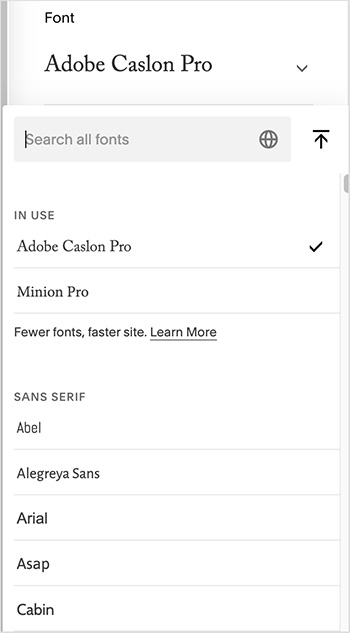
This is far more than provided by most competing website building platforms and makes it relatively easy to make your website’s branding consistent with your other marketing materials.
If you want to use a font that’s not available in Squarespace, you can add it to your site via custom CSS (so long as you’re on a ‘Core’ plan or higher).
However, when I tried to do this, it ended up being a bit of a fiddly process — and one that definitely requires a detailed understanding of CSS. I’d much prefer if Squarespace gave users a code-free way to add custom fonts (as Wix does, for example).
Have you seen our Squarespace video review yet?
Behavior of Squarespace sites on mobile devices
All Squarespace templates are fully responsive, meaning that your site’s template will automatically resize itself to suit the device it’s being viewed on (smartphone, tablet, desktop computer etc.). Not only does this make your site more accessible to a wider range of users, responsive design can provide some SEO benefits too.
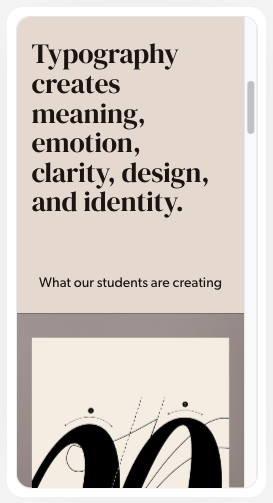
It’s worth pointing out here that not all Squarespace’s competitors let you create truly responsive websites.
Styling templates
It’s easy enough to configure a Squarespace template design to your liking. You use a menu of styling options on the right-hand side of the screen to adjust how components — displayed on the left — appear. These controls let you adjust things like fonts, colors, page width and so on easily.
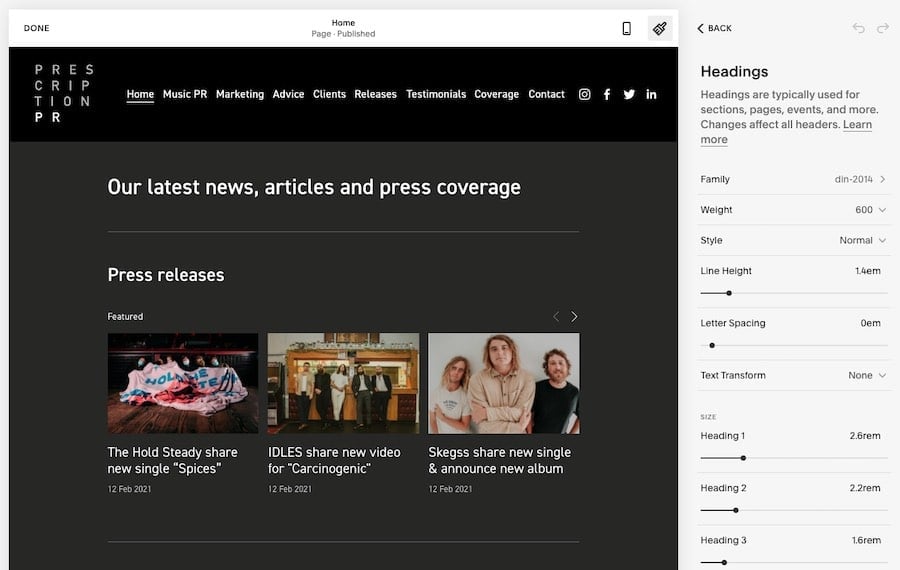
A key thing to note about the latest version of Squarespace (7.1) however is that it doesn’t allow you to switch templates once you’ve selected one.
This is frustrating, but less of a big deal than it sounds at first, because all the 7.1 templates work the same way — i.e., you can create the look and feel of another template by tweaking your site fonts and colors to match it.
Nonetheless, I don’t like this approach — it would be much better if Squarespace offered the option to switch to another template design with the click of a button, as many competing platforms do.
In terms of styling your template via code, so long as you’re on a ‘Core’ or higher plan, you can add your own custom CSS to your website. This is useful for making changes to your website’s appearance that Squarespace’s design controls don’t permit.
You won’t be able to see or edit the full CSS stylesheet in Squarespace, but you can add your own CSS rules to change the appearance of certain items on your website (see screenshot below for an example).
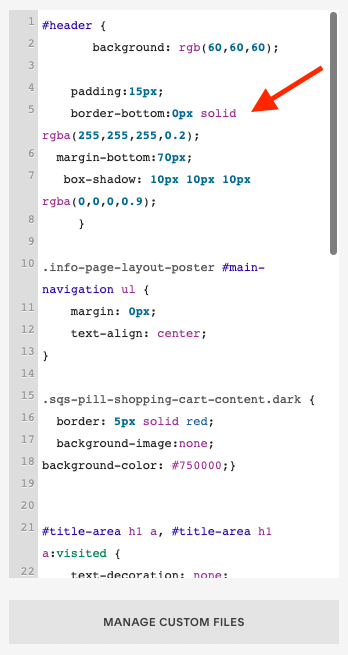
However, it’s important to note that if you add your own CSS, Squarespace’s customer support team reserves the right to limit the kind of support they give you.
And some competing products are better than Squarespace when it comes to providing full control over the templates — Shopify and BigCommerce, for example, both provide you with complete access to your site’s CSS and HTML on all plans.
Squarespace 7.0 vs Squarespace 7.1
There are actually two versions of Squarespace available at the moment: 7.0 and 7.1. My review is focusing on the default version, Squarespace 7.1, but technically you can still opt to build a site on version 7.0.
Doing so will give you access to a different set of templates and a few features that were removed in version 7.1, including:
- cover pages (landing or ‘intro’ pages for your site)
- the ability to switch templates
- access to the Squarespace developer platform (which can be used to code bespoke Squarespace sites).
Unless you’ve got a very good reason to use Squarespace 7.0 though, I’d recommend that you avoid doing so: using the newer 7.1 version of the platform gives you access to considerably more tools, page layouts and content blocks. It’s also going to be better supported by Squarespace going forward and it’s the version of the platform into which new features will be introduced.
In my tests, I’ve found that Squarespace 7.1 is generally faster than 7.0 — and page speed is important for SEO. I’ve also found that Google’s ‘Core Web Vitals‘ standards on site speed and stability are easier to meet with version 7.1 too.
Content management and ease of use
There’s lots to like about content management in Squarespace — but some negative aspects to be aware of too.
Let’s explore these key pros and cons of the Squarespace content management system (CMS) now.
Importing and exporting content
Imports
It’s easy enough to get basic web content into Squarespace. Helpful ‘wizards’ are provided to help you import pages, blog posts and other content from WordPress, Blogger and Tumblr.
You can import up to 10,000 products via CSV or, using an import tool, from Etsy, Shopify and Big Cartel.
Exports
You can export certain types of content from Squarespace into a WordPress-format XML file — not everything exports, but content that you can get out of the platform includes key items like pages, posts and galleries.
There are limitations to watch out for when it comes to products, however — only physical products can be exported, and exports are capped at 10,000 products (with each variant counting as a product).
Content layout
When you set up a new page in Squarespace, you choose from a range of pre-defined page layouts — for example contact pages, about pages, team pages etc. — and this can really speed the design process up.
(If you like, there’s also the option to start with an entirely blank page too).
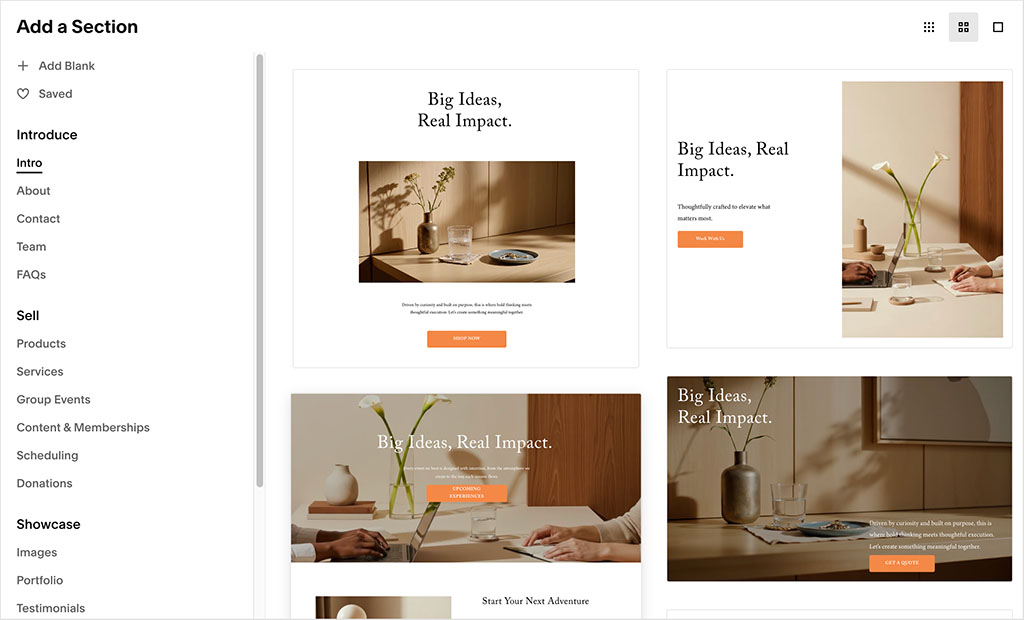
Once you’ve decided on a page layout, you’ll find that Squarespace’s ‘Fluid Engine’ drag and drop editor is easy to use, letting you insert ‘content sections’ — blank or pre-defined content areas containing images, text, forms, videos etc. — anywhere on the page.
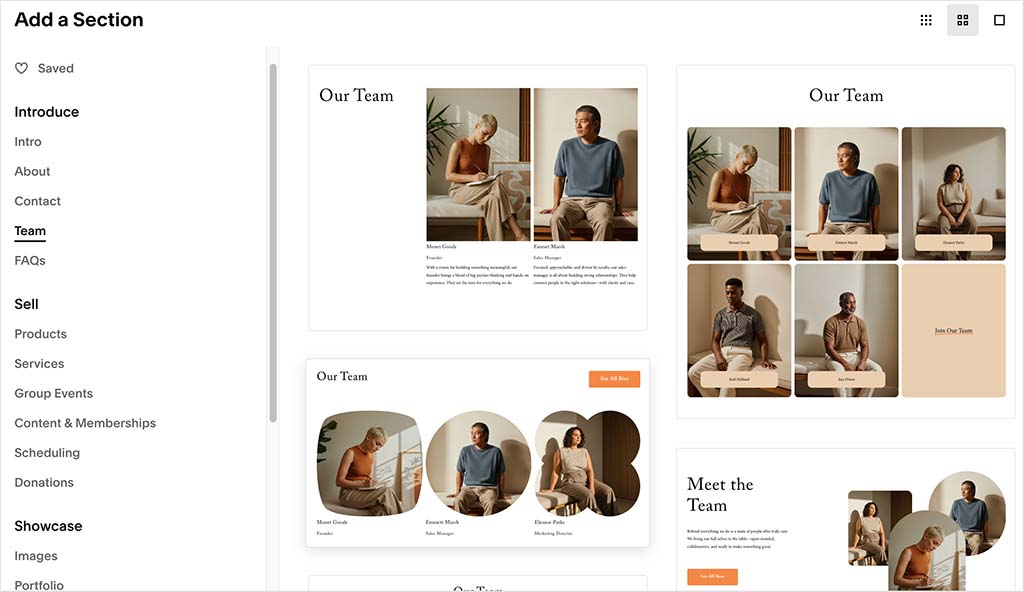
It’s very easy to change the position of these content sections too — it’s simply a case of grabbing an element and dragging it to another location on the page.
It’s easy to place elements within content sections too — most sections allow you to add ‘content blocks’ to them (pictured below).
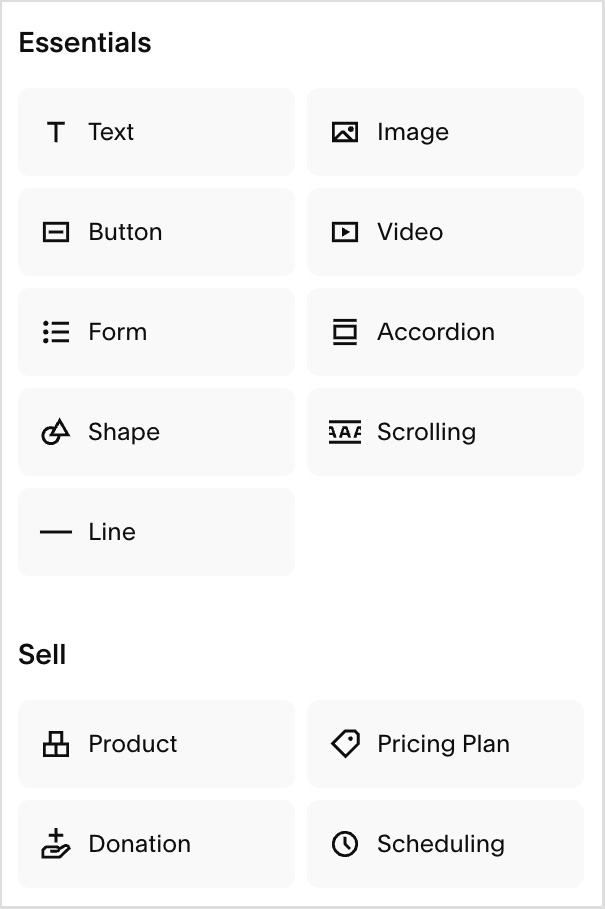
As with Squarespace’s content sections, these can be moved around the page easily.
Content blocks you can add include:
- text
- images
- videos
- audio
- galleries (in slideshow, grid, carousel, or stack format)
- forms
- quotes
- restaurant menus
- event listings
- content summaries
- calendars
- maps
- code
- markdown.
As you move these blocks around the page, you’ll see a grid appear — you can use this to ‘snap’ things into the right place (see my screenshot below to get a sense of how this works).

And, when moving blocks, lines appear that let you know when an item is centered relative to another block or section (see my ‘smart guides’ screenshot below).

You can also edit the mobile version of a page too, by clicking the mobile icon at the top-right hand corner of the screen.

Once you’ve selected this option, you can adjust the layout of the mobile version of your site by dragging and dropping your content blocks into desired positions.
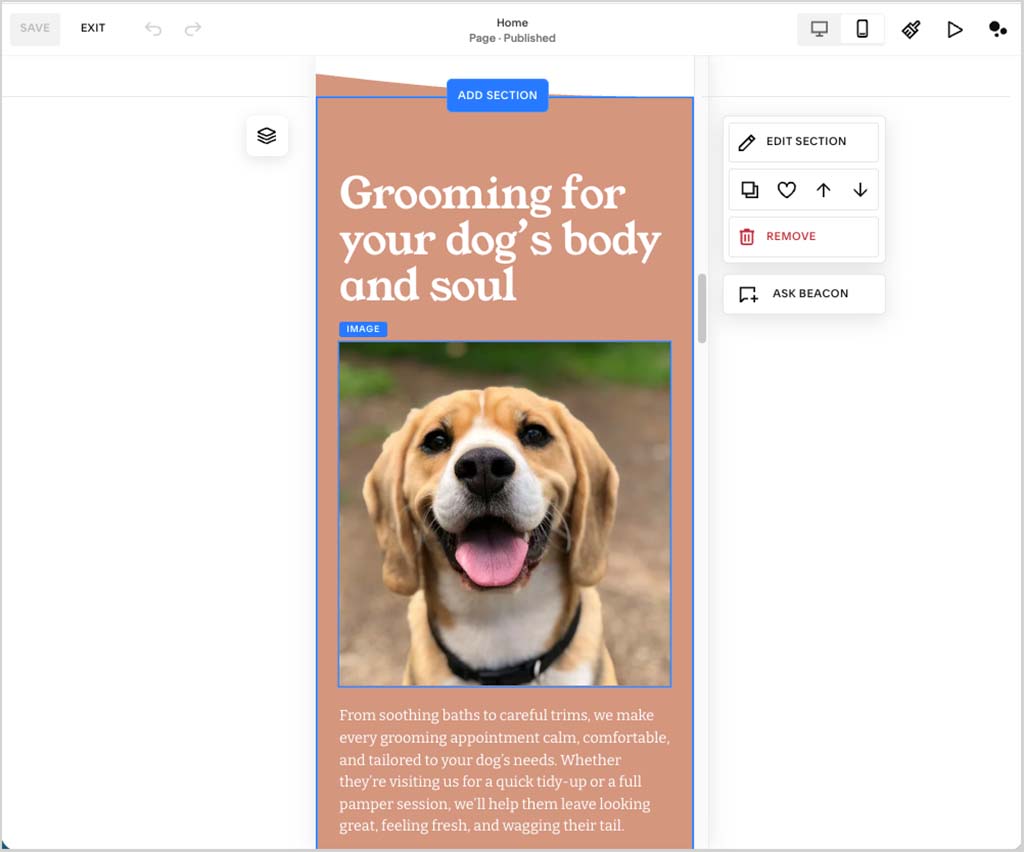
Now, while some users will appreciate this level of control over both their mobile and desktop sites, the problem with it is that you end up having to manage two versions of your website, which can mean more work and complexity.
In practice, I found that making relatively minor changes to the desktop version of a page quite often messed up the mobile version — resulting in a lot of toggling between the two versions, and additional editing work.
And oddly, when testing the mobile site editor in Squarespace, I couldn’t find a way to hide elements — probably the most useful aspect of having two separate editors, and something that key competitors Wix and Webflow both provide.
Images
The way Squarespace lets you work with images is a key plus point of the platform — its image manipulation and management tools are really strong.
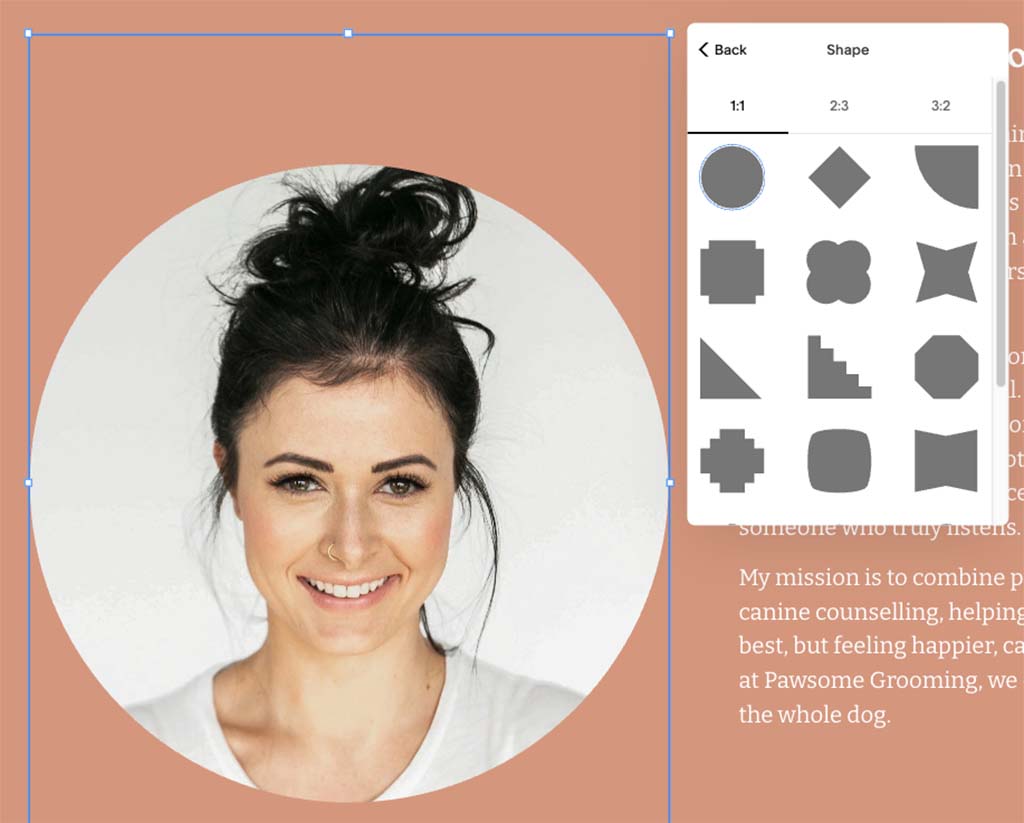
You can resize, stretch, crop or rotate any image you add to your website with ease in Squarespace, or apply shapes to it.
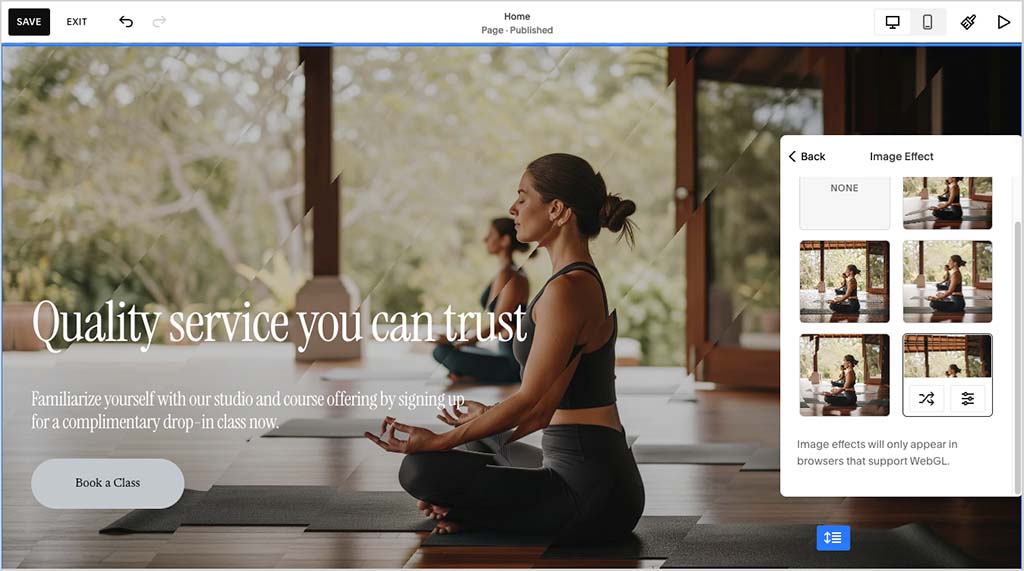
A range of impressive dynamic effects can also be applied to your images — these include ripple, film grain and parallax scrolling effects.
You can also pick a ‘focal point’ for your images; this helps ensure that no matter what type of device a user is viewing your site on, the part of the image you care most about is always on display.
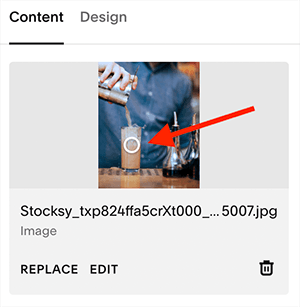
In this era of responsive websites, where images are resized according to device, this can be a bit of a design lifesaver, ensuring that your images always ‘make sense,’ regardless of what device your site is being viewed on. I really like this approach.
In terms of using galleries and slideshows, Squarespace offers you several different presentation options — including slideshows, carousels and grids — and all look excellent.

This wide range of gallery features makes Squarespace a particularly good option for photographers who need a website to showcase their portfolio.
So all in all, it’s a really big thumbs-up for image management in Squarespace.
Blogging features
What’s Squarespace like as a blogging platform?
Well, I’ll talk about the good stuff first:
- Unlike some competing platforms, you can have as many blogs as you like on your Squarespace website. This is useful, because it means you can create different blogs for different types of content — news, reviews, tutorials and so on.
- You can paywall your blog content easily, which gives you a great way to monetize popular posts on your site.
- You can create really stylish summary blocks of your blog and drop them into any page on your site. And you can configure these (based on things like author, topic, tag etc.) so that the most relevant posts for that page are displayed. Anyone who is interested in creating a magazine style layout for their site will love this.
- While competing website builder tools often restrict you to using tags only, you can use categories AND tags in Squarespace — this means you can present your content in a more flexible way.
- Squarespace blogs come with an RSS feed, meaning that you can power e-newsletters with them, or let people feature your blog content on their sites in various ways.
For more information about blogging in Squarespace, you can watch our video guide to the topic below.
There are, however, two significant flaws in Squarespace’s blogging setup that need to be pointed out:
- There’s no autosave. This is a big omission and it can lead to lost content (for example if your browser crashes mid-sentence, or you accidentally delete part of a blog post — I’ve been a victim of both scenarios when using Squarespace).
- There’s no revision history (i.e., an archive of older versions of posts).
The bottom line with blogging in Squarespace is that it’s fine for most users — but if you’re a professional blogger, or intending to run a large publication, there are better options available to you, not least WordPress.
Navigation limitations
As things stand, Squarespace is not really a great tool for creating websites with ‘multi-level’ navigation systems. While all Squarespace plans technically allow you to create up to 1,000 static pages (and an unlimited number of blog posts), limits apply to how you organize them.
In practice, the platform only permits you to create rather ‘flat’ websites, with a maximum of two levels of navigation.
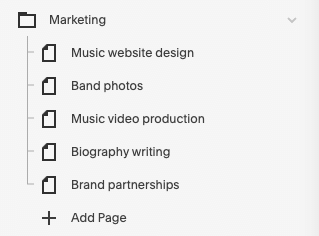
In many ways this is a good thing, because your site will end up being easy to navigate — but some will find this frustrating.
Version history — a significant omission?
Unlike competing products like Wix and WordPress, Squarespace doesn’t automatically keep a history of changes to your website. This means that if you accidentally mess up a page (or worse, permanently delete it), you can’t restore an earlier version of it.
That’s not to say that Squarespace doesn’t back up your website — the company says that it keeps copies of its customers’ content in multiple locations and that your data is safe with it.
However, it’s not clear what actually happens in the event of a data loss — and the fact that the Squarespace help page on troubleshooting lost content encourages you to try to retrieve accidentally deleted content by searching an Internet archive (the Wayback Machine) doesn’t really inspire confidence.
Workarounds exist, however: you can create your own backups by copying and pasting your content somewhere else, or by using Squarespace’s export features to create a copy of your website’s content or products.
Editing HTML and CSS on a Squarespace website
HTML — adding widgets and code blocks
Unlike competing platforms like WordPress or Shopify, Squarespace doesn’t let you toggle between a WYSIWYG (‘What You See Is What You Get’) editor and HTML mode on pages and posts.
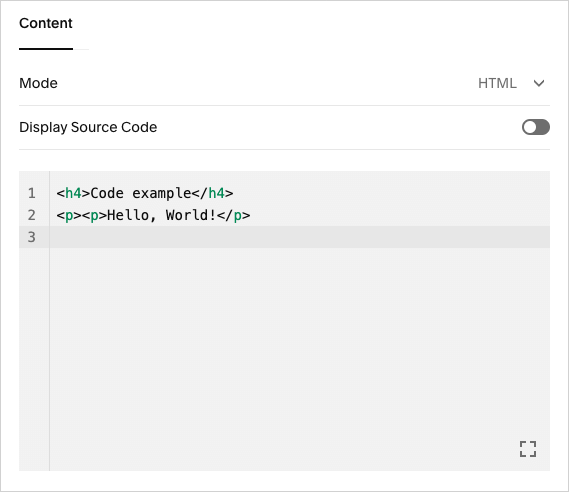
It is, however, possible to add HTML code blocks to a Squarespace website — these let you incorporate a third-party form or widget into your site easily.
CSS — styling your website
So long as you’re on a ‘Core’ plan or higher, you can add custom CSS to your Squarespace website. That said, it’s not entirely encouraged. You are warned when doing so that:
- adding lines of CSS can break your design
- you might not be able to avail of full support if you add CSS.
But if you know what you’re doing with CSS, the freedom to add bespoke visual improvements to your site is welcome.
Code injection
If you’d like to add scripts to the header section of a Squarespace website, you can do this via a code injection section (on the ‘Business’ plan or higher).
Mobile apps
Squarespace provides three main mobile apps, each aimed at a different aspect of running and promoting your business:
- ‘Squarespace’
- ‘Acuity Appointment Scheduler’
- ‘Unfold Video and Photo Editor’
All three are available for both iOS and Android.
The ‘Squarespace’ app is the main one you’ll need to use for managing your site on the move — it lets you edit pages and posts, view Squarespace analytics and manage orders using a mobile device. This has been well received by both iOS and Android users, who have rated it 4.6 and 4.2 out of 5 respectively.

The Acuity Scheduling app is designed to help you manage appointments from your mobile device. It lets clients book and change appointments, while also giving you the tools to view and manage your schedule, bookings and availability from a single app.
Finally, there’s Unfold, a dedicated app for creating polished social media posts, stories and short-form videos using professionally designed templates.
Now, what about selling stuff?
Ecommerce features in Squarespace
The ecommerce functionality in Squarespace is reasonably good — it’s easy to create, edit and manage products and product catalogs with the platform.
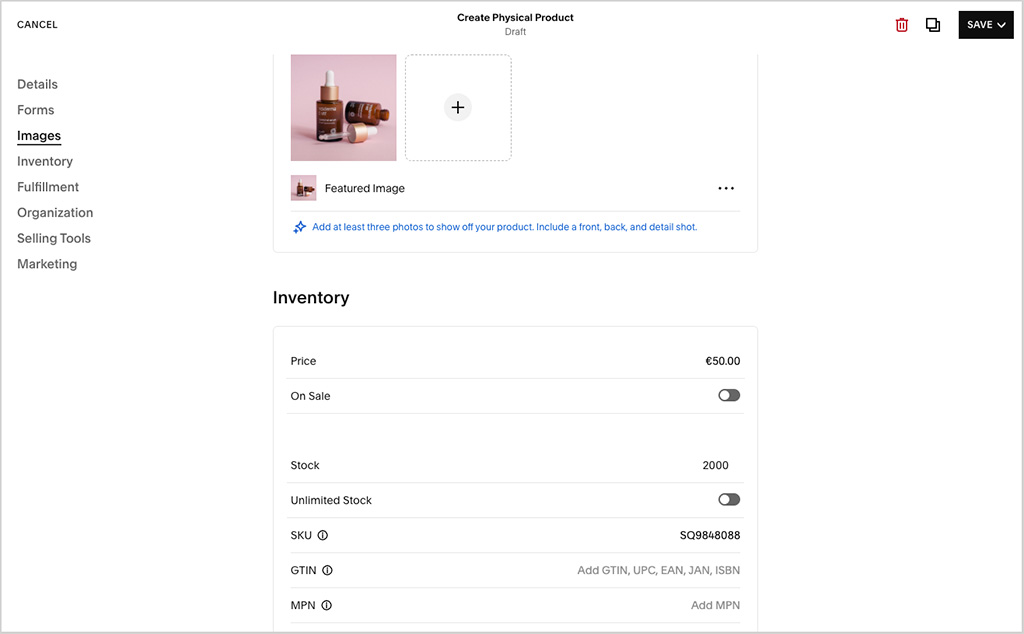
Key ecommerce features in Squarespace include:
- a user-friendly shopping cart system
- the ability to sell an unlimited number of products
- the ability to sell physical goods, digital goods, services and subscriptions
- a 0% transaction fee (on ‘Core’ plans or higher)
- automatic abandoned cart recovery
- gift cards and discount codes
- customer accounts
- basic point-of-sale functionality (US only).
I particularly like the way Squarespace handles product images. Unlike some competing platforms, Squarespace allows you to automatically apply image ratios to all the products in your online store — a huge time-saver for larger ecommerce projects.
It’s also generous when it comes to product options, letting you create six per product listing — this gives you a lot of flexibility when it comes to presenting your goods online (and more than key rival Shopify).
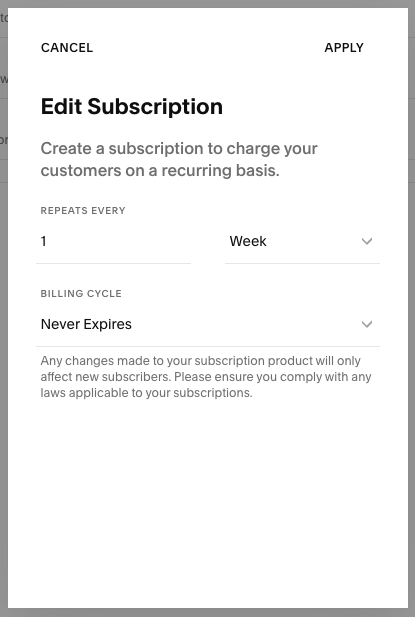
It’s worth flagging up subscription functionality as another strong feature of Squarespace ecommerce — the platform makes it extremely easy for you to accept recurring payments for goods or services (whether of the physical or digital variety).
Another interesting aspect of Squarespace’s ecommerce functionality is its membership sites feature. This lets you charge users for access to a private area of your website, allowing you to sell exclusive content to your audience.

As part of this feature, you get access to Squarespace’s ‘Courses’ functionality. As its name suggests, this lets Squarespace users sell online courses to their audience — something that’s not really possible to do in rival products like Wix, Shopify and WordPress without apps or plugins.
(You can now also add a paywall to a blog in Squarespace, which is helpful too.)
There is a hidden cost involved with using Squarespace’s gated content features however — and that’s transaction fees. Unless you’re on a ‘Plus’ or ‘Advanced’ Squarespace plan, these are very high (5% or 7% on ‘Basic’ and ‘Core’ respectively). Upgrading to Plus or Advanced lowers them to 1% and 0% respectively.
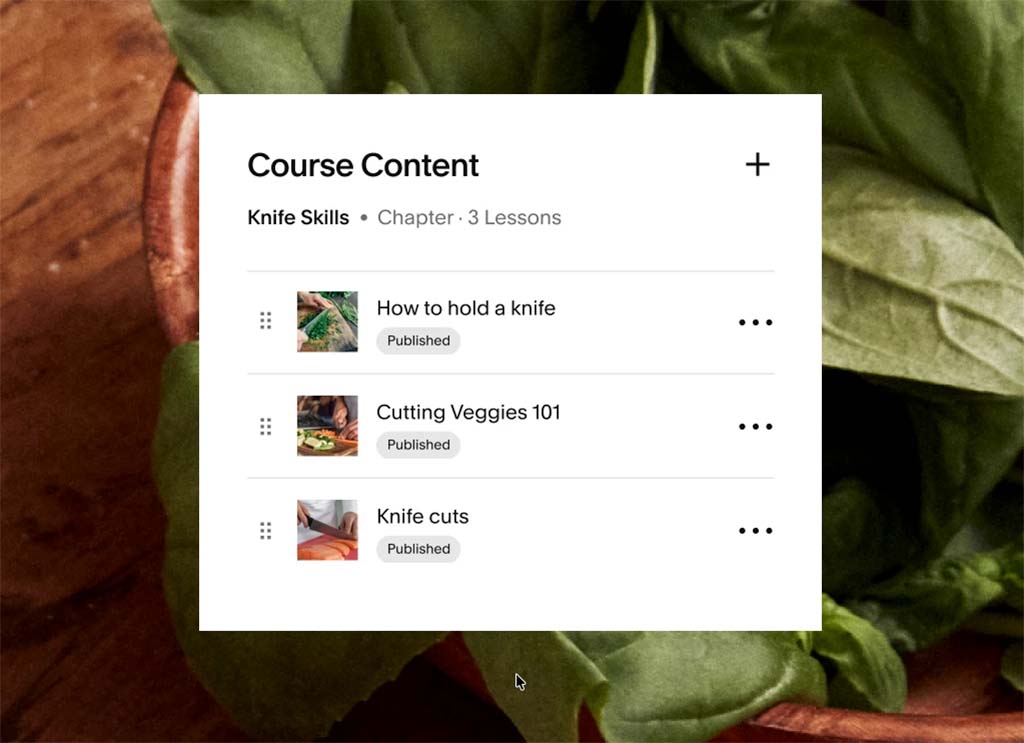
So there’s a lot I like about ecommerce features in Squarespace. But there is definitely room for improvement — here are the key problems that I think need fixing when it comes to Squarespace ecommerce:
- The platform doesn’t facilitate multi-currency transactions. This won’t be a showstopper for anyone who wants to use the platform to sell products locally, but if your sights are set on selling goods all over the world, platforms like BigCommerce or Shopify will be better for you, as they allow you to display product prices and facilitate checkout in local currencies.
- The built-in point-of-sale (POS) functionality — which lets you sell products in physical locations while using your online store to process payments and manage inventory — could be a bit better too. It’s currently only available to merchants in the US and UK. In the US, you can accept in-person payments using either the Square Reader or Tap to Pay, while UK merchants can use Tap to Pay. Unlike dedicated POS systems, no support is provided for hardware such as barcode scanners or cash registers. Although a third-party integration called ‘SQU IQ’ is available to add this functionality, it is relatively expensive. If point-of-sale is important to your business, you’ll likely be better off with a platform that specializes in it, such as Shopify.
- If you want to use Squarespace to sell on a variety of different sales channels (like Instagram, Amazon, eBay, Facebook etc.) you’ll usually need to use the ‘Trunk’ or LitCommerce add-ons to do so. These will add at least $24-$35 to your monthly outgoings.
- The dropshipping and print on demand options in Squarespace are a bit limited too: you can only use a few dropshipping providers with Squarespace. Although these do include some well-known suppliers, like Spocket, Printful, Printify and Spreadconnect, if dropshipping is going to be the key focus of your business, you may again be better off with Shopify (which offers a huge range of dropshipping integrations).
- Payment gateway options are limited: you are restricted to Stripe, Paypal or Squarespace’s own payment processor, ‘Squarespace Payments’ (with the latter currently only available in 15 countries). Competing ecommerce platforms typically give you a lot more choice when it comes to payment methods.
Overall, I like the Squarespace ecommerce features — they’re great for any small business that needs a simple online store and doesn’t mind selling in just one currency.
But merchants who have more sophisticated requirements would be better off looking at a dedicated online store builder like BigCommerce or Shopify — these are more fully-featured platforms that provide more professional features for running an ecommerce business. This is particularly the case if you’re interested in multi-currency selling, dropshipping or POS.
Creating multilingual versions of a Squarespace website
Thanks to a ‘deep’ integration with the translation tool Weglot, it’s fairly easy to create a multilingual site with Squarespace, using either machine or manual translations.
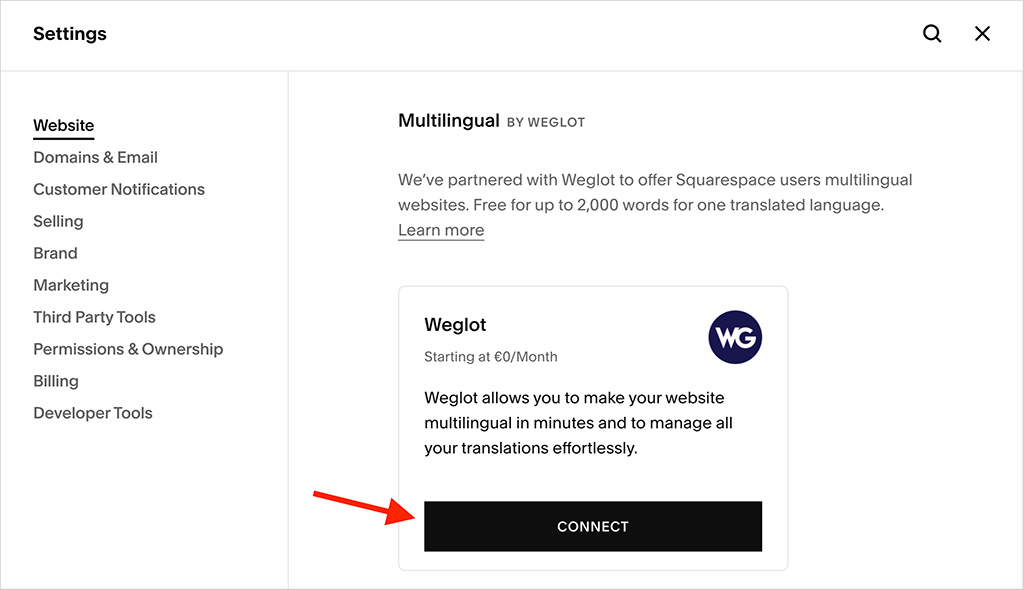
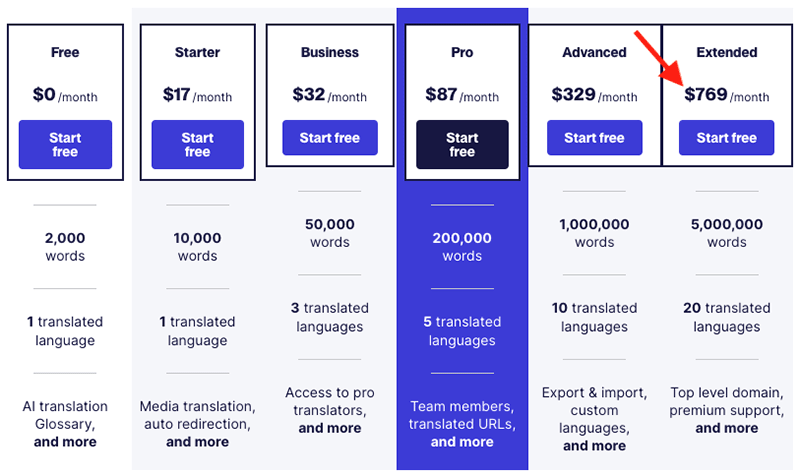
My problem with this approach is its cost. Although the Weglot integration can be used for free to create one additional site in another language, if the word count on this exceeds 2,000 words, additional — and significant — fees will apply.
As my screenshot below shows, Weglot can get really expensive if you’re translating a lot of text-heavy Squarespace websites.
📚 Related resource: Weglot review
Integrations with other apps
Built-in integrations
Squarespace offers several built-in integrations with key web applications — you can incorporate apps and services like Amazon, Mailchimp, OpenTable and ChowNow (plus quite a few others) into your website in lots of useful ways.
You will need to be on a ‘Core’ plan or higher though to get full access to some integrations, however.
Squarespace extensions
Squarespace also provides ‘extensions’ for its platform — a range of paid-for add-ons that provide extra functionality for your website.
The number of extensions is currently disappointingly small, however — at time of writing, there are only 48 Squarespace add-ons available. To put this in context, you’ll find 2,000+ similar apps and integrations available for Wix, 1,400+ for BigCommerce and over 21,000 for Shopify.
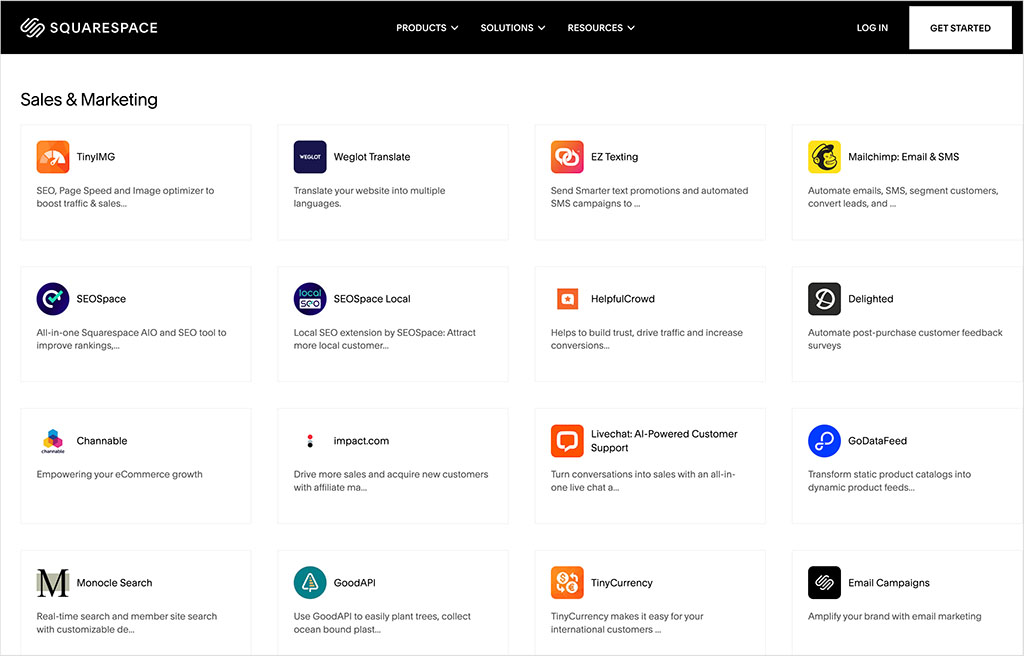
That said, the extensions on offer from Squarespace are fairly useful — integrations are provided for several key admin apps including Quickbooks, Freshbooks and TaxJar.
They are pricey by comparison to offerings in other platforms’ app stores, however.
Finally, it’s worth noting that if you can’t find an app or integration in the Squarespace Extensions store that meets your needs, you can always turn to Zapier — this ‘syncing’ service works with Squarespace and lets you connect the platform to a lot of other third-party apps.
Data capture and forms
There are two ways to approach data capture in Squarespace. The first is to simply use code blocks to integrate an email marketing service of your choice (GetResponse, AWeber, Campaign Monitor, Mailchimp etc.).
This gives you a lot of flexibility — but means adding HTML forms to your Squarespace website and styling them using CSS so that they match the rest of it.
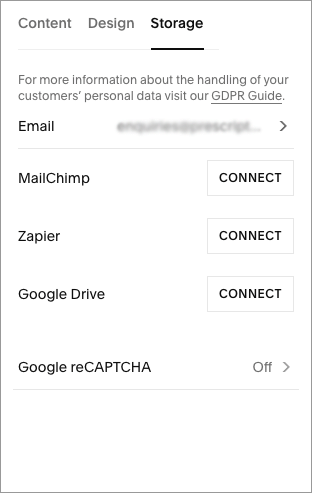
The other way to capture data is via Squarespace’s built-in data capture options: the ‘form block‘ or the ‘newsletter block‘. These both allow you to construct bespoke forms easily.
Both the form block and the newsletter block allow you to send the data captured to:
- an email address
- Mailchimp
- Zapier
- Google Drive
- Squarespace’s Email Campaigns tool (more on this below)
I’ve found that Squarespace forms are really easy to set up and use, and they look great — if you are happy to send your data to Google Sheets and Mailchimp, or set up a ‘zap’ to another application via Zapier, you’ll love them.
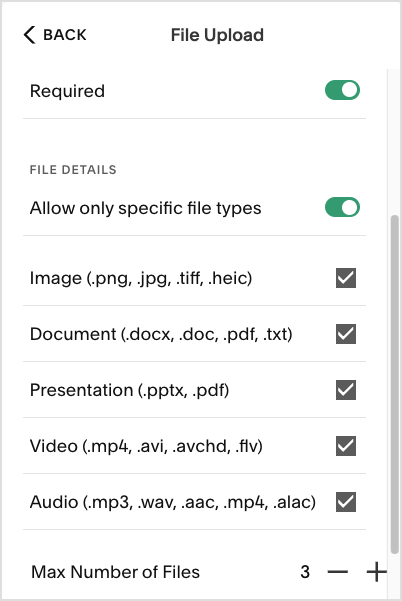
Additionally, thanks to recent improvements to Squarespace’s form builder, you can now also use Squarespace forms to accept file uploads from your customers — you simply add a file upload field to your form block, name it, and specify how many files a visitor can upload (up to a maximum of 5 files).
This functionality is extremely useful for ecommerce merchants who need to receive files from customers to fulfill orders for customized products.
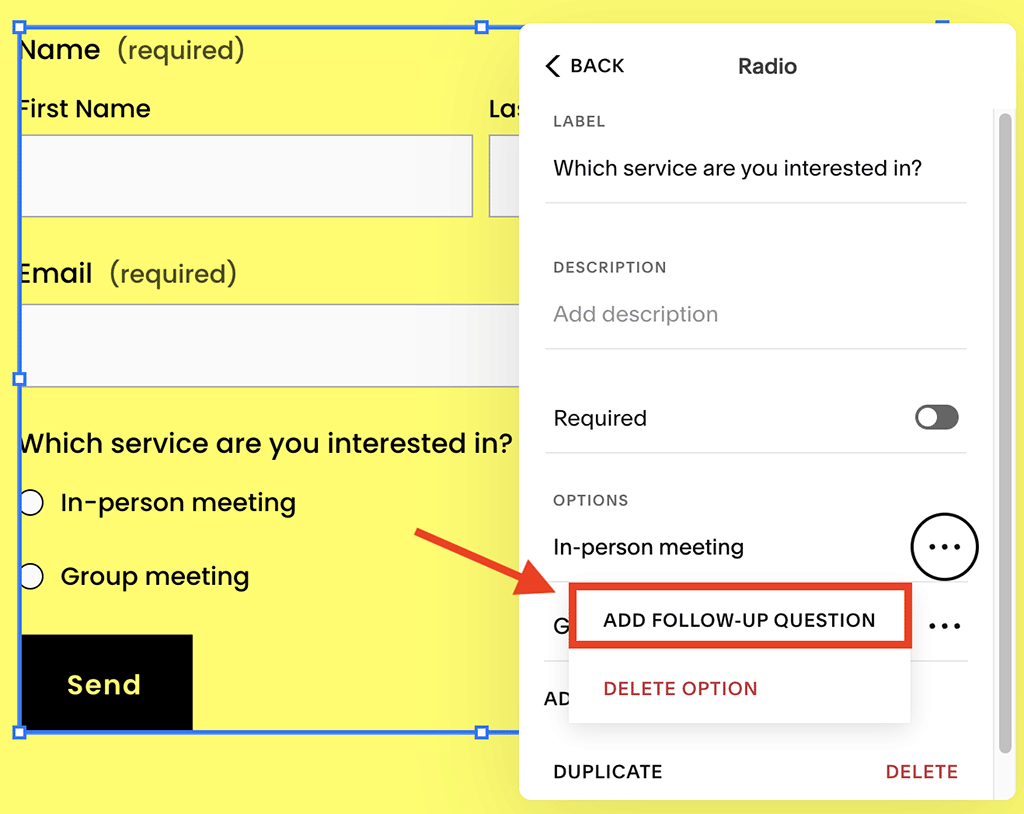
Conditional logic is also supported in Squarespace forms too, which adds a lot of flexibility to proceedings. This lets you add conditional follow-up questions to form blocks based on answers to checkbox, dropdown, survey and radio button fields.
All in all, the data capture options in Squarespace are robust.
Marketing and SEO
Email marketing functionality – ‘Squarespace Email Campaigns’
For an extra monthly fee, you can capture email addresses and send newsletters within Squarespace, thanks to its ‘Email Campaigns’ feature.
This means Squarespace can be used to manage your website AND your mailing list — arguably the two most important assets of any online business — in one place, while keeping the branding consistent across both.
Pricing for Squarespace Email Campaigns is based on monthly email send limits. These are as follows:
- $12 to send 500 emails per month
- $20 to send 5,000
- $28 to send 10,000
- $40 to send 25,000
- $48 to send 50,000
- $60 to send 100,000
- $73 to send 150,000
- $96 to send 250,000
- $127 to send 350,000
- $169 to send 500,000
(Paying for an annual plan lets you save up to 30% on these fees).
In terms of how this pricing stacks up against other email marketing products, the Starter and Core plans are cheap by comparison to the entry-level plans available from the likes of AWeber and Mailchimp; they allow you to start capturing data and creating newsletters without spending too much.
In fact, you can technically host an unlimited number of email addresses with Squarespace Email campaigns, which is very generous.

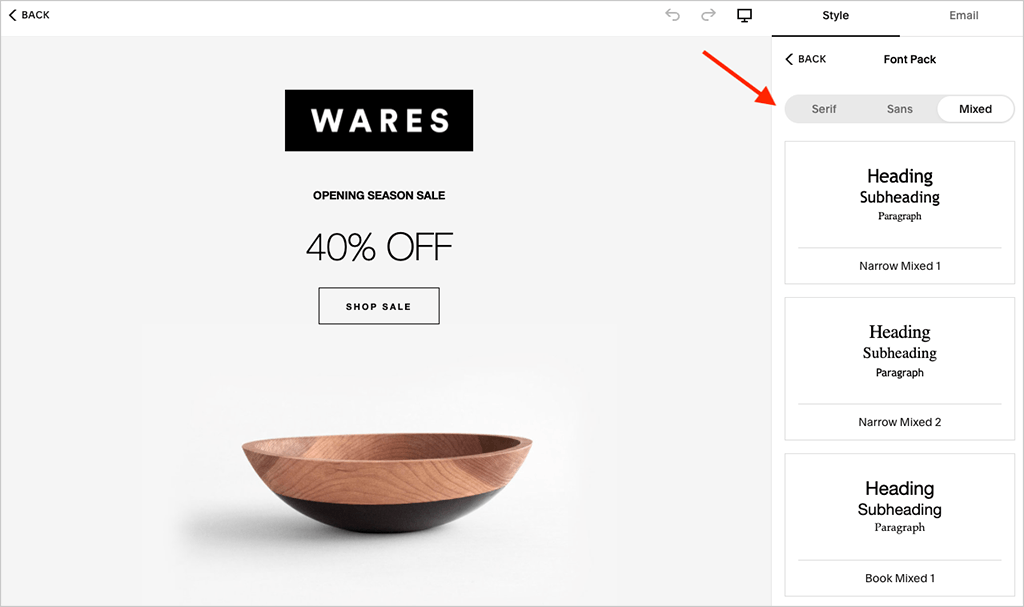
On top of that, the email templates — as you’d expect from Squarespace — are very attractive and mobile-friendly. I’ve found them pretty easy to edit too — the Email Campaigns feature provides a drag-and-drop user interface that is very similar to Squarespace’s main editor, so if you’re familiar with that, you shouldn’t have too much difficulty creating Squarespace newsletters.
Some autoresponder functionality is also included with Email Campaigns. However, the automation provided is currently fairly basic by comparison to that provided by dedicated email marketing tools like Mailchimp or GetResponse. You can trigger some useful automations though, like product recommendations based on purchases, welcome emails, VIP reward emails etc.
How good is Squarespace SEO?
As with any hosted solution, you don’t have full access to the inner workings of the Squarespace platform, or the ability to choose a super-fast host for your site. Accordingly, this means there will always be some limitations when it comes to SEO with Squarespace.
That said, websites built with Squarespace do quite a lot of things that Google and other search engines like. They…
- are secure
- automatically generate a sitemap.xml file
- create clean HTML markup
- use responsive design, making them mobile friendly
Squarespace lets you edit most of the key search engine optimization elements easily enough — page title tags, headings, meta descriptions, alt text etc.
The platform also allows users to enable free SSL on their sites (and very easily too). This is important, because sites using SSL certificates can be treated preferentially by Google in search.
And I’ve noticed that sites I’ve built in Squarespace 7.1 are starting to pass Google’s Core Web Vitals tests more frequently than sites I’ve built on other similar platforms.
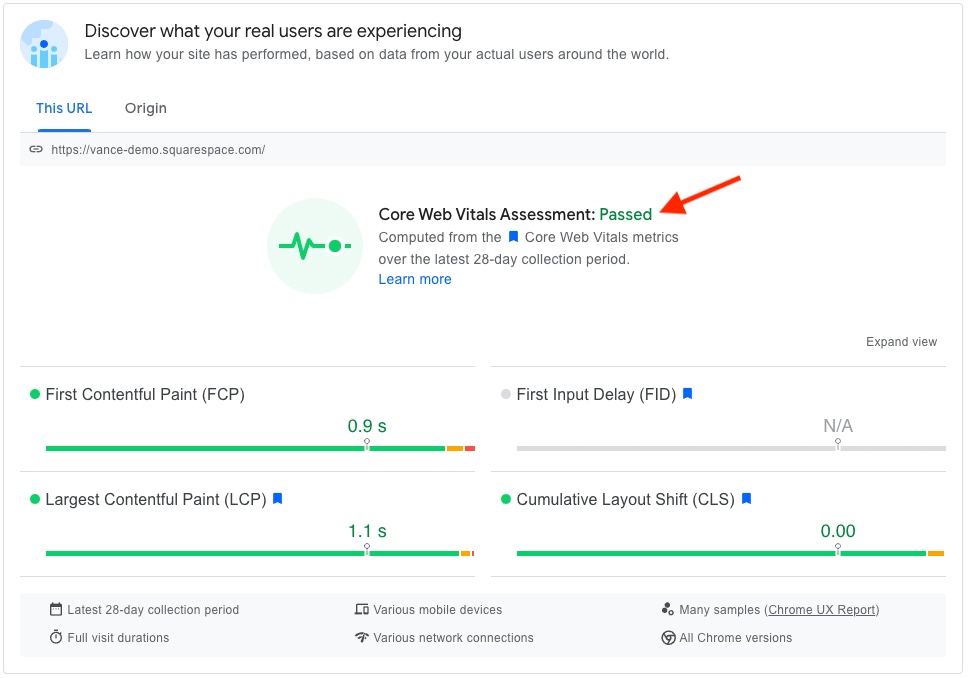
(The Core Web Vitals targets focus on various aspects of site performance and stability and sites that meet them can occasionally receive higher search rankings).
However, Squarespace sites could definitely load a bit faster (page speed is important for SEO). The ‘PageSpeed’ scores I’ve got when testing Squarespace sites in Google’s PageSpeed Insights tool have tended to be pretty mediocre.
And, unlike competing solutions, Squarespace doesn’t let you edit your robots.txt file (a file that lets you tell Google and other search engines what content you’d like it to crawl or not).
There’s also no way to add ‘nofollow’ or ‘sponsored’ attributes to links in Squarespace without coding, which is very frustrating.
And finally, unlike both Shopify and WordPress, Squarespace doesn’t work with the industry-standard SEO plugin Yoast. That said, there are some third-party tools available that can help here, with SEOSpace probably being the best-known of the bunch.
📚 Related SEO resources
If you’re interested in learning more about Squarespace SEO features and optimizing your Squarespace website for search engines, do check out our Squarespace SEO guide.
And don’t forget that built-in SEO tools are only one part of the picture when it comes to SEO; you’ll need to think about using third-party keyword research tools like Semrush or Ahrefs too.
Squarespace customer support
Squarespace provides customer support via email (24/7) or live chat (4am-8pm CET, Monday to Friday); you can also use Twitter or Facebook Messenger to contact the company. As you might expect, there’s a help portal available too (pictured below), as well as a YouTube channel containing a variety of Squarespace tutorials.
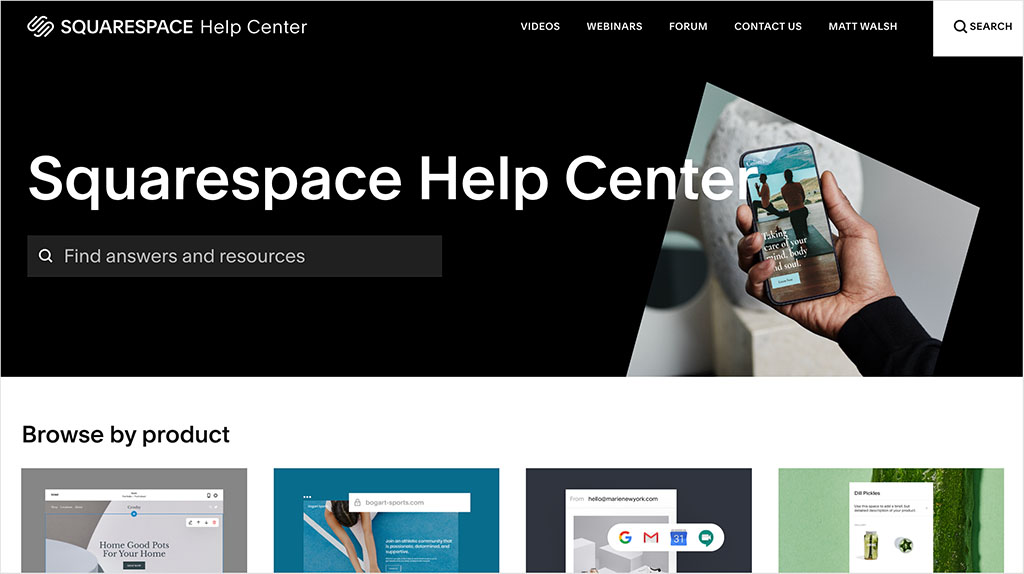
Significantly however, no phone support is available.
As for the quality of the in-person support, while I’ve found the staff on Squarespace’s support desk to be very friendly, and their turnaround times on queries reasonably quick, they tend to deal with pretty simple issues only.
In essence, if you want to add some functionality or design aspects to your Squarespace website that are not provided ‘out of the box’ you won’t always get much help from Squarespace. And, as mentioned briefly above, if you add custom CSS to your site, you may not be able to get full support from Squarespace.
All that said, I have had some very positive experiences with the Squarespace support team — it’s just that it has sometimes required a bit more perseverance from my side than I might like.
One final thing to be aware of is that while Squarespace email support is available in nine languages (English, French, German, Italian, Japanese, Korean, Portuguese, Spanish and Turkish), live chat support is only available in English, French and German. This contrasts poorly with key competitors Shopify and Wix, which both offer support in multiple languages.
Squarespace user reviews
So far you’ve received my views on Squarespace. But I thought it might be helpful to share some user reviews from external sites too.
The table below highlights feedback from Squarespace users who have rated the product on popular software review sites (details correct at time of writing — July 2026):
| Review site | User ratings |
| Capterra | 4.6 out of 5 (3,409 reviews) |
| G2 | 4.4 out of 5 (1,135 reviews) |
| Trustpilot | 3.4 out of 5 (4,440 reviews) |
| TrustRadius | 8.4 out of 10 (339 reviews) |
| Average user rating: | 4.0 out of 5 |
As you can see, the average user rating for Squarespace was 4.0 out of 5 (from a total of 9,323 reviews). The average score was very much brought down by the Trustpilot reviews — many of these were critical of Squarespace’s domain registration service and its customer support.
Squarespace review: my verdict
Overall, Squarespace is an excellent option for individuals and small businesses in search of a platform to build their site or store with. Its templates and content management features are strong, its learning curve is gentle and it’s an extremely reliable platform.
It’s worth highlighting however that Squarespace is particularly good for two main applications: running a brochure website or hosting a portfolio site.
If you are an artist, photographer or a musician — or building a website for a one-off event like a wedding — you’ll find Squarespace to be a great choice of platform for building your site (and maintaining it in future). It’s also a very good choice for restaurant websites — photographs of meals and menu layouts can look fantastic in the context of a well-chosen Squarespace template.
Thanks to its easy-to-use ecommerce features, businesses needing a simple online store or shopping cart system may also find Squarespace a good solution — and because it’s a hosted solution, using Squarespace doesn’t require you to worry about things like server updates or security (other than taking the usual precautions around passwords).
Squarespace does require some improvements to its ecommerce functionality however. Its lack of multi-currency selling features and limited point of sale functionality would nudge me in the direction of a more specialized ecommerce platform like Shopify if I was working on a project for a corporate client, or needed more advanced features for my online store.
The good thing is that — as with a lot of hosted solutions — you can try Squarespace out before committing to it. Accordingly, I’d strongly advise making the most of its free trial.
So, I hope this Squarespace review has helped you make your mind up on the platform! Below you’ll find a summary of the key Squarespace pros and cons. Feel free to ask any questions or feedback you may have about the platform in the comments section below — we read them all and will do our best to help.
Pros and cons of Squarespace
Reasons I would use Squarespace
- Its templates are contemporary and beautifully designed.
- Its user interface is, on the whole, very easy to use.
- The new Blueprint feature makes setting up a usable website extremely quick.
- It gives you good features for creating a membership site, a paywalled blog or selling online courses.
- Its image management options are excellent.
- There are no transaction fees to worry about (so long as you are on one of its ‘Commerce’ plans).
- It allows you to work with a very large range of web fonts.
- It integrates nicely out of the box with many well-known third-party tools, including Google Workspace, OpenTable and Mailchimp; it also provides a comprehensive range of social media integrations.
- It comes with a pretty usable and reasonably-priced built-in email marketing tool.
- You can use its logo designing app to create a simple but professional-looking logo.
- It gives you access to an unlimited number of user accounts on most of its plans.
- You get a free custom domain name from Squarespace if you sign up for a year.
Reasons I’d avoid Squarespace
- You can’t switch templates easily.
- There’s no multi-currency selling functionality — if you’re hoping to create an online store that caters for a global audience, there are better alternatives available (see below).
- Selling in multiple languages can get very expensive if you run a large site.
- Payment gateway options are quite limited.
- No version history functionality is available.
- There’s no autosave for pages and posts.
- The ‘Fluid Engine’ system, while giving you a lot of control over your site design, leaves you in a situation where you have to manage two versions of your site: a mobile one and a desktop one.
- The built-in point-of-sale feature is only available in the USA and is quite basic.
- You can’t create nofollow links easily with the Squarespace CMS.
- No phone support is provided.
- The app store for Squarespace (its ‘Extensions’ directory) isn’t currently very well stocked.
- Unlike some of its competitors, Squarespace doesn’t offer a free plan.
Squarespace alternatives
Squarespace isn’t your only option when it comes to creating a website — there are lots of competing website builder products on the market, including Wix, Big Cartel, Jimdo, GoDaddy Website Builder, Moonfruit and Weebly.
Like Squarespace, these are all ‘hosted’ solutions that involve an ongoing fee and are products that are chiefly aimed at users who are starting a brand new business but lacking in technical web design skills.
If content management is a key concern, then self-hosted WordPress is an obvious alternative to Squarespace, but the two platforms are rather different tools.
Self-hosted WordPress is a much more powerful platform, but one that usually involves a more manual setup and customization of elements — Squarespace is more of a ‘click and point to change something’ solution. I’d suggest reading our Squarespace vs WordPress article to get an in-depth comparison of these two platforms.
You could also look at hosted WordPress, which is a site builder that works in a similar way to Squarespace. However, it delivers more sophisticated options when it comes to blogging (not least an autosave feature!).
If high-quality design is something you’re particularly interested in, then Webflow is a potentially good alternative for you – this platform places a huge emphasis on template design and custom animations. For more information about it, check out our Webflow review or our Squarespace vs Webflow comparison.
If your needs are simple, and you don’t need ecommerce features, you could do worse than check out Canva — although best known for its image and video editing features, it actually contains a basic web design tool too. You can learn more about the platform in our Canva review.
As far as selling online goes, the best website builder for ‘pure’ ecommerce that I’ve tried out to date is Shopify. Shopify is particularly good for enterprise-grade selling, thanks to its ‘Shopify Plus’ offering that lets you build and manage multiple storefronts from one account. You can read our Shopify review here.
Although not as powerful as Shopify, BigCommerce is also a very capable tool for building ecommerce websites.
Although the Squarespace template designs are arguably better than the ones you get with both of these tools, the ecommerce functionality provided by both Shopify and BigCommerce is a lot stronger. For more information check out our Shopify vs Squarespace post, our Shopify vs Squarespace video and our Squarespace vs BigCommerce comparison.
If your business is likely to need point-of-sale functionality then Square is worth a look, as it gives you a pretty strong store building platform that integrates neatly with a wide range of POS hardware and features (many of which are geared towards restaurants).
Using an existing online marketplace like Amazon, eBay or Etsy as your ecommerce solution is also an option — these bring the advantage of large, ready-made customer bases to tap into.
And finally, Wix is worth a look — the product provides a similar ecommerce feature set to Squarespace. A free Wix plan is also available (it’s basic, but good for some applications). You can learn more about this platform in our Wix review, our Wix vs Squarespace comparison and our Wix vs Shopify vs Squarespace shootout.
Squarespace review FAQ
Is Squarespace good for ecommerce?
Yes — Squarespace gives you a solid set of ecommerce tools, including support for physical and digital products, subscriptions, customer accounts, abandoned cart recovery and membership sites. It’s particularly good for creators, small businesses and anyone selling courses or gated content. However, its ecommerce functionality is weaker than dedicated platforms like Shopify or BigCommerce when it comes to multi-currency selling, point-of-sale features, dropshipping and sales channel integrations.
Does Squarespace charge transaction fees?
It depends on your plan. Standard ecommerce transaction fees are 0% on the ‘Core’ plan and higher, but the entry-level ‘Basic’ plan charges a 2% transaction fee. If you use Squarespace’s membership site or courses features, separate transaction fees apply unless you are on the more expensive ‘Plus’ or ‘Advanced’ plans.
Can I switch templates in Squarespace?
Not easily. Squarespace 7.1 — the current default version of the platform — does not let you switch templates once your site is live. That said, because all Squarespace 7.1 templates use the same underlying structure, you can often recreate the look of another template by adjusting fonts, colors and layouts.
Does Squarespace support multilingual websites?
Yes — Squarespace integrates with Weglot to let you create multilingual websites using either automatic or manual translations. However, this can become expensive for larger websites, because Weglot charges extra once your translated content exceeds 2,000 words.
Is Squarespace good for blogging?
Squarespace is a strong blogging platform for most users. It lets you create unlimited blogs, use categories and tags, add RSS feeds and even paywall content. However, there are some important limitations: there’s no autosave functionality and no revision history feature, which means recovering lost content can be difficult.
Can I use custom code or CSS in Squarespace?
Yes — Squarespace lets you add HTML code blocks, custom CSS and scripts to your site. However, adding custom CSS is only available on ‘Core’ plans or higher, and Squarespace warns that using custom code may limit the level of customer support you receive.
Is Squarespace SEO-friendly?
Squarespace includes a good range of built-in SEO features. It automatically generates sitemap files, creates responsive mobile-friendly designs and lets you edit key SEO settings like page titles, meta descriptions and alt text. That said, it has some SEO limitations too. For example, you can’t edit the robots.txt file, there’s no built-in support for nofollow link attributes and Squarespace doesn’t work with the Yoast SEO plugin.
Update details
This article was updated on July 21, 2026. The following edits were made:
- Squarespace pricing information was updated.
- The number of themes available for Squarespace, Shopify and Wix was updated.
- Information relating to the number of available Squarespace extensions was changed.
- Product screenshots were updated.
- App store ratings for Squarespace mobile app were updated.
- User reviews data was updated.

Comments (102)