

We have an honest review policy, but this page contains affiliate links. If you buy through these, we may earn a commission. This helps fund our research at no cost to you.
In this Kittl vs Canva comparison, I compare two popular web-based tools that aim to make graphic design easy for non-designers. Which solution comes out on top?
Quick verdict
Kittl and Canva are both excellent, easy-to-use design tools that make creating professional-looking visuals far simpler than traditional graphic design software like Photoshop and Illustrator.
Kittl is the stronger option for designers who want more control over typography, vector artwork and AI-generated visuals. Its advanced text tools, blend modes, product mockups and ability to choose between different AI models make it particularly well suited to logos, posters, merchandise and illustration-heavy designs.
Canva is the better all-round option for most users, though. Its huge template and stock-asset libraries, intuitive interface and wider range of tools — covering presentations, video, websites, whiteboards and more — make it especially useful for marketers, educators, businesses and general-purpose content creation.
Try Kittl and Canva yourself
I’ll start my full comparison with a bit of the history behind both platforms.
The history of Canva and Kittl
Canva is a popular ‘all-in-one’ design platform that was launched in 2013 by Melanie Perkins, Cliff Obrecht and Cameron Adams. From inception, its ‘mission’ was to make design accessible to everyone — regardless of their skill level.
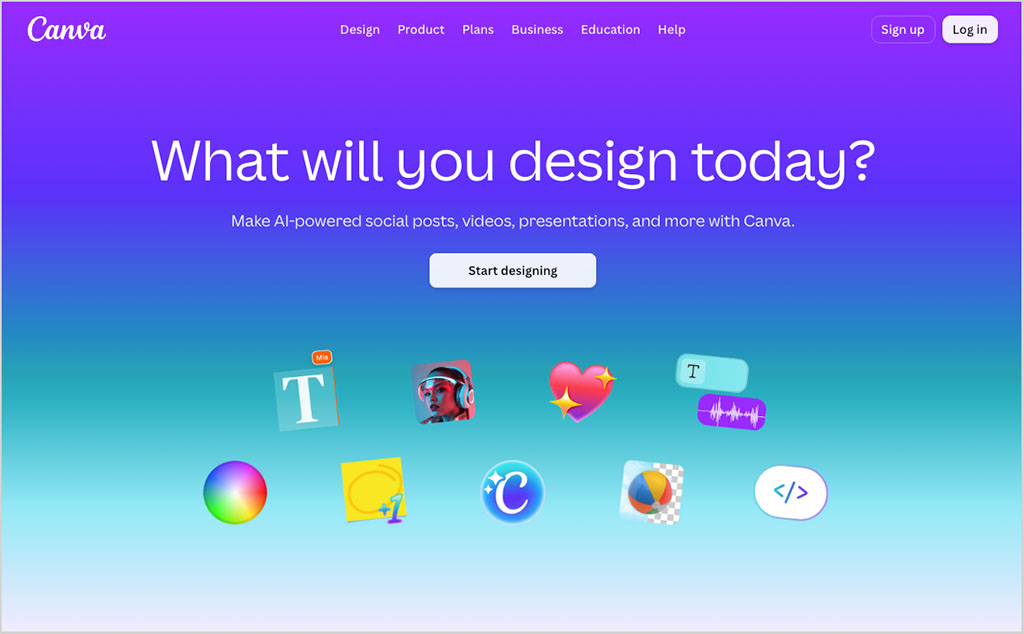
Accordingly, Canva provides a really user-friendly, drag-and-drop interface that allows users to create a huge range of visual content, encompassing everything from posters, whiteboards and presentations to social media graphics, websites and videos.
And over the years, the platform has attracted a massive user base, with more than 265 million active users across 190 countries as of September 2026. The platform’s appeal to both beginners and professionals alike is due to its vast library of templates, extensive design tools, collaborative features and extremely gentle learning curve.

Kittl has slightly different origins — and used to have a different name. Launched in 2020 under the name ‘Heritage Type,’ the platform primarily focused on delivering vintage typography and design elements to its users.
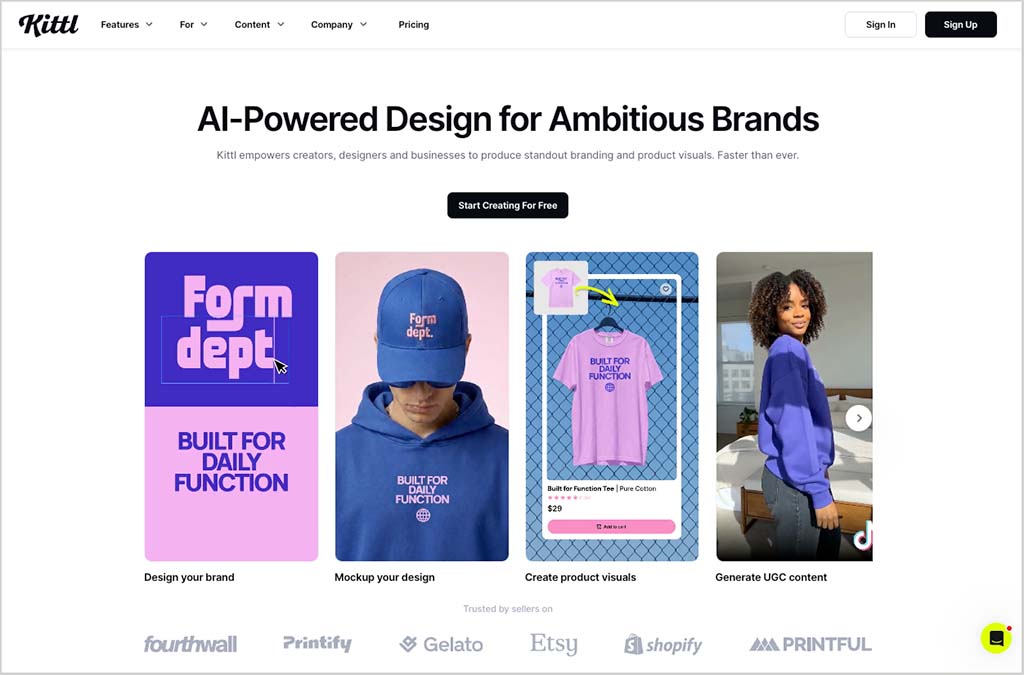
But recognizing the evolving needs of designers and the demand for a broader range of design capabilities, the company underwent a rebranding in 2022, emerging as Kittl. This transformation signified not only a change in name, but also an expansion in the platform’s offering; it started to venture beyond typography into providing comprehensive graphic design tools.
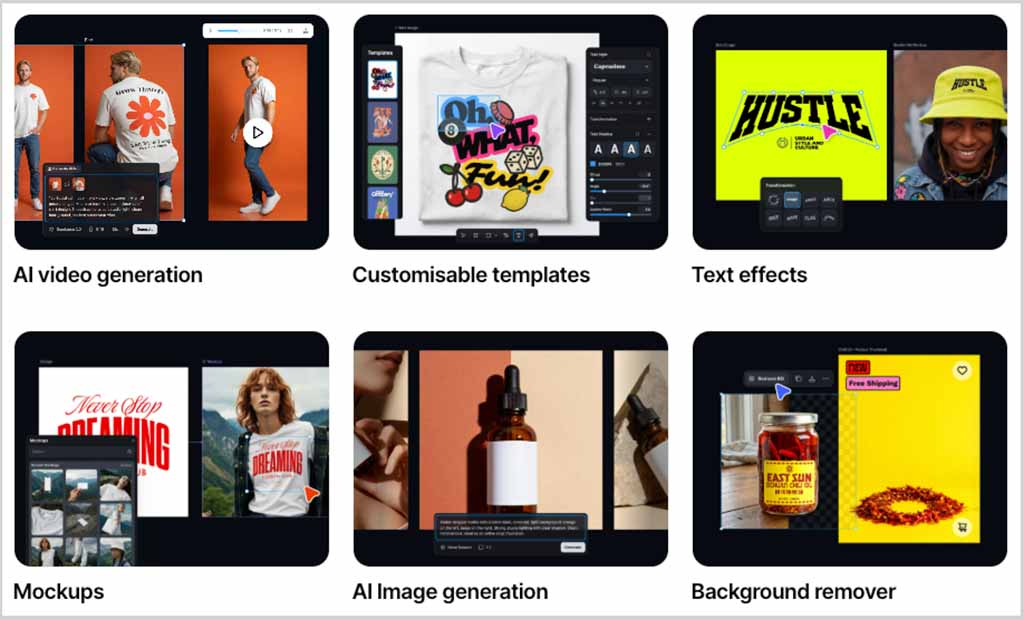
So these days, Kittl’s suite of tools caters to designers, illustrators and creators who want more control over typography, vector artwork, AI-generated visuals and merchandise-focused design.
But despite its evolution into a more general-purpose design tool, its emphasis on delivering high-quality, niche designs — especially those that require use of vintage aesthetics and complex text effects — sets it apart from other design platforms.
At time of writing, Kittl states that it has over 5 million users.
How Kittl and Canva work
Unlike traditional graphic design software like Adobe Photoshop and Adobe Illustrator, both Kittl and Canva are primarily designed to be used online in a web browser rather than as desktop applications.
However, Canva gives you the additional option of downloading a version of the platform that you can install locally on your computer too. This is available for Mac and Windows operating systems.
Kittl, by contrast, is exclusively web-based — you have to use it in a browser like Chrome or Safari.

To start a project in either Canva or Kittl, you can use a ready-made template, or start a new blank design from scratch.
Depending on the nature of your project, both tools provide you with a wide range of preset design sizes; alternatively, you can define your own custom size for it.
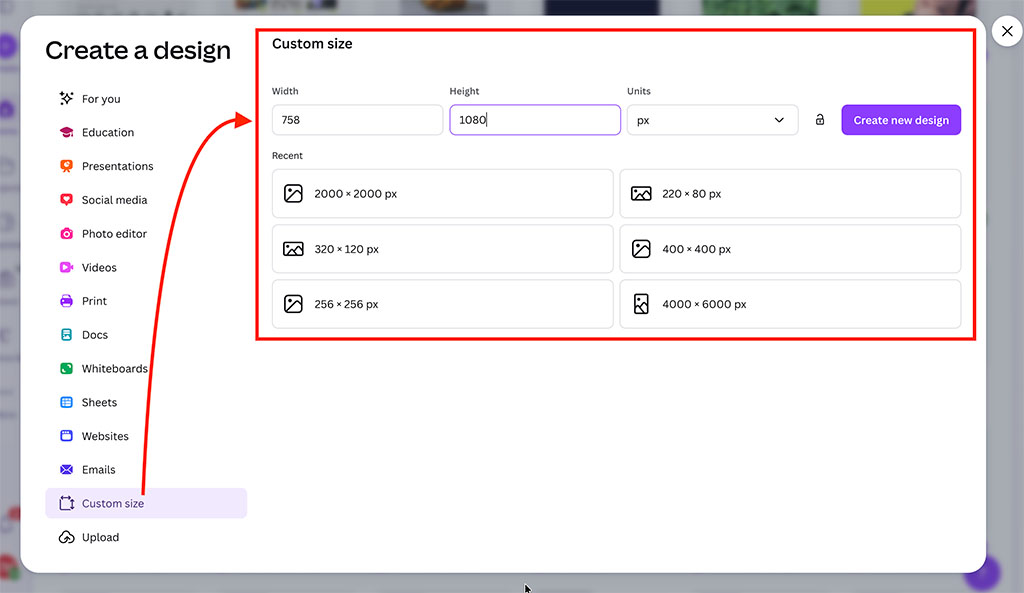
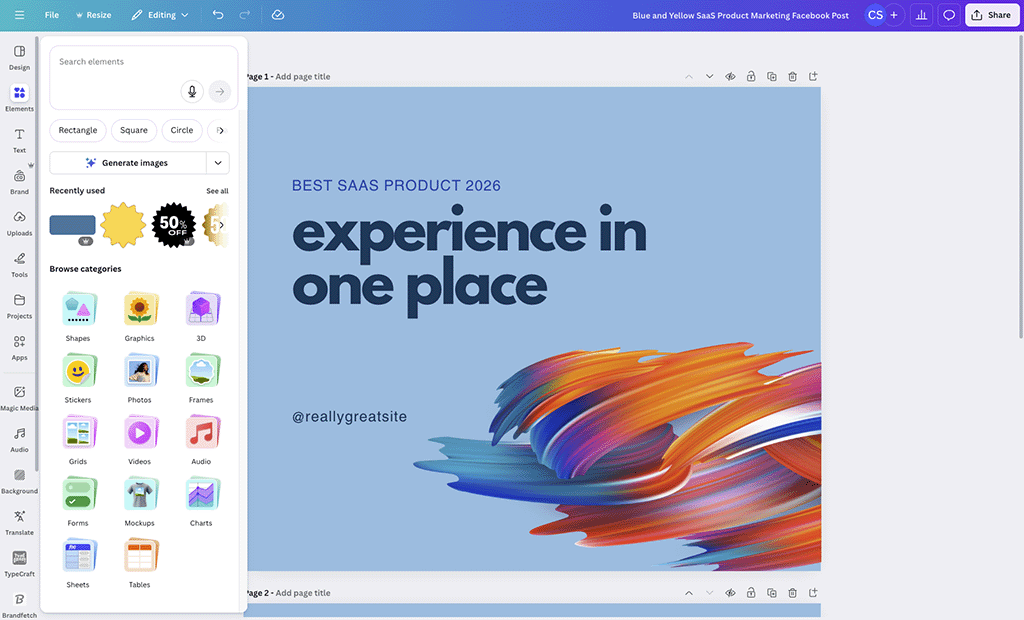
In addition to their ready-made templates, both Canva and Kittl also give you access to a large variety of stock photos, graphics, icons and other elements that you can add to your designs.
If you’ve got your own photos, logos or other assets you want to incorporate into your designs, you can upload these to either platform easily too. Once uploaded, these live in the ‘Uploads’ section of each interface and can be used in any project you like.
For carrying out design work, both platforms provide drag-and-drop editors featuring tools for customizing your designs, adding stock media (photos, graphics, etc.), applying effects and downloading or sharing your work.
So now you know the general nuts and bolts of how Canva and Kittl work.
Next, I’ll take a look at how easy they are to use.
Interface and ease of use
At first glance, when testing both platforms, I found the interfaces in Canva and Kittl to be quite similar.
When you log in to Canva or Kittl, you’ll find yourself in your main account dashboard. These give you immediate access to both platforms’ template libraries, your most recent designs, and the option to create a new design.
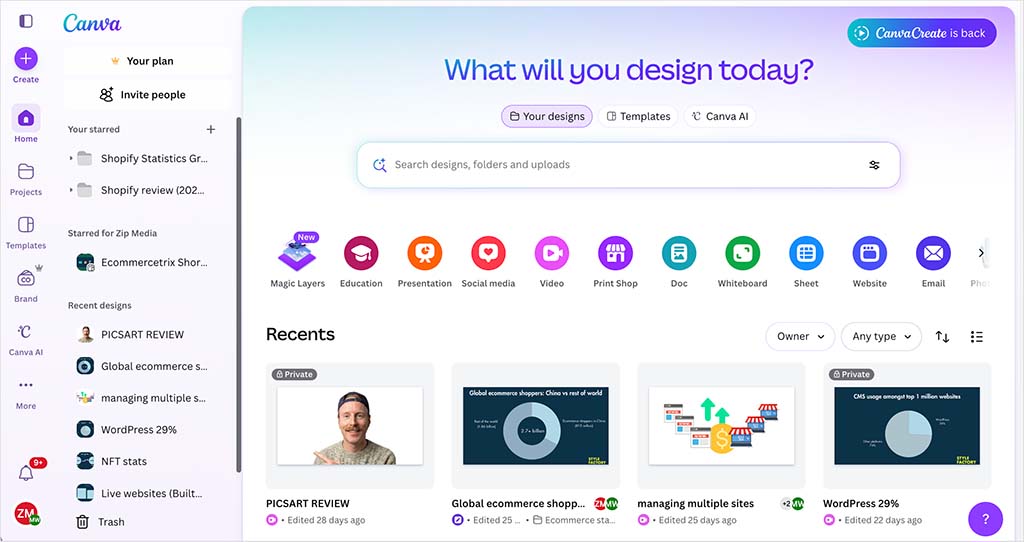
Both dashboards feature left-side menus that give you quick access to your project folders and other key resources and tools (template libraries, AI features, etc.).
Both platforms also let you change the display settings of their respective interfaces — you can choose from ‘light mode’ or ‘dark mode’ display options in either tool.
So far, there’s not that much to separate the two platforms from an interface point of view, other than Canva’s dashboard giving you a few extra options for account management tasks.
The layout of Canva’s and Kittl’s drag-and-drop editors is broadly similar too.
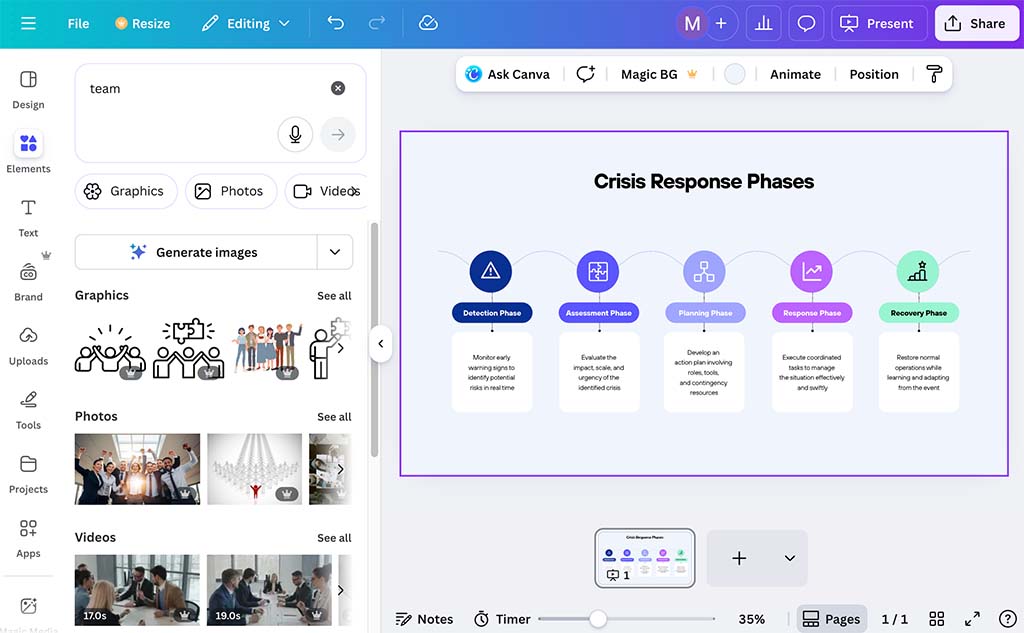
Both feature a main canvas in the center, access to asset libraries on the left, along with various settings for customizing your designs — these pop up on the right of the Kittl editor, and at the top and the left of the screen in Canva.
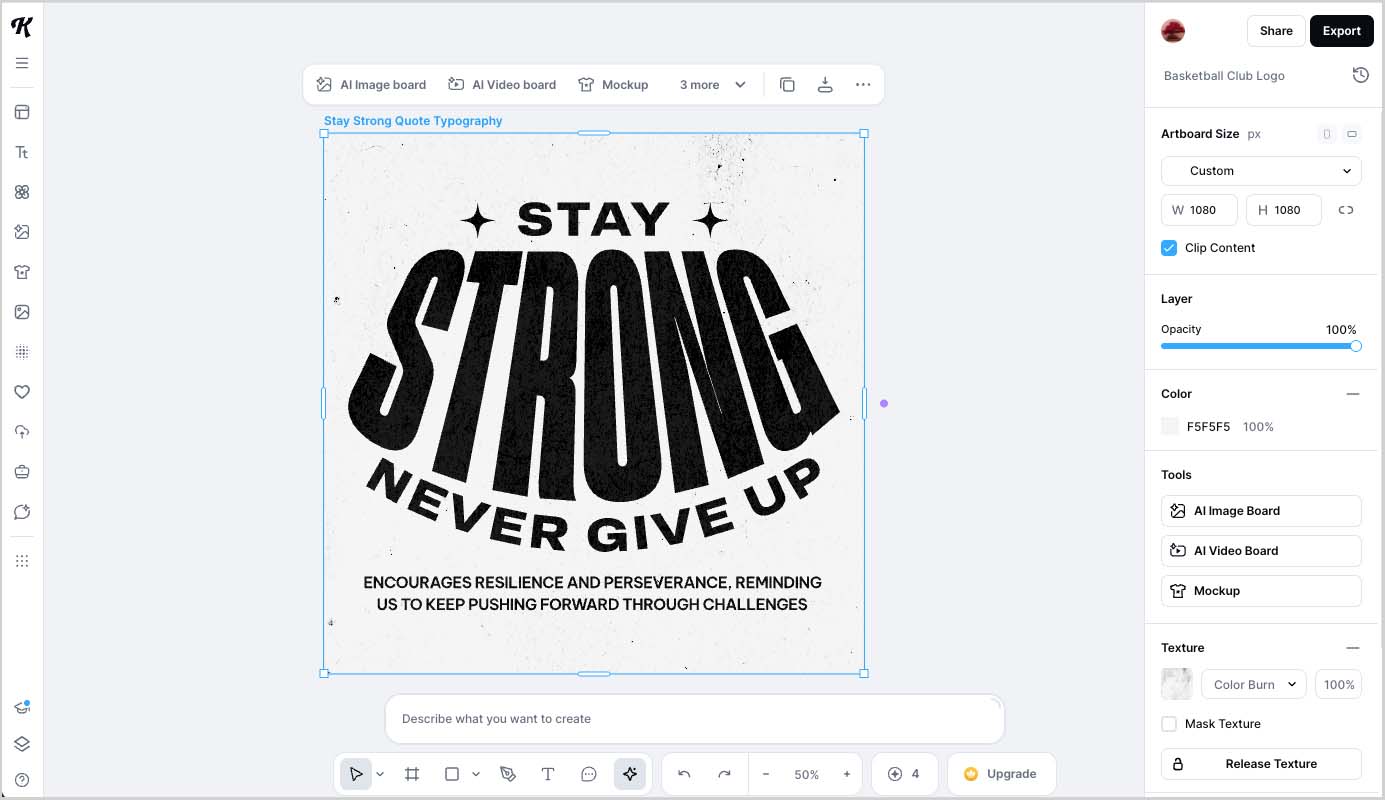
However, the differences between the two interfaces become more pronounced once I started to use their drag-and-drop designers.
Kittl’s designer employs a flexible ‘artboard’ approach — similar to that of Adobe Illustrator, Adobe XD or Figma.
This lets you add multiple artboards of varying sizes to your canvas; and the big benefit of this is that you can work on multiple design types (with varying dimensions) in the design interface simultaneously.
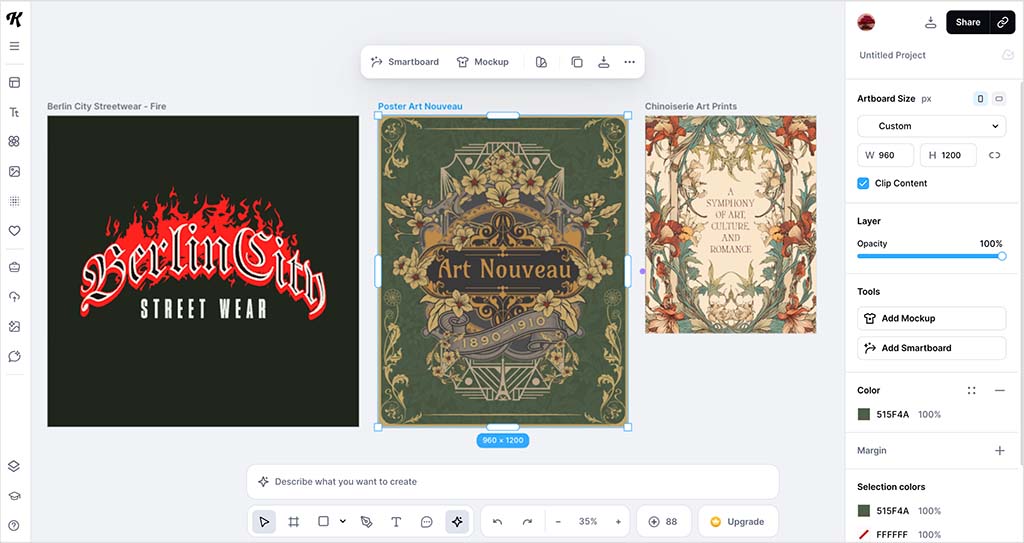
But the downside is that, once you start adding new artboards to your project (or changing the dimensions of them), things can get complex quite quickly — and I discovered that I needed to export each artboard separately from my project in order to get my hands on the finished designs.
Canva’s design canvas is less flexible, but more straightforward and user-friendly. You generally work on a single design canvas, and if you want to add more, it’s a simple case of adding ‘pages’ to your design (these are all locked to the same dimensions as your primary canvas).

If you do want to change the dimensions of your Canva project to repurpose it for different formats, you can use Canva’s ‘Resize’ tool — more on this anon!
When it comes to the nitty-gritty of editing your designs in both interfaces, both designers are generally easy to use.
However, using Kittl definitely requires you to have more understanding of graphic design terminology and techniques.
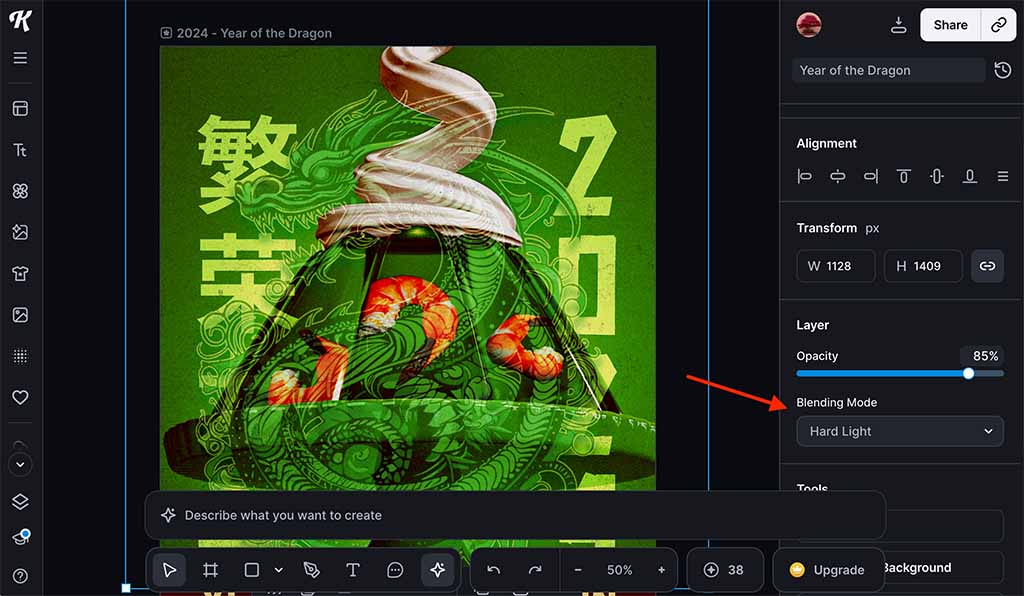
Its interface features quite a few technical settings that are very similar to what you’ll find in professional design tools like Adobe Illustrator — so if you don’t know much about terminology like ‘blend modes,’ ‘anchor points’ or ‘offset,’ you may find yourself reaching for the Kittl help materials quite a bit.
With Canva, by contrast, all the tools in its interface are extremely user-friendly. And, even where more technical tasks are concerned, the controls are almost always presented in a visually accessible and intuitive way.
So overall, while I felt that Kittl was very well designed — and certainly not as challenging to use as some traditional graphic design tools — the winner in the interface and ease of use department is Canva.
Next, let’s take a look at the design features of both platforms.
Get free access to Canva Pro
For a limited time only, you can get 30 days’ free access to a fully-functional Canva Pro account. This gives you access to a huge range of visual assets to work with, all the features of Canva’s premium plan, and the option to export your work in a lot more formats.
Design capabilities
Templates
One of the main reasons people choose accessible design tools like Canva and Kittl over high-end pro design software is because they give you ready-made templates to help you kick-start your design process.
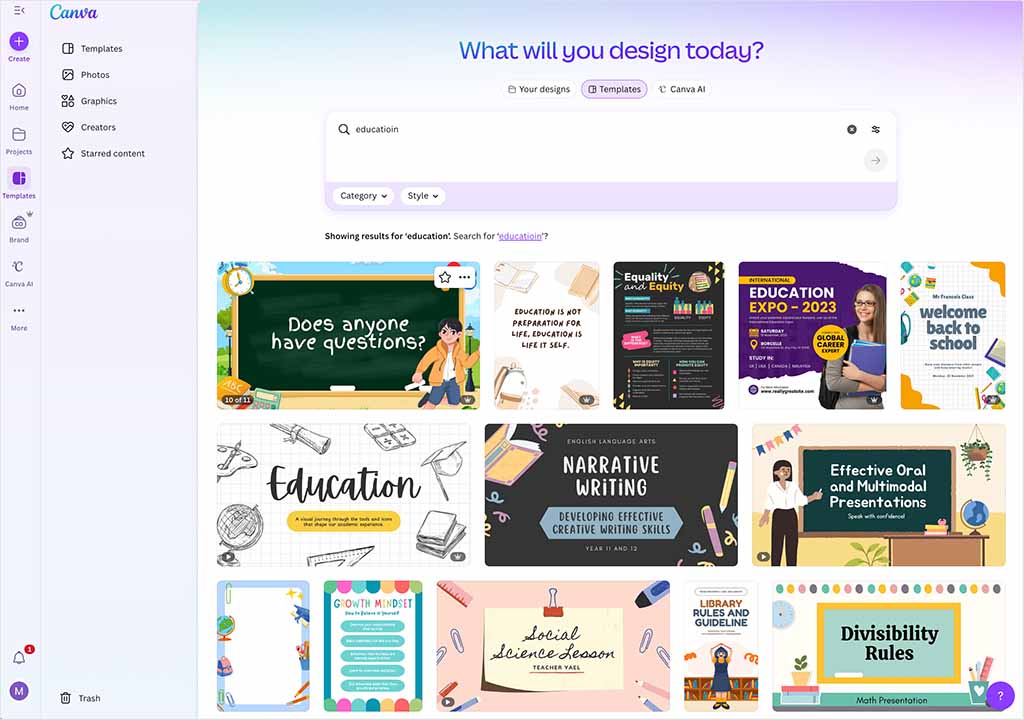
And in Canva, you are absolutely spoilt for choice with the amount of templates on offer. The platform gives you access to more than 1.6 million templates on its free plan, and over 3.6 million templates on its paid ones.
Despite the enormous quantity of Canva templates available, finding one to suit your needs is very straightforward. You simply enter a phrase into Canva’s search box at the top of the Canva interface to access all the templates matching your search terms.
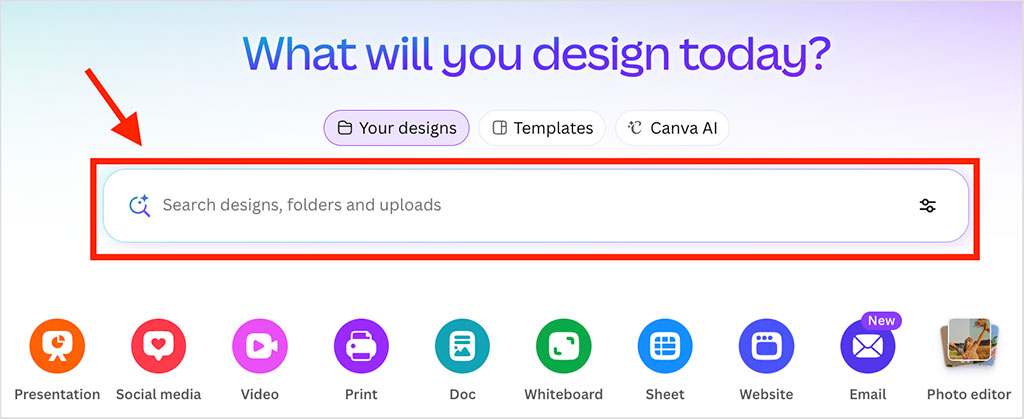
And depending on your chosen design format, you can also filter templates based on a wide range of styles (‘minimalist,’ ‘modern,’ ‘creative,’ etc.), themes (business, marketing, etc.), template features (animations, video, etc.) and template color scheme.
Kittl has a long way to go before it can match Canva in the template quantity department. Users on Kittl’s free plan get access to around 10,000 templates, while paying users get access to around 100,000 premium templates in all.
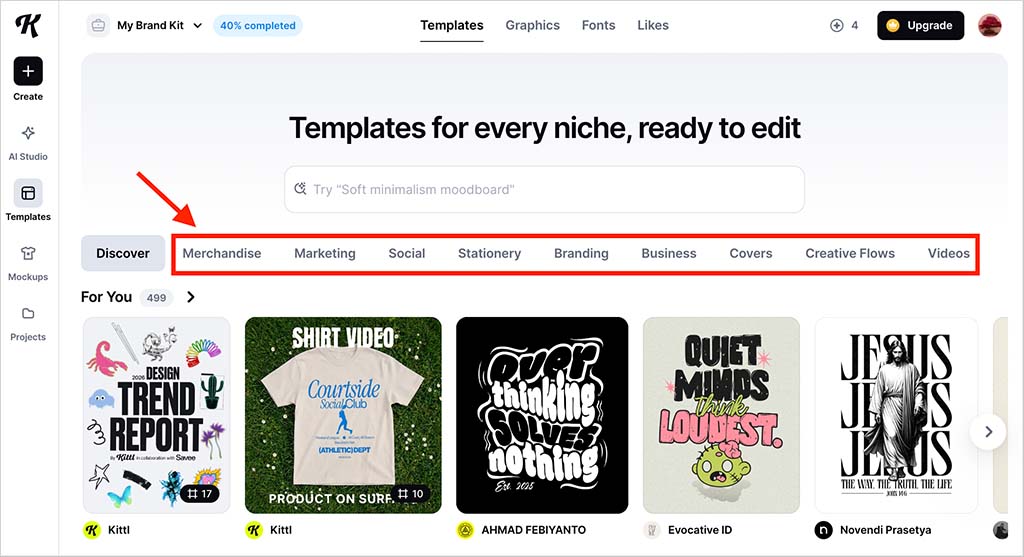
As with Canva, you can use a template search bar to locate a suitable one, or equally, apply a range of filters to narrow down your search.
Given the huge discrepancy in template numbers in the two platforms, you won’t be surprised to learn that in terms of aesthetics and specific use cases there is far more overall variety of templates on offer in Canva.
Canva features a huge number of templates specifically designed for educational, marketing, non-profit, ecommerce, social media platforms and many other industries and sectors.
By contrast, Kittl’s templates are mostly categorized based on different artistic themes (‘beauty,’ ‘nature,’ ‘fashion,’ etc.) and style (‘cartoon,’ ‘bauhaus,’ ‘psychedelic,’ etc.).
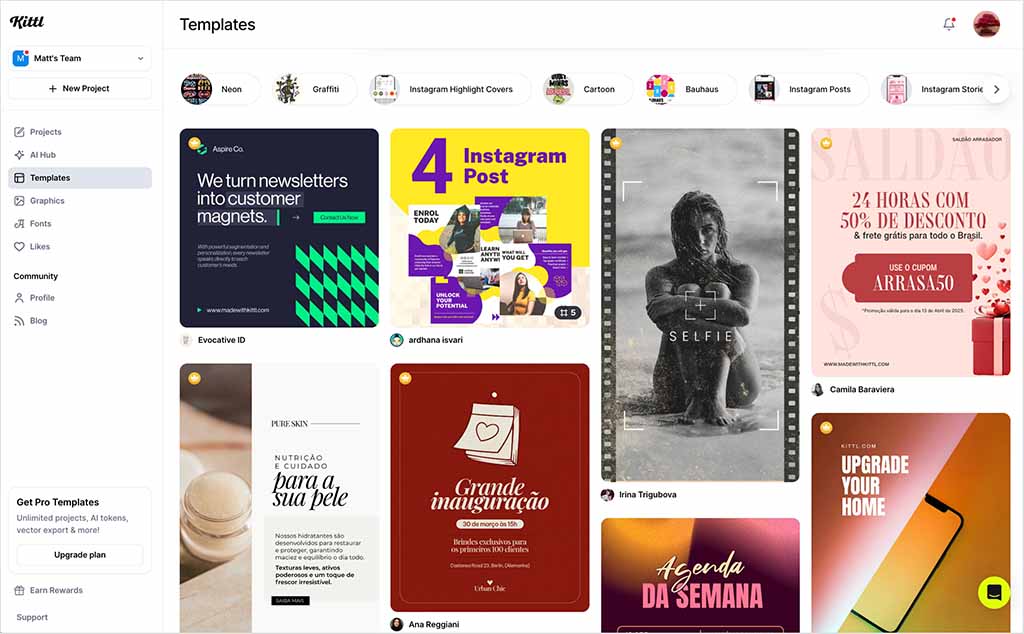
In terms of quality, both sets of templates are very well put together; there’s really no criticism to be made of the standard of templates in either tool.
So who wins on templates?
Well, ultimately things boil down to size here: thanks to its truly colossal range of high-quality templates, Canva wins in this department.
💡 Tip: You can browse all the Canva and Kittl templates using the links below.
Text editing and effects
The extent to which you can do interesting things with the text in your designs is a key factor when choosing the right design tool. So how do Canva and Kittl compare when it comes to all things typography?
In terms of the numbers of built-in fonts provided in both tools, Canva has the edge, it provides 3,000 fonts out of the box, compared to 1,400 or so in Kittl.
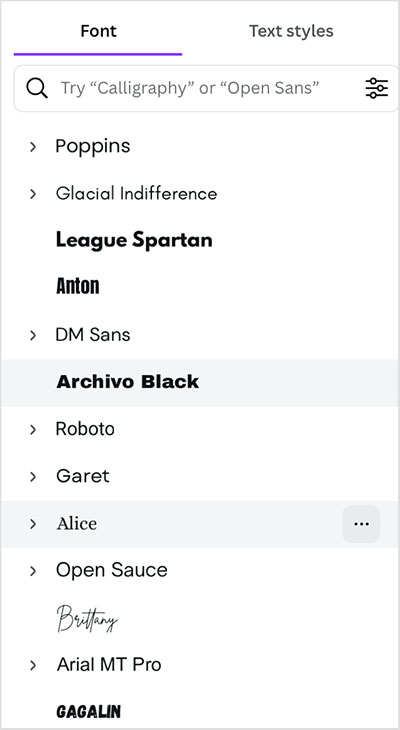
(If you can’t find a font you like in either Canva or Kittl, you can always upload your own custom fonts to either platform.)
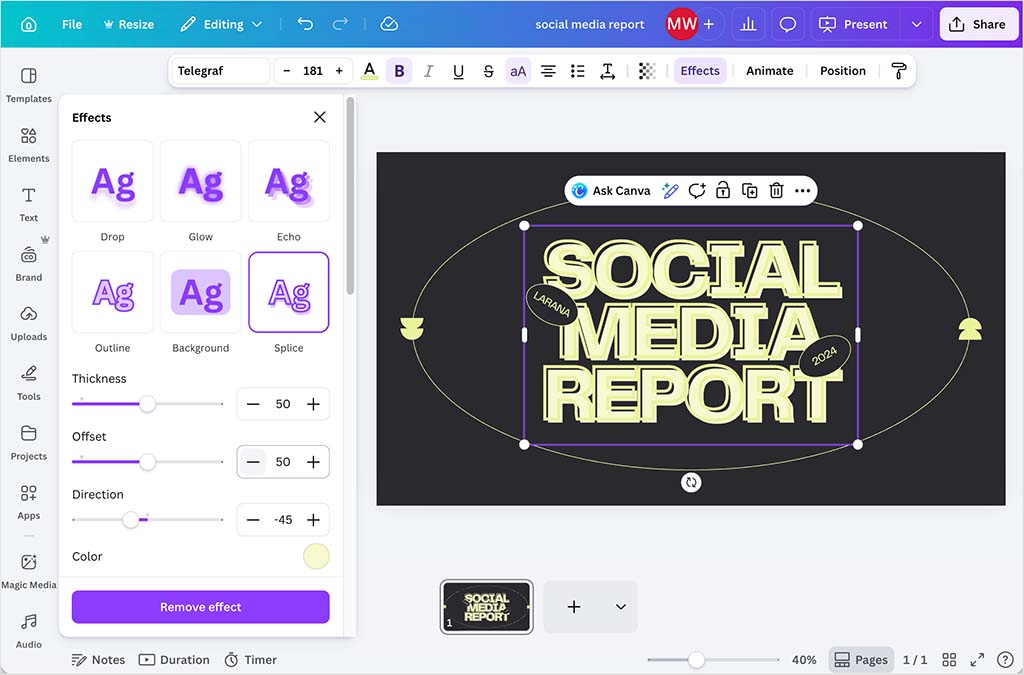
As for the effects you can apply to your text, Canva gives you a handy set of 22 or so text effects — with examples including ‘shadow,’ ‘outline,’ ‘hollow,’ and ‘curve’ — each of which can be adjusted easily using a range of settings sliders.
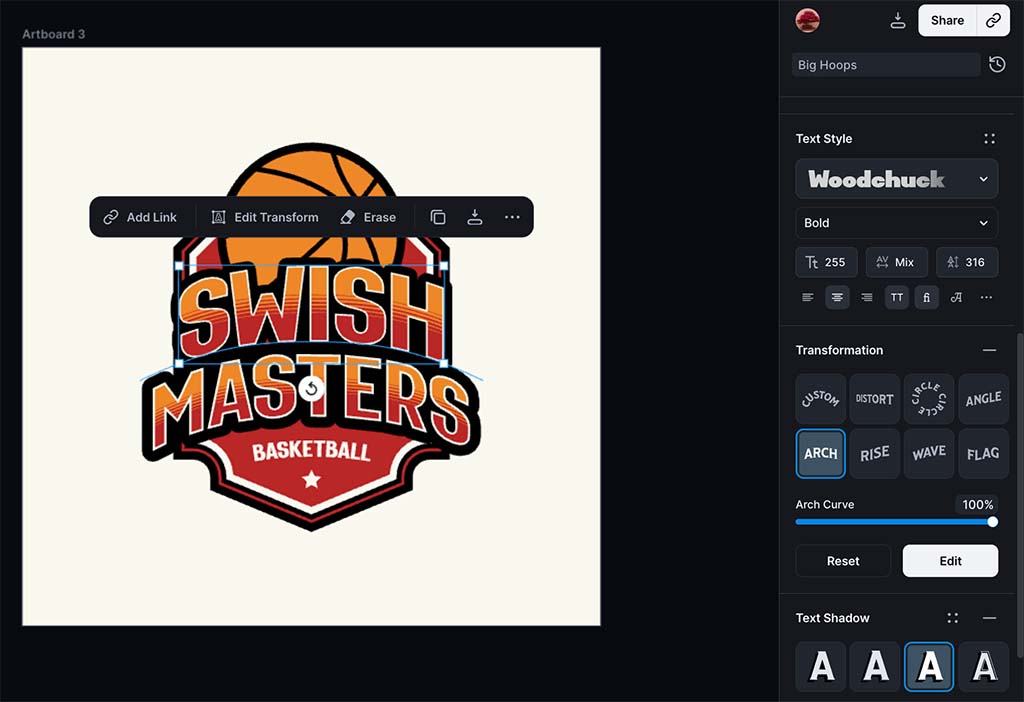
Kittl presents its typography effects in 3 main categories:
- Transformation effects — these allow users to manipulate the shape and orientation of text. This includes curving, distorting and adjusting the text along custom paths to create unique layouts and effects.
- Text shading effects — these focus on adding depth to text through shading techniques. Users can apply different styles of shadows, gradients, and highlights to give text a three-dimensional appearance.
- Text decoration effects — these involve adding decorative elements to the text, such as outlines, borders and additional layers of detail that enhance the overall visual impact of the typography.
The key difference between Kittl’s text effect options and those of Canva is that, in Kittl, you can mix and match the effects across its three categories. For example, you can apply a curve to your text (a transformation effect), add a drop-shadow (a shading effect) and then add an internal horizontal line effect (a decoration effect).
These types of effect combinations aren’t possible in Canva, because you can only apply a single effect to a piece of text at a time.
While testing the platform for this comparison, I particularly enjoyed working with Kittl’s transformation effects. These provide a set of anchor points — a point of control on a curve or line — with adjustable handles that give you precise control over the curvature and shape of text. These enable you to create smooth arcs, waves, or more complex custom paths (see my screenshot below for an example).
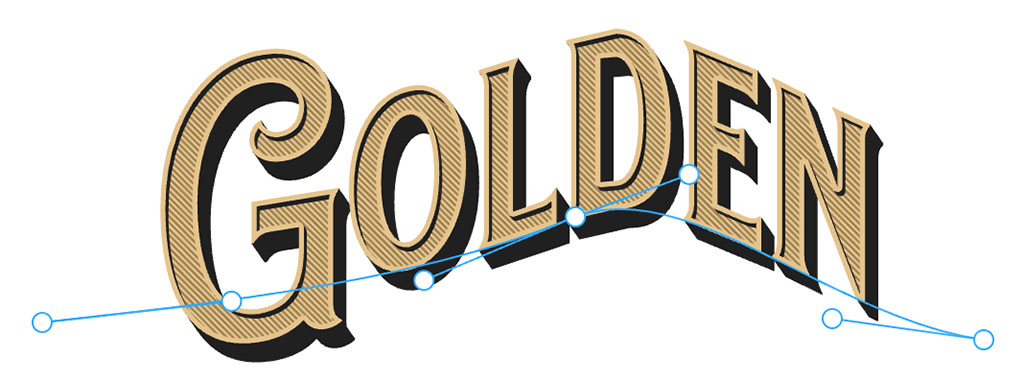
This level of control is usually only found in more advanced design software like Adobe Illustrator, but Kittl simplifies this sort of text design, making the process involved more user-friendly and accessible; even those without any design or typography experience will find that Kittl makes this sort of text transformation very straightforward.
Now, I should mention that Canva does offer a free app, called ‘TypeCraft,’ that offers a similar approach to applying text transformations.
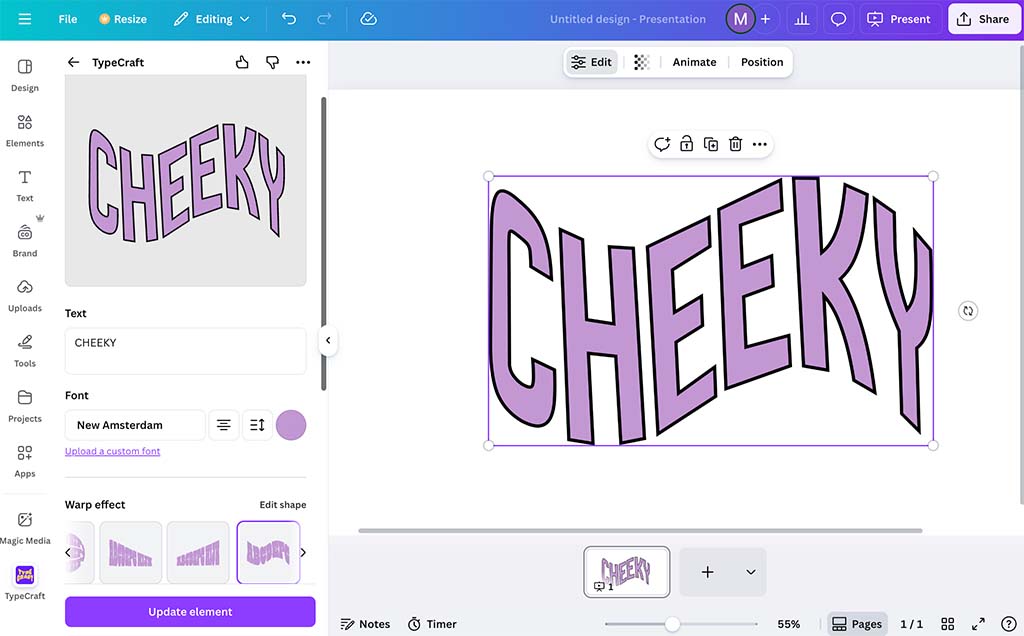
However, using this involves applying the edits to your text off the main canvas (in an app settings section), and each time you make a change to your text, you have to hit an ‘Update element’ button to see the change take effect in your design. So you end up with a much less streamlined way of working than in the Kittl interface.
So, despite offering fewer built-in fonts than Canva, it’s a win here for Kittl — because it makes applying complex text effects so accessible and easy.
Working with images
When you add a photo to your design in Kittl or Canva — either from their stock photo libraries, or by uploading one of your own — both tools let you apply basic photo edits to it. These include changes to contrast, exposure and saturation.
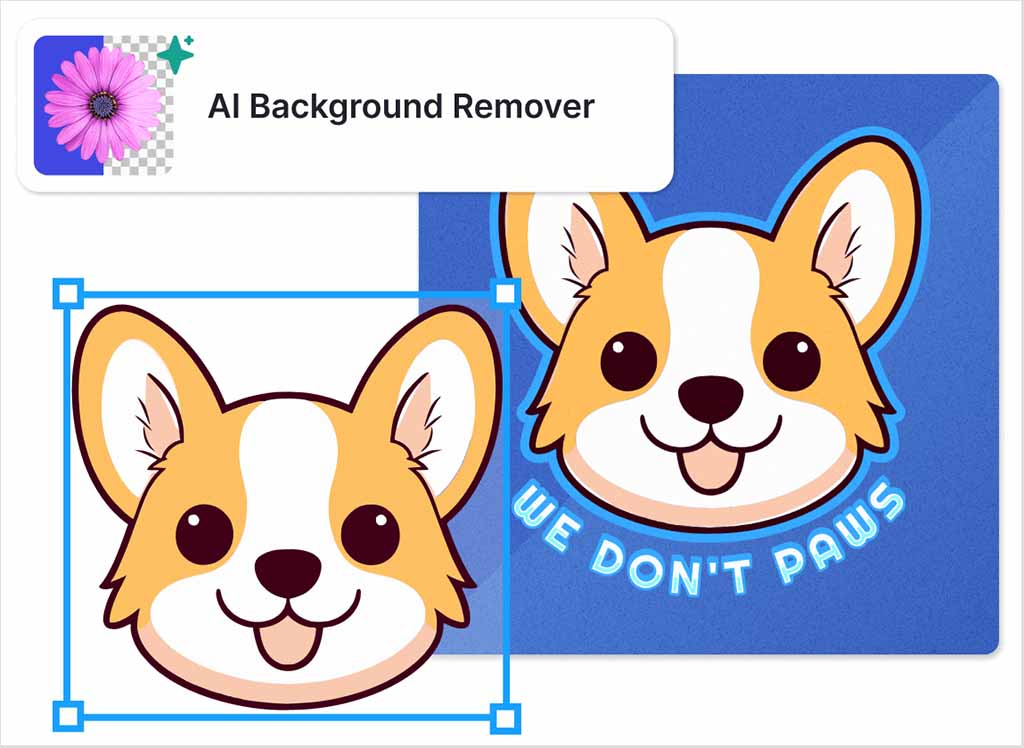
Both platforms also give you background removal tools (available on paid plans only).
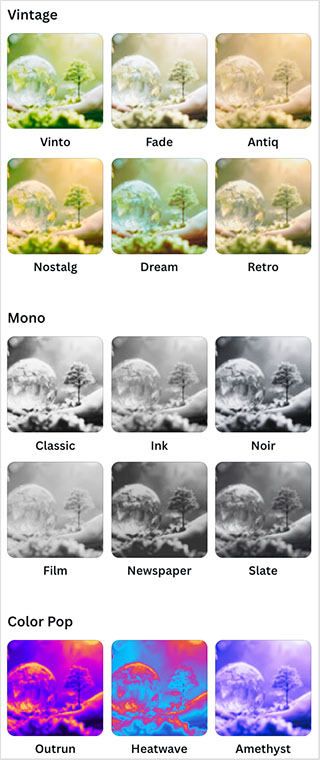
Canva is the better of the two when it comes to applying preset effects to your images, however. Its image effects panel includes a large range of 40+ filters, making it really easy to apply different looks (‘vintage,’ ‘color pop,’ ‘mono,’ ‘natural’ and more) to the photos in your design. You can adjust the intensity of each filter with a simple slider to increase or decrease your chosen filter.
Surprisingly however, Kittl doesn’t come with any photo filter presets at all.
Some other effects you’ll find in Canva but not in Kittl include an ‘auto-focus’ tool for fixing blurry images, and a really useful ‘face retouch’ effect for smoothing out skin tones in portraits and headshots.
Additionally, Canva lets you copy the look and feel of a photo to other images with a handy ‘copy style’ tool. This is really useful for maintaining consistency across multiple images in a design project.
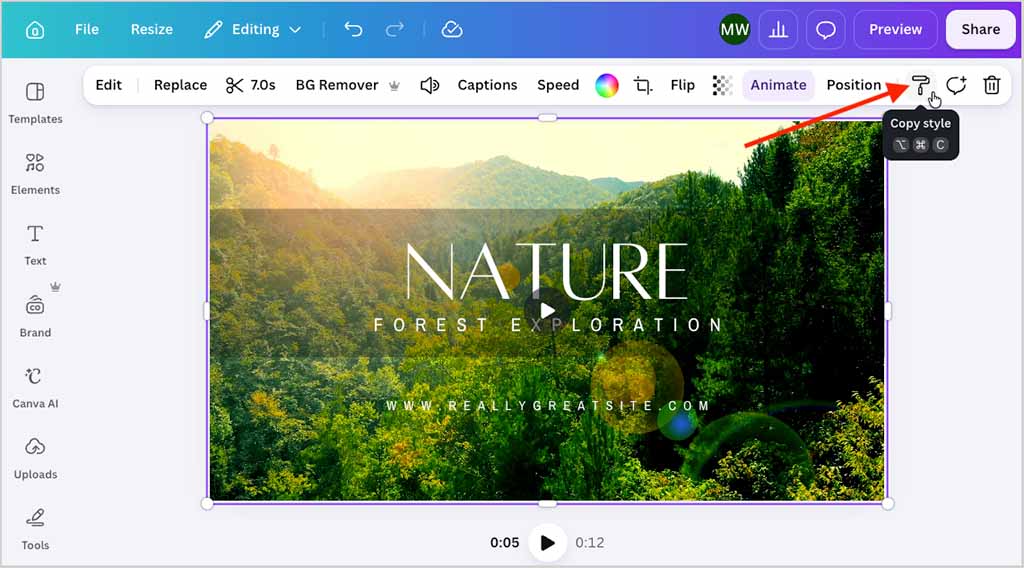
These various easy-to-use photo effect tools in Canva make it an ideal option for non-designers looking to achieve attractive results with their photos, requiring almost no technical know-how.
But despite its lack of photo effect presets, Kittl technically gives you advanced image manipulation capabilities beyond what can be achieved in Canva. This is mainly done via Kittl’s support for ‘blend modes‘ and ‘clipping masks‘.
Blend modes in Kittl allow you to control how layers interact by altering the way colors and textures blend together. You can use them to create effects like darkening, lightening, or adding contrast between layers, enabling more complex visual outcomes.
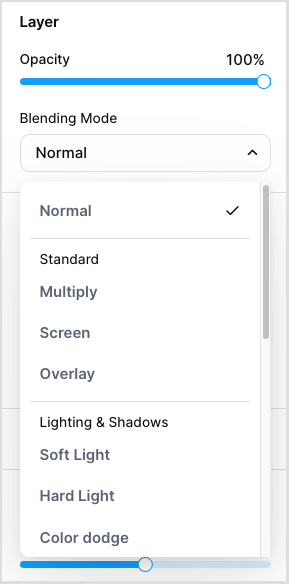
An offshoot of Kittl’s blend modes is its powerful clipping mask feature.
Clipping masks let you limit the visibility of a layer based on the shape or transparency of another layer, allowing for intricate designs where textures and patterns are perfectly contained within specific elements. For instance, you can use a clipping mask to apply a textured background within text, creating a rich, layered effect that would be challenging to achieve with Canva’s simpler tools.
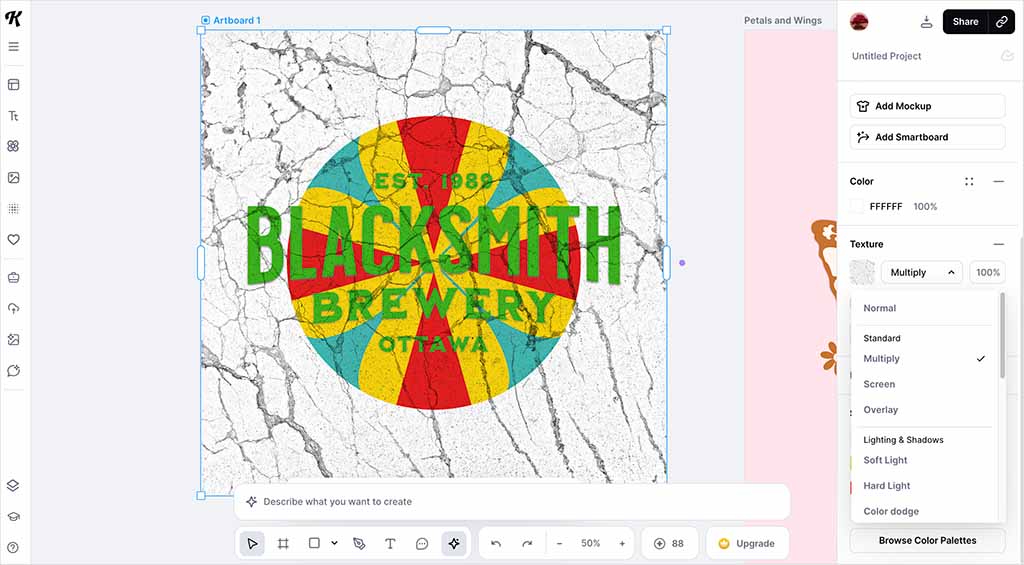
Overall, while Canva’s extensive filters and user-friendly design make it very accessible for a broad range of users, Kittl’s advanced blend modes and clipping masks offer greater flexibility and control for professional graphic designers who require detailed and sophisticated image manipulation.
So, when it comes to working with images in Canva and Kittl, we’ll call it a draw: Canva wins on the preset and ease-of-use front, but ultimately Kittl gives you more powerful image manipulation options.
Video editing in Kittl and Canva
For a long time, Canva had a clear advantage over Kittl with regard to video functionality — simply because it offered a built-in video editor, while Kittl didn’t.
Canva includes a straightforward timeline-based video editor that’s integrated into its design interface. The workflow is similar to creating static designs: you start with a template (or blank canvas), add clips, and build your video scene by scene.
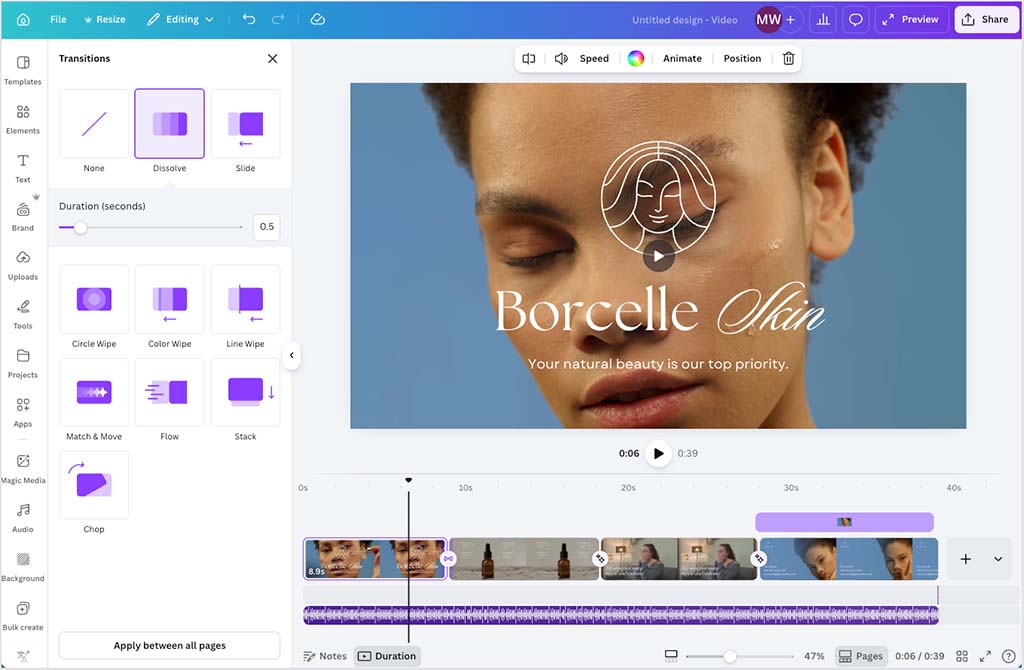
You can upload footage, use Canva’s extensive library of stock videos, or record clips directly via your webcam. This built-in asset library is a major advantage — it means you can create complete videos without needing to source footage elsewhere.
Once clips are added, they can be trimmed, split, rearranged, and enhanced with transitions, text overlays, animations, and audio.
Additionally, Canva’s video background removal tool is particularly effective, handling complex scenes well even on clips several minutes long. Its ‘beat sync’ feature is also useful, automatically aligning cuts and animations with your soundtrack. More recently, Canva has introduced a more refined timeline view, making it easier to fine-tune clip timing.
That said, this is still a fairly lightweight editor. You don’t get advanced controls over codecs, bitrates, or color grading, and the range of transitions is limited. But for social media content, presentations, and general marketing use — including longer-form videos — it does the job well.
Kittl, by contrast, takes a fully generative, AI-led approach to video.
Its recently launched video features are built around an ‘AI video board’ tool within its design interface. Rather than assembling clips manually, you choose an AI model, enter a prompt, and generate a video — typically by animating a static design into a short motion sequence.
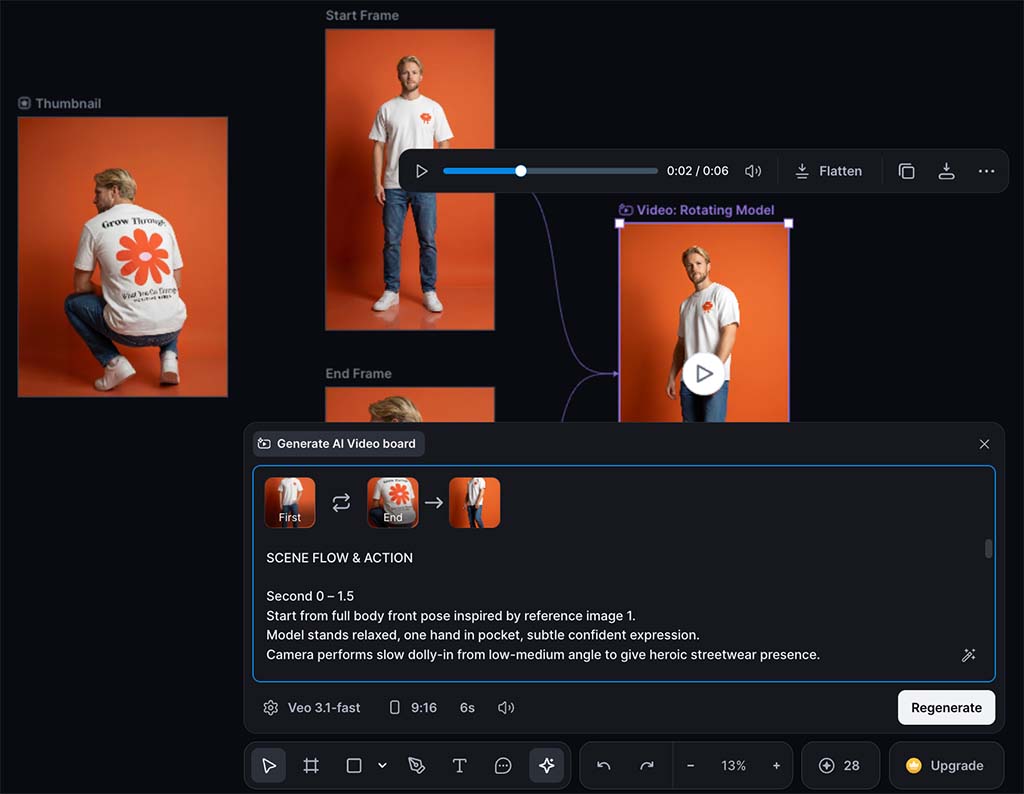
Kittl currently supports several models, including Flux 3, Gemini Omni Flash, Kling 3.0, Veo 3.1, Pixverse v5, Runway Gen 4.5, and Grok Imagine Video. This provides flexibility in terms of output style, particularly for motion graphics and concept visuals.
Unlike Canva, however, Kittl doesn’t provide a stock video library. Instead, it leans more heavily on template-style starting points, typically designed for turning flat graphics into short product-style videos with defined start and end frames.
Crucially, there’s no timeline, no clip sequencing, and no granular control over edits. You’re creating video outputs, not editing them — which makes Kittl better suited to short, self-contained clips than longer, structured video content.
It’s also worth noting that some models included in Kittl — particularly Grok Imagine Video — sit within a broader AI ecosystem that has raised questions around training data and content sourcing. For commercial work, it’s worth being selective about which models you use.
Overall, Canva remains the stronger option for hands-on video creation and editing. Kittl’s approach is more experimental — useful for generating quick animated visuals, but not a proper substitute for a conventional video editing workflow.
Resizing your design
When choosing a design tool, the ease with which it allows you to resize your designs across multiple formats is a key consideration.
In today’s multi-platform world, designs often need to be repurposed extensively and quickly — so that versions are available that work across desktop to mobile, digital to print, and for a wide range of social media platform formats.
Unfortunately for Kittl users, the platform doesn’t have a dedicated tool available for resizing your designs. To adjust the size of a design in Kittl to suit different formats and platforms, you’ll typically need to manually change its dimensions and reposition all the elements within the design — all of which is very time-consuming.
One potential workaround here is to take advantage of Kittl’s artboard tool to make multiple artboards — each set to your various output dimensions — and then copy your composition over to each artboard and redo the layout for each. But there is no getting around the fact that this will involve quite a bit of manual effort too.
Resizing designs is much more straightforward in Canva, thanks to its AI-powered ‘Resize & Magic Switch’ feature.
In just a couple of clicks, this feature lets you automatically reformat an existing design to suit various applications, such as turning a blog banner into a Facebook post or a YouTube thumbnail.
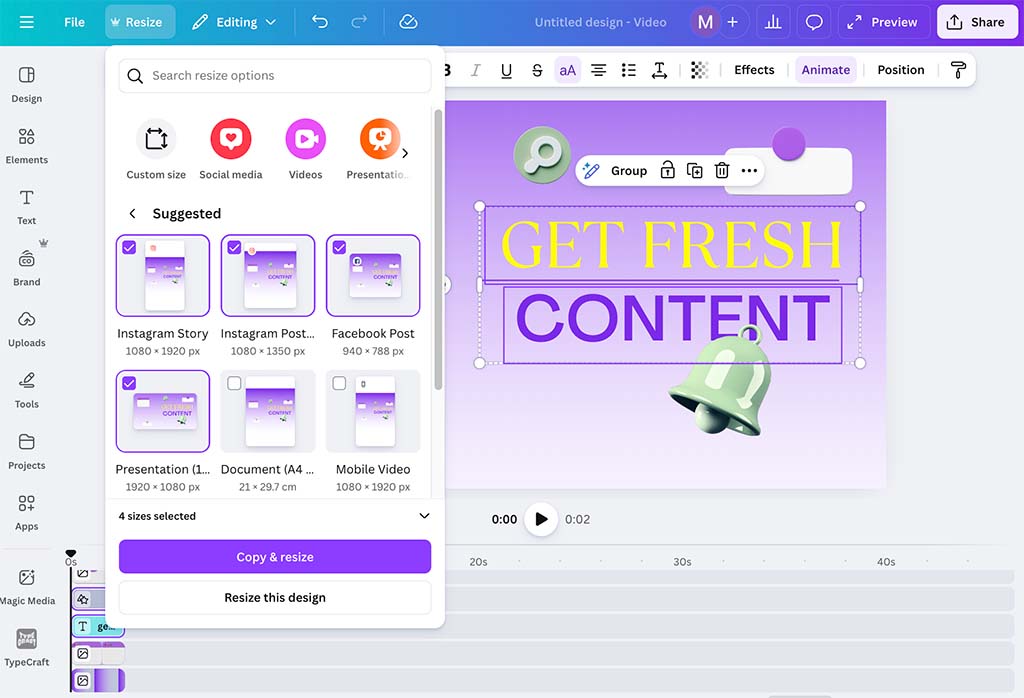
Importantly, Canva’s resize tool lets you create multiple repurposed designs all at once. You simply select all the format types you want to create and Canva’s AI-powered tool quickly produces each resized version of your design for you.
Now, when testing this tool as part of my research for previous comparisons, I found that it didn’t always work perfectly, and that occasionally some manual tweaks to its output were necessary. But recently Canva has made several improvements to it, and my recent experience of using the feature suggests that it now outputs error-free and ready-to-publish resized designs almost all the time.
Another related repurposing feature in Canva is the option it gives you to translate text content into multiple languages automatically. Available via an app, this is particularly useful for use in global campaigns.
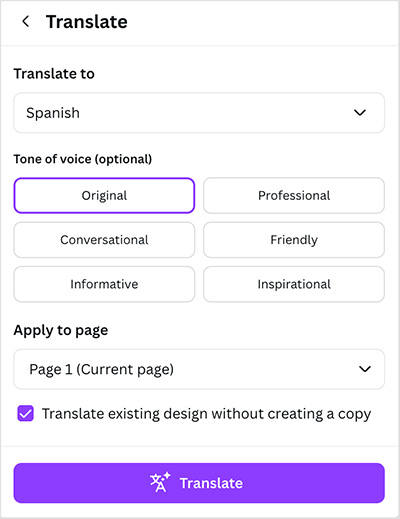
The only thing to watch out for is that you are limited to 50 uses of this tool per month on the free version of Canva, and 500 on a ‘Canva Pro’ or ‘Business’ subscription.
Ultimately, Canva’s ‘Resize’ tool and Translate app significantly reduce the time spent on repurposing designs manually — and give it quite an edge over Kittl when it comes to creating multi-platform or multi-market designs.
AI design tools
Since the arrival of ChatGPT and other AI-driven technologies, software developers have been racing to incorporate AI features into their apps — and Canva and Kittl are no exceptions here.
Canva’s AI tools go by the name ‘Magic Studio’ and are fully integrated across the entire platform. Key tools in this offering include:
- Magic Eraser — this lets you easily remove unwanted elements from images.
- Magic Morph — this lets you transform the look of images and text based on user instructions.
- Magic Grab — this lets you isolate the main subject of a photo from its background.
- Magic Expand — this lets you extend the background of an image.
- Magic Animate — this tool automatically generates animations and transition effects for designs, videos, or slideshows.
- Magic Write — this is a copywriting tool that lets you use ChatGPT-style prompts to create text.
- Magic Media — this tool lets you create graphics, photos, or videos from text prompts.
- Magic Edit — this lets you modify specific elements within a design by adding or replacing content.
You can get a quick overview of these features in the video below.
Canva also gives you a few other AI-powered design tools that don’t feature the ‘Magic’ branding. These include ‘BeatSync’, a tool that automatically matches the timing of your video edits to the tempo of the music you’re using, and a tool for enhancing the quality of voiceovers on your videos.
And Canva’s AI offering now goes considerably further than Magic Studio. In September 2026, the company introduced Canva AI 2.0, a new conversational AI system that can generate fully editable designs from prompts and carry out multi-step design tasks on a user’s behalf.
Rather than simply generating a flat image, Canva AI 2.0 can create designs made up of individual editable elements, and users can continue refining these through natural-language instructions. Canva is also extending the system into areas including web research, brand management, spreadsheets, interactive content and connections with third-party productivity apps.
Kittl has expanded its AI offering considerably too. Its Kittl AI tools now cover image and video generation, vector generation, image vectorization, background removal, image editing, upscaling, reframing and more.
One Kittl AI feature I particularly like is its AI Image Vectorizer. This traces an uploaded JPG or PNG and converts it into an editable vector graphic that can be exported as an SVG.
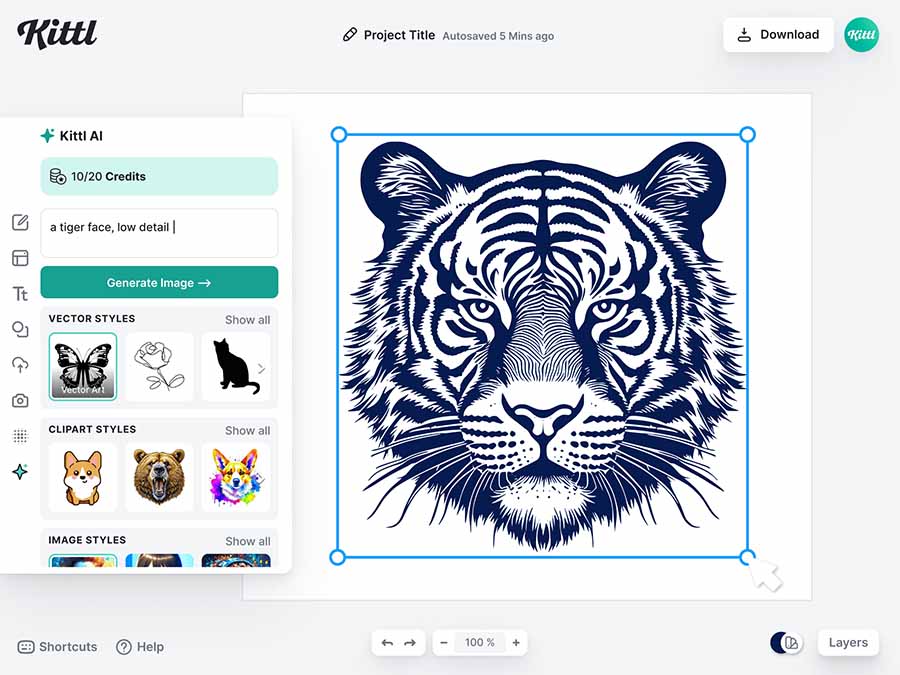
Vector graphics are particularly useful for logos, icons, merchandise and other assets that need to be scaled to different sizes without becoming pixelated.
Another particularly useful feature is Kittl Flows.
Flows let you connect regular design artboards with mockups, AI-generated images and AI-generated videos, with the output from one stage serving as the input for the next. This makes it possible to take an initial design, turn it into a product mockup and then use that mockup to create AI-generated promotional imagery or video — all on the same canvas.
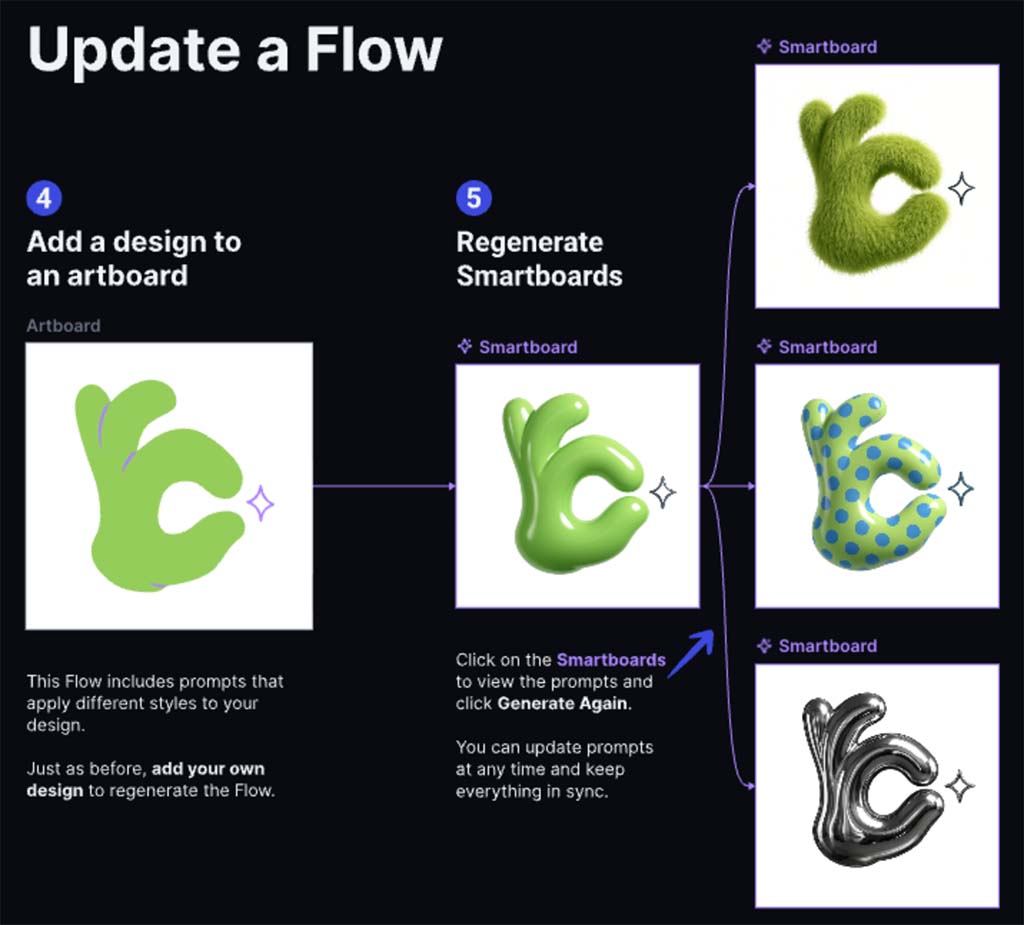
Kittl also provides AI Workflows. These are preconfigured AI processes designed for specific jobs — such as creating merchandise graphics, product visuals, mockups, ads, social media content and logos. Rather than requiring you to configure an AI model and write a detailed prompt yourself, you choose a workflow, provide the requested input and let Kittl generate the result.
Where Kittl particularly distinguishes itself from Canva is in the amount of control it gives you over which AI model you use for image generation.
Kittl currently integrates a large number of models from providers including OpenAI, Google, Black Forest Labs, ByteDance and Ideogram. You can choose between models such as Flux, Ideogram, Seedream, Google Imagen, Nano Banana and ChatGPT Image, depending on the type of visual you want to create.
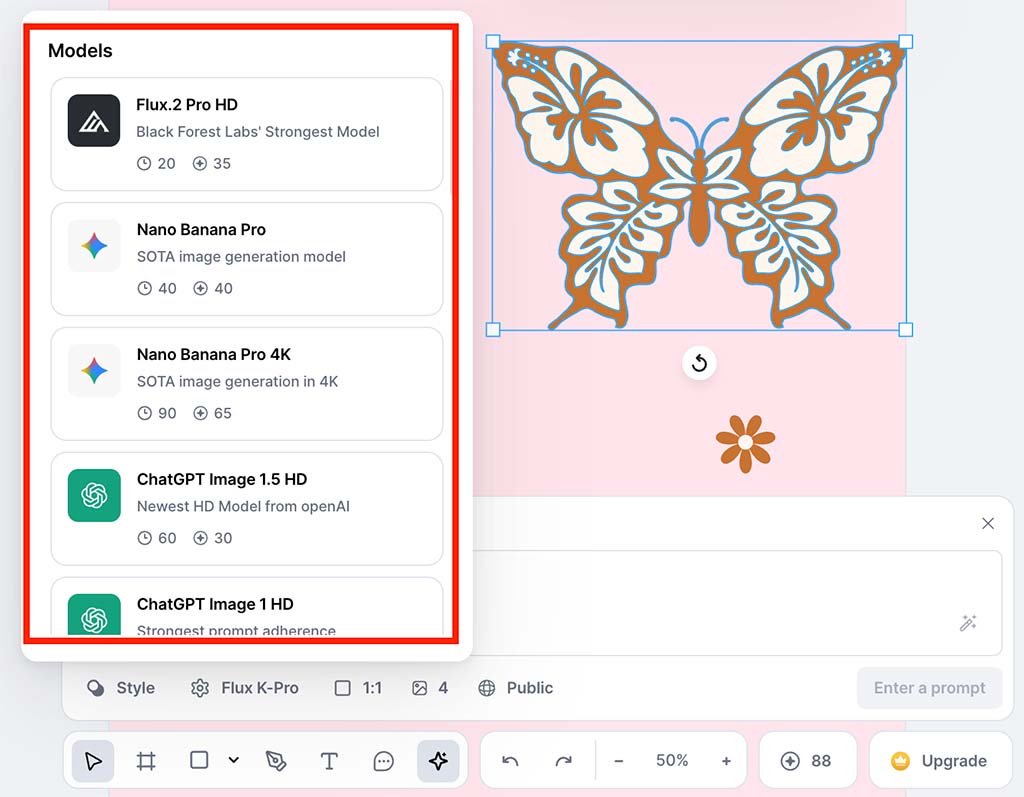
This is useful because different models have different strengths — some are particularly good at typography, for example, while others perform better at photorealism, image editing or illustration.
Canva generally takes a more streamlined approach in its main AI tools: you describe what you want and Canva handles much more of the underlying technology for you. This makes Canva’s AI tools particularly accessible to users who want fast results without having to think too much about models or technical settings.
As for AI usage limits, Kittl uses a token-based system. Free users receive 100 AI tokens as a one-time allocation, while its paid plans currently provide between 2,000 and 30,000 tokens per month per editor, depending on the plan.
The number of tokens used by an AI action varies according to the feature and model involved — and video generation generally consumes considerably more tokens than image generation.
Canva takes a slightly different approach. Its AI features are now divided into Standard, Premium and Ultra AI tiers.
On paid Canva plans, Standard AI features can generally be used without drawing from your monthly AI allowance, subject to fair-use limits. Premium and Ultra AI features share a monthly allowance, with higher-tier plans providing substantially more usage.
For example, Canva Pro currently provides up to 200 Premium AI uses or 20 Ultra AI uses per month, while Canva Business provides up to 400 Premium uses or 40 Ultra uses. Canva Free users get a much smaller monthly allowance and don’t get access to Ultra AI tools.
It’s worth noting that these figures aren’t necessarily equivalent to individual prompts: Canva says the amount of allowance consumed depends on the tool, AI model and complexity of the task being performed.
Overall, Canva arguably has the more deeply integrated AI offering, with its tools spread across design, text, presentations, video, audio and productivity workflows.
Kittl’s AI offering is increasingly sophisticated too, however — and designers who want greater control over image-generation models, vector artwork and chained creative workflows may find its approach particularly appealing.
Design tools you’ll find in Canva — but not in Kittl
As I’ve previously mentioned, Canva offers a broader range of features compared to Kittl, making it an extremely versatile tool for a large number of creative tasks. Beyond its graphic design capabilities, you can also use Canva for:
- Whiteboarding — Canva’s whiteboard tool supports collaborative brainstorming, with features like sticky notes, drawing tools and the ability to organize ideas visually in real time also provided.
- Making presentations — Canva includes a presentation maker that lets you create dynamic slide decks with embedded media and live data.
- Website design — Canva comes with a simple website tool that lets you build and host landing pages and one-page sites.
- Creating documents — Canva offers a robust document editor, allowing you to integrate text, images and graphics into professional documents (reports, brochures etc.).
- Creating interactive graphs — Canva’s graph maker allows for easy creation of interactive charts and graphs, and makes data visualization very easy.
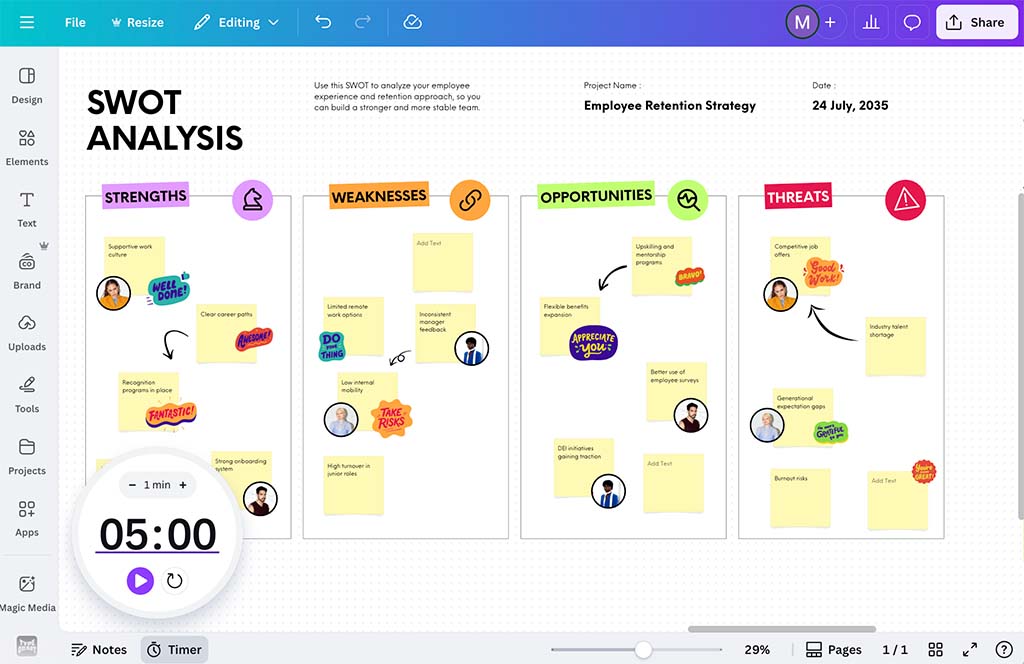
Content creation and media
Stock assets
One of the key benefits of using modern web-based design platforms like Canva and Kittl is the large libraries of stock assets you get access to as part of your subscription.
Kittl’s stock asset database is made up of around 100 million photos, graphics and fonts. This includes 40,000+ vector illustrations, 4,000+ shapes and ornaments and 6,000+ ‘texture’ images.
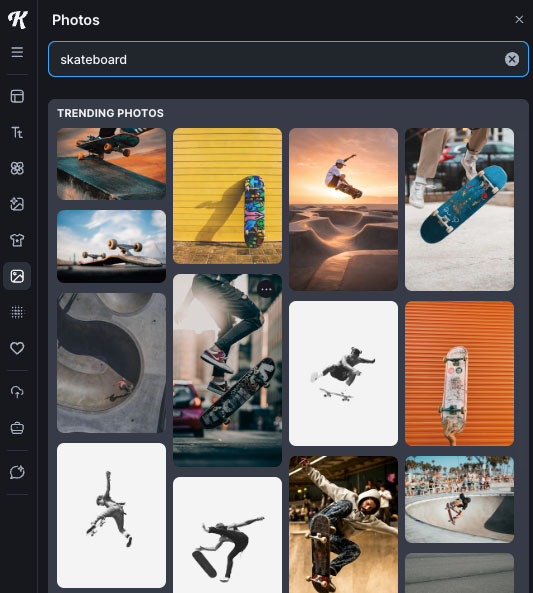
So on the whole, a pretty good selection of stock assets is available in Kittl.
I particularly like Kittl’s vector illustration library. I found the images contained within it to have a distinctive ‘hand-crafted’ quality that you won’t usually find in competing stock libraries.
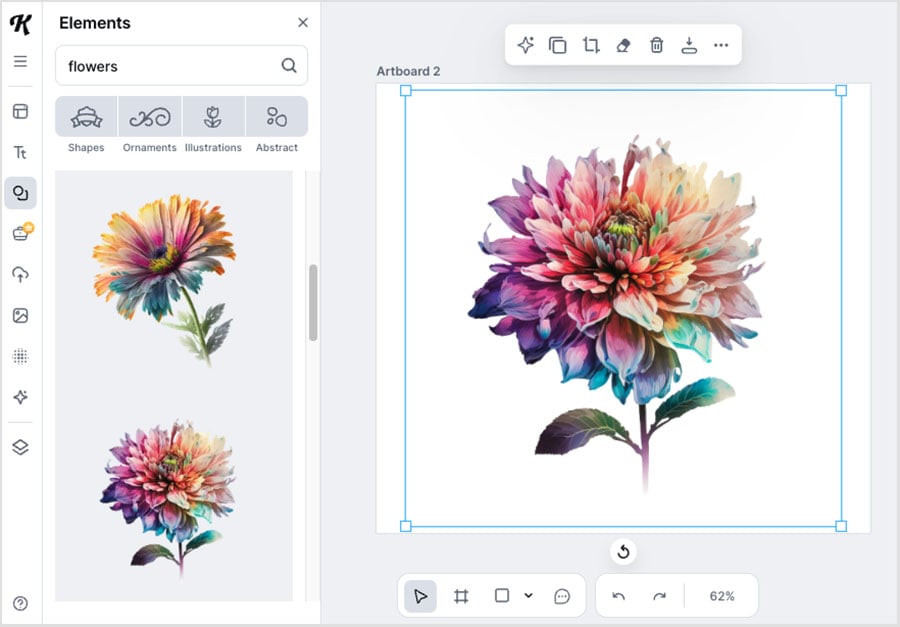
As for Kittl’s texture graphics, these are mainly employed as overlays, and come in really handy when used in conjunction with the masking and clipping functionality I discussed earlier.
However, Canva’s asset collection is considerably larger.
In total, Canva gives you more than 141 million stock items on paid plans, with a still enormously generous 4.7+ million available on its free plan.
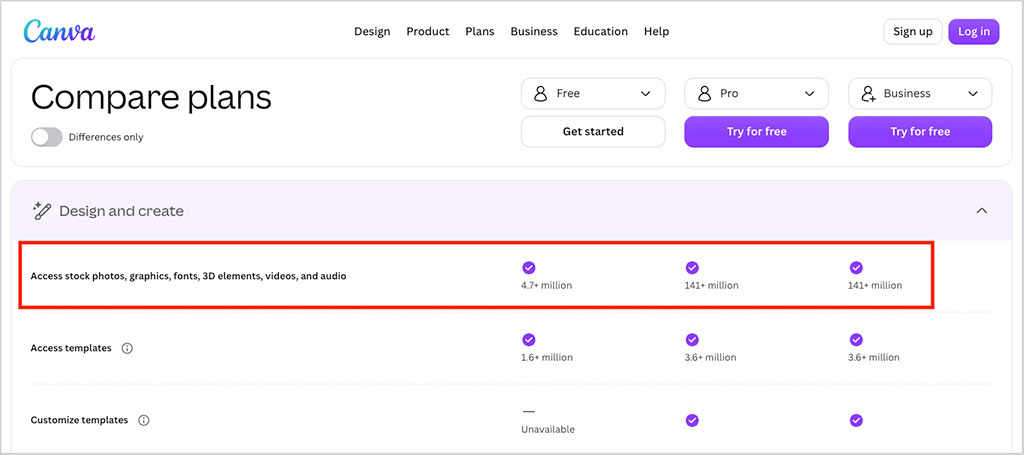
Additionally, Canva provides users with several media asset formats that you don’t get in Kittl, including videos, music tracks, and animations.
As for the quality of stock graphics in Canva, they are usually very good — although its illustrations are not as ‘arty’ or unique as those in Kittl.
That said, I can tell you that I’ve personally used thousands of Canva’s stock assets across hundreds of professional content projects — I almost never have to source stock items from other sources.
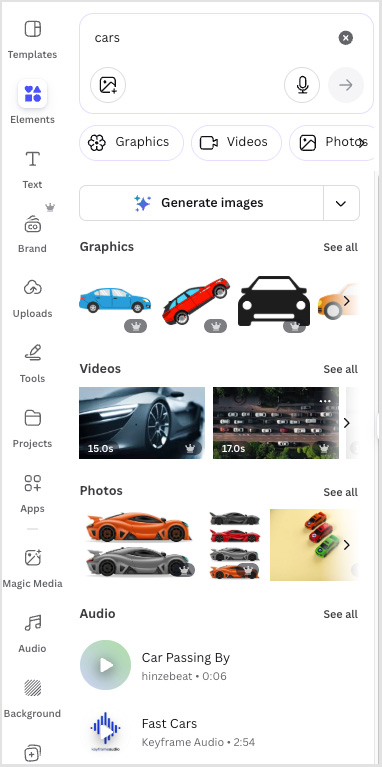
So for me, Canva is the better tool when it comes to sourcing stock assets.
Next up, brand management in Canva and Kittl.
Brand tools
Both Canva and Kittl provide tools for storing and applying your brand identity across your designs.
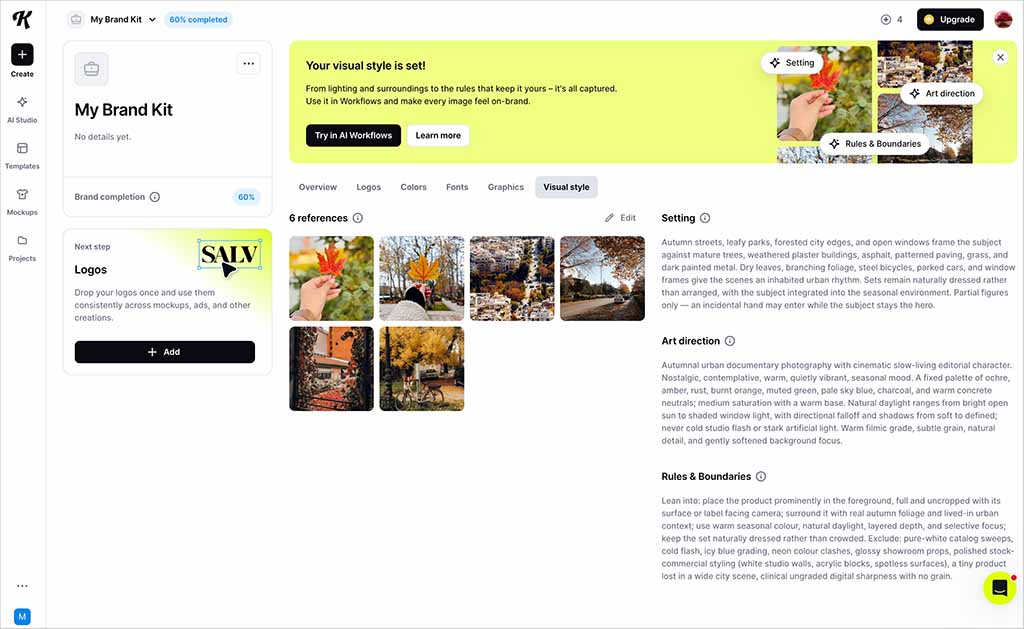
Kittl’s branding feature — now called Brand and accessed through its Brand Studio — lets you add:
- logos
- color palettes
- fonts
- graphics
- a visual style.
The last of these is particularly interesting. You can upload reference images or videos that represent your brand’s desired look, and Kittl analyzes them to establish rules around things like lighting, surroundings, art direction and overall visual style. These can then be used to keep AI-generated imagery consistent with your brand.
Kittl also makes it easy to apply a brand to an existing design: its ‘Apply Brand’ feature can automatically replace the colors and fonts on an artboard with those specified in your Brand settings. And if you already have a website or online store, Kittl can import a brand directly from its URL, extracting its logo, colors, fonts, graphics and visual style automatically.
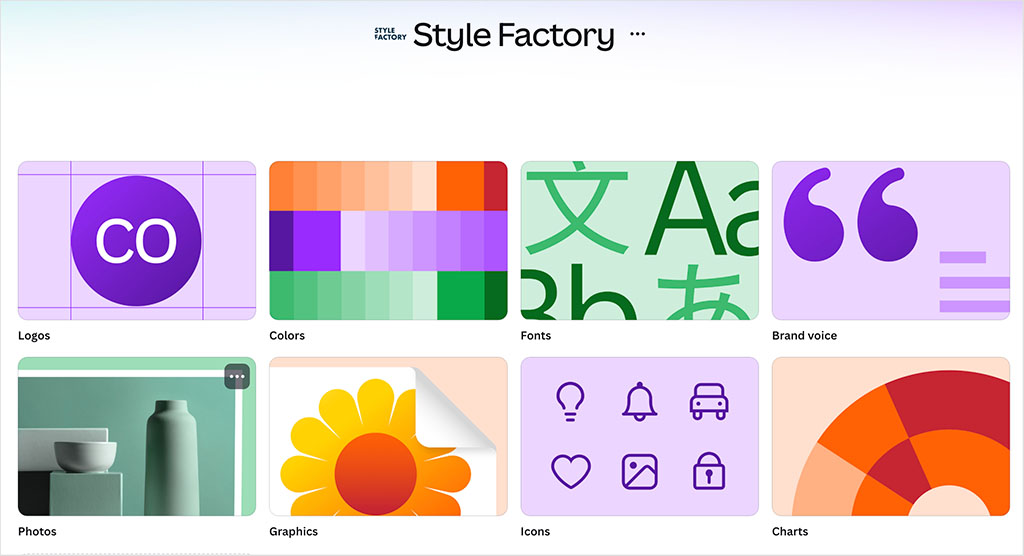
Canva’s branding tools are similarly comprehensive. Its Brand Kit lets you store:
- logos
- colors
- fonts
- brand voice settings
- photos and graphics
- icons
- charts and other brand assets.
You can also add contextual guidelines explaining when and how particular assets should be used.
Canva goes further with its Brand Templates feature. This lets you turn existing designs into approved templates that already contain the correct fonts, colors, logos and layouts, making it easier for teams to produce new content without straying from a company’s visual identity.
It also provides a dedicated Brand Guidelines area, where you can document wider aspects of your brand — including its story, values, visual identity, tone of voice and standards for how brand elements should be used.
Overall, both platforms now provide very capable branding tools. Kittl has become particularly strong when it comes to using visual references to keep AI-generated imagery on-brand, while Canva has the edge when it comes to managing a broader brand system — particularly through its Brand Templates, guidelines and team-oriented brand controls.
Printing products with Kittl and Canva
Canva and Kittl both let you export your designs as PDF files, the format most printers expect to receive material in. This makes it easy to create designs on either platform that you can print with any supplier.
If you’re designing products for print-on-demand (POD), Kittl gives you some useful artboard presets for several of the main POD suppliers including Printful, Printify and RedBubble.
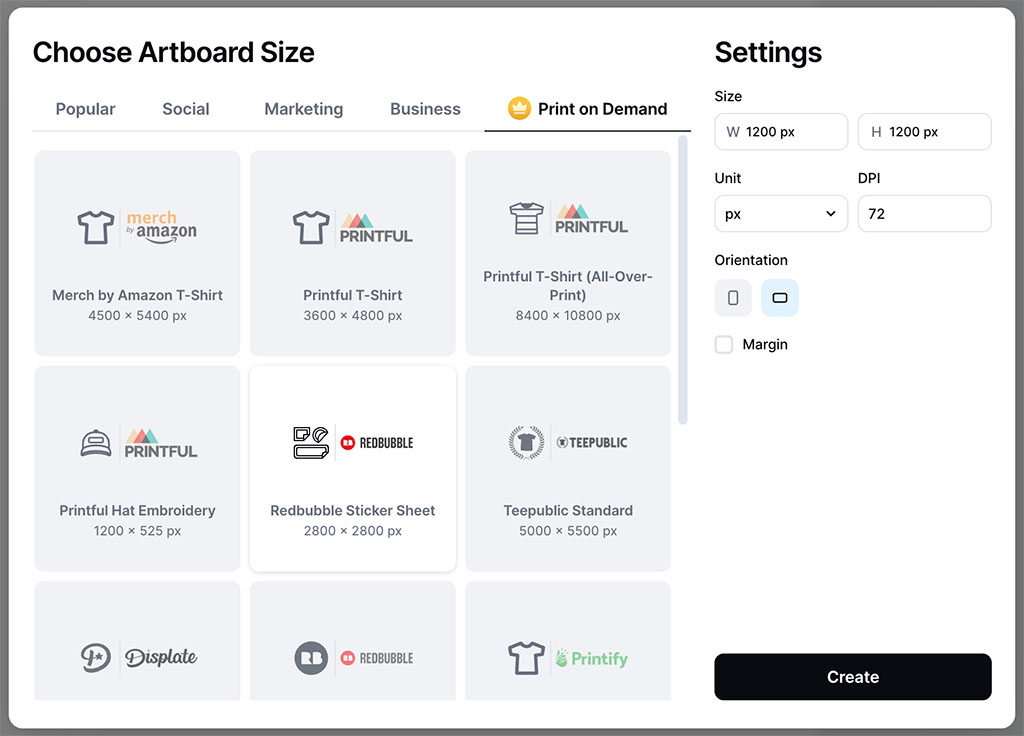
These artboards match the exact dimensions of the printable areas on popular print products from each POD company, which makes it very quick to set up your document and start designing.
(In Canva, by contrast, you’ll need to create a custom project to match each POD platform’s file specifications.)
Another option is to print your products through Canva or Kittl directly. Both platforms offer in-house printing services for a range of products including t-shirts, tote bags, mugs and notebooks. In terms of the selection of printable items on offer in both tools, Canva has a much wider range of options, however — you can choose from around 100 printable items versus just 15 in Kittl.
(In addition to the standard print items like t-shirts, notebooks and stickers you get in both platforms, Canva also lets you produce more business-focussed items — like business cards, retractable event banners and yard signs.)
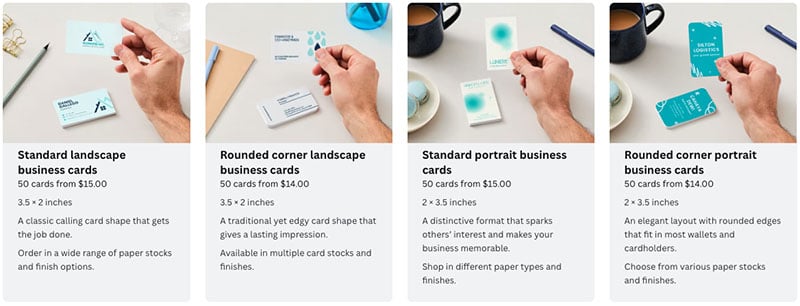
One thing to watch out for when printing items with Kittl is the fact that it doesn’t offer exchanges on print orders if you’re not happy with the quality of your order. By contrast, Canva operates a so-called ‘happiness guarantee’ policy — meaning that you can get in touch with Canva if you’re not happy with your print item, and they will, depending on the issue involved, reprint the item or offer you a refund.
So thanks to its much larger product range, plus its more accommodating exchange policy, it’s another win for Canva here.
Product mockups
When you’ve completed a design in either Canva or Kittl, you can showcase it using each platform’s integrated mockup creation tools.

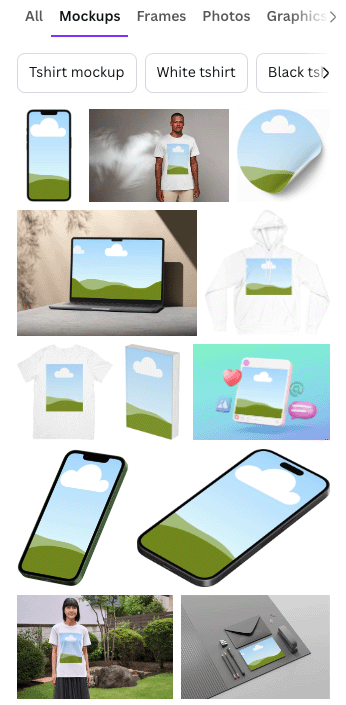
There are several hundred ready-made mockup scenes available in both platforms, with key ones including:
- screen mockups — your design displayed on desktops, laptops, tablets, phones, etc.
- table flat lay mockups — a top-down image of items on a flat surface
- clothing and apparel mockups — where you can show your design on a virtual garment
- stationery mockups — your design shown on books, notebooks, calendars, etc.
- packaging mockups — how your boxes, bags and mailers will look
- outdoor ad mockups — your design as seen on billboards, bus shelters, etc.
Each of these mockup scenes includes a placeholder section where the image of your design appears in the scene.
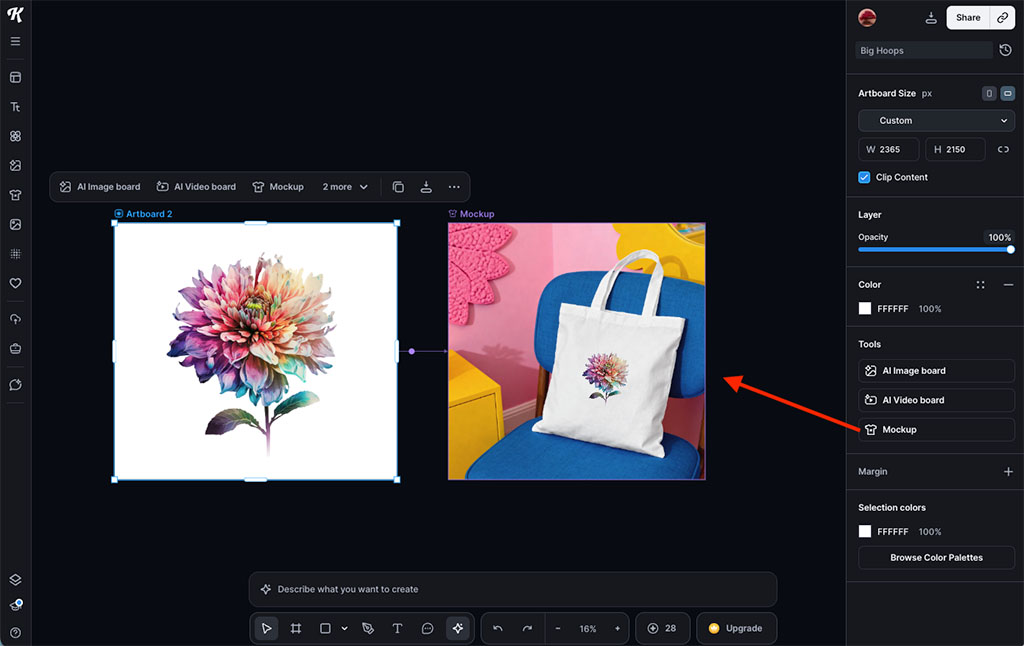
I’d probably give Kittl a slight edge over Canva when it comes to the speed at which you can turn your designs into mockup format, though.
This is because Kittl’s designer has an ever-present ‘Mockup’ button in its design interface; when you click on this, you simply select the mockup you want to add your design to, and the system immediately inserts your image into your chosen scene.
Creating mockups in Canva involves a more long-winded process. You need to search for mockups in Canva’s ‘Elements tab’ and then manually add the scene to your design canvas before you can add your image to it.
However, unlike Kittl, all Canva users (including free users) can download full resolution images of their mockup designs.
Another key mockup option you’ll find in Canva but not in Kittl is its video mockups functionality. This works exactly the same way as static mockups in Canva — you place the video on your canvas and simply add your image to it.
The inclusion of this easy-to-use video mockup functionality in Canva is one of the many strengths of the platform over Kittl and Canva’s many other competitors.
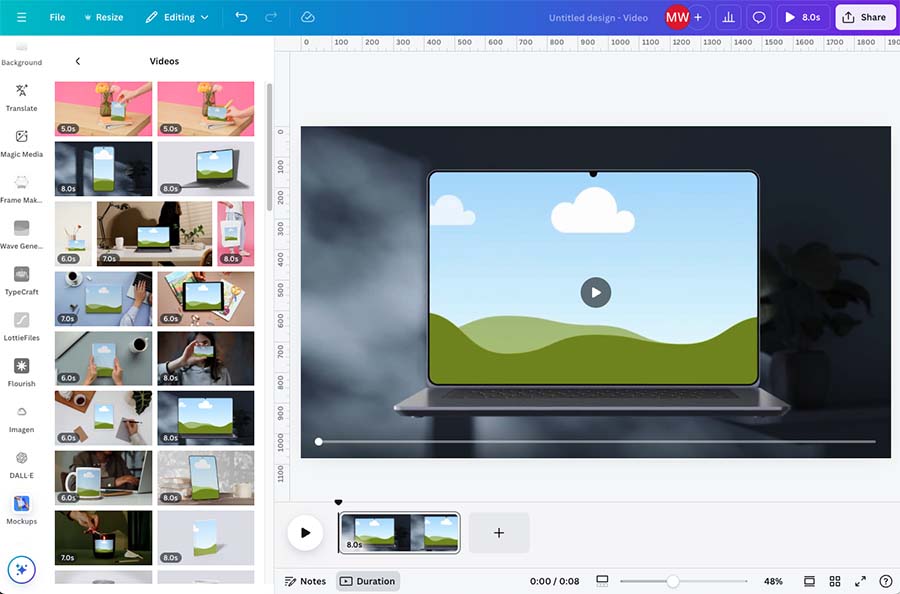
This feature saves a lot of time and effort and is much more straightforward to use than fiddling about in tricky software like After Effects to make your mockups.
(In case you’re wondering, you can’t add a ‘video’ to a ‘video mockup’ in Canva, unfortunately. Believe me, I tried! If you’re looking for a mockup tool for your video content, I find Rotato to be one of the most user-friendly and affordable options around.)
Collaboration and integration
Collaboration tools
Both Canva and Kittl provide strong collaboration features, allowing multiple people to work together on design projects.
With either platform, you can share a design with other users and control whether they can view, comment on or edit it. Both platforms also support real-time collaboration, so multiple users can work on the same design simultaneously and see each other’s changes as they happen.

Kittl lets you invite collaborators by email or share projects via a link. You can assign individual users ‘Can view’ or ‘Can edit’ permissions, while users with viewing access can still leave comments on a design.
Kittl also provides dedicated team functionality. Team members can be assigned Owner, Editor or Viewer roles, and shared team assets — including brand assets, fonts, uploads and templates — can be made available across the workspace.
Canva offers a similar set of core collaboration features. Designs can be shared with view, comment or edit permissions, and team members can collaborate on them in real time, leave comments and reactions, and assign tasks.
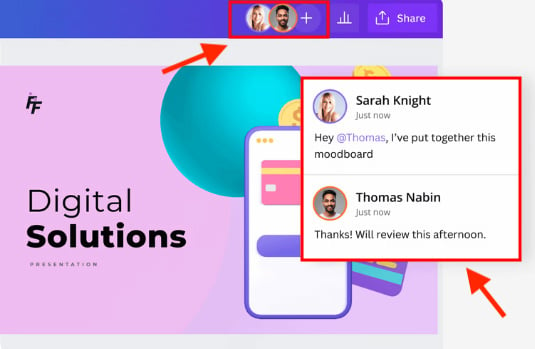
Both platforms also provide version history tools.
In Kittl, version history is available on its Pro, Expert and Max plans and lets you restore automatically saved versions of a project from the previous 30 days.
Canva provides version-control functionality too, making it possible to review changes and restore earlier versions of designs.
So, in terms of everyday collaborative design work, there isn’t a huge amount separating the two platforms anymore.
Canva does go further when it comes to managing larger creative teams, however. Its more advanced plans provide additional workflow and administration features, including design approvals, brand controls, user permissions and organizational management tools.
Kittl’s Teams feature now makes it a much more credible option for collaborative design than it used to be, with shared workspaces, roles, assets and centralized billing all supported.
However, Canva remains the more comprehensive option for larger organizations that need formal approval processes, extensive administrative controls and more sophisticated management of large numbers of users.
💡 Tip: You can learn more about Canva’s collaboration features here.
Apps and integrations
When it comes to integrating Kittl with other platforms, the options are extremely limited.
Kittl’s integrations are mostly limited to basic social media sharing on Facebook, Twitter/X, Pinterest and WhatsApp; no app store or other third-party connections are available for the platform.
Canva, by contrast, provides a large range of 1,300+ apps and integrations with a whole host of external tools and services. These can be found in Canva’s extensive ‘app directory’ (pictured below).
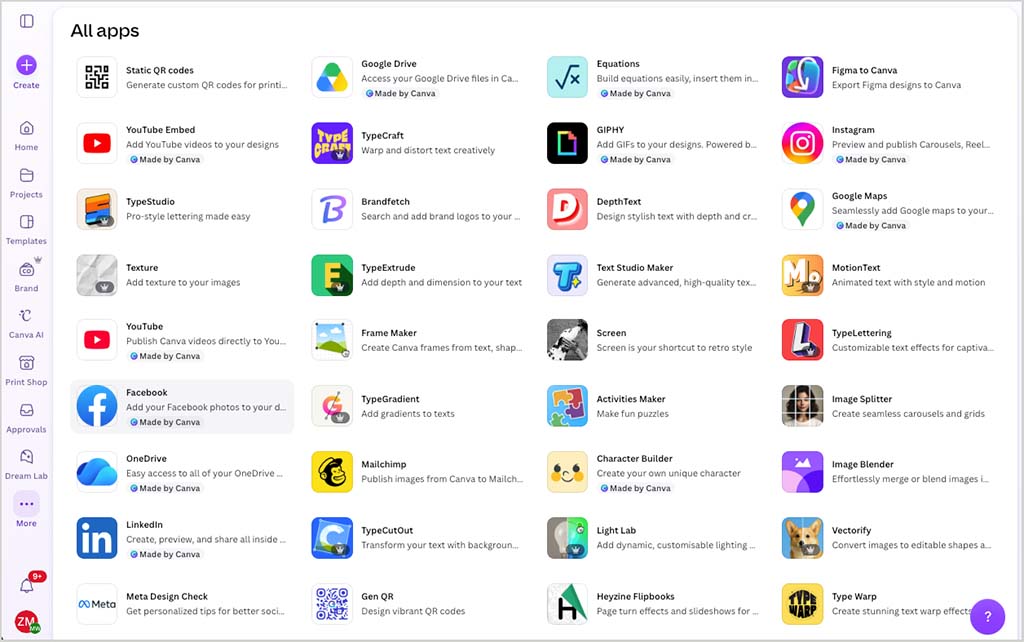
Many of these apps are designed for tasks like adding special effects, retouching images or sourcing additional assets to add to your designs. Additionally, Canva’s integrations allow you to easily pull content from third-party services like Google Photos, YouTube, and Facebook directly into your projects.
Canva also connects with productivity tools like Slack and OneDrive, as well as email marketing platforms such as Mailchimp.
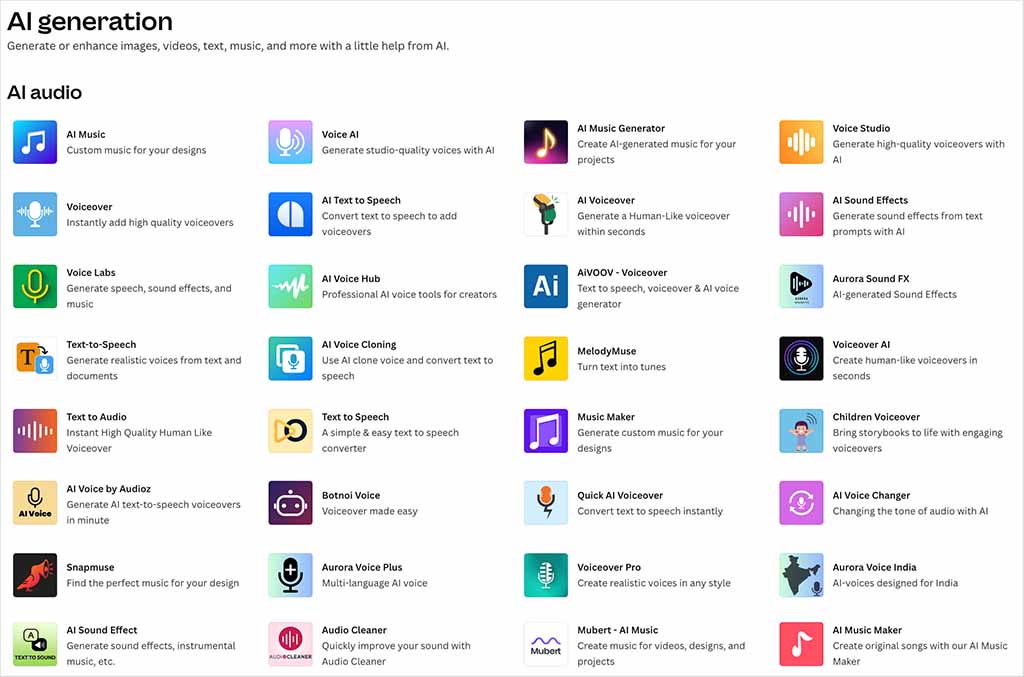
Furthermore, Canva’s app directory includes more than 300 third-party AI-powered tools — AI video presenters, music generation apps, eBook generators and more — which adds a considerable arsenal of AI design functionality to the already excellent built-in features available in Canva’s ‘Magic Studio’ AI suite.
Ultimately it’s a big win for Canva when it comes to apps and integrations.
Pricing
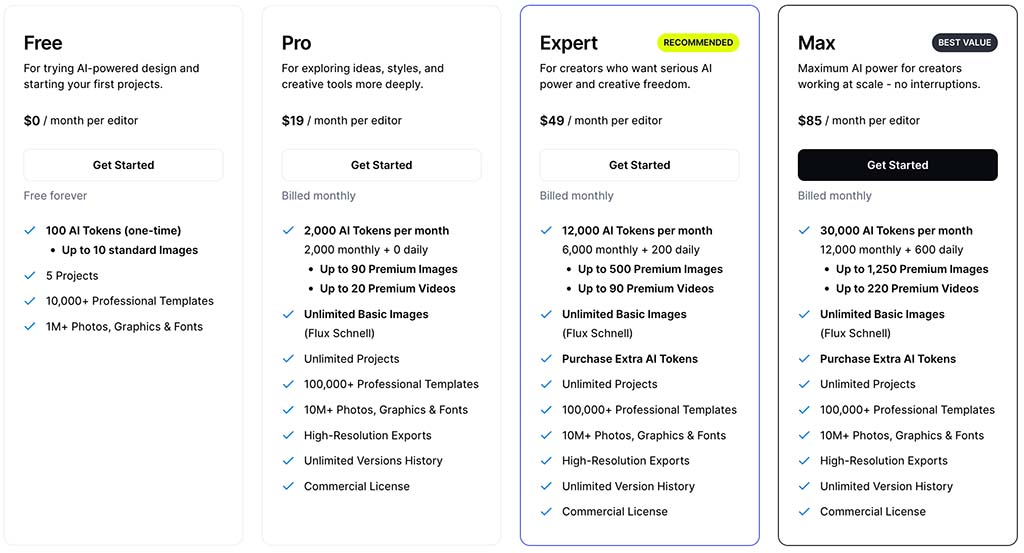
Kittl offers four different pricing options:
- Free — $0 per month
- Pro — $19 per month
- Expert — $49 per month
- Max — $85 per month
If you pay annually, the monthly-equivalent prices fall to $14 for Pro, $39 for Expert and $65 for Max. This works out at savings of around 20% to 26%, depending on the plan.
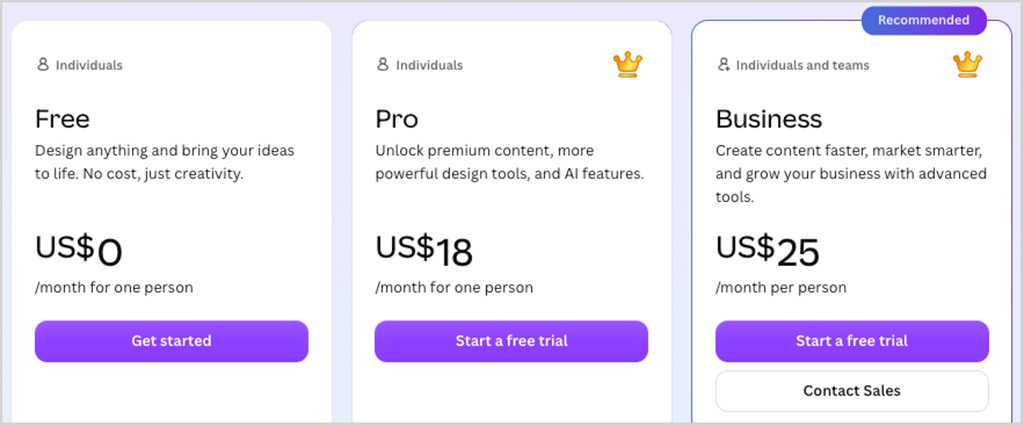
There are also four Canva pricing plans available:
- Free — $0 per month
- Pro — $18 per month
- Canva Business (formerly ‘Canva Teams’) — $25 per month per user.
- Canva Enterprise — custom pricing depending on requirements
If you pay on an annual basis for a ‘Canva Pro‘ or ‘Canva Business‘ plan, you can avail of a 16% discount — see the Canva Pricing page for full details.
Canva also provides special free plans for non-profit and educational organizations. You can learn more about these in our ‘Canva for Education‘ and ‘Canva for Non-Profits‘ guides.
There are some important differences in features to watch out for between Canva and Kittl’s pricing plans, with some of the key ones being:
- Transparent backgrounds — both Canva and Kittl require you to be on a paid plan to export designs with transparent backgrounds.
- Storage — Kittl gives you 500 MB on its Free plan, 10 GB on Pro, 100 GB on Expert and 1 TB on Max. Canva gives you 5 GB on its Free plan, 100 GB on Pro, 500 GB on Business and 1 TB on Enterprise.
- AI usage — Kittl uses a token-based system, with Pro providing 2,000 AI tokens per month, Expert up to 12,000, and Max up to 30,000. Canva instead groups its AI tools into Standard, Premium and Ultra tiers: Canva Pro includes up to 200 Premium AI uses or 20 Ultra AI uses per month, while Canva Business increases these allowances to 400 Premium uses or 40 Ultra uses. Standard AI features on paid Canva plans generally don’t draw from these monthly allowances.
- Commercial licensing — Kittl’s Pro and Expert plans permit commercial use of designs up to specified production limits, while its Max plan provides a more generous enhanced commercial license intended for higher-volume use.
So when it comes to value for money, I’d still give Canva the edge overall.
For $18 per month, its Pro plan gives individual creators access to nearly all of the platform’s key design, video, presentation and content-creation features, along with 100 GB of storage and generous allowances for premium assets and AI tools.
Kittl’s $19 Pro plan is very capable too, and includes features such as unlimited projects, premium design assets, vector exports, custom font uploads and commercial-use rights. However, some of Kittl’s most generous allowances are reserved for its more expensive Expert and Max plans.
The Expert plan raises your storage allowance to 100 GB and significantly increases the amount of AI generation you can carry out, while Max takes things further with 1 TB of storage, up to 30,000 AI tokens per month and Kittl’s most generous commercial-use terms.
This means Kittl can become considerably more expensive than Canva if you need its highest usage limits. At $49 per month, Kittl Expert costs around 2.7 times as much as Canva Pro, while Kittl Max is considerably more expensive again at $85 per month.
Overall, Canva remains the more budget-friendly option for most users, particularly those who want access to a broad range of design and content-creation tools without moving onto a high-priced plan.
Kittl’s Expert and Max plans may represent better value for users who make particularly heavy use of AI generation or who need higher storage and commercial-production allowances.
Customer support
When it comes to getting ‘real-person’ customer support from either Kittl or Canva, the only channel you get access to is email. Neither platform offers live chat or phone support.
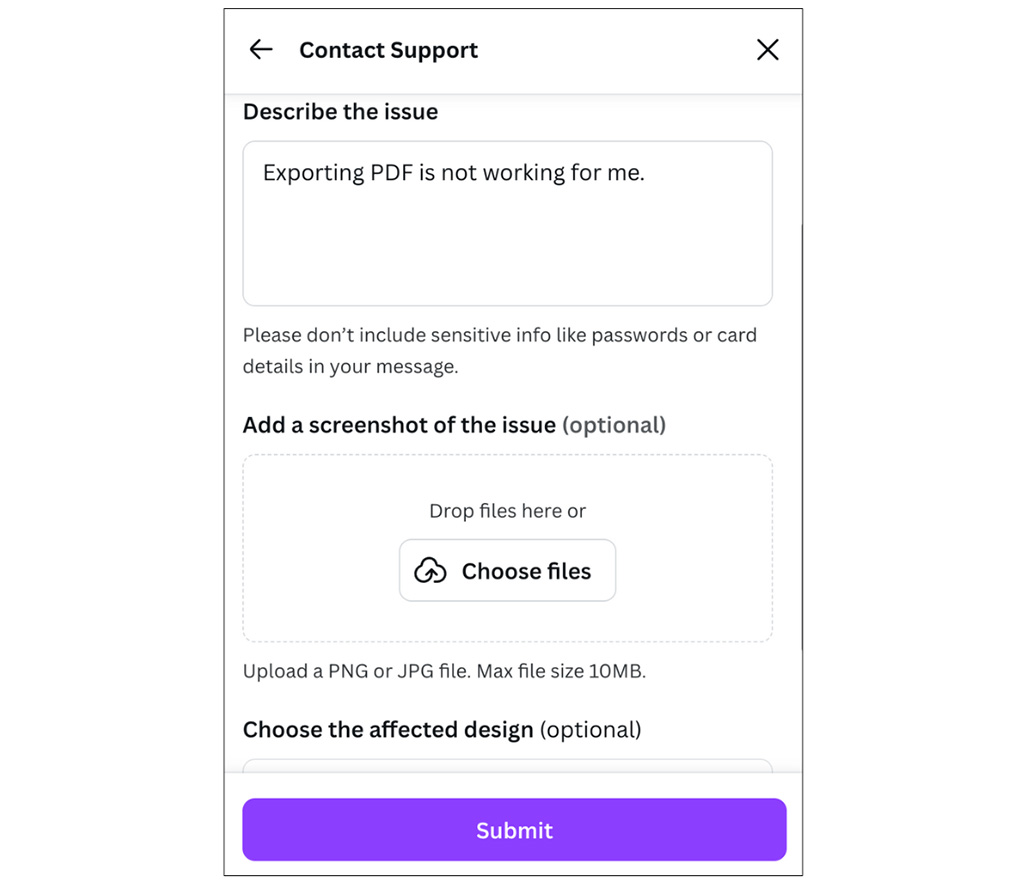
Both platforms also offer chatbot support from within their interfaces. These provide you with step-by-step guidance on many issues you may encounter while designing in either tool.
In terms of DIY support resources and documentation, Kittl’s help center is generally fine, and its ‘how to’ articles include good screenshots, GIFs and video explainers of most of its tools.
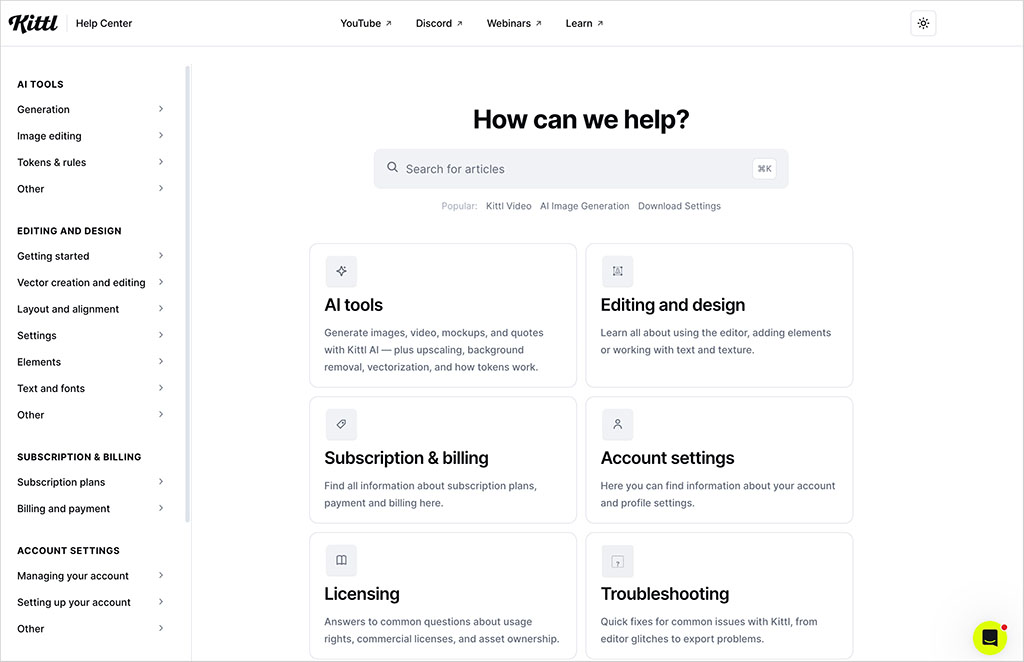
However, the materials and resources available in Canva’s equivalent help center are simply superb. In addition to providing extremely detailed guidance on using Canva’s many design tools, its help center provides a huge variety of engaging resources, including video tutorials, short design courses, and ‘live learning’ webinars, all aimed at helping you grow and develop your design skills.
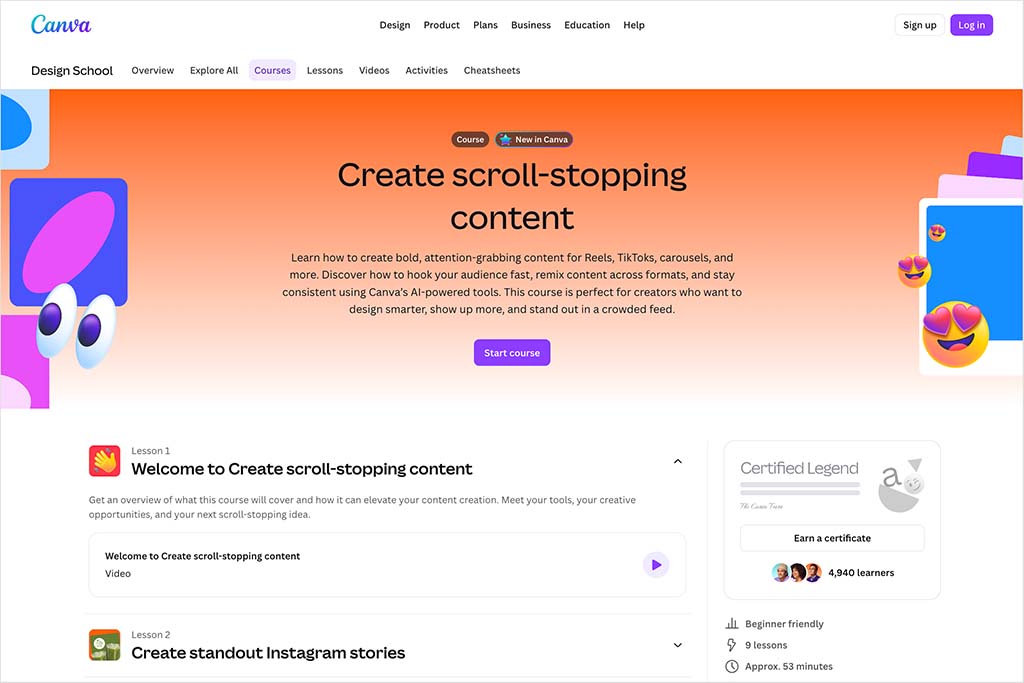
Furthermore, Canva now offers official accreditation exams for the platform directly through its help center. These exams are free to take, and upon passing, you receive a certificate that can be added to your LinkedIn profile or used for Continuing Professional Development (CPD) purposes.
And when you consider the large number of companies using Canva — including 95% of Fortune 500 companies — this represents a significant opportunity for users to showcase their skills professionally.
Mobile apps
When it comes to creating, editing and sharing designs on the go, Canva is the better option because it gives you a dedicated mobile app version of the platform — but Kittl doesn’t.
Canva’s app, available in both iOS and Android versions, lets you create and edit designs, and when doing so you’ll find that you have access to nearly all the same functionality as the desktop version.
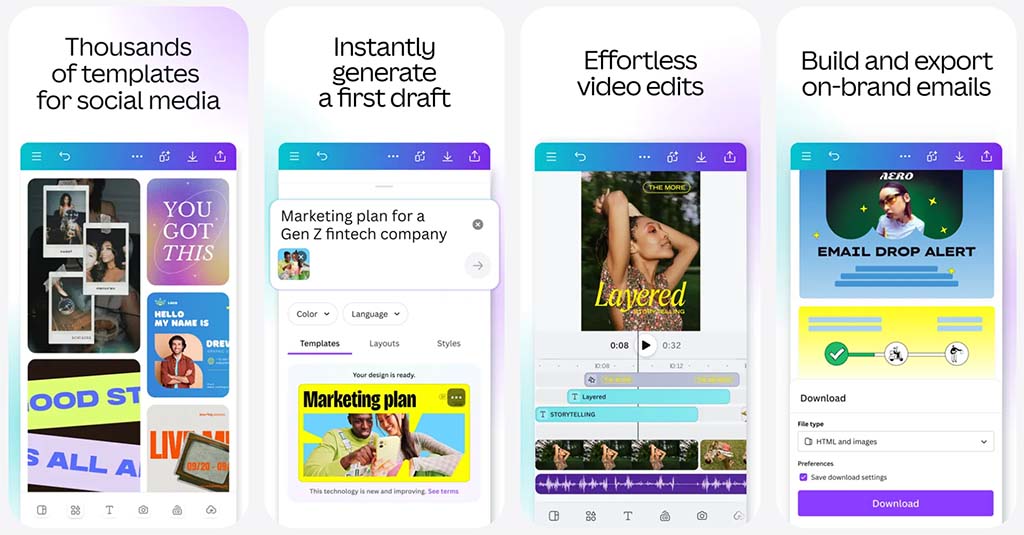
The interface of Canva’s mobile app is, like the desktop version, extremely intuitive and easy-to-use, albeit adapted for smaller screens.
I tested both versions of the Canva app during my research for this comparison, and I found them to be unexpectedly powerful — I was even able to use Canva’s ‘weightier’ tools like its video editor and whiteboard tool without any difficulty in the mobile app.
Perhaps unsurprisingly then, the app has been well received by Android and iPhone users alike, who rate it 4.8 and 4.9 out of 5 in both the Google Play Store and iOS app stores respectively.
Kittl’s lack of a mobile app is something of a head-scratcher, as almost all the equivalent design tools we’ve reviewed at Style Factory to date include a mobile app as standard (the same goes for more professional tools like Photoshop and Illustrator). So I’d be surprised if Kittl didn’t follow suit by adding a mobile app to its offering at some stage.
But for now, designing on the go represents an easy win for Canva.
User reviews
To give you a sense of how other users rate both Kittl and Canva, I looked at scores from three major review sites — G2, TrustRadius, and Capterra.
| User reviews site | Kittl | Canva |
| G2 | 4.7/5 (41 reviews) | 4.7/5 (7,709 reviews) |
| TrustRadius | 10/10 (5 reviews) | 9.1/10 (2,209 reviews) |
| Capterra | 4.8/5 (28 reviews) | 4.7/5 (13,450 reviews) |
| Average score (out of 5) | 4.83 | 4.65 |
While Kittl achieves an impressive average score of 4.83/5, it’s worth noting that this is based on a relatively small number of reviews. Canva, by contrast, scores 4.65/5 across a vastly larger pool of user feedback.
So while Kittl comes out slightly ahead on average rating, Canva’s scores are based on many thousands more reviews and therefore provide a much broader indication of user sentiment.
Kittl vs Canva: the verdict
Overall, Kittl and Canva are two high-quality design tools that are much easier to use than professional applications like Photoshop and Illustrator.
Kittl’s main advantage over Canva is its powerful set of text and vector editing tools, which give you significantly more control over typography and illustration. Its advanced text transformations, vector controls, textures, blend modes and clipping tools make it particularly well suited to logos, merchandise, posters and other design-heavy projects.
Kittl also has an edge when it comes to AI image generation, because it lets you choose from a range of underlying AI models rather than handling this entirely behind the scenes.
Ultimately though, Canva remains the better all-round option for most users.
It offers a far more extensive library of customizable templates and stock assets, and its interface is particularly intuitive.
More importantly, Canva goes well beyond standard graphic design, giving you tools for presentations, whiteboards, video editing, websites and other types of business and marketing content. Its collaboration and brand-management features are also better suited to larger teams.
So while Kittl is particularly strong for typography, vector design and AI-generated visuals, Canva’s broader feature set and ease of use make it the more versatile creative platform overall.
As ever though, we encourage you to make your own mind up! You’ll find links to free trials and plans for both solutions below, and we suggest that you make the most of them.
I’ll leave you with a pros and cons summary for both tools — and if you have any questions about either, do drop them in the comments.
Kittl vs Canva: pros and cons summary
Reasons I would use Kittl over Canva
- Kittl is better for working with typography and applying complex text effects.
- Unlike Canva, Kittl lets you apply different blend modes to images and design elements.
- Its stock illustrations have a more distinctive, design-led feel than many of Canva’s.
- Kittl is particularly strong for creating product mockups, with a large range of print- and merchandise-focused mockup templates.
- Kittl lets you choose the AI model used for image and video generation, giving you more control over the type and style of output.
Reasons I would use Canva over Kittl
- Canva is easier to use.
- Canva offers a much wider range of design tools, including features you won’t find in Kittl, such as a whiteboard tool and presentation maker.
- Canva provides significantly more templates and stock assets than Kittl.
- Canva offers more extensive brand-management tools, including Brand Templates and a dedicated Brand Guidelines area.
- Canva’s AI tools are more deeply integrated across a wider range of workflows, including design, writing, presentations, video and productivity tasks.
- Canva gives you a very usable timeline-based video editor.
- Canva lets you print your designs on a much wider range of products, including marketing materials, stationery, apparel and promotional merchandise.
- Canva has a much larger app and integrations ecosystem, with 1,300+ design apps available through its Apps Marketplace.
- Unlike Kittl, Canva provides an excellent mobile app for working on your designs on the go.
Alternatives to Kittl and Canva
When it comes to alternatives to Kittl and Canva, there are a lot of different options available.
Here’s some of the key ones.
Adobe Express
Adobe Express is a popular alternative to Canva and Kittl. Priced similarly to both tools, and with a free plan available, Adobe Express offers a wide range of features including templates, stock images, a video editor and a color palette tool, making it a versatile option for those looking for a robust design solution. Check out our Adobe Express versus Canva comparison to see how it measures up against Canva.
Visme
Visme is a popular graphic design app tailored for non-professional designers; it offers a comprehensive set of tools similar to those found in Canva. In addition to design features, Visme also comes with a unique form-building tool that aids conversions by letting you add animated characters to your sign-up forms. To learn more about Visme and how it compares to Canva, read our detailed Canva vs Visme comparison.
VistaCreate
If you’re looking for a design tool that gives you access to an absolutely gigantic library of stock assets, you might want to consider VistaCreate (formerly ‘Crello’). This ‘all-in-one’ design tool gives you over 70 million stock photos, videos and graphics, and it also provides very generous storage allowances on both its free and paid plans. You can learn more about VistaCreate in our comprehensive Canva vs VistaCreate comparison.
Adobe Illustrator
Adobe Illustrator is a top-tier vector graphics editor, offering advanced design capabilities that make it a strong alternative to both Canva and Kittl, particularly for users focused on vector design and detailed typography. While Kittl offers robust text formatting and vector tools within a more user-friendly interface, Illustrator takes these capabilities to a professional level, providing extraordinarily precise control over every aspect of design.
Photoshop
For more advanced image editing capabilities that go beyond what tools like Canva and Kittl offer, Adobe Photoshop is an obvious choice. While Photoshop is more technically demanding, and comes with a steeper learning curve, it excels at letting you create and manipulate a wide range of visual assets — not just photographs. Its powerful editing tools allow for intricate adjustments and enhancements that are unmatched by simpler design platforms. If you’re looking to delve deeper into its pros and cons, read our full Canva vs Photoshop comparison.
📚 Related resources
Update details
This article was updated on September 25, 2026. The following updates were made:
- Product screenshots were updated.
- User numbers for both platforms were updated.
- Kittl’s video generation features and Canva’s video editing tools were updated.
- AI sections were substantially updated to cover Canva AI 2.0, Kittl Flows and Workflows, AI model selection and current usage limits.
- Brand management and collaboration sections were updated.
- Pricing information for both platforms was updated, including Kittl’s new Max plan.
- Storage and commercial licensing information was updated.
- Mobile app information was updated.
- User review scores were updated.
- The overall verdict and pros and cons were revised to reflect the platforms’ latest features.
- The article was checked throughout for accuracy and outdated information.

Comments (1)