

We have an honest review policy, but this page contains affiliate links. If you buy through these, we may earn a commission. This helps fund our research at no cost to you.
Microsoft 365 vs Google Workspace (formerly G Suite) — which is better? This is a question that many businesses, particularly startups, have a lot of trouble answering. In this comparison, we break down the key differences between both products and help you decide between them.
Microsoft 365 and Google Workspace: an overview
Microsoft 365 and Google Workspace are suites of productivity tools that let you perform common business tasks ‘in the cloud,’ using a web browser.
These include:
- sending emails
- managing calendars
- creating documents, spreadsheets and presentations
- video conferencing
- file management
- team collaboration
- AI analysis and summary features.
The biggest difference between both product suites is that Microsoft 365 also provides a comprehensive range of desktop applications — programs that you install on your computer, rather than using online.
Pricing
The pricing structure for Google Workspace and Microsoft 365 differs by country – but is broadly comparable from one territory to another. For the purposes of this comparison, I’m looking at the plans priced in US Dollars — but my comments apply to 365 vs Workspace in general.
Let’s look at Google Workspace pricing first.
Google Workspace pricing
Choosing a Google Workspace plan is fairly straightforward. There are just four plans available:
- Business Starter — $7 per user per month
- Business Standard — $14 per user per month
- Business Plus — $22 per user per month
- Enterprise — custom pricing

By default, Google Workspace pricing is based on paying for your plan annually. If you prefer to pay on a month-by-month basis, pricing for the Workspace plans increases by around 20%.
The key differences to watch out for between the four Google Workspace plans are as follows:
- Storage — this is limited to just 30GB per user on the ‘Business Starter’ plan. By contrast, the ‘Business Standard’, ‘Business Plus’ and ‘Enterprise’ plans give you 2TB, 5TB and unlimited storage respectively per user.
- User accounts – the ‘Business Starter,’ ‘Business Standard’ and ‘Business Plus’ plans all cap the number of user ‘seats’ at 300; if you want more user accounts, you’ll have to purchase an ‘Enterprise’ plan.
- Video calls — you can have 100 participants on a call using the ‘Business Starter’ plan, 150 with ‘Business Standard’, 500 with ‘Business Plus’ and 1,000 with ‘Enterprise.’ (Different features apply to video calls on each plan, however. The ‘Business Standard’ lets you record video, conduct polls and access noise cancellation; ‘Business Plus’ lets you track attendance; and ‘Enterprise’ plans go one further again by giving you in-domain live streaming features).
- Security features — on the ‘Business Plus’ and ‘Enterprise’ plans you get significantly more security features. These include ‘Vault’, a tool for retaining and searching your users’ data, and endpoint management, which gives you more control over how users can access Google Workspace features and data across different devices.
- Searching features — all plans except the ‘Business Starter’ plan give you access to a ‘smart search’ tool called ‘Google Cloud Search’. This functionality makes it easier to locate files within an organisation’s Google Workspace storage.
- Access to AI features — while the ‘Business Starter’ plan only lets you use Google’s Gemini AI tools for email-related activities, the other plans let you use it with all the other Worskspace apps.
- App creation — if you’re on the ‘Enterprise’ plan, you get full access to Google’s ‘Appsheet’ tool. This is a ‘no-code’ tool that lets you build mobile and web apps without coding.
As with most software as a service tools, to get a sense of which plan is the right fit for your business, you can try Google Workspace free for 14 days.

Now, let’s take a look at Microsoft 365 pricing.
Microsoft 365 pricing
The pricing options for Microsoft 365 are considerably more complicated, because there are home, business, enterprise, government, non-profit and education versions available — and within these, a lot of sub-versions!
This means there’s a lot of flexibility — but it’s rather confusing trawling through all the plans to work out which one is best suited to your requirements.
In this comparison, I’m going to focus on the Microsoft 365 plans that are geared towards small business and enterprise users.
These are as follows:
Small business / SMEs
The Microsoft ‘Business’ plans are aimed at small business owners (or people starting a business) and are priced accordingly. There are four plans available:
- Microsoft 365 Business Basic — $6 per user per month for an annual plan
- Microsoft 365 Apps for Business — $8.25 per user per month for an annual plan
- Microsoft 365 Business Standard — $12.50 per user per month for an annual plan
- Microsoft 365 Business Premium — $22.00 per user per month for an annual plan.
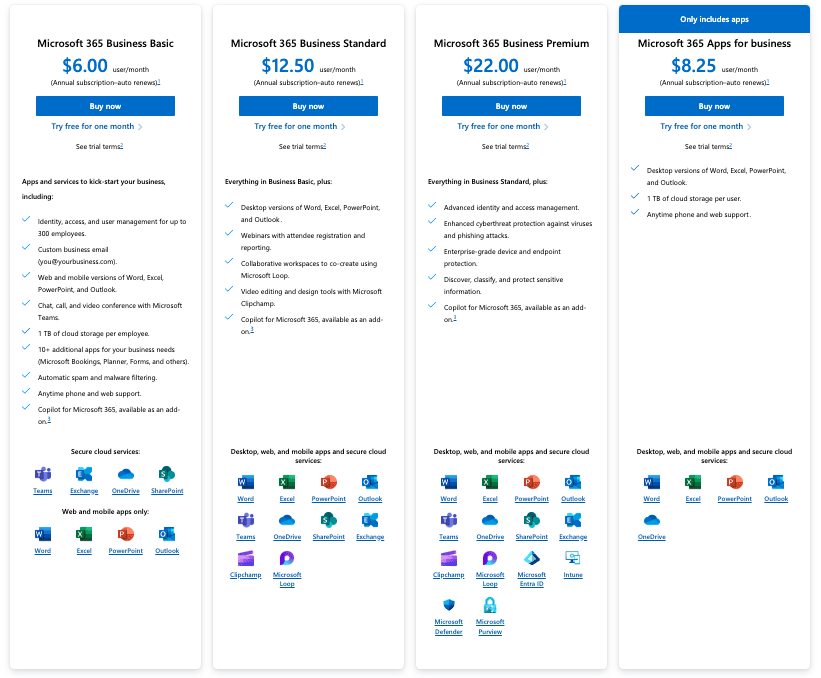
A cheaper set of ‘Business’ plans, without the Teams service (Microsoft’s video calling and collaboration tools) is also available, with the monthly fees for Basic, Standard and Premium plans for this version being priced at $4.75, $10.25 and $19.75 respectively.
As with the Google Workspace plans, paying for a Microsoft 365 Business plan on a monthly basis is roughly 20% more expensive than paying for an annual plan.
Enterprise
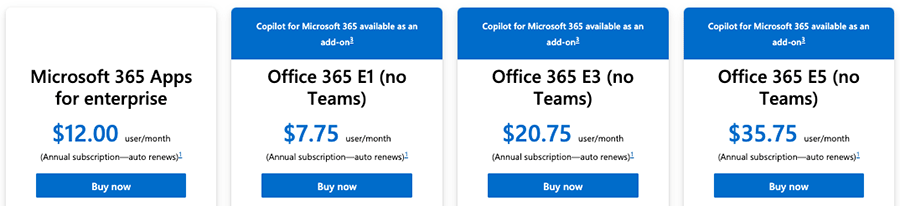
There are four main ‘Enterprise’ plans to consider. The naming convention for these is a little odd, to be honest — a combination of letters and numbers rather than more ‘obvious’ labels are used, as well as an ‘Office 365’ prefix for some of them.
- Office 365 E1 — $9.30 per user per month
- Office 365 E3 — $24.90 per user per month
- Office 365 E5 — $42.90 per user per month
- Microsoft 365 Apps for Enterprise — $12 per user per month
A 17% discount is available on theses plans if you sign up to an annual subscription.
The main things to note about these plans are as follows:
- Teams, Microsoft’s video-calling and collaboration service, is no longer bundled with Enterprise plans. If you want to avail of it, you’ll have to pay for an add-on (this is currently priced at $5.25 per user, per month).
- Storage varies by plan. The Business plans all provide 1TB storage per user, but depending on the plan and the number of users involved, the Enterprise ones can give you 5TB.
- The ‘Microsoft 365 Apps’ plans only provide you with the desktop apps (i.e., the versions of Word, Excel etc. that you install on your computer).
- The Microsoft 365 ‘Business’ plans all limit the maximum number of users to 300; by contrast, you can have an unlimited number of users on the ‘Enterprise’ Microsoft plans. Interestingly however, you can mix and match license types.
- Not all plans provide you with with installable versions of the Microsoft Office product suite (Word, Excel, Powerpoint etc.) — the ‘Business Basic’ plan only gives you access to the mobile and online versions, and the ‘E1’ plan restricts you to using the browser-based version.
- Not all of the 365 plans provide users with an email account — if you want to use Microsoft 365 as your email service provider, you’ll need to avoid the Business and Enterprise ‘Microsoft 365 Apps’ plans.
- You can only avail of a fully-functional version of Microsoft Stream — its video collaboration service — on the Enterprise plans (all except the the ‘Apps for Enterprise’ plan include it).
- Using Microsoft 365’s AI tool, ‘Co-Pilot,’ costs extra, regardless of plan — a $30+ per user per month fee must be paid to access it.
As you can probably see by now, although it’s helpful get an idea of the fees involved with both Microsoft 365 and Google Workspace, there are so many different plans available that a pricing comparison is not going to give you the clearest answer on which of these tools is best for you.
To get that, you need to focus on features — so let’s drill down into these.
Microsoft 365 vs Google Workspace: the features
File storage
If we’re talking about entry-level plans, then Microsoft 365 is a clear winner here: you get a generous 1TB of storage with the ‘Business Basic’ plan, which compares very positively to Google’s rather paltry 30GB on its ‘Business Starter’ plan.
However, if you move up to the Google Workspace ‘Business Standard’ or ‘Business Plus’ plans, you’ll find that Google starts getting more competitive.
With these Google Workspace plans, you get 2TB or 5TB storage respectively, which is extremely useful to any business that has a need to store a large quantity of files in the cloud. This compares positively to all the Microsoft ‘Business’ plans, which all cap file storage at 1TB.

Although Microsoft’s 1TB limit is also pretty generous, you’d be surprised how quickly you can burn through 1TB of storage if you’re uploading large image, video or audio files to the cloud.
That said, if you’re just talking about working with standard documents and spreadsheets, a 1TB limit per user should be perfectly adequate for most small to medium sized businesses.
Microsoft does provide more generous file storage on its ‘Enterprise’ plans; if you’re on a $20.75+ ‘E3’ plan you can avail of 5TB storage per user (so long as you have 5+ users in your organisation).
Ultimately however, if cloud storage is your primary concern, it’s generally a win here for Google Workspace — on most of its plans you can get more file storage, more cheaply than with 365.
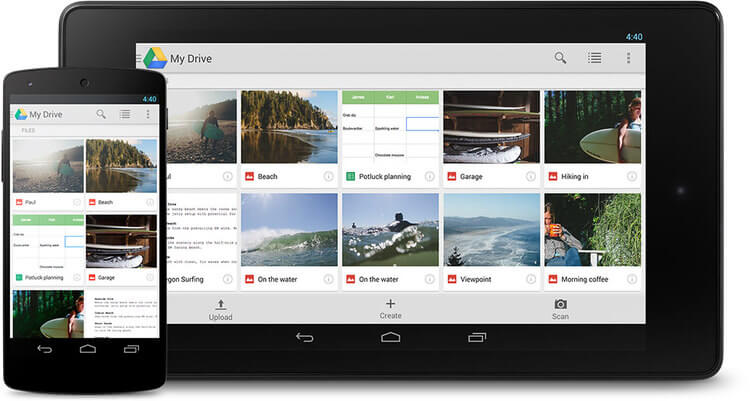
It’s important to note however that Microsoft 365 gives you the option to buy more storage on a per user basis, but Google Workspace doesn’t — you have to upgrade your entire plan, which could work out rather expensive if you have a large team.
(Prices for this aren’t listed publicly by Microsoft — you have to contact the company to discuss storage upgrades.)
Storage
The entry level $6 per month Microsoft 365 plan, ‘Business Basic,’ is considerably more generous than Google Workspace equivalent when it comes to email storage — a dedicated 50GB inbox is available on top of the 1TB file storage provided.

By comparison, the $6 per user per month Google Workspace ‘Business Starter’ plan caps total storage at 30GB, emails and files included.
However, if you’re on one of the other Google plans, the limits are more generous than the Microsoft ones — you’re talking about a 2TB to 5TB storage range (with the option to add more than 5TB storage if you’re on the ‘Enterprise’ plan).
However, Microsoft’s email storage limits can be more generous than the numbers suggest, thanks to a feature called ‘auto-expanding archiving.’ Available on the ‘E5’ plan, this allows you to archive an additional 1.5TB worth of emails.
Email Apps
Technically speaking, you can use any email program you like to access your Google Workspace or Microsoft 365 mail, but the default apps provided are Gmail and Outlook respectively.
Gmail is robust, fast and very easy to find messages with, thanks to its powerful search functionality (you’d expect that side of things to be good, given Google’s prowess in this department).
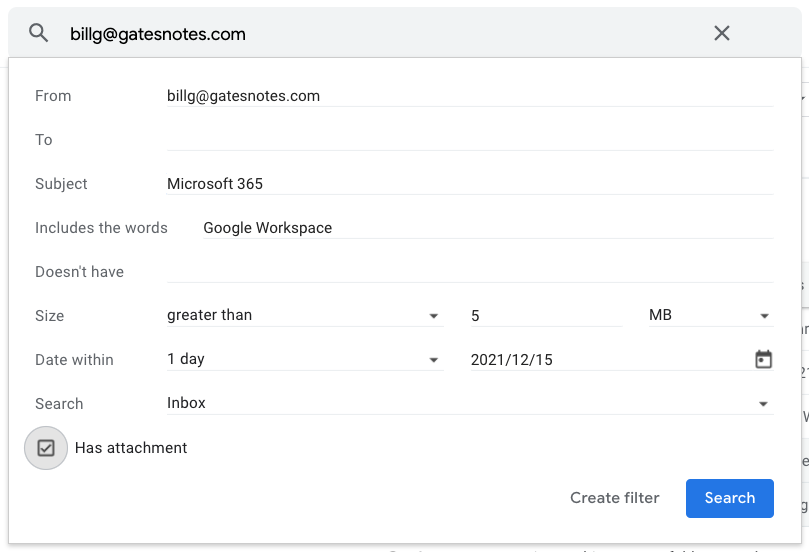
When searching for an email exchange or contact information in Gmail, the search box provides customized results based on past user behavior — such as how often you tend to interact with a particular colleague through Gmail.
Also, given the popularity of Gmail, there is a large range of third-party apps available for it which add useful functionality to proceedings.
However — and rather frustratingly — Gmail really doesn’t allow you to sort or group mail, something most users will often require from an email client (and the omission that bugs me the most about the app).
You can search for messages in Gmail using prefixes like ‘from’ or ‘to’, which does provide something of a workaround — but it’s not as useful as proper sorting or grouping functionality.

Accordingly, you may find yourself wanting to use Gmail in conjunction with a desktop email program — for example the excellent (and free) Thunderbird, or, whisper it, Outlook.
And speaking of which, Outlook is arguably a key selling point of Microsoft 365.
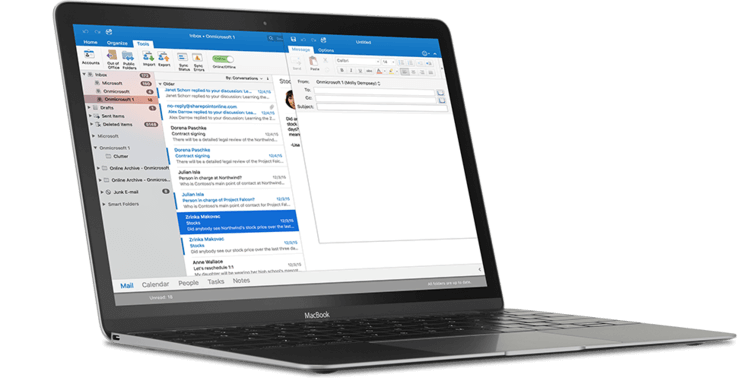
On most 365 plans you get access to two versions of Outlook: a browser-based version, which is okay, but — mail sorting functionality aside — Gmail probably betters in most respects, and a desktop version, which is feature rich and provides a lot of flexibility when it comes to how you sort, group, label and generally manage your email.
Applications
Desktop applications: the main argument for using Microsoft 365?
Here is where things get pretty interesting, and where a LOT of potential users of 365 and Google Workspace will be tempted to opt for Microsoft 365.
With most of the 365 plans you get all the desktop versions of the Microsoft products as well as the cloud-based ones.
This means that you can install the full versions of Microsoft Word, Microsoft Excel, Microsoft Powerpoint, Microsoft Outlook etc. on your desktop computer, and work offline easily using these ‘classic’ applications.
Despite this being an era of cloud computing, a huge number of businesses still send each other files created locally using these applications — so there is a strong argument for having desktop versions of all the above available.
Having the desktop versions installed also allows your team to work more easily with these file formats.
Another argument in favour of having the MS applications installed in your organization boils down to functionality. It’s fair to say that the Google apps are more basic in terms of what they can do than their Microsoft desktop app equivalents.
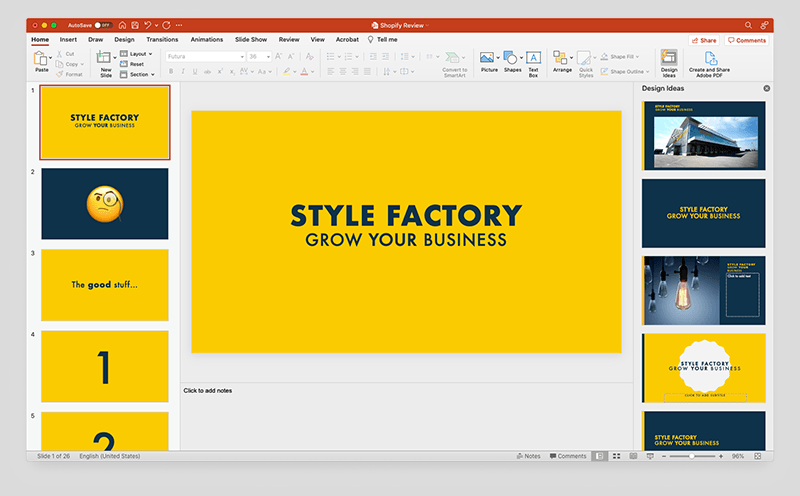
(It’s also fair to say that the online versions of the Microsoft apps are not yet quite as sophisticated or feature-packed as the desktop versions of them).
So, if you’re looking to do some advanced number crunching, Excel will usually beat Google Sheets; if you want to add some ‘Smart Art’ in a document, you’ll need to be working in Microsoft Word rather than Google Docs; and if you need slick slide animations in a presentation, Powerpoint will do a better job than Google Slides.
However, that shouldn’t deter you entirely from using Google Workspace, because…
- the functionality provided by Google’s apps is still fairly extensive, and more than adequate for most users
- Google Workspace apps let you open Microsoft Office documents, collaborate on them, and save them in MS format (and this can be done not just online, but offline too).
The problem with using Google Workspace to create or edit Microsoft files however is that you can’t always preserve the exact formatting of Office files when you save them using a Google Workspace app.
How much of a big deal this is for you will depend on the nature of your business. If you are expected by clients to routinely provide them with extensively, immaculately-formatted MS Office files then you’re sometimes going to struggle to do that with Google Workspace.
But if you just need to occasionally open an MS Office file, or send something basic over to a client in MS Office format, this is entirely doable using Google’s suite of products.
The other thing to remember about the Microsoft desktop applications is that as nice as they are, and as familiar with them as your team may be, they have to be installed locally. This means that someone in your organisation will need to take care of installation — and this person has to know what they’re doing.
This ‘local install’ aspect of using the Microsoft desktop apps may therefore bring with it some hidden IT costs. At the very least, there’s a time implication — your team will need to devote some hours to downloading, installing and periodically updating the applications correctly.
This ‘hidden cost’ issue becomes a bigger consideration the more users you have.
There’s also something else you might want to consider about giving your team access to the desktop apps: habit or human nature.
Most people like to work with tools they’re familiar with and, given the long history of Microsoft Office products, your team may decide to opt for the locally-installed versions of the Microsoft 365 products over the cloud-based, collaborative tools it also provides.
This will possibly encourage ‘local’ or offline working at the expense of the more collaborative cloud approach that Google Workspace naturally encourages.
Conversely, if you create a working environment where your organisation only uses browser-based applications that save documents to the cloud, then your data is arguably more secure (so long as you have backup procedures in place) and your team are more likely to make full use of collaboration features.
So you could argue that the Google apps — due to their cloud-only nature — are likelier to nudge people in this direction.
Finally on the subject of apps, don’t forget that there is nothing to stop you from using both Google Workspace and MS Office apps in conjunction with each other. If you are tempted by the unlimited cloud storage provided by Google Workspace, but want to save Word documents in it, you could buy the offline versions of the Microsoft applications that you use regularly, and save files created in them to your Google Drive.
(That said, you would be closing down a lot of real-time collaboration possibilities by working in this way — and making life more expensive).
Web applications in Microsoft 365 and Google Workspace
Microsoft 365 and Google Workspace both offer a set of web-based applications that have (sometimes rough) equivalents in both product suites, namely:
- Word > Google Docs (word processing)
- Excel > Google Sheets (spreadsheets)
- Powerpoint > Google Slides (presentations)
- Outlook Online > Gmail (email)
- One Note Online > Google Keep (notes)
- SharePoint > Google Sites (website building)
- Microsoft Teams > Google Meet (conference calling / chat messaging)*
- Microsoft Viva Engage > Chat (internal social networking / intranet)*
* Remember that Teams is only available as a paid-for add-on on Enterprise plans.
These are broad equivalents, in that their feature set is not exactly going to match the corresponding app.
And it’s worth noting that are a few apps included in Microsoft 365 for which there aren’t really Google Workspace equivalents: ‘Stream,’ ‘Sway’ and ‘Whiteboard.’
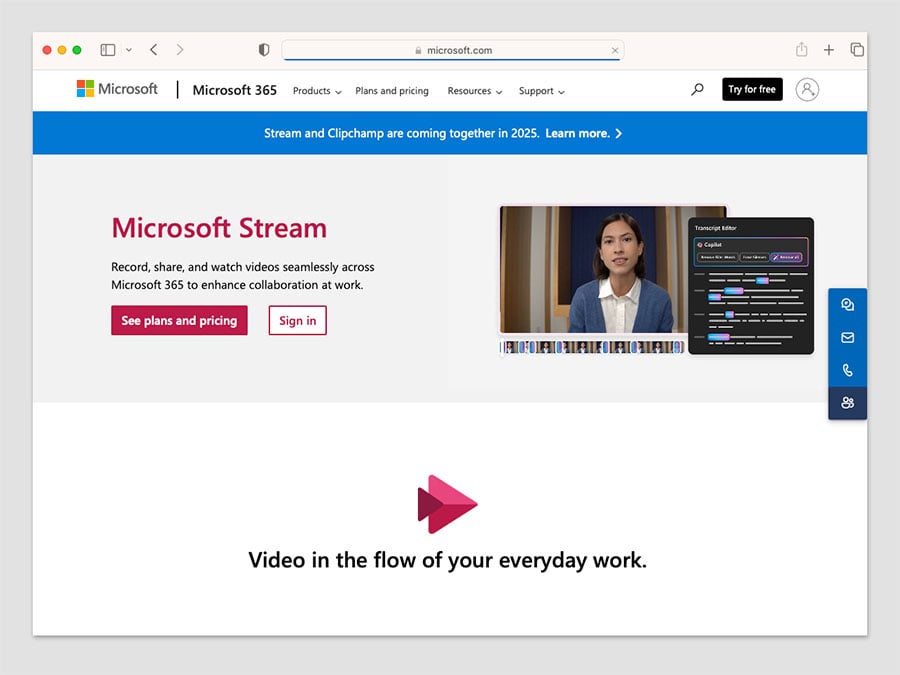
Microsoft Stream (available on the E1, E3 and E5 plans) is a video service that allows people in your organization to upload, view, and share videos securely — for example recordings of classes, meetings, presentations and training sessions.
This app also makes it easy to share comments on a video, tag timecodes in comments and add descriptions that refer to specific points in a video. It also automatically transcribes video content using speech recognition software, making videos more ‘searchable’ using text queries.
Microsoft Sway (also available on E1, E3, E5 and 365 apps for enterprise plans) is an online tool for creating presentations, newsletters and other communications.
This may sound like it’s a simply a cross between Word and PowerPoint, but it actually differs quite a lot from both apps, in that a combination of online content aggregation (where information and assets are sourced from the web) and artificial intelligence is used to help you design, compile and present your communications more quickly and easily than the traditional Microsoft apps. (The video below outlines the basic concept).
And finally, there’s no equivalent Google Workspace tool for Microsoft 365’s Whiteboard app, meaning that users needing to collaborate on a digital whiteboard will need to resort to third-party options like Canva or Figma instead.
(Workspace used to provide a whiteboard tool — in the form of Jamboard — but this was wound down in December 2024.)
Collaboration
A huge advantage of working in the cloud is the collaboration possibilities it opens up.
Instead of messing about with markup and ‘tracking changes’, people who want to work on the same file can simply open a document in a browser and see, in real time, the edits that everybody looking at the file is making.
Both Google Workspace and Microsoft 365 make this sort of online collaboration straightforward using their online apps.
If you’re a 365 user, you can also use Microsoft’s desktop apps to work on documents in real time with other team members. My experience of using these to collaborate wasn’t quite as straightforward as when using the online versions however — I found that they were occasionally a little sluggish when it came to displaying updates to my documents.
I would on balance say that collaboration in Google Workspace is a bit easier than in Microsoft 365, probably because the product
1) is a bit less feature packed
2) was conceived with collaboration as a core feature (Microsoft 365, by contrast, has evolved from being a suite of desktop applications into a solution that features collaborative tools).
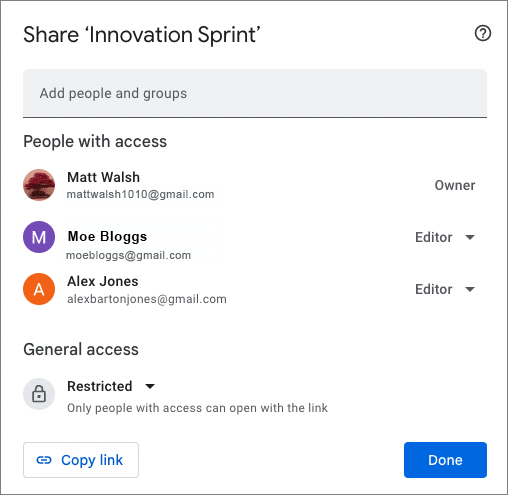
All in all though, both product suites definitely allow you to collaborate with co-workers effectively — but to get the smoothest collaboration experience with the Microsoft apps, I’d recommend using the cloud-based versions over the desktop ones.
See below for a video highlighting some collaboration options in Google Docs.
Now, let’s take a look at another form of collaboration: video calls.
Video calls
Google Workspace and Microsoft 365 both provide video conferencing functionality: ‘Google Meet’ and ‘Microsoft Teams’ respectively.
Microsoft 365 is arguably a bit more generous when it comes to participant limits on video calls, however.
Its ‘Business’ plans let you host online meetings for up to 300 people; and some ‘Enterprise’ plans let you host online calls with up to 1,000 participants and 20,000 view-only attendees. (With the ‘Enterprise’ plans, you’ll need to ensure that you’ve bought the Teams add-on first, however.)
By contrast, the maximum number of participants in a Google Meet is 100 on the ‘Business Starter’ plan; 150 on the ‘Business Standard’ plan; or 500 the ‘Business Plus’ plan; and 1,000 on the ‘Enterprise’ plan.
If you’re looking for serious voice calling functionality in general — both in terms of conference calling or general telephony services — Microsoft 365 offers a lot more options, but you will have to be on one of its most expensive plans to avail of these features.
(Google now offers a separate add-on to Google Workspace, however, Google Voice, which is worth looking at if telecommunications features are a key requirement).
Google Drive vs One Drive: syncing files in Microsoft 365 and Google Apps
Both Microsoft 365 and Google Workspace provide desktop apps for syncing local data with the cloud and vice versa. There are currently three apps available for this purpose:
- Google Drive for Desktop
- Microsoft OneDrive
- Microsoft OneDrive Files on Demand
These apps allow you to save a file in the cloud which then appears locally — or vice versa. This is handy for when you want to work on documents offline, or want to back up or upload local files to your cloud storage (the downside of this is that it makes your data less secure — if your laptop gets stolen for example, so does your data).
These apps work in slightly different ways:
- OneDrive makes all your files available locally (or at least the ones you choose to sync) — this is handy for users who know they will be doing quite a lot of work offline, on a lot of files.
- With Google Drive for Desktop and OneDrive Files on Demand, files are not actually downloaded to your computer until you open them. You still see all your files as if they were present on your computer — but they actually live in the cloud until you double click on a file (at which point it is downloaded and opened).
The so-called ‘streaming’ approach provides two key benefits over the ‘save everything locally’ one: first, a minimal amount of local disk space is required to store your files.
Second, you don’t have to sit around waiting for all of your files to sync — just the one you’re working on (but if you want to, both Google Drive for Desktop and One Drive Files on Demand give you the option to make files permanently available offline too).
A note of caution for Mac users however: One Drive Files on Demand is currently only available for more recent versions of Mac OS — 13.0 or higher. Google Drive is compatible with Mac OS 11.0 or higher.
Mobile apps
As you’d expect, there are mobile apps (iOS and Android) available for both Google Workspace and Microsoft 365 — these allow you to access and edit your files on the go.
My experience with both has been fairly positive — it’s certainly possible to access the information quickly on both sets of apps easily, but I wouldn’t be inclined to do a lot of editing of spreadsheets or complex documents using either suite’s smartphone apps (doing so far too fiddly for me!).
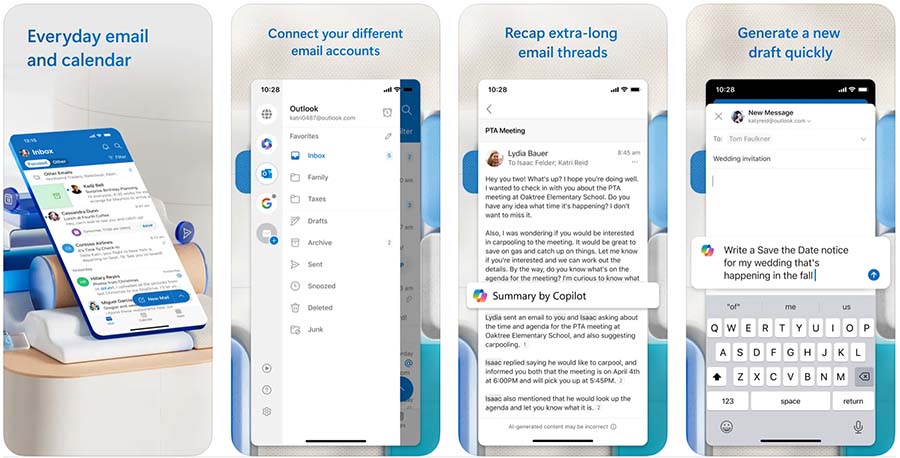
The good thing about both sets of mobile apps is that they make editing your work in situations where you don’t have Internet access very easy — so long as you save the files you want to work onto your mobile device before you go offline (more on this shortly).
Realistically, a majority of users will probably end up using the mail applications the most — and these are the apps I’ve had the most experience with.
I’ve always foudn Google’s mail app (Gmail) to be undeniably brilliant when it comes to searching for messages. (You’d expect this really from a company that started life as a search engine.)
However, as with the browser-based version of Gmail, you can’t sort or group mail by sender using the mobile app — and this will annoy some users.
The mobile version of Outlook is a bit disappointing too: you can filter mail by unread or flagged messages (as well as those containing attachments), but as is the case with the Gmail app, you can’t sort or group mail by sender.
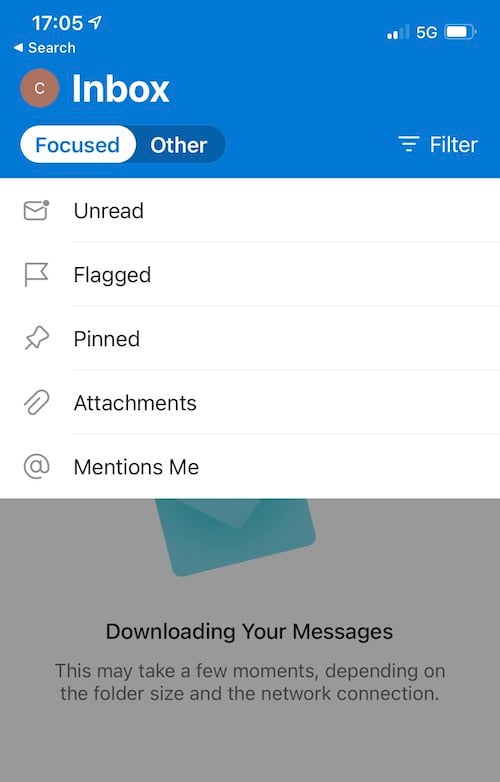
There is a ‘focused inbox’ available in the mobile version of Outlook however which some might find useful — this looks at your interactions with other senders over time to automatically create a list of messages that Outlook believes need your attention more urgently than others.
In terms of which of these apps is best, I would say that it depends on whether you value searchability over having urgent emails flagged up via the ‘focused inbox.’
If you prefer, there’s always the option to use your device’s default Mail app with either Microsoft 365 or Google Workspace too.
One app to rule them all?
Microsoft’s approach to mobile apps is slightly different to Google’s — in addition to providing separate mobile versions of their products, the company has created an app that combines quite a few of them into one product.
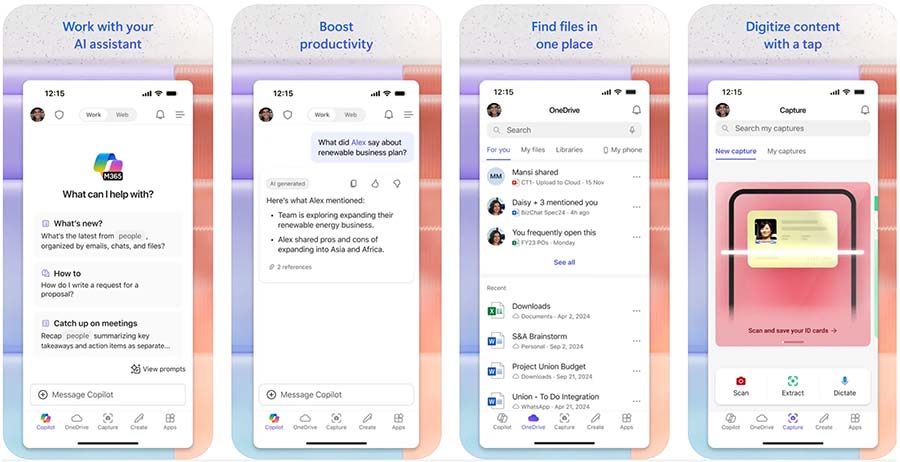
Called ‘Microsoft 365 Copilot,’ it’s available in both the iOS app store and Google Play store and it lets you view, edit, and share Excel, Powerpoint and Word files without the need to switch between different apps. Some PDF creating and note-taking facilities are also included as features, and you can use Microsoft’s AI features within the app too (more on these shortly).
The app has got a particularly good response from its users, scoring 4.8 and 4.7 out of 5 in the Apple and Google app stores respectively.
I think it’s confusingly named however, because elsewhere in Microsoft 365, the word ‘Copilot’ is associated with Microsoft’s AI features (more on which in a moment) while this mobile app actually lets you use several key 365 apps.
Advanced features in Microsoft 365 and Google Workspace
Several features on the higher-tier Google Workspace and Microsoft 365 plans are aimed at users with advanced requirements.
These include:
- Intranet building tools
- E-discovery tools
- Advanced reporting
- Email archiving
- Legal holds on inboxes
- Data loss prevention tools
Microsoft offers some additional advanced functionality on its most expensive plans, including:
- Mailbox rights management
- Cloud-based phone call hosting services
- Personal and organizational analytics
Now, you can avail of some of this advanced functionality a bit cheaper with Google Workspace.
For example, e-Discovery tools, advanced reporting, email archiving and legal holds on inboxes are available on the $22 per month Google Workspace ‘Business Plus’ plan.
By contrast, if you are hoping to avail of most of the features listed above using Microsoft 365, you’ll have to bear in mind that they are only available on the more expensive plans — the $24.90 per user per month E3 plan or the $42.90 per user per month E5 plan.
(But what you’ll get on this front will be more comprehensive).
The introduction of AI features into productivity suites
The launch of the AI chatbot ChatGPT in December 2022 — a tool that is capable of both generating content and providing in-depth answers to queries — led to a huge amount of discussion about the future of search engines.
However, the implications of ChatGPT-style tools were just as far reaching for productivity suites like 365 and Workspace, and both Microsoft and Google have introduced a large range of new AI features into their productivity apps that aim to help you perform a host of key tasks automatically.
These include writing copy, summarising data, managing email, brainstorming ideas, taking video call notes automatically and generating images.
In 365, the AI features come in the form of its ‘Microsoft 365 Copilot‘ tool, which uses large language models — powered by OpenAI’s code and models — to help you generate new content or analyse existing data.
Google’s equivalent tool is called Gemini, and offers a broadly comparable feature set, using Google’s own DeepMind technology.
Microsoft 365 Copilot costs $30 per use per month for those on the ‘Business Basic,’ ‘Business Standard’ and ‘Business Premium’ plans, and on the ‘E1,’ ‘E3’ and ‘E5 ‘Enterprise plans.
Gemini can be accessed at a slightly lower price point: it costs $24 per user per month on Business plan ($36 per user per month on Enterprise ones though). And if you’re on a ‘Business Starter’ Workspace plan, you can access some of its features within Gmail without paying for an add-on.
Customer support
24/7 phone support in English is offered for users of both Google Workspace and Microsoft 365; hours for support in other languages vary depending on country. Email support is also offered for both products; and there are various support forums available for them both too.
In addition to the official channels, it’s also possible to enlist third-party certified Google Workspace experts or certified Microsoft 365 specialists to provide support. Doing so can be particularly useful during a setup or migration period.
While you’re here…get set up on Google Workspace or Microsoft 365 with Style Factory
We offer both Google Workspace and Microsoft 365 setup and migration services, which will get your business set up on either of these platforms quickly and with a minimum of fuss.
We can set you up from scratch, or migrate all your existing calendars and email across in a well-planned, hassle-free migration.
Interface and ease of use
So which is easier to use, Google Workspace or Microsoft 365?
Which product comes with the steeper learning curve?
As with much else in this comparison, the fairest answer — unfortunately! — is probably ‘it depends.’
Because of the ubiquity of Microsoft Office apps, there is a strong case to be made that people using Microsoft 365 are likely to already be familiar with how Microsoft applications work, and thus be in a better position to ‘hit the ground running’ with them.
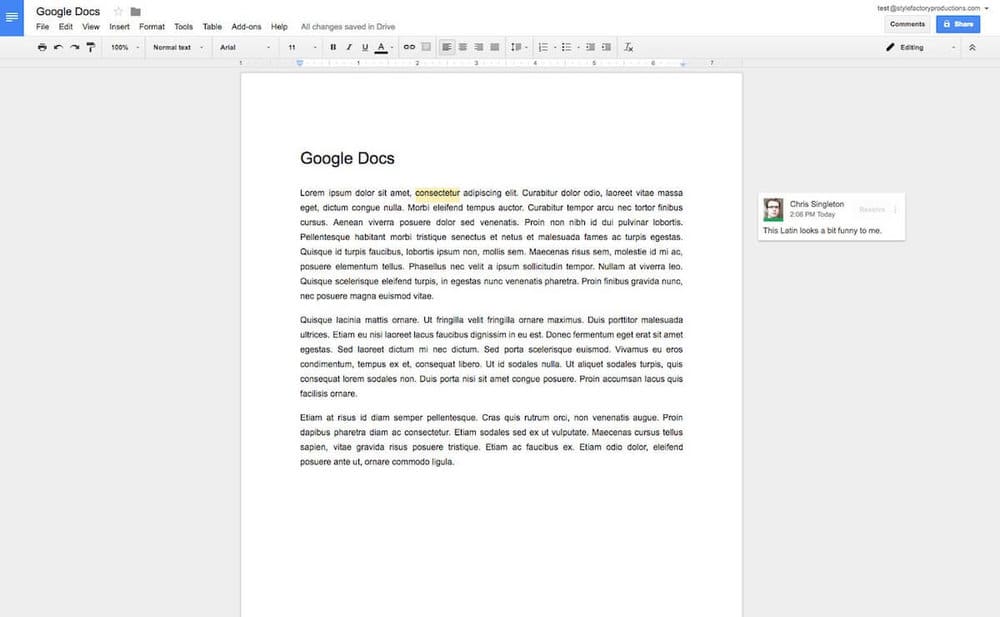
You could also argue however that the simpler, more stripped-back productivity apps bundled with Google Workspace generate a gentler learning curve for users who are new to online collaboration.
In terms of user interfaces, the Google apps feel less cluttered than those bundled with Microsoft 365, simply because they are not as feature packed.
For example, I personally much prefer working in Google Docs to the desktop version of Word, because there’s no load time whatsoever, and only a few menu options to be distracted by. My Google document is always saved to the cloud and I can pick up where I left off on it at any point, on any device.
The online version of MS Word lets you work in a similar fashion — but it arguably feels a little bit more ‘fussy’ and in my experience takes slightly longer to load.
However Microsoft 365 is unquestionably much better than Google Workspace — as you might expect — for editing MS Office documents and saving them without formatting problems (as discussed above, although you can save to MS Office format using Google Workspace, you can often end up with formatting headaches).
Ultimately I think both products are fairly straightforward to use. If editing MS Office files is going to be a big part of your job, then Microsoft 365 will feel a lot more familiar and present less of a learning curve; if facilitating internal collaboration effectively is more the concern, then Google Workspace is arguably a slightly better bet.
Data protection considerations
The EU’S GDPR data protection rules require personal data be processed on servers located within the EU.
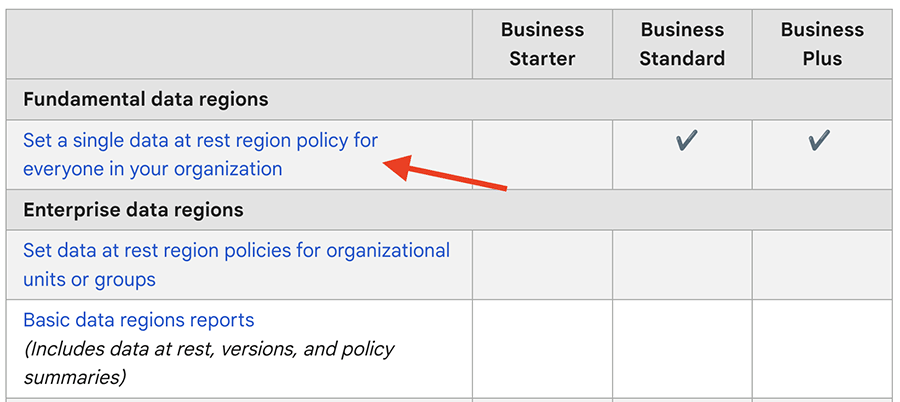
The good news is that both 365 and Workspace facilitate this — if you’re an EU-based Microsoft 365 user, Microsoft will host your data in the EU by default, and Google lets you choose a data region for all users on its ‘Business Standard’ plan or higher.
If you need more advanced controls over the location of your data, both products can give you these — but you’ll need to pay extra for the privilege.
Microsoft’s ‘Microsoft Purview’ product offers “comprehensive compliance and data governance solutions to help your organization manage risks, protect and govern sensitive data, and respond to regulatory requirements.” Purview is included in the ‘Microsoft 365 E5’ license, and available as a trial on the E3 one.
Google’s ‘Enterprise data regions’ tool gives you granular control over data locations, but as the feature name suggests, you’ll need to be on an Enterprise plan to use it.
Working offline
How to work offline with Google Workspace
Given that Google Workspace is essentially designed to run in a browser, a key question many potential Google Apps users typically have is “will I be able to work offline?”
The answer is: yes. On a desktop computer, you’ll need to do two things:
1) Ensure that you’ve installed Google’s Chrome browser
2) Switch on file syncing.
This will allow you to access and edit Google documents, sheets and slides offline; any changes you make to them will be synced to the cloud when you reconnect to the Internet.
With regard to Gmail, you can use it offline so long as you are using Chrome and have enabled offline mail. (Again you’ll need to ensure you download all your mail before going offline). After that, when you send emails offline in Gmail, they will go into a new “Outbox” folder and get sent as soon as you go back online.
You can also work offline using Google’s mobile apps — however, you have to let Google Workspace know that you want a particular file to be available offline first (by checking an option that downloads it to your mobile device).
How to work offline with Microsoft 365
With Microsoft 365, the best way to work offline on a desktop computer is by using the standard desktop applications in conjunction with the desktop version of OneDrive.
As with Google Workspace, ensure you’ve synced everything to your desktop computer before going offline — you can then work on any file in Word, Excel etc., and when you reconnect to the Internet any changes you have made will be synced.
365’s mobile apps also let you work offline, but as with Google’s mobile apps, you’ll need to download individual files to your mobile device first to access them on the go.
Extending the functionality of Google Workspace and Microsoft 365
If you’re not happy with the functionality provided by the Google Workspace apps and Microsoft 365, there are two ways you can extend the functionality of both suites of products.
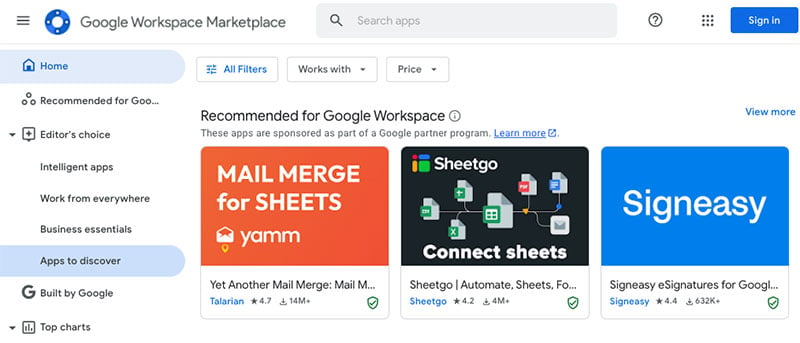
The first, and simplest, is by installing an ‘add-on’ to the products. Both Microsoft and Google have online stores that provide a wide range of apps to beef up their productivity tools — the ‘Microsoft Appsource’ store and the ‘Google Workspace Marketplace‘ respectively. Lots of free and paid-for apps are available for both systems.
The other way to enhance the functionality of both products is to code something yourself.
If you have the know-how, you can use the Microsoft or Google APIs – Application Program Interfaces — to add a bespoke piece of functionality to your chosen set of productivity tools.
You can read more about the Google Workspace API on the Google Developers site; the relevant information about the Microsoft API can be found here.
Google Workspace users can also avail of a ‘low-code’ option for adding bespoke functionality to Google’s apps. Called “Apps Script,” you can use it to build add-ons or automate processes that are specific to your business or organisation.
The below video gives a brief introduction to the tool.
If you’re on the ‘Enterprise’ version of Google Workspace you also get full access to the enterprise version of the Appsheet product — which Google describes as an ‘intelligent no-code platform.’
Appsheet gives you a range of templates for making simple apps for various use cases — for example, safety procedures, event management procedures, curbside pick-ups, project management, training processes and more. The apps you create can pull and send data to Google Sheets and other Google apps, making it a very useful tool.
A similar tool now exists for Microsoft 365, ‘Power Automate’ which lets you connect the various 365 apps in various ways (see below for a video about this product). This is available on the E1, E3 and E5 plans.
(That said, Appsheet is also available as paid-for add-on – you’ll need to contact Google to purchase it, but the point is, you can get your hands on it without having to invest in a full Enterprise-level Workspace plan).
Finally, you’ll find that there is also a large number of companies and developers who develop particular products that are designed to work ‘over’ Google Workspace and Microsoft 365.
Microsoft 365 vs Google Workspace: overall verdict
Ultimately, Microsoft 365 and Google Workspace are both excellent tools for managing the productivity side of your business, with Microsoft 365 arguably winning on product features, and Google Workspace winning when it comes to making collaboration easy.
Google Workspace is also slightly more generously priced when it comes to file storage (so long as you are not on its entry level plan).
Overall, I would probably focus on six key areas in making the final decision between the tools:
- The need your organisation may have to edit Microsoft Office documents
- Your file storage requirements
- Your email storage requirements
- The nature of your working environment
- IT implications
- Scalability
I’ll summarize my thoughts on these areas in turn, and then move onto a roundup of key pros and cons of both products.
Editing documents
If you work in an organisation that absolutely has to work with MS Office files regularly — and particularly if you need to use the advanced functionality that MS Office applications provide — then the natural choice is definitely going to be Microsoft 365.
(Make sure that you select a plan that includes the desktop applications, however).
Although Google Workspace can be used to produce and edit Microsoft documents (and even collaborate on them), you can expect hiccups when you try to edit and save a complex Microsoft document or spreadsheet with a Google Workspace app.
That said, Google Workspace technically allows you to edit both documents produced with Google Workspace and MS Office apps — this is not true of Microsoft 365.
So, if you have a client base that works with both Office and Google Workspace files, there may be an advantage in going for Google Workspace (so long as your needs are relatively simple on the MS Office formatting front).
Cloud storage
If having a serious quantity of cloud storage available is your overriding concern, then Google Workspace is generally the better bet. Its $14 per month ‘Business Standard’ and $22 per month ‘Business Plus’ plans provide you with 2TB and 5TB file storage respectively, at a reasonable price; to get more than 1TB with Microsoft 365, you’ll need to pay at least $20.75 per month for an Enterprise E3 plan.
However, you should note that if you’re using Google Workspace and one of your users needs more storage, the whole team will have to upgrade to a plan that provides it — because it’s no longer possible to buy individual storage licenses.
If you’re on a budget, and email storage is a big issue for you, you’ll find that the cheaper Microsoft 365 plans are often more generous than their Google Workspace equivalents when it comes to email storage, especially when you factor in the ‘unlimited archive’ functionality provided by Microsoft 365.
Working environment
The working environment that you are hoping to deploy Google Workspace and Microsoft 365 in should also be factored into your final decision.
If your organisation uses a varied mix of devices and operating systems, then you could potentially make life easier for your users by opting for Google Workspace, which is designed to run entirely online (ideally in a web browser — but apps are available for all the major mobile operating systems too).
With Google Workspace, it simply won’t matter whether your team members use Macs, PCs, Linux-based machines or Chromebooks, everything will look, feel and function exactly the same.
But if your organisation is purely MS Windows-based, there’s a lot to be said for Microsoft 365 — a plan involving its desktop apps will slot very neatly into such an environment. This is especially true if you intend to use Access and Publisher — these Microsoft 365 apps are exclusively available to Windows-based users.
IT
While it’s always a good idea to have some IT resource available, the resource and IT cost implication for deploying, maintaining and supporting Google Workspace can be lower than for Microsoft 365 — particularly if the Microsoft desktop apps are involved.
Scalability
With regard to scalability, you’ll need to remember that the more affordable Microsoft 365 and Google Workspace plans currently cap the numbers of users at 300.
However, it is possible to mix and match license types with Microsoft 365 — your organization could use a combination of Business and Enterprise plans, for example. With Google, you have to be on its Enterprise plan if you want to work with more than 300 accounts.
So there’s arguably a bit more flexibility on the ‘seats’ front from Microsoft 365.
Pros and cons of Microsoft 365 vs Google Workspace
Hopefully this comparison has helped clarify your thinking on the Microsoft 365 vs Google Workspace decision! Do leave a comment below if you have any thoughts of your own on the two productivity suites, and feel free to share this comparison with others.
(You may also enjoy our full Microsoft 365 review or our full Google Workspace review).
I’ll leave you with a summary of some pros and cons which might assist you in prioritising one of the solutions over the other.
And make sure you contact us if you are thinking of using Google Workspace or Microsoft 365 in your organisation — we can help arrange a successful setup or migration.
Reasons to choose Microsoft 365 over Google Workspace
- Most Microsoft 365 plans come with desktop versions of the Microsoft Office applications, making the product a much better fit for any organisation with clients that expect it be able to send, receive and edit MS Office files without difficulty. This is in my view by far the strongest argument for choosing 365.
- The free trial is more generous — you can use Microsoft 365 for one month for free, whereas Google Workspace offers a shorter, 14-day trial.
- The 365 apps are generally more feature-rich than the Google Workspace equivalents.
- The file storage and email storage quotas on the 365 entry level plan are much more generous than those provided by the Google Workspace entry level plan, and unlike Google Workspace, Microsoft 365 lets you upgrade storage quotas for individual users.
- The desktop version of Outlook provides you with an easy means to sort and group mail — Gmail doesn’t.
- The video conferencing participant limits on entry-level plans are higher than the Google Workspace equivalents.
- More advanced phone call management options are available with Microsoft 365.
- Microsoft 365 may provide a more natural fit for businesses that are exclusively Windows-based (more apps — notably Access and Publisher — are available on the Windows-based version, along with performance monitoring tools too).
- There are a few of useful Microsoft apps available — Stream, Sway and Whiteboard — for which there are no direct Google equivalents.
Reasons to choose Google Workspace over Microsoft 365
- Technically, Google Workspace allows you to create both Google Workspace and MS Office documents — Microsoft 365 will only let you create the latter.
- File storage: entry level plans aside, the Google plans provide more generous file storage limits than their Microsoft 365 equivalents.
- Google Workspace was built as collaboration-focused solution from the ground up; with Microsoft 365, collaboration features were integrated into an existing desktop-based product that has a history of being used in ‘local’ context. Accordingly, the Google Workspace collaboration features are arguably a bit stronger and may lead to a more genuinely ‘cloud-based’ workflow for your team.
- Some of Google’s AI features (‘Gemini’) can be used in Google Workspace without additional fees being required.
- eDiscovery, site building tools, email archiving and legal holds on inboxes (amongst other advanced features) are available at a lower price from Google Workspace.
- The Google Workspace interfaces are clean and intuitive and, so long as a good internet connection is being used, load fast (certainly faster than Microsoft Office desktop equivalents).
- Google Workspace is a good solution for businesses that use multiple devices and operating systems.
- The fact that everything is cloud-based in Google Workspace may encourage users to use the cloud more, with all the collaboration-related benefits this brings.
- It gives you much more powerful facilities for searching mail.
- Google’s Drive for desktop works with more Windows and Mac operating systems than Microsoft’s equivalent One Drive Files on Demand product.
- Unlike Microsoft 365, using video calling services does not require an additional fee.
Alternatives to Microsoft 365 and Google Workspace
The most obvious alternatives to Microsoft 365 and Google Workspace are probably Apple’s iWork suite of products and Open Office, but there are some other options available too.
iWork
iWork is a nice, user-friendly piece of productivity software; as with the Google Workspace apps, you’ll encounter a more minimalistic interface than in Microsoft 365.
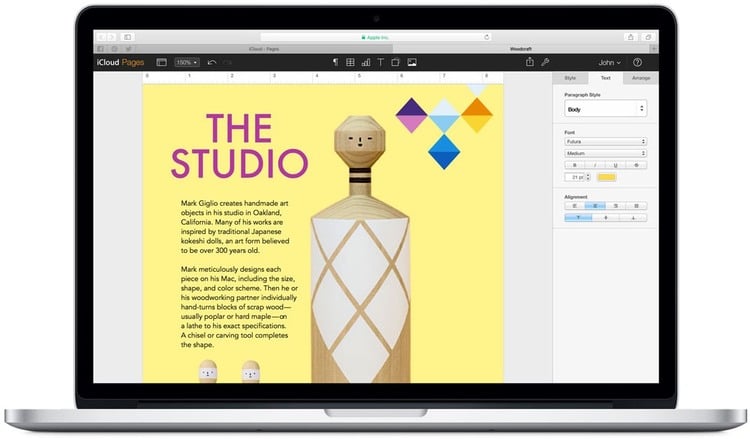
Like Microsoft 365 and Google Workspace, you can use iWork in a browser on any device and collaborate in real time with other users; desktop apps (Pages, Numbers and Keynote) are also available, but these work with Apple products only.
The good news is that these apps are free — but you will need to potentially pay for iCloud storage so that you can store your files somewhere.
Apache OpenOffice
OpenOffice is a well-known open-source office software suite for word processing, spreadsheets, presentations, graphics and databases. The good news is that like iWorks, it’s completely free; the less good news is that there isn’t an official ‘cloud’ version of the software available.
If you are particularly keen on using OpenOffice though, some cloud functionality will be available to you using Rollapp, an ‘online application virtualization platform’, which — in theory at least — allows you to run any application on any device in a web browser.
A key feature of OpenOffice is its ability to run on various operating systems — Windows, macOS and Linux are all supported.
LibreOffice
Like OpenOffice, LibreOffice is a free and open-source productivity suite that can be installed on multiple operating systems. It offers a collection of office-related applications that provide similar functionality to key 365 and Workspace applications.
It’s updated more regularly than OpenOffice however, and tends to have better compatibility with newer versions of Microsoft 365 file formats.
Dropbox
The focus of Dropbox has traditionally been about file storage — it was one of the first cloud-based apps that allowed you to store and access files from anywhere.
However, it has evolved a bit in recent years, and now offers some of the features you’ll find in Microsoft 365 and Google Workspace, along with integrations with a variety of key business apps.
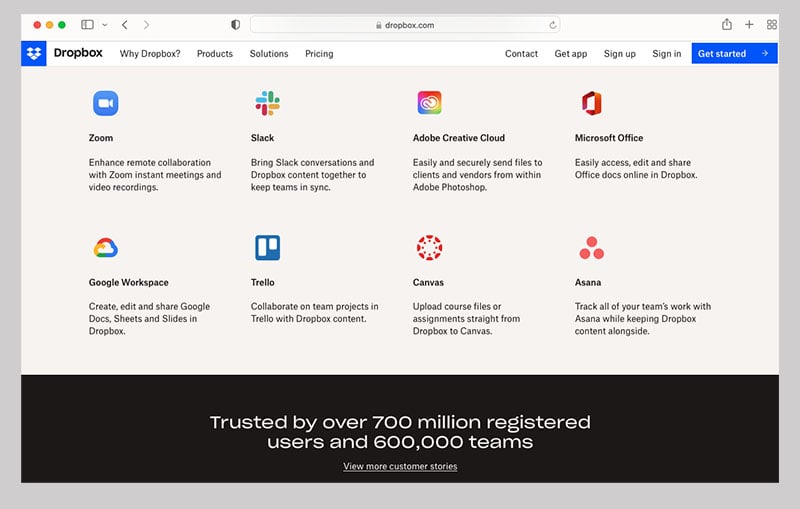
Its online text-editing app, Dropbox Paper, works in a similar way to Google Docs or the online version of Microsoft Word; and, thanks to an integration with Microsoft 365, you can edit Office files stored in Dropbox online.
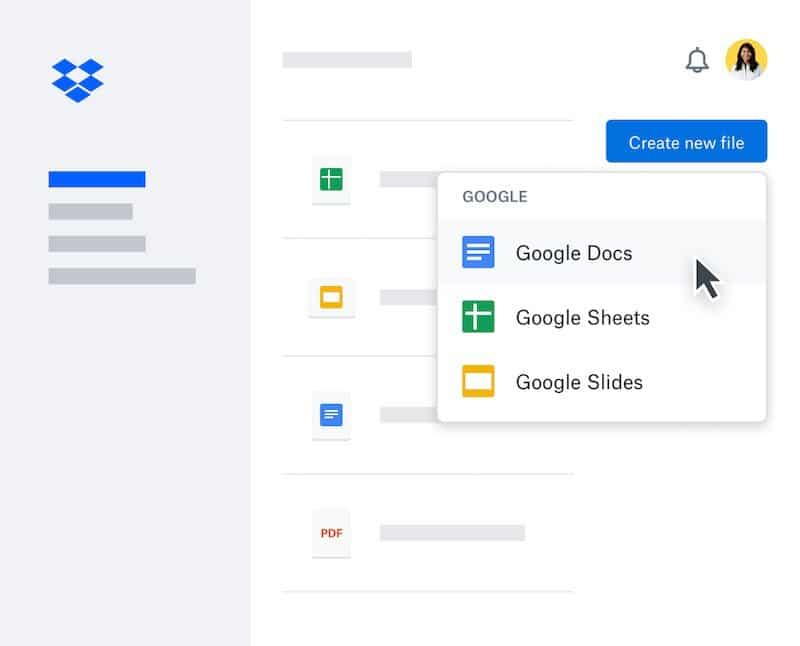
There’s also ‘Dropbox for Google Workspace,’ which allows you to
- create and store Docs, Sheets and Slides in Dropbox alongside other traditional files
- use Google Docs, Sheets and Slides to edit Microsoft Office file types stored in Dropbox, without having to change file formats
- add Google Docs, Sheets, and Slides to shared Dropbox folders that then automatically inherit the same sharing permissions.
These Microsoft and Google Microsoft integrations definitely make it easier for people who’ve bought into the Dropbox platform to stick with it — but my feeling is that users who are in the market for a productivity suite for the first time would find things far more straightforward by going straight for Microsoft 365 or Google Workspace.
Canva
While not exactly a productivity suite in the ‘normal’ sense, the design tool Canva is increasingly providing some of the features of 365 and Workspace to its users.
Although traditionally it’s been seen as an app for creating social adverts and infographics, you can actually use Canva to create sophisticated documents, graphs, presentations and simple websites too — and these can be worked on by multiple collaborators. In particular, the tool can serve as a very good alternative to Microsoft Powerpoint — you can learn why in our Canva vs PowerPoint comparison.
You can also learn more about Canva in our Canva review and our Canva free trial guide — or find out more about its pricing here.
Our Adobe Express vs Canva and Canva vs Photoshop comparisons may also be of relevance.

Comments (177)