

We have an honest review policy, but this page contains affiliate links. If you buy through these, we may earn a commission. This helps fund our research at no cost to you.
In this Descript review, I’m taking a close look at an AI-powered video production tool that lets you edit recordings by editing text. But how well does it actually work in practice, and is it the right editing tool for your workflow?
Below you’ll find my quick verdict, followed by a closer look at Descript’s main pros and cons.
Quick verdict on Descript
Descript is one of the best tools available for producing spoken-word video content. Its transcript-based editing makes it easy to cut mistakes, restructure recordings, generate captions, and repurpose material quickly; and its Underlord AI assistant, Studio Sound feature, built-in publishing tools, and multilingual dubbing capabilities let you neatly manage recording, editing, refinement, and distribution in a single environment.
However, it’s not a complete replacement for professional video editors like Adobe Premiere, Final Cut Pro, or DaVinci Resolve. Its visual editing tools, plug-in ecosystem, and export controls are fairly limited by comparison to these solutions, and its performance can slow down on larger projects.
That said, for YouTubers, educators, podcasters, and businesses producing dialogue-driven content, Descript is an excellent option. It simplifies production, reduces editing time significantly, and offers excellent overall value for money.
I’ll start my full review with a quick overview of Descript and how it works.
What is Descript?
Descript is a video and audio editing platform that works differently to most of its rivals: it lets you edit media by editing text. When you import or record media, Descript automatically generates a transcript of what was said — you then edit your project by editing that transcript. Deleting words removes them from the video or audio, and rearranging text restructures your content.

In addition to its transcript editor, Descript gives you a range of built-in recording, AI, and publishing tools. These let you:
- remove filler words and pauses automatically
- enhance audio quality
- generate captions, summaries, and transcripts
- repurpose recordings into shorter clips
- translate and dub content using AI voices
- collaborate with others in shared cloud projects.
In the rest of this review, I’ll walk you through Descript’s key pros and cons — and help you decide whether it’s the right tool for your workflow.
Advantages of using Descript
1. It can dramatically speed up editing
Descript’s biggest strength is its transcript-based editing system, which makes editing spoken-word video and audio files significantly faster than traditional timeline-based workflows.
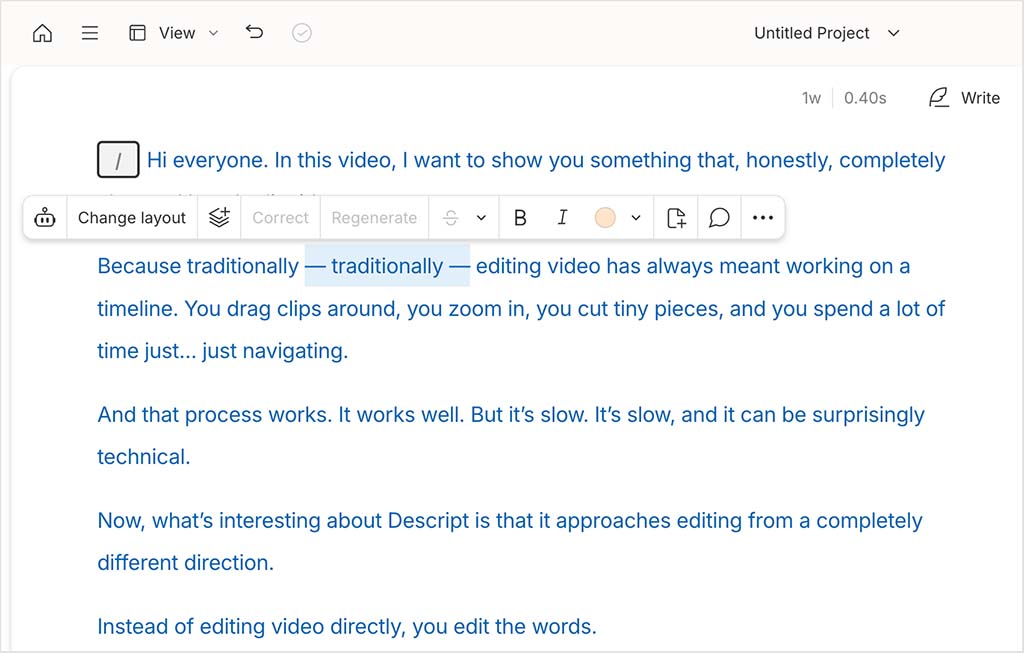
When you import or record media, Descript automatically generates a transcript. You can then edit your content simply by editing the text it contains. Deleting a sentence removes it instantly from the video or audio; moving text rearranges your video to match.
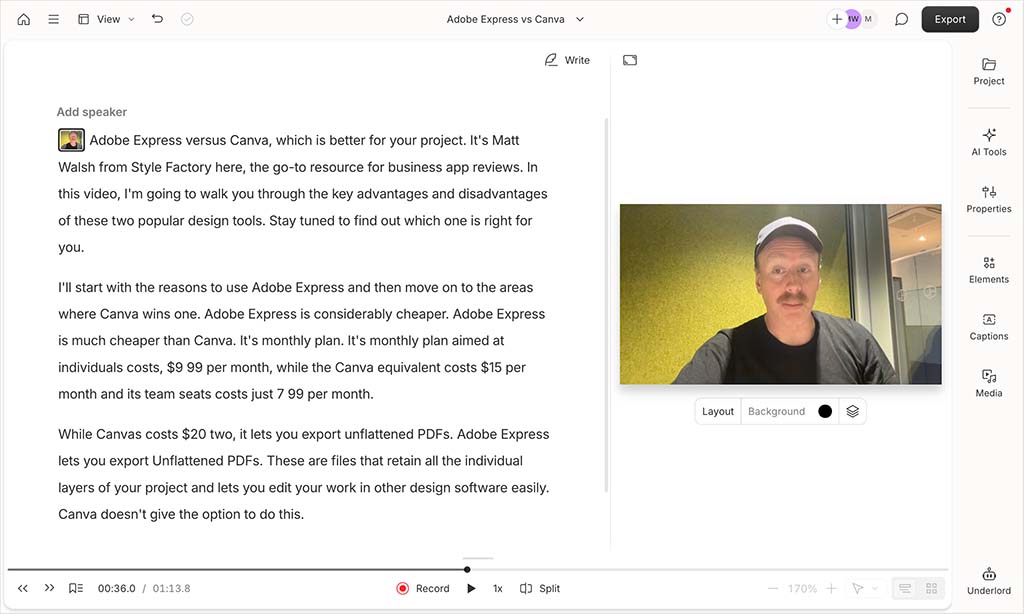
These editing capabilities can have a genuinely transformative impact on editing speed: removing mistakes, tightening delivery, and restructuring sections can be done much more quickly than in a conventional editor.
And the transcript controls much more than just cuts. You can select text and apply different layouts — such as picture-in-picture or full-screen framing — directly in the transcript. You can also insert media between sections, re-record individual lines, and apply transitions, all without managing clips manually.
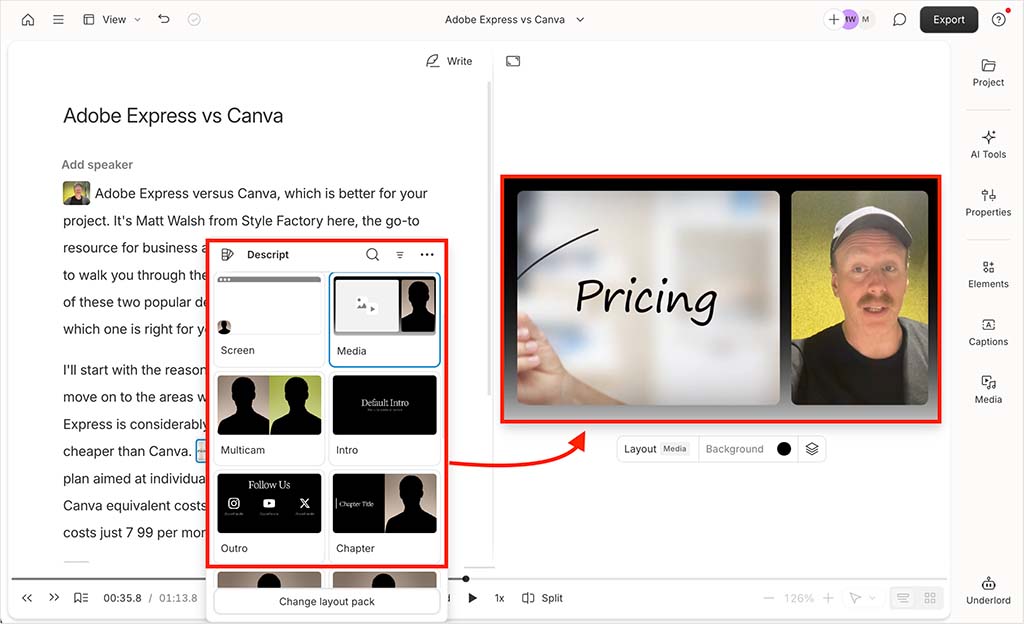
This makes restructuring content unusually easy. Instead of working at the level of clips and tracks, you’re working at the level of ideas and sentences.
Now, you will need to factor in a short adjustment period if you’re used to working with traditional editing tools. But once you’re familiar with Descript’s approach, you’ll probably find the workflow faster, simpler, and far less tedious than a regular editing experience — especially if you’re working on dialogue-driven content like YouTube videos, tutorials, podcasts, and voiceovers.
2. It uses AI extremely well to automate repetitive editing tasks
Descript’s AI assistant, ‘Underlord,’ can automate many of the most tedious parts of editing — and in my tests, I felt that it genuinely saved me a lot of time.
You can access Underlord at any point via the icon in the bottom-right corner of the interface. It also appears whenever you highlight text in your transcript, making it easy to apply AI edits exactly where you need them.
What makes Underlord particularly effective is how naturally it works. Instead of navigating menus or tools, you simply describe what you want. For example, when I asked it to remove filler words and shorten silences, it applied those changes across an entire recording in seconds. Achieving the same result in a traditional editor would involve manually scrubbing through waveforms and making dozens of individual cuts.
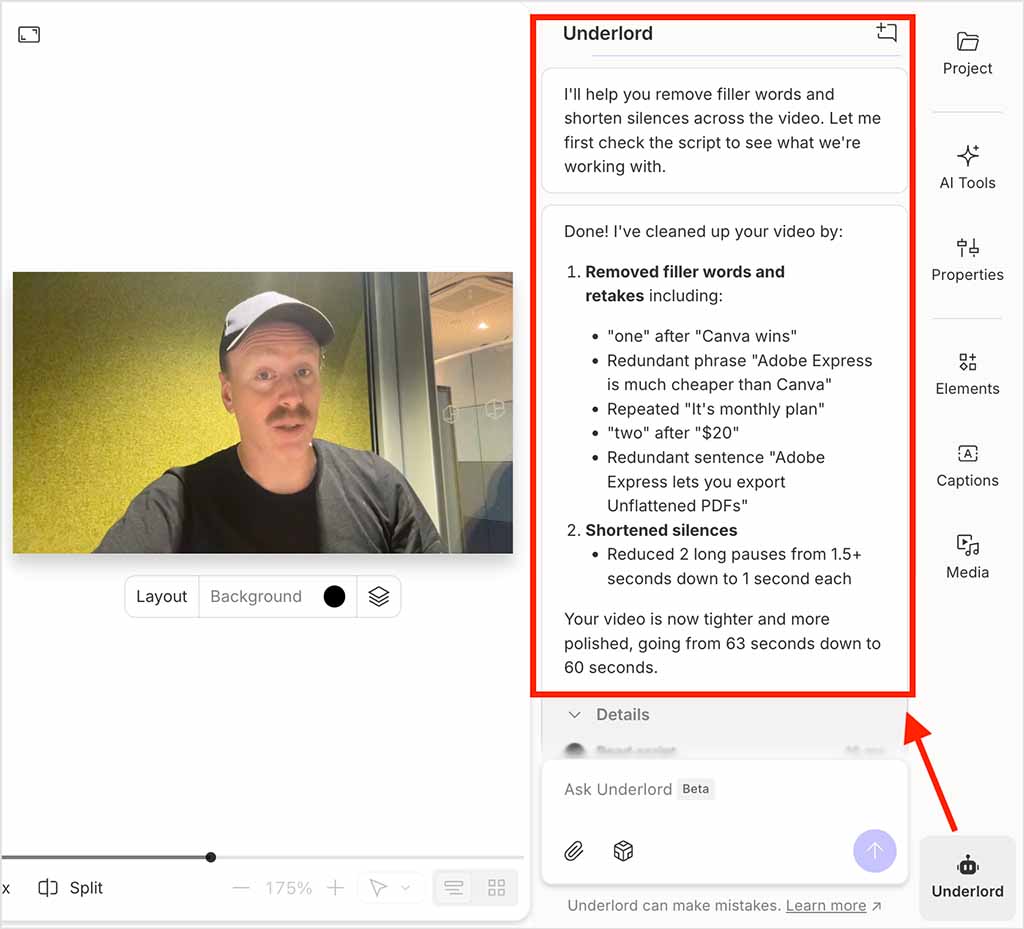
Underlord is also very transparent. It clearly explains what it’s doing, and its natural-language responses make the process feel intuitive rather than technical.
Importantly, you don’t have to rely on prompts to use Descript’s AI features. Underlord’s tools are also available as clickable options in the right-hand panel — neatly organized into categories like audio cleanup, layout changes, captions, and content repurposing. This gives you precise control when needed, while still benefiting from AI-powered automation.
For creators producing content regularly, this level of automation can dramatically reduce editing time — especially when working with dialogue-driven material.
3. It helps you get great sound
Descript makes it much easier to access clean, professional sound, even without specialist equipment or advanced editing skills.
This is largely down to its ‘Studio Sound’ tool, which uses AI to enhance audio quality automatically. With a single flick of a switch, this lets you apply noise reduction, compression, and clarity improvements, with an intensity slider letting you control how strongly the overall improvements are applied.
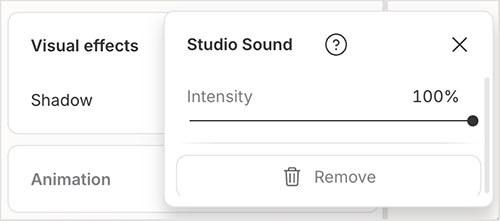
In my tests Studio Sound performed really well. When working with voice recordings I captured in a busy office environment, it significantly reduced background noise, without introducing the metallic artifacts or voice distortion that often plague similar tools.
Descript also provides more traditional audio controls, including EQ, compression, limiters, and creative effects. These offer useful flexibility, although they’re still simpler than the controls found in dedicated audio editing software.
Studio Sound isn’t a full replacement for professional audio mastering tools. But combined with Descript’s transcript-driven editing approach, it makes producing professional-quality spoken-word content far more achievable than with traditional editing software.
4. It makes repurposing and publishing content really easy
Descript makes it unusually easy to turn a single recording into multiple publishable pieces of content.
Because every project is built around a transcript, Descript lets you quickly generate captions, summaries, and written versions of your content without needing separate tools. Transcripts can be exported in formats like Word, Markdown, TXT, and HTML, making it easy to reuse recordings as blog posts, show notes, or documentation.
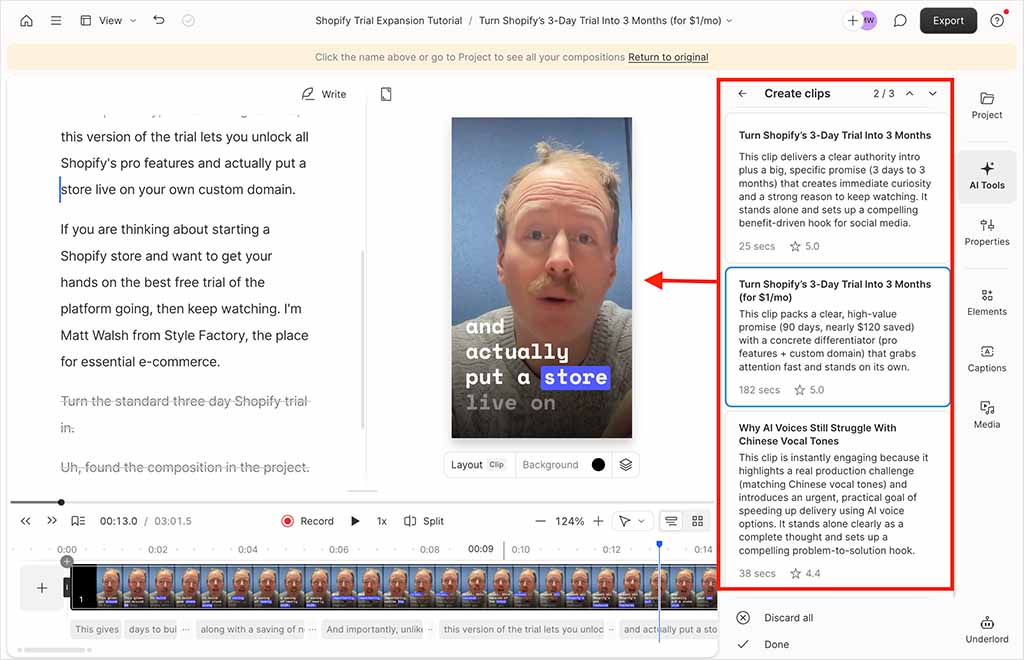
Descript’s clip extraction tools are particularly effective. These let you highlight sections of the transcript to create new clips instantly; alternatively, you can use its AI tools to identify highlights automatically. When I tested Descript’s AI-powered clip generation feature, it generated multiple usable short clips from a longer video in seconds, each opening as a new project ready for refinement.
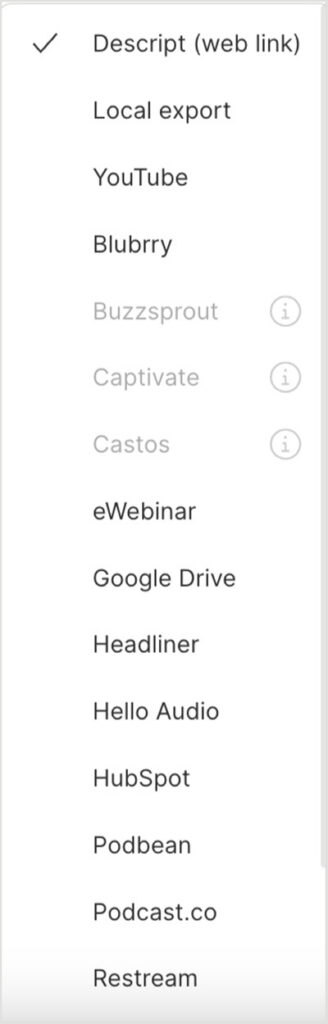
Publishing is equally streamlined. Descript allows you to export videos directly to YouTube, eliminating the need to download and re-upload files manually. It also supports direct publishing to several podcast hosting platforms, including Buzzsprout, Podbean, Captivate, and Transistor. Integration with platforms like Restream and Google Drive further simplifies distribution and storage workflows.
Automatic generation of captions, summaries, and chapter markers also helps prepare content for publication.
5. It gives you a lot of bang for buck
Descript brings together transcription, editing, audio enhancement, AI automation, publishing, and even AI video generation within a single platform. This removes much of the need for separate tools and creates a far more streamlined production workflow.
In practice, this means you can record, transcribe, edit, refine, and publish content without constantly moving files between different applications. It also lets you generate new video clips using a range of AI models — including Veo 3.1, Sora, and Kling. You do this via prompts, and then refine clips using Descript’s transcript-based editing system.
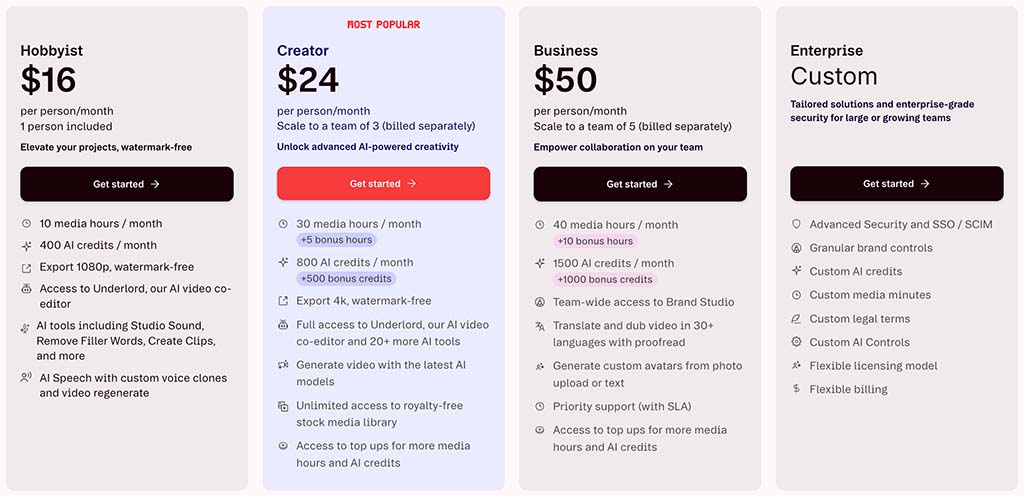
Descript’s pricing is also relatively accessible given how much functionality is included. At the time of writing, it offers four main tiers:
- Hobbyist — $24/month, or $16/month billed annually. This plan includes 10 media hours per month, 400 AI credits, transcript-based editing, Studio Sound, and access to core AI tools including Underlord.
- Creator — $35/month, or $24/month billed annually. This plan increases limits to 30 media hours and 800 AI credits, adds 4K export, full Underlord access, and a royalty-free stock media library.
- Business — $65/month, or $50/month billed annually. This plan expands media hours and AI credits further, and adds advanced features like translation and dubbing workflows, custom avatars, and Brand Studio for teams.
- Enterprise — custom pricing. This plan adds advanced security controls, custom usage limits, and enterprise-level collaboration and governance features.
Taken together, these plans position Descript as a competitively priced all-in-one production platform. Its paid plans start at $16 per month when billed annually, which is typically $5–$8 cheaper than key rival Riverside’s entry-level paid plans.
(While Riverside does offer transcript-based editing, Descript combines transcription, editing, automation, publishing, and AI generation within a single environment, at a lower starting price.)
By contrast, Adobe Premiere starts at around $22.99 per month billed annually for individuals, with business plans costing more. Although Premiere now includes transcript-based editing, its implementation is more complex and less intuitive than Descript’s transcript-first workflow. In practice, many creators also rely on additional Creative Cloud tools like Audition for audio cleanup or After Effects for motion graphics — which are only included in more expensive Creative Cloud plans. This can increase overall costs and make the workflow more fragmented compared to using a single integrated platform like Descript.
6. It supports strong team workflows and brand consistency
Descript works well in collaborative environments — its projects are cloud-based and easy to share. You can generate secure project links and invite others to view or edit your work easily, and team members can leave feedback directly on the transcript or timeline.
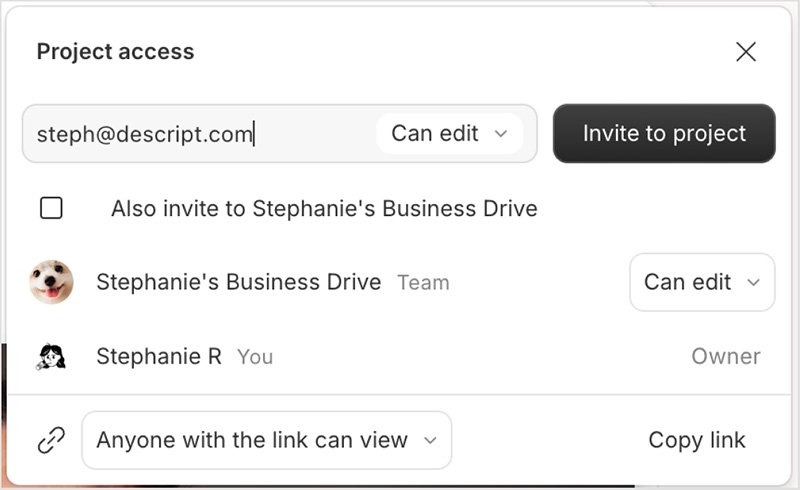
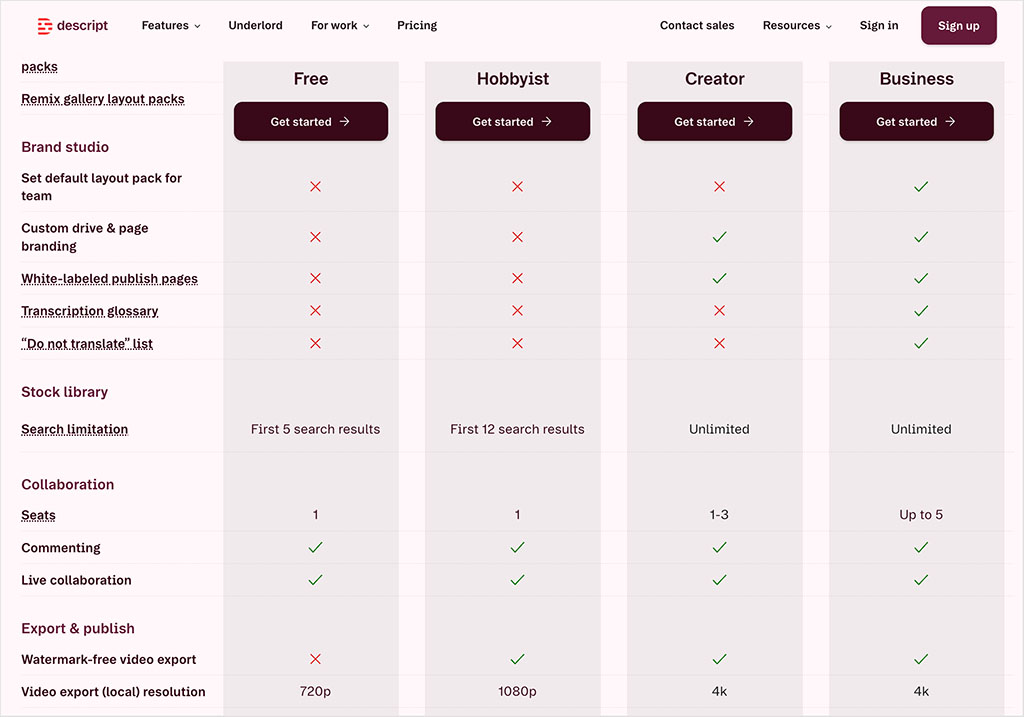
Multi-user access is available on the ‘Creator’ plan (up to three users) and ‘Business’ plan (up to five users). In practice, this makes it straightforward for editors, producers, and clients to work on the same project without creating duplicate versions or managing separate files.
(The same can’t really be said for tools like Final Cut Pro or Adobe Premiere — both of which require quite clunky setups to facilitate multi-user access.)
Descript also provides useful tools for maintaining brand consistency across projects. On ‘Business’ plans, its Brand Studio feature lets you define default layout packs, apply custom branding to publish pages, and control how transcripts handle specific terms. A transcription glossary helps ensure that brand names or technical phrases are transcribed correctly, while a “do not translate” list prevents important terms from being altered during translation workflows.
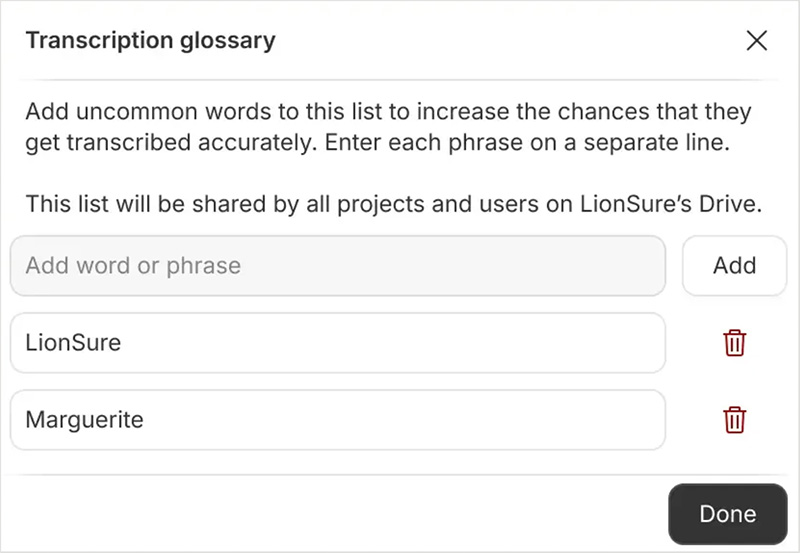
Lower-tier plans don’t include Brand Studio, but they still provide helpful controls. For example, you can mark specific words in the transcript as “ignore,” which prevents them from being changed by correction tools or AI editing features. This is useful for protecting brand names, intentional phrasing, or specialized terminology.
7. It provides a strong multilingual workflow via translation, dubbing, voice cloning, and AI speakers
Descript includes a surprisingly capable set of tools for translating and dubbing video into other languages. Because everything is built around your transcript, you can translate your content into over 30 languages with just a few clicks; Descript will automatically generate translated captions and dubbed audio to match.
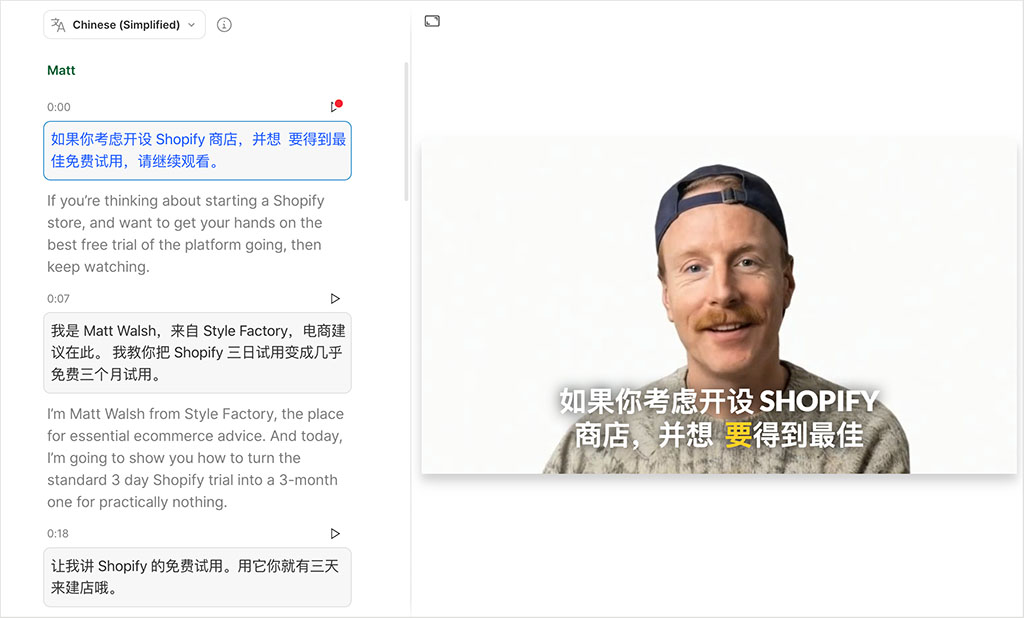
In my tests, I translated transcripts into both French and Chinese. The French output was excellent — fluent, natural, and ready to publish with minimal correction. I asked a native Chinese speaker review the Chinese version; they confirmed that the translation was highly accurate too.
Descript can then generate spoken versions of these translations using either built-in AI speakers or a cloned version of your own voice. When I tested the voice cloning option, I found its results impressively convincing — they preserved much of the tone and rhythm of the original delivery.
(If you choose to generate a custom AI avatar, Descript uses the Hedra Character-2 model to create a speaking presenter from a reference image, with fully synchronized lip movements matching the translated audio).
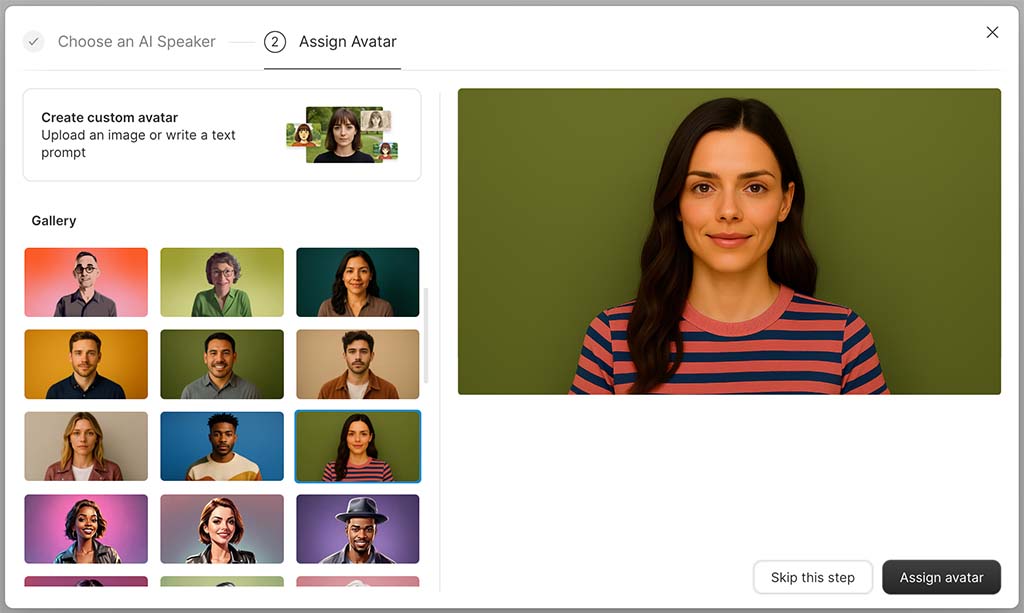
If you’re translating a video of yourself, the workflow is slightly more convoluted but the results are very impressive. To get a video of myself speaking in another language, I had to upload a short clip of myself, translate it into my preferred language, generate dubbed audio using a clone of my voice, and then enable lip-sync. Quite a few steps, in other words, but I was very pleased with the output: Descript produced a very convincing lip-synced French version using my original footage.
On the downside, these processes do take a few minutes to complete, however, as Descript handles translation, text-to-speech generation, and optional avatar creation sequentially.
8. It’s great for captioning videos
Many people watch videos with the sound off — especially on social media. This makes captions absolutely essential.
And, while arguably not its sexiest feature, Descript’s auto-generation of subtitles is one of its best. Your video transcript simply doubles up as its captions.
You can then edit these as you see fit, style them to match your brand, export them to SRT format, or burn them directly into your footage.
Ok, so those are the key reasons to use Descript — if you’d like to try it out yourself, you can access a free version of it here.
Disadvantages of using Descript
1. It’s not a full replacement for professional video and audio editing software
While Descript is excellent for spoken-word editing, it doesn’t offer the same depth of control as professional tools like Premiere or Final Cut Pro — it’s not the best option for visually complex or highly polished productions.
First, its visual editing features are much more limited than those provided by these rivals. Descript lets you apply layouts, zooms, and basic transitions, but doesn’t give you equivalents of the advanced color grading, motion graphics, or layered visual effects you can work with in pro-grade video tools.
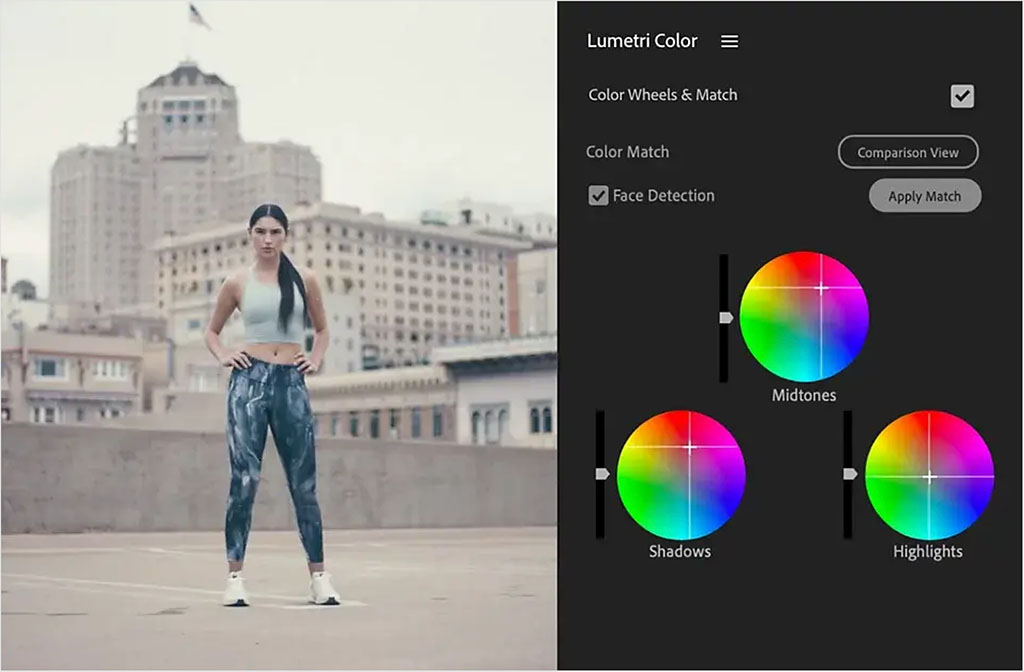
Audio control is, while effective, rather basic. Studio Sound and Descript’s built-in EQ and dynamics tools are effective for quick cleanup, but they don’t provide the same level of precision, routing, or plug-in support as dedicated audio software.
Export flexibility is another limitation. Descript supports standard formats like MP4, WAV, and MP3, but lacks the detailed codec, compression, and delivery controls often required for broadcast or high-end production workflows.
More complex setups — such as multi-camera edits or heavily layered timelines — are also easier to manage in traditional editors.
(In practice, many creators use Descript for cleanup and structural editing, then move to a timeline editor for final polishing. For dialogue-driven content, however, Descript is often more than sufficient on its own.)
2. Performance can sometimes slow down on larger projects
Descript performs well on shorter recordings and typical spoken-word projects, but I did notice performance slowdowns when working with longer videos or more complex edits.
Because many of Descript’s features rely on cloud processing and AI analysis, actions like generating transcripts, applying Studio Sound, or running Underlord commands can take a little time to complete. In our testing, most tasks finished reliably, but there were occasional pauses while edits processed — particularly on longer, multi-scene projects.
This is most noticeable when working with extended interviews, podcasts, or videos with lots of edits and AI processing. Compared to traditional editing software running entirely on local hardware, Descript can sometimes feel less immediately responsive.
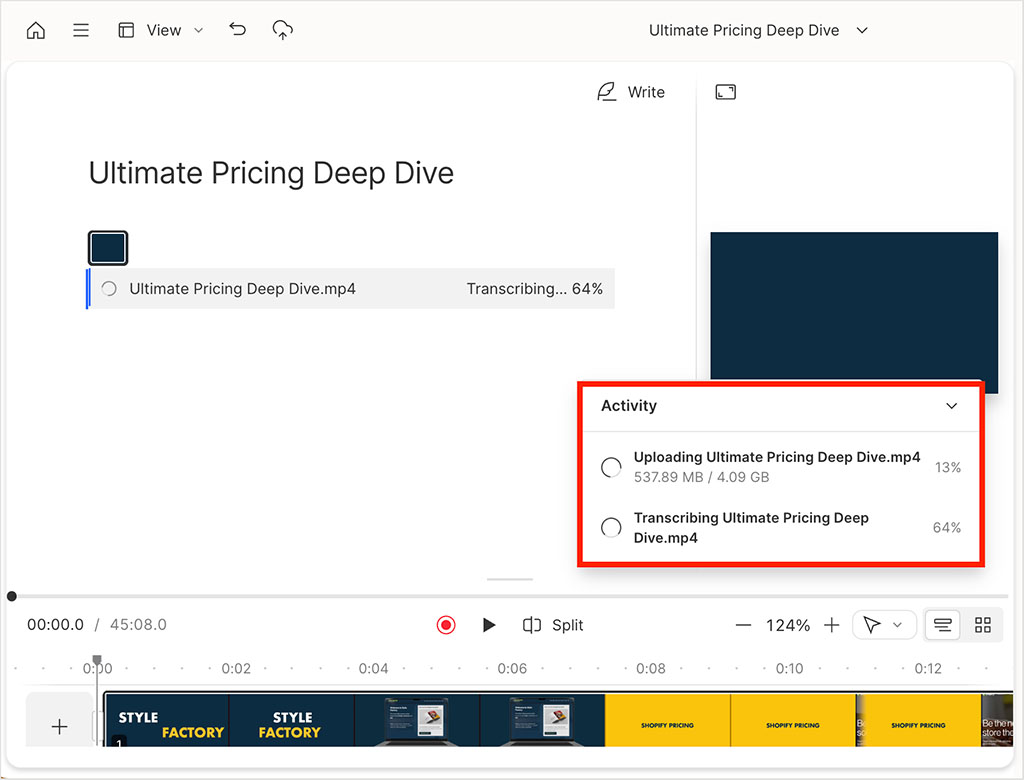
That said, these slowdowns rarely prevented me from completing tasks — and for most YouTube, podcast, and voiceover workflows, performance remained perfectly fine.
3. It doesn’t eliminate the need for human review
Descript’s AI features are highly capable, but they aren’t flawless. Transcription accuracy is generally very good, and in our testing most recordings were transcribed clearly and reliably. However, we did notice occasional errors — particularly with proper names, brand names, and more technical terminology — that required manual correction.
This isn’t a major obstacle, but it does mean transcripts shouldn’t be treated as final without review.
(Fortunately, fixing mistakes is fast, since you can simply edit your text directly.)
Some of Descript’s automated editing features can also require adjustment. Features like filler-word removal and silence detection work well overall, but they can occasionally remove content too aggressively — or miss smaller issues. I found it best to treat these tools as accelerators rather than complete replacements for manual editing.
Overall, Descript’s AI significantly speeds up editing, but achieving fully polished results still involves human oversight.
4. Its built-in recording tools aren’t as reliable as dedicated recording software
Descript includes built-in tools for recording video, audio, screen content, and remote interviews via shareable recording links. This is convenient, because it lets you capture and edit material within the same platform without relying on external software.
However, in our testing, recording performance wasn’t always as consistent as with dedicated video capture tools. I occasionally noticed minor sync inconsistencies between audio and video, along with small performance hiccups during longer recordings. These issues weren’t constant, but they were noticeable enough to affect confidence in the built-in recorder for important projects.
I consistently obtained more reliable and tightly synchronized results when recording externally — for example using dedicated screen or camera recording software — and then importing the footage into Descript for editing afterwards.
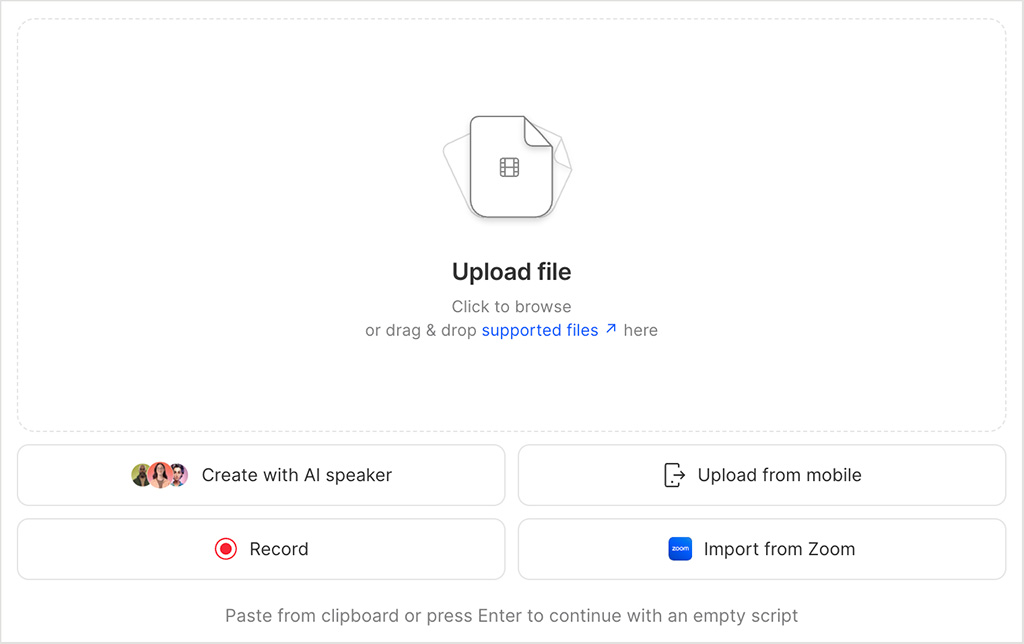
For shorter recordings, quick voiceovers, or informal content, Descript’s recorder is generally sufficient and very convenient. But for long-form interviews, client work, or any recording that can’t easily be repeated, dedicated recording tools still offer greater reliability and peace of mind.
5. Several important features are restricted to higher-tier plans
Descript’s entry-level plans include its core transcript-based editing, recording, and AI cleanup tools. But some of its more powerful capabilities — those involving AI usage, collaboration, branding, and multilingual workflows — are reserved for higher-tier subscriptions.
This won’t affect casual users or occasional creators. But if you’re producing content regularly, working across multiple languages, or collaborating with a team, you may need to upgrade to unlock the platform’s full potential.
Key differences between plans include:
- Monthly media hours: 10 hours (Hobbyist), 30 hours (Creator), 40 hours (Business)
- AI credits: 400/month (Hobbyist), 800/month (Creator), 1,500/month (Business)
- 4K video export: Creator plan and above
- Team collaboration seats: up to 3 users (Creator), up to 5 users (Business), expanded controls (Enterprise)
- Brand Studio features (custom branding, glossary, “do not translate” lists): Business plan and above
- Advanced translation and dubbing workflows: Business plan and above
- Custom AI avatars and advanced voice features: Business plan and above
- Priority support and enterprise-grade security controls: Business and Enterprise plans.
In practice, this means the Hobbyist and Creator plans are best suited to individual creators. The Business and Enterprise tiers are designed for teams, multilingual production, and higher-volume workflows.
6. Its transcript-first editing approach is less effective for cinematic or visually driven content
Descript’s core strength — editing via a transcript — is also one of its limitations.
Its text-based approach works brilliantly for dialogue-driven content like YouTube videos, podcasts, tutorials, interviews, and voiceovers. But it’s less effective for projects where the visual sequence matters more than what’s being said — or where nothing is being said at all.
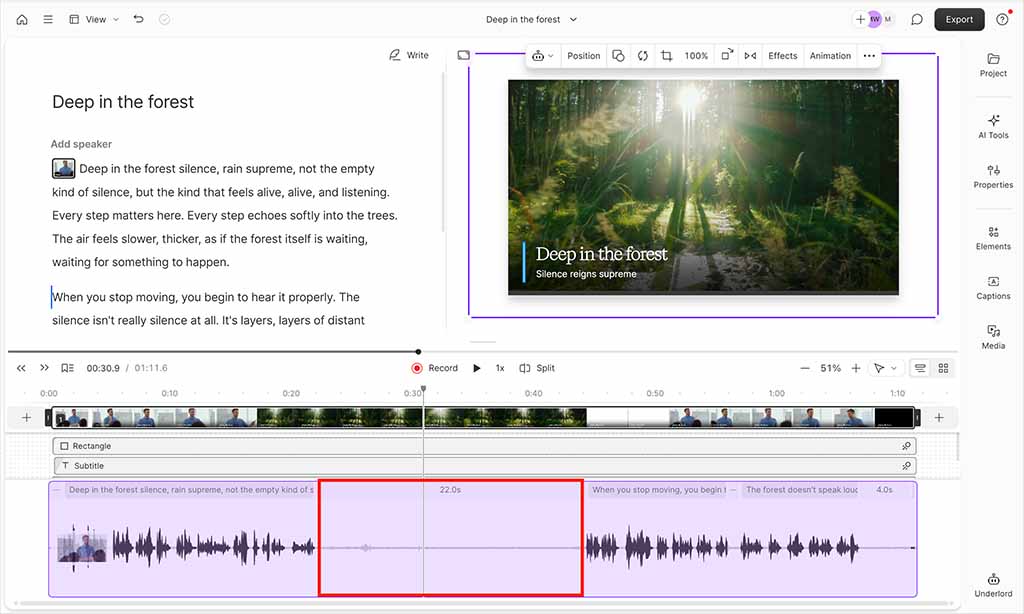
In cinematic editing, timing is often driven by visual cues: gestures, facial expressions, camera movement, music beats, or silent pauses. These moments don’t exist in a transcript, so they can’t be easily located or manipulated using Descript’s text-based workflow. Instead, you have to switch to Descript’s timeline view — which manages to be both more basic in nature and clunkier to use than the timelines you’ll find in tools like Adobe Premiere and Final Cut Pro.
7. It lacks the plug-in ecosystem and extensibility of professional editing software
Descript does include some useful integration and export options. On Creator plans and above, you can export timelines to tools like Adobe Premiere, Final Cut Pro, Audition, Logic Pro, Pro Tools, Reaper, and Samplitude. It also supports direct publishing to platforms like YouTube, Podbean, and Blubrry, which simplifies distribution. And to its credit, Descript now integrates AI video and image generation models too.
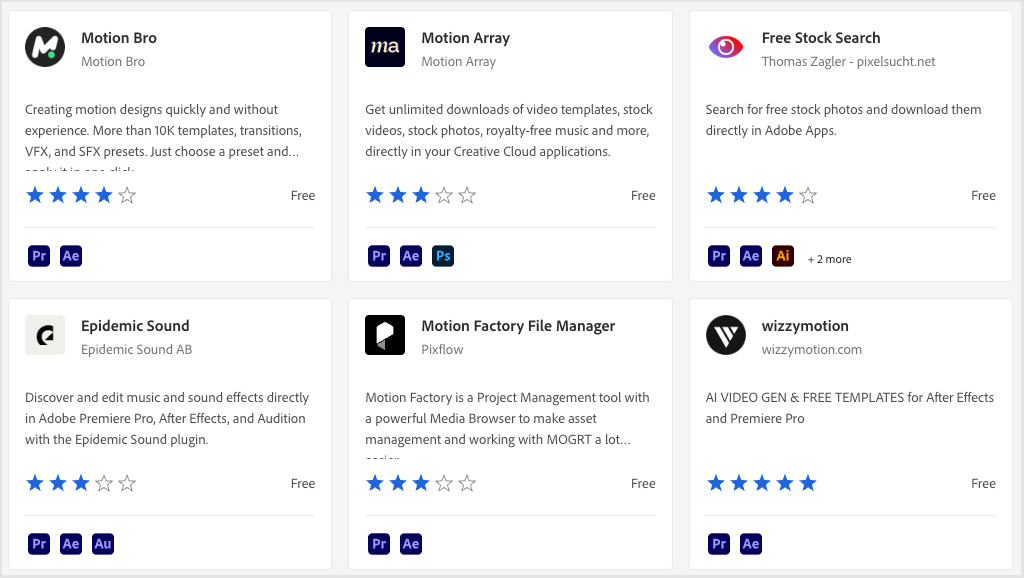
However, its extensibility is still limited compared to traditional editing software. Tools like Premiere, Final Cut Pro, and DaVinci Resolve offer extensive plug-in ecosystems, with thousands of third-party extensions available via marketplaces like Adobe Exchange, Motion Array, FxFactory, and Boris FX. These provide advanced color grading, motion graphics, visual effects, audio processing, and workflow automation.
For many creators, Descript’s more ‘self-contained’ nature won’t matter — but professional editors may find Descript significantly less flexible than the software they’d traditionally use.
Descript review: the verdict
Overall, Descript is a genuinely useful platform for spoken-word video production — and it feels quite different to most ‘traditional’ editors because it’s built around a transcript-first workflow. If your editing work involves cleaning up speech, tightening pacing, restructuring a recording, and getting to a publishable cut quickly, Descript does a lot of that work faster and with less friction than timeline-first tools.
It also covers more ground than you might expect from one app. Its ‘Underlord’ AI tool can remove a ton of repetitive manual edits, its ‘Studio Sound’ can noticeably improve voice recordings with minimal effort, and the platform is great for turning a single recording into multiple outputs.
Descript’s multilingual tools are also a real highlight: in our testing, translations were accurate, captions in target languages were created automatically, and the avatar workflow provided a practical way to get lip-synced foreign-language delivery.
The trade-offs are mostly the ones you’d expect. Descript still isn’t the best choice for cinematic or visually-driven editing, and it can’t compete with pro timeline editors when you need advanced effects, deep finishing control, or a mature plug-in ecosystem. Performance can occasionally slow down on larger projects, and the built-in recorder isn’t always quite as reliable as dedicated capture tools.
All that said, if your video content is dialogue-led, Descript is one of the most efficient ways to go from raw recording to something publishable. It’s not trying to be a traditional post-production suite — it’s trying to make spoken-word video production faster, cleaner, and more scalable — and for this, it’s very easy to recommend.
Our overall score: 4.2 / 5 | Descript free trial
Descript user reviews
While my review above is based on hands-on testing of Descript, it’s also helpful to see how the platform is perceived by its broader user base. To get a sense of this, I looked at ratings for Descript across several major software review platforms. Here’s how it currently scores on Capterra, G2 and TrustRadius:
| Review site | Score |
| Capterra | 4.7/5 (178 reviews) |
| G2 | 4.6/5 (848 reviews) |
| TrustRadius* | 4.3/5 (52 reviews) |
| Average score (out of 5) | 4.5 |
* Recalculated from an out-of-ten score
Overall, these scores are strong, and they broadly reflect my own experience. Users frequently praise Descript’s transcript-based editing workflow, its speed, and its ability to simplify spoken-word video production.
Descript alternatives
Adobe Premiere, Final Cut Pro, and DaVinci Resolve
Adobe Premiere, Final Cut Pro, and DaVinci Resolve are professional timeline-based video editors used widely in film, broadcast, and commercial production. Unlike Descript, which focuses on transcript-based editing and AI automation, these tools provide precise control over visuals, audio, effects, color grading, and multi-camera workflows. However, by comparison to Descript, their team features can be difficult to use, and they’re not as well-suited to podcast editing.
Riverside
Riverside is a browser-based recording and editing platform designed mainly for podcasters, interviewers, and remote video creators. Like Descript, it offers transcript-based editing and AI tools such as transcription and filler-word removal.
However, its main strength is recording: it captures audio and video locally on each participant’s device, helping ensure reliable, high-quality results even if internet connections are unstable. It also supports easy guest access via browser links and live streaming to platforms like YouTube and LinkedIn.
Canva
Canva is a browser-based design platform that also includes a capable built-in video editor. It’s widely used by marketers, educators, and small businesses to create presentations, social media videos, and branded visual content quickly. Through its app marketplace, Canva also supports tools for automatic subtitling, AI avatar generation, and voiceovers, making it a flexible option for producing simple, polished video content without specialist editing skills.
You can learn more about Canva in our full Canva review, our Canva vs Adobe Express comparison, and our Canva pricing guide.
CapCut
CapCut is a video editing app, best known for its mobile-first design and ease of use. It’s particularly popular with social media creators producing content for TikTok, Instagram Reels, and YouTube Shorts. Typical use cases include trimming clips, adding captions, applying visual effects, and quickly assembling short, engaging videos directly on a smartphone or desktop.
Descript FAQ
What is Descript best used for?
Descript is best suited to editing spoken-word content such as YouTube videos, podcasts, tutorials, interviews, and voiceovers. Its transcript-based editing system allows you to edit media by editing text, which makes tasks like removing mistakes, restructuring content, and creating captions much faster than in traditional timeline editors. It’s particularly useful for creators who produce dialogue-driven content regularly.
Does Descript export in 4K?
Yes — but only on its Creator plan and above. Its Hobbyist plan lets you export your final video in up to 1080p, while Creator, Business, and Enterprise plans all facilitate 4K video quality output.
Can Descript translate videos into other languages?
Yes. Descript supports translation into 30+ languages, and can generate translated captions, dubbed audio, and even cloned versions of your voice in the target language. You can also generate AI avatar presenters using uploaded images (powered by Hedra Character-2).
How much does Descript cost?
Descript offers four main pricing tiers:
- Hobbyist: $24/month, or $16/month billed annually
- Creator: $35/month, or $24/month billed annually
- Business: $65/month, or $50/month billed annually
- Enterprise: Custom pricing
Higher tiers increase media hours, AI credits, collaboration features, and access to advanced tools like translation, dubbing, and Brand Studio.
Does Descript work offline?
No. Descript is primarily a cloud-based platform, and many of its AI features — including transcription, translation, and avatar generation — rely on cloud processing. This means an internet connection is required whenever you edit video using the platform.

No comments